Did GarageBand crash midway through a recording?
In this tutorial, we’ll show you how to recover your recording if GarageBand has crashed on your Mac.

Did GarageBand crash midway through a recording?
In this tutorial, we’ll show you how to recover your recording if GarageBand has crashed on your Mac.
Every now and then, you may run into an issue with Final Cut Pro X where a file doesn't successfully import. Due to this, the media that you're working with in your project is still referencing the location where the file originally was (i.e. SD Card, Camera HDD, etc.).
When this happens, and you try to share/export a project, you'll receive an error message that says "This item cannot be shared while it is still referencing media on the camera."
To fix this problem, you'll need to reimport your footage from the original source using the File menu. It's fairly straightforward, but it's not exactly obvious as to what you should do when you first encounter this issue. Inside, we'll show you the error message and the quick fix in our brief video tutorial.

Learn how to automatically open images in the app of your choice instead of using Preview as the default photo viewer on Mac.
As you might imagine, I take tons of screenshots on a weekly basis for work. Instead of connecting my iPhone to my Mac and importing screenshots manually, or instead of using AirDrop, I simply use Photo Stream to do the grunt work.
Photo Stream allows me to access any photo taken with my iPhone, including screenshots, directly from the Photos app on my Mac. Just a few seconds after taking a picture with my iPhone, the photo appears on my Mac. This is great for quickly grabbing iPhone screenshots, and it even allows you to easily access screenshots taken on the Apple Watch.
In this post, I'll show you how I set up a simple Smart Album to separate screenshots—Apple Watch screenshots included—from regular photos.
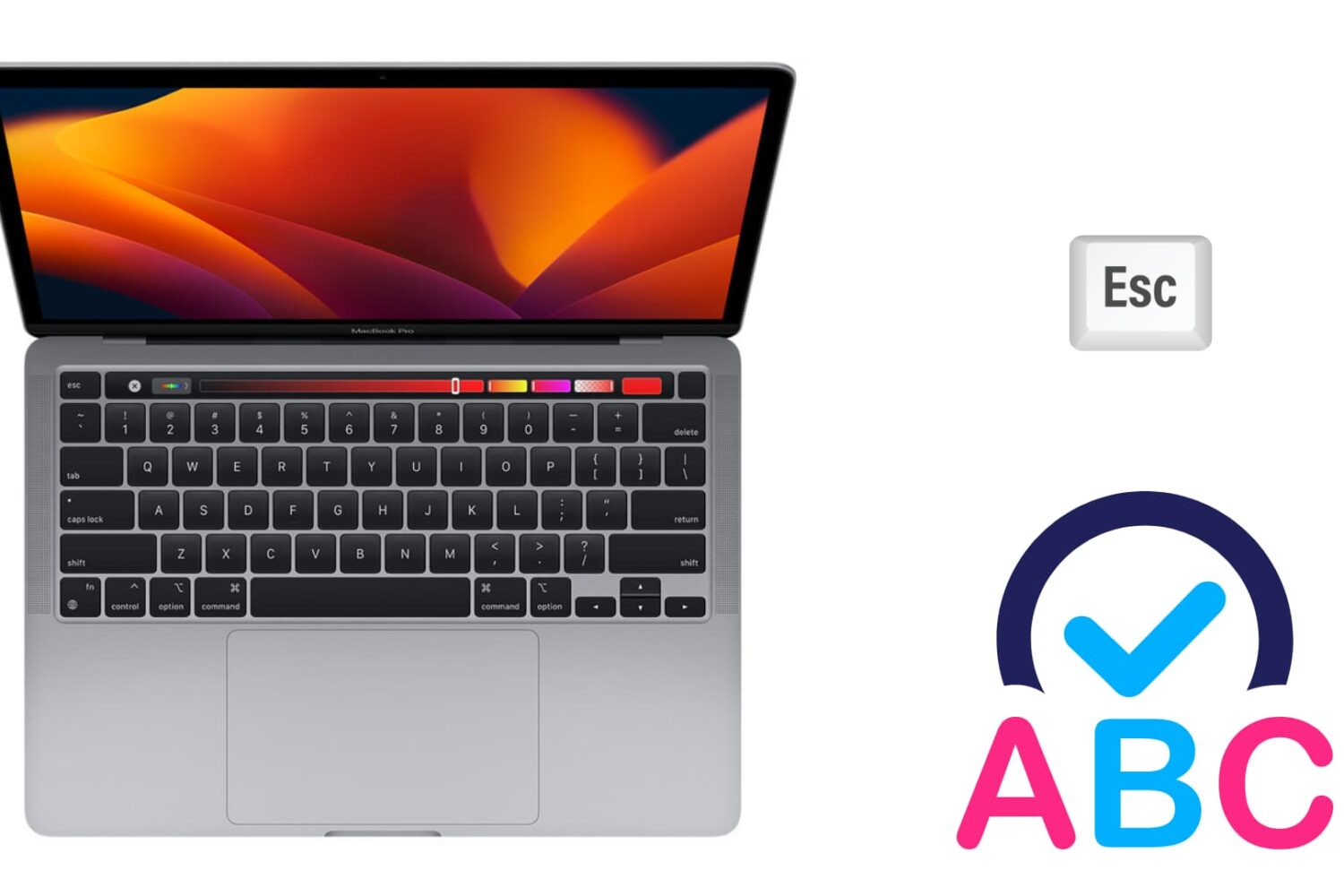
There are two ways to dismiss an autocorrect suggestion. There is the obvious one, which lets you use your mouse pointer to reject the autocorrection, and there is a keyboard shortcut that's actually much quicker to use, especially when you're currently typing.
In this brief post, we will show you how to swiftly ignore the autocorrect suggestion on your Mac using an easily accessible keyboard action.

The best thing about getting a new computer is that, well, you're getting a brand new computer. It's exciting to have a shiny new toy to play with, making you wonder how you could have been using that old machine for so long.
To me though, the major downside of getting a new computer is that you have to set it all up from scratch. I'm not going to lie; some of that is part of the fun, but it can also be stressful and time consuming. Take migrating your iTunes library to your new computer for example. There is nothing really fun in that, and if you have a large library, it could take hours.
In this post, I will show you how to move your iTunes library to a new computer. Unfortunately I won't be able to save you time or stress, but at least, you'll have simple instructions on how to do transfer all your iTunes songs, albums, album covers, and playlists to a brand new computer.

Every waking day I send tons of screenshots from my iPhone to my Mac via AirDrop. And every day I wish that Apple allowed users to customize the AirDrop save location. Not only is the ~/Downloads folder the default save location, but it can't be modified, not even via undocumented methods.
As a workaround, I use Hazel ($29 w/ free trial) to automate the process of moving images sent via AirDrop to my Desktop. It's a great workaround that does the job. While it would be nice if Apple allowed you to specify an exact save location, this is probably the next best thing.
One of the most under-the-radar new features to hit OS X Yosemite was the addition of extensions. Action extensions are particularly nice, because they allow apps to interface with other apps directly.
Some app developers, such as Pixelmator ($29.99 on the Mac App Store), have brought third-party extensions to the Mac, which demonstrates how beneficial extensions can be. Watch our video that showcases Pixelmator's Repair Tool extension to see what I mean.

Learn how to use this simple Terminal command to make your MacBook play a confirmation sound when you plug it into a charger.
Note: Owners of recent MacBook models need not even finish reading this article because their machines come with the power-charging chime enabled by default.

Learn how to change the default naming scheme for screenshots on your Mac, so macOS saves all future screen grabs with custom file names.
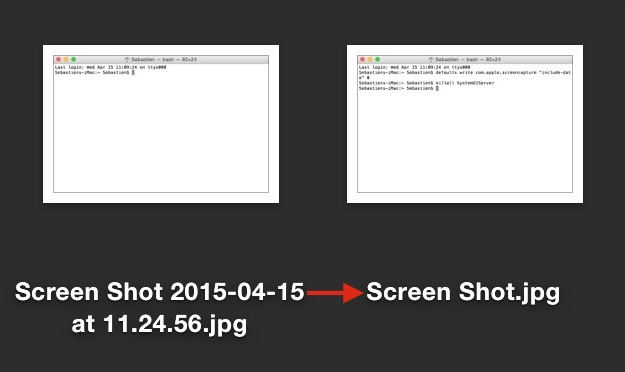
By default, every time you take a screenshot on macOS, the file generated will be named "Screen Shot date time" where "date" and "time" are replaced with the actual date and time the screenshot was taken. For most people, this is a useful feature as it allows to quickly sort screenshots depending on when they were taken. But for other people, it might be an annoyance.
In this post, we will show you how to remove the date and time from screenshots that were taken on Mac.
Creating separate libraries. It's one of the best ways to go about organizing photos with the new Photos app in macOS. I find that using multiple libraries to separate things like work and personal life is a good strategy. Fortunately, it's extremely simple to create new libraries and to switch between those libraries on the fly.