Apple Watch

Stay up-to-date on the latest Apple Watch news, and learn how to get the most out of your device with our comprehensive tutorials. From updates to features to troubleshooting tips, we’ve got you covered.

How to filter iPhone and Apple Watch screenshots in the Photos app on Mac

As you might imagine, I take tons of screenshots on a weekly basis for work. Instead of connecting my iPhone to my Mac and importing screenshots manually, or instead of using AirDrop, I simply use Photo Stream to do the grunt work.

Photo Stream allows me to access any photo taken with my iPhone, including screenshots, directly from the Photos app on my Mac. Just a few seconds after taking a picture with my iPhone, the photo appears on my Mac. This is great for quickly grabbing iPhone screenshots, and it even allows you to easily access screenshots taken on the Apple Watch.

In this post, I'll show you how I set up a simple Smart Album to separate screenshots—Apple Watch screenshots included—from regular photos.

Apple Watch screen maker LG Display dominates 90% of market as Sharp posts huge losses

One Apple supplier's misery is another Apple supplier's fortune. Two of Apple's key display suppliers — Sharp and LG Display — are not enjoying quite the same positive effects from working with the Cupertino firm. At one end of the spectrum is LG Display, an exclusive supplier of flexible OLED panels for the Apple Watch.

The company now dominates the smartwatch display market with a ninety percent market share thanks to its lucrative contract with Apple, as per Business Korea.

On the other is Japan-based Sharp, one of Apple's display suppliers that has barely managed to avoid collapse after posting an annual net loss of a whopping $1.9 billion, according to The Financial Times on Thursday.

Runeblade is the first game that can only be played on Apple Watch

We've been keeping you up to date on apps and games that are compatible with Apple Watch. Some are companion apps, similar to iOS widgets. Some are full games on iOS with additional features on Apple Watch

Runeblade is the first of its kind to only be playable on Apple Watch. The iOS download is actually the companion to this hack-and-slash role-playing title. Play the game on your wrist, and check out the lore on your iPhone.

Hey Siri, will you please let me talk back to you?

Siri has come a long way since it was first introduced along the iPhone 4s and iOS 5 back in 2011. The assistant has gotten smarter, wittier, and all around more helpful, at least on the iPhone, because in my experience,  it's a completely different animal on Apple Watch.

To be fair, I'm not so much complaining about actual voice dictation on Apple Watch. Besides a few missteps that were most likely due to my strong French accent, dictation has been very reliable on Apple Watch. What hasn't though, is to getting Siri to activate, whether it is hands-free or by using the Digital Crown. And when I do get it to work, not being able to interact with Siri with interactive voice commands is also a source of frustration. Allow me to explain.

Watch OS 1.0 lacks the necessary security features to dissuade thieves

The Apple Watch contains security measures to prevent thieves from accessing your data, but it doesn't include the necessary features to dissuade thieves from trying to steal your device to begin with.

The problem stems from the lack of an Activation Lock-like feature on Watch OS 1.0.

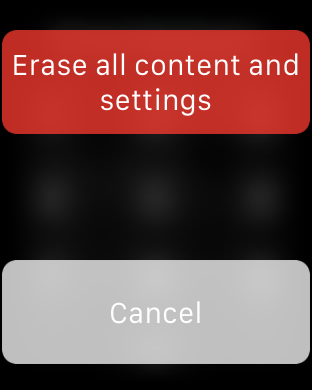
Unlike the iPhone, if someone steals your Apple Watch, they can easily reset the device (bypass the passcode), and pair it with a new iPhone logged in to a different iCloud account. In other words, it's totally feasible to steal an Apple Watch and set it up on a different device as if you just purchased it from an Apple Store.

Why you should be using a passcode on your Apple Watch

Passcode screen on Apple Watch

There seems to be a bit of misunderstanding when it comes to using a passcode on the Apple Watch. I've seen more than a few comments about how inconvenient it would be to have to "enter a passcode on that tiny screen every time I want to use the watch." Indeed, it would be inconvenient if that were a true statement; thankfully, it's not.

Samsung’s answer to Apple Watch’s Digital Crown: Rotating Bezel

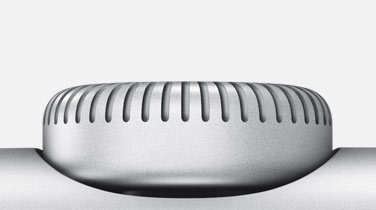
The Digital Crown on the Apple Watch is quintessentially Apple. Engineered with the traditional watch vocabulary in mind, the Digital Crown makes it easy to magnify content on such a small-screen device while enabling precise control and quick adjustments.

Crucially, the Digital Crown lets you interact with the Apple Watch software and apps without your fingers obscuring on-screen content. If you thought that Samsung, Apple's arch rival, would respond by ripping off the Digital Crown wholesale, think again.

The South Korean company has seemingly engineered an innovative input method of its own in preparation for “the next generation Gear device.” As first reported by SamMobile, Samsung's solution corresponds nicely with the need to navigate content without obstructing the view.

Enter a rotating, round bezel — a new way to not touch the smartwatch screen.

How to see friends on your Apple Watch

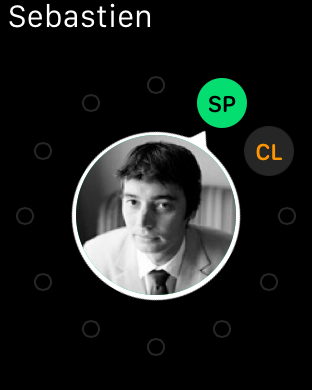
The Apple Watch allows you to quickly access up to 12 different contacts designated as friends. Persons on your list of friends should be contacts that you wish to stay in touch with most frequently.

Only friends have the privilege of receiving Digital Touch inputs—taps, sketches and heartbeats. You can also text, send emoji, or call friends quicker than you can with other general contacts.

How to add friends to your Apple Watch

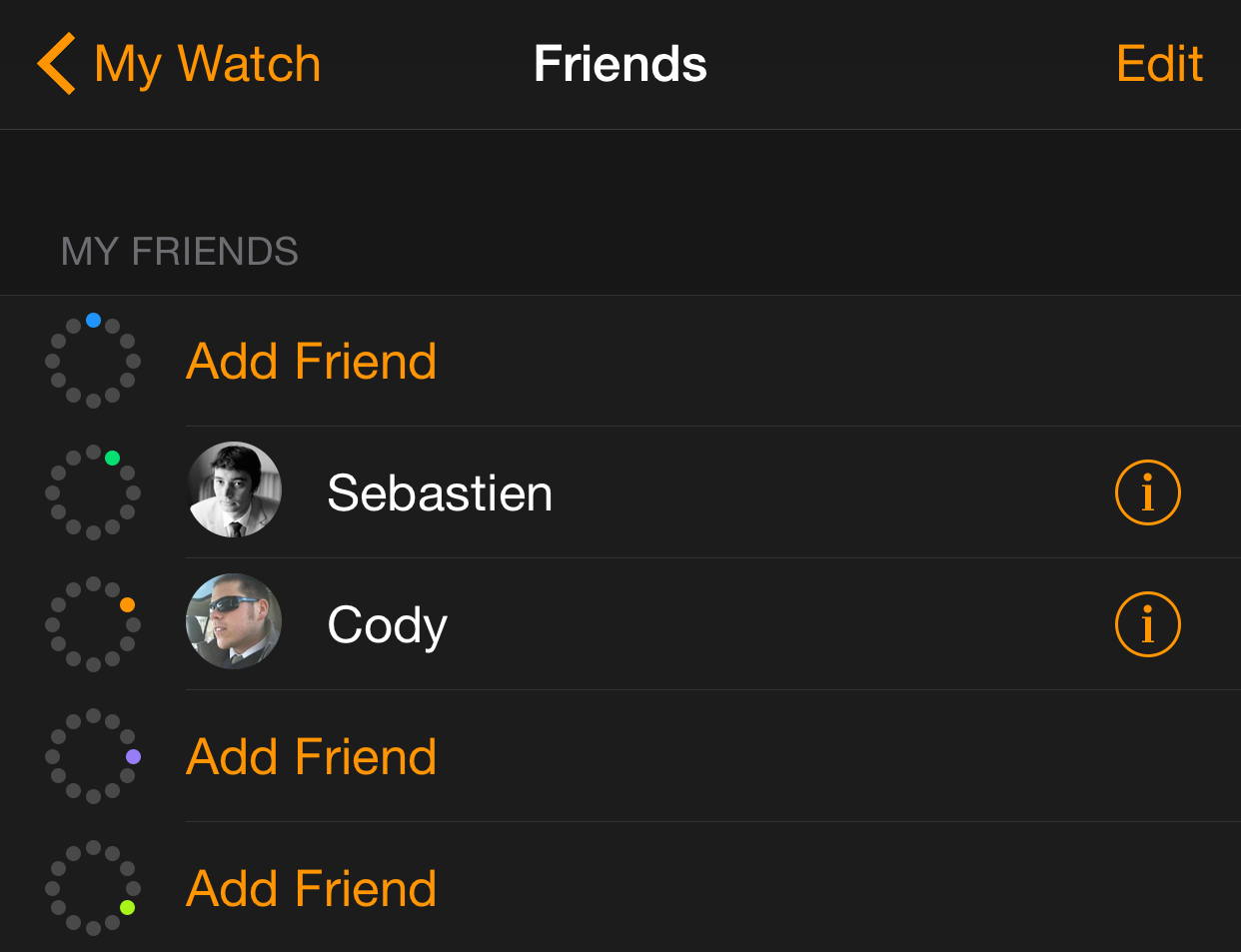
One of the primary features of the Apple Watch is the quick way in which it allows you to get in touch with friends. Only friends are allowed to use the Digital Touch feature on Apple Watch, and those added to your list of friends can also be quickly called or messaged using handy shortcuts.

On initial Apple Watch setup, up to 12 of your favorite contacts from your paired iPhone will automatically be added to your list of friends. If you don’t have any favorite contacts, or if you wish to change, remove or add contacts to your Friends list, then this Apple Watch tutorial is for you.

How to customize the color palette for Digital Touch on Apple Watch

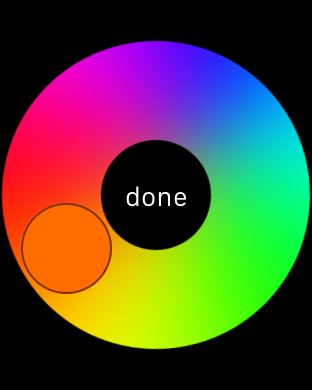
Are you finding the seven colors on the Digital Touch color palette a little restrictive? Wouldn't it be cool if you could customize the color palette?

Although you can only use one color at any given time for a sketch or a tap, it is possible to customize the color that you use outside of the six stock colors. Check out our tutorial to see how.

Apple Watch cases: a look at the Spigen lineup

Using a case on iPhone or iPad is a no brainer for many people because they are devices that are subject to accidental damages, including slipping out of your hand and hitting the concrete floor, or getting scratched while in your pocket. If using a case on these devices makes lots of sense, there is, at first look, less incentive to use a case on Apple Watch.

But that's just at first look though, because after talking to a few of my friends that do have a more active lifestyle than I do, most seemed to agree that, should they own an Apple Watch, they would likely use a case on it to not only protect the device from the elements, but also to protect it from their own inflicted damages.

My friend Guy, for example, works with his hands and handles tools all day. Using an Apple Watch without a case is not even an option if he wants to keep it intact. So is the case for my friend Kelsey who works out a lot and is worried she might accidentally hit the watch and scratch it on one of the many workout equipments she uses. Whatever your use case might be, if you have a need for extra protection, you might want to take a look at this selection of Apple Watch cases by Spigen.