Learn how to manage Safari extensions for each website separately to allow or block an extension for specific sites on your iPhone, iPad, or Mac.
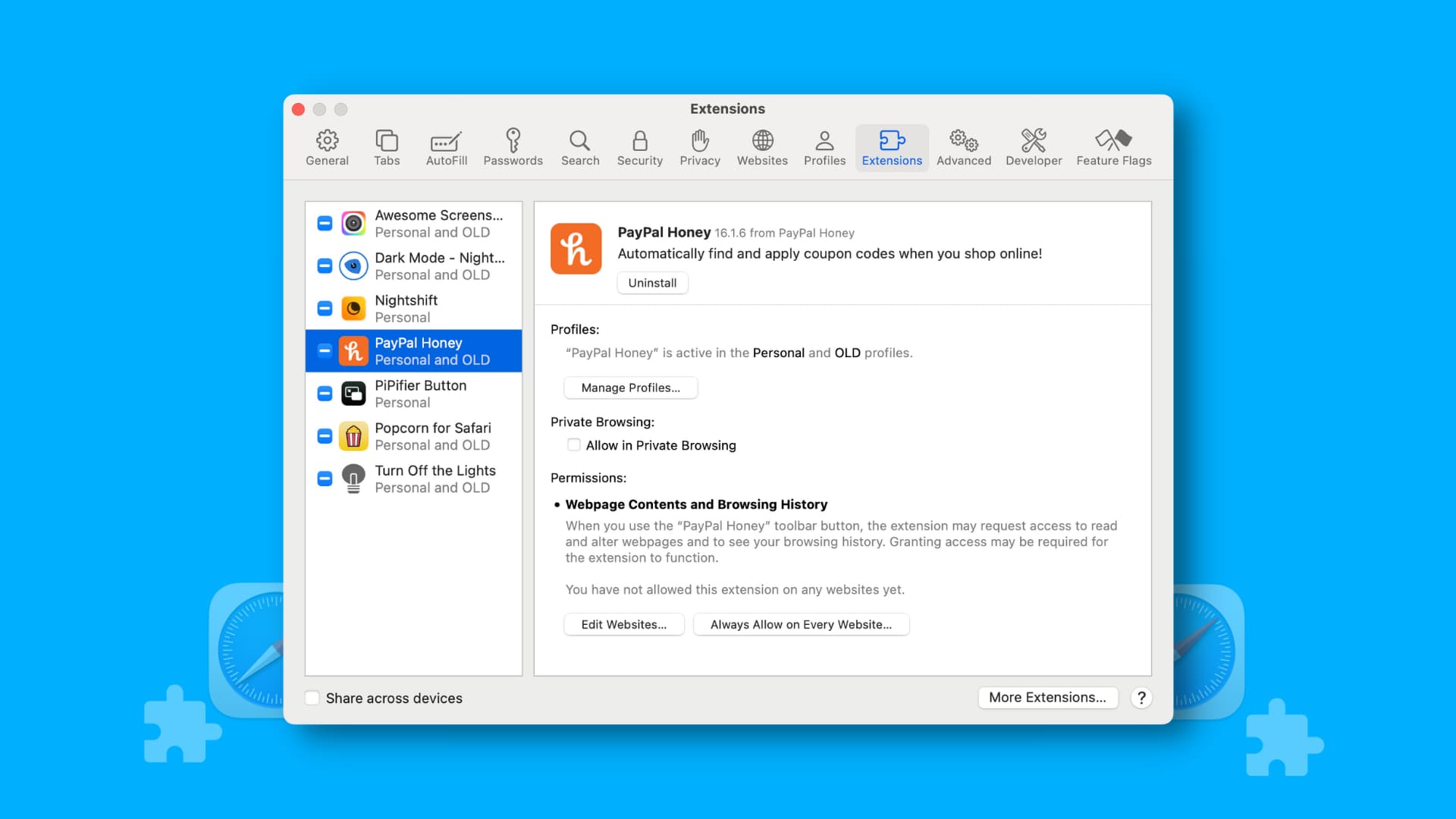
Safari extensions are small pieces of HTML code that make your web browser more versatile and useful. You may not want to use them on each and every website you visit, and Apple gives you that control.
For instance, I prefer to use Grammarly in the WordPress editor but not on Google Docs. Also, I regularly use the Dark Eye extension on Wikipedia.org to activate Dark Mode, but not on iDownloadBlog.com, as our site already provides a dedicated Dark Mode toggle.
Don’t allow an extension to run on all websites
Running a Safari extension from the App Store for the first time presents you with a few privacy-focused choices. You can allow the extension to:
- run for one day on that specific website,
- always allow it on that particular website, or
- always allow it on every website.
What’s the purpose of this extension? Do you really need to allow it on all websites? Most people will only need to run an extension on specific websites for a limited time. If you’re among them, choose Allow for one day or Always allow on this website.
Here’s how to manage permissions for any Safari extension:
Mac: Open Safari, click an extension icon in the browser toolbar, and select an option.

iPhone and iPad: Visit a website in Safari, then tap the options button, followed by the extension name, and select Allow for One Day, Always Allow, or Don’t Allow.

Managing per-site Safari extensions
Irrespective of what permission you initially gave to a Safari extension, you can manage it later on a per-website basis in the Safari settings.
Mac
- Open Safari and click the Safari > Settings menu.
- Select the Extensions tab.
- Select an extension in the sidebar to manage its permissions.
- Click the Edit Websites button. If it’s grayed out, be sure to tick a desired extension in the sidebar,
- Click the menu next to Configured Websites or Currently Open Websites and choose Allow, Deny, or Ask.
- You can optionally click the “For other websites” menu to adjust permissions for all other websites.
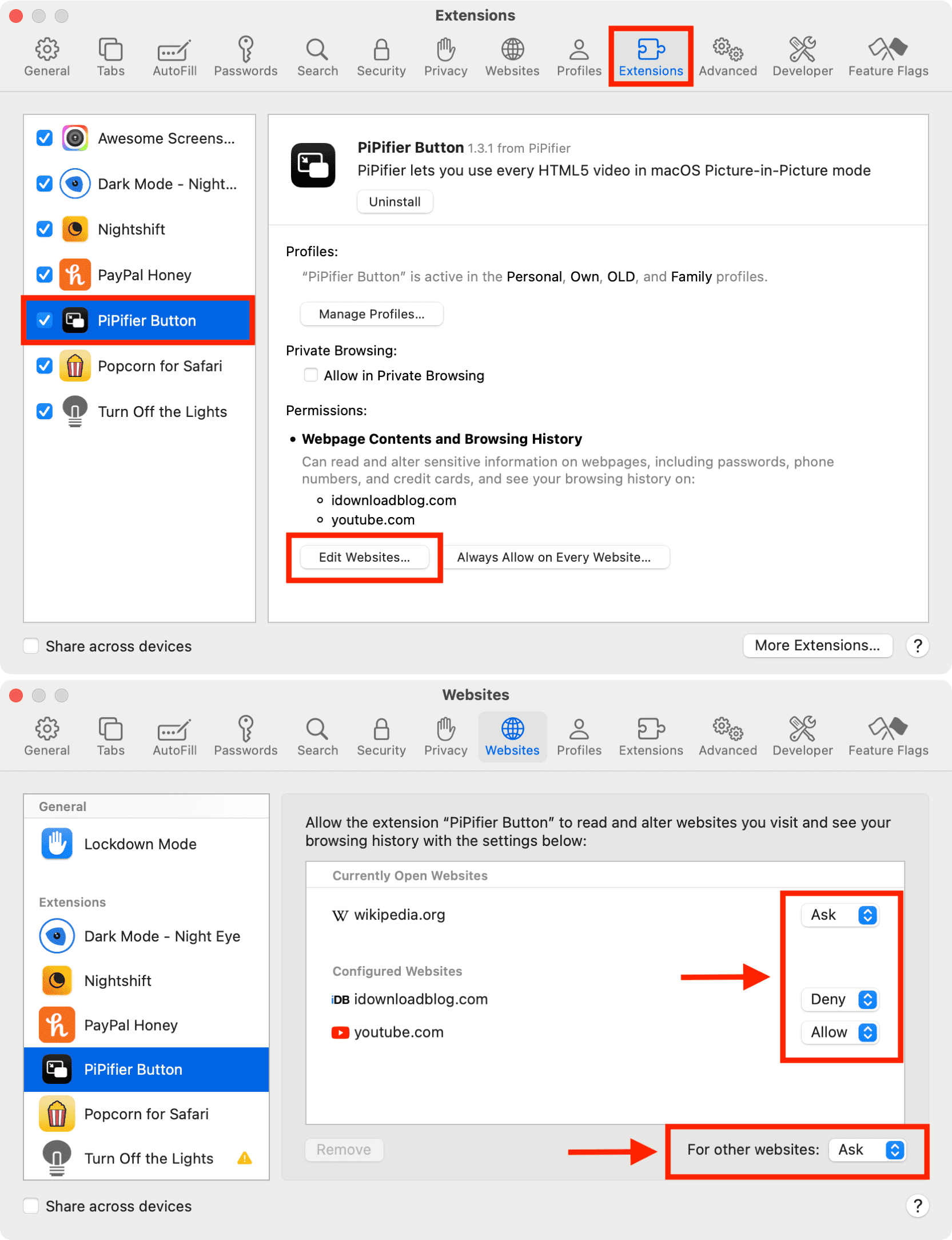
Note: Some extensions won’t display an Edit Websites button. For others, the button may be unavailable until you’ve allowed the extension on at least one website.
iPhone and iPad
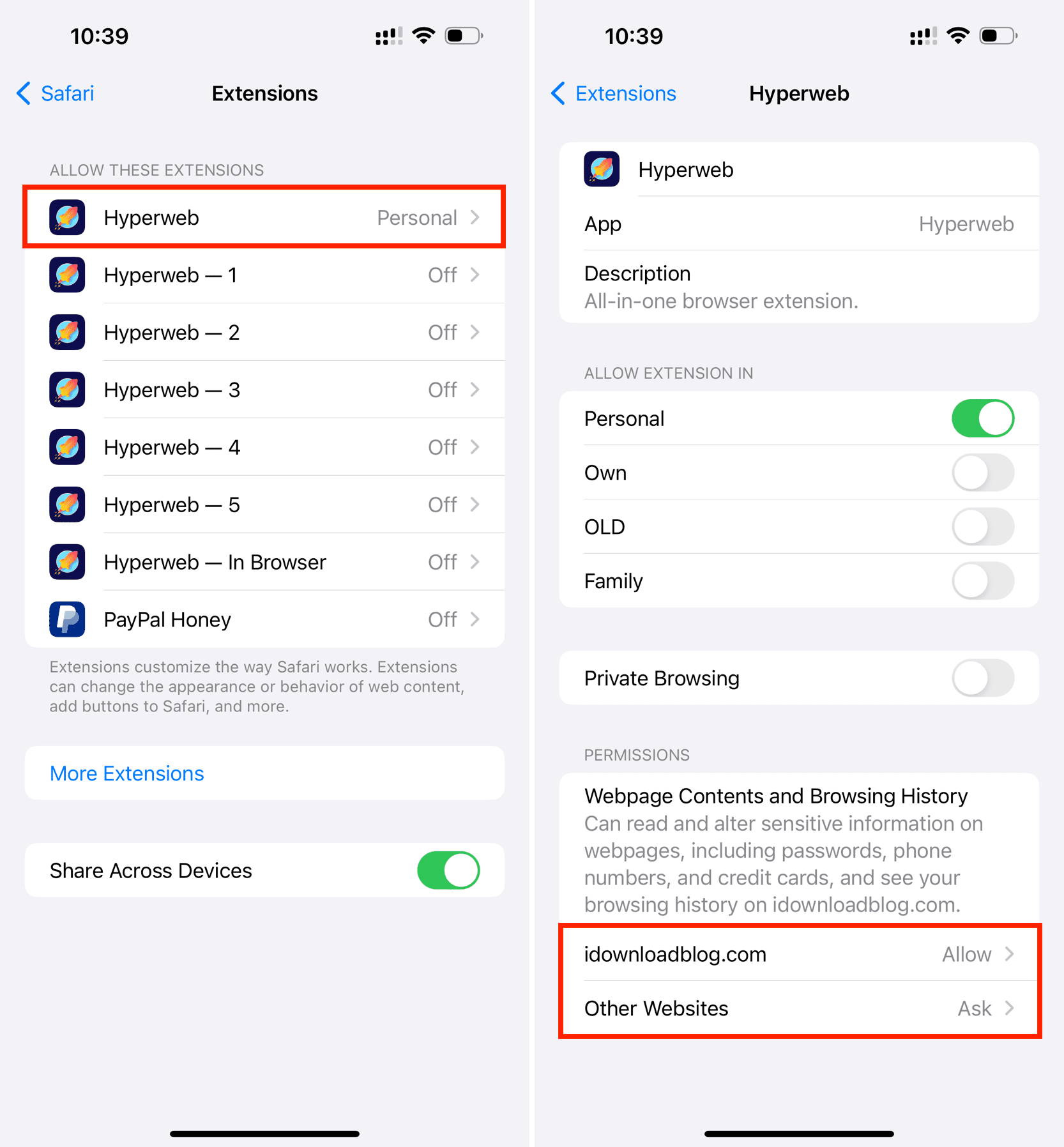
- Open the Settings app and navigate to Apps > Safari > Extensions.
- Tap any enabled extension
- Choose Allow, Deny, or Ask for a website shown under the Permissions heading.
- Tap Other Websites at the bottom and set it to Ask (recommended), Deny, or Allow.
Websites not listed in extension settings?
A website doesn’t show up in the extensions settings unless you’ve allowed it to run on at least one website. It also may not show up if the website isn’t currently open. So, open a site and then check the Safari settings on your iPhone, iPad, or Mac, and you should see the website listed there. You can also assign an extension to a specific Safari profile.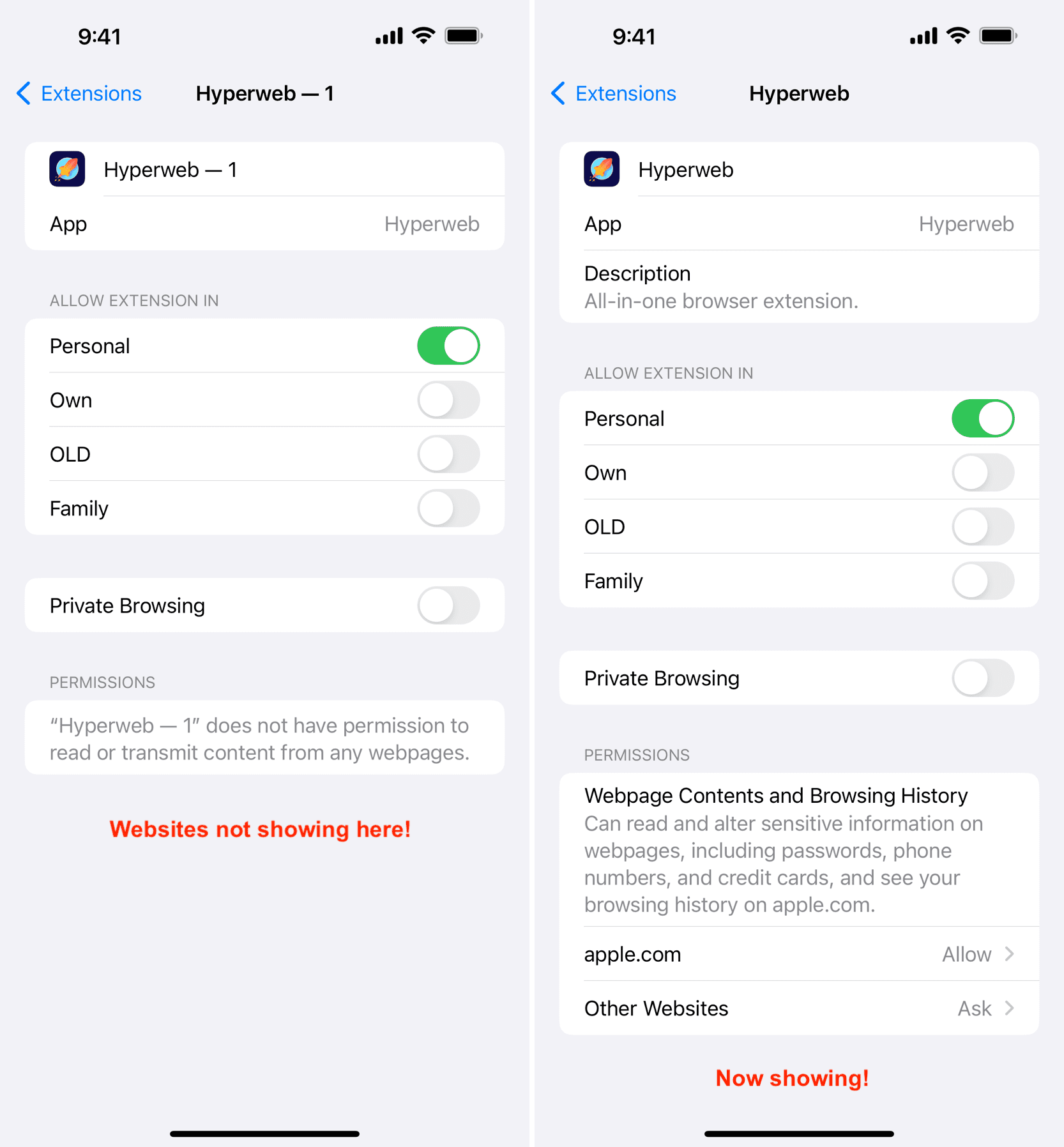
On the same note: