Learn how to browse the web privately and securely by hiding your IP address from trackers and websites and removing tracking information from URLs.
Many websites use sneaky techniques to track you across the web.
One of the most obvious tricks in their playbook is determining your geographical location based on your IP address.
You’ll also notice that some web links have an unusually long string of random alphanumeric characters appended to the end of the URL, which is another tracking technique
Apple’s Safari browser on your iPhone, iPad, and Mac includes two privacy-focused features designed to hide your IP address and remove tracking links, and we show you how to enable them.
Hide your IP address in Safari
Safari lets you hide your IP address from trackers that collect your data or from both trackers and websites. Hiding your IP address from trackers is free. However, you must turn on iCloud Private Relay to hide your IP address from websites. iCloud Private Relay is available with paid iCloud storage or an Apple One subscription. If a family member has one of these subscriptions, they can share it with you via the built-in Family Sharing feature.
iPhone and iPad
- Open Settings and tap Apps at the bottom.
- Select Safari from the list of installed apps.
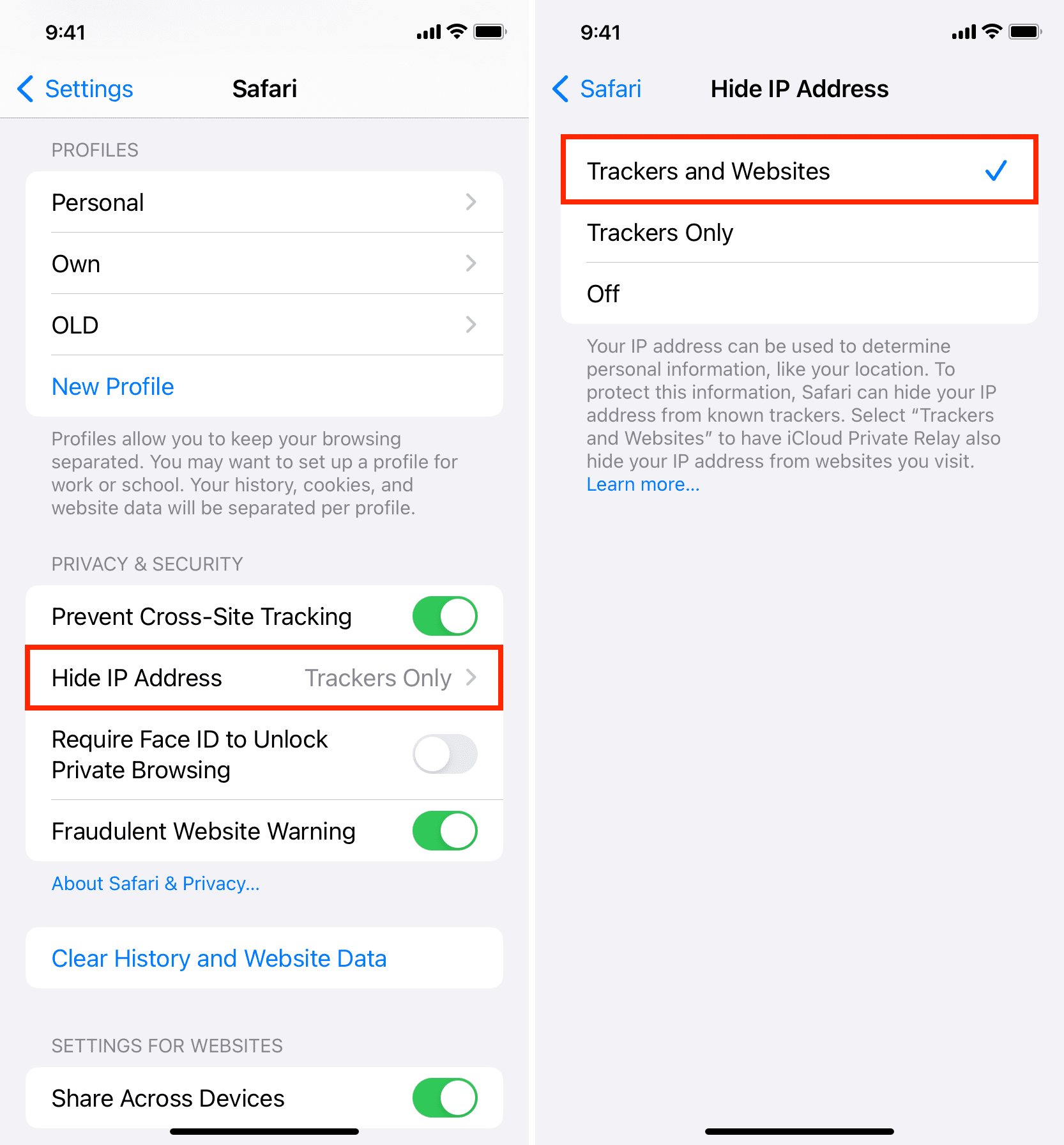
- Tap Hide IP Address under the Privacy & Security section.
- Select Trackers and Websites instead of Trackers Only or Off. If you don’t have iCloud Private Relay turned on, you won’t see the “Trackers and Websites” option here.
Mac
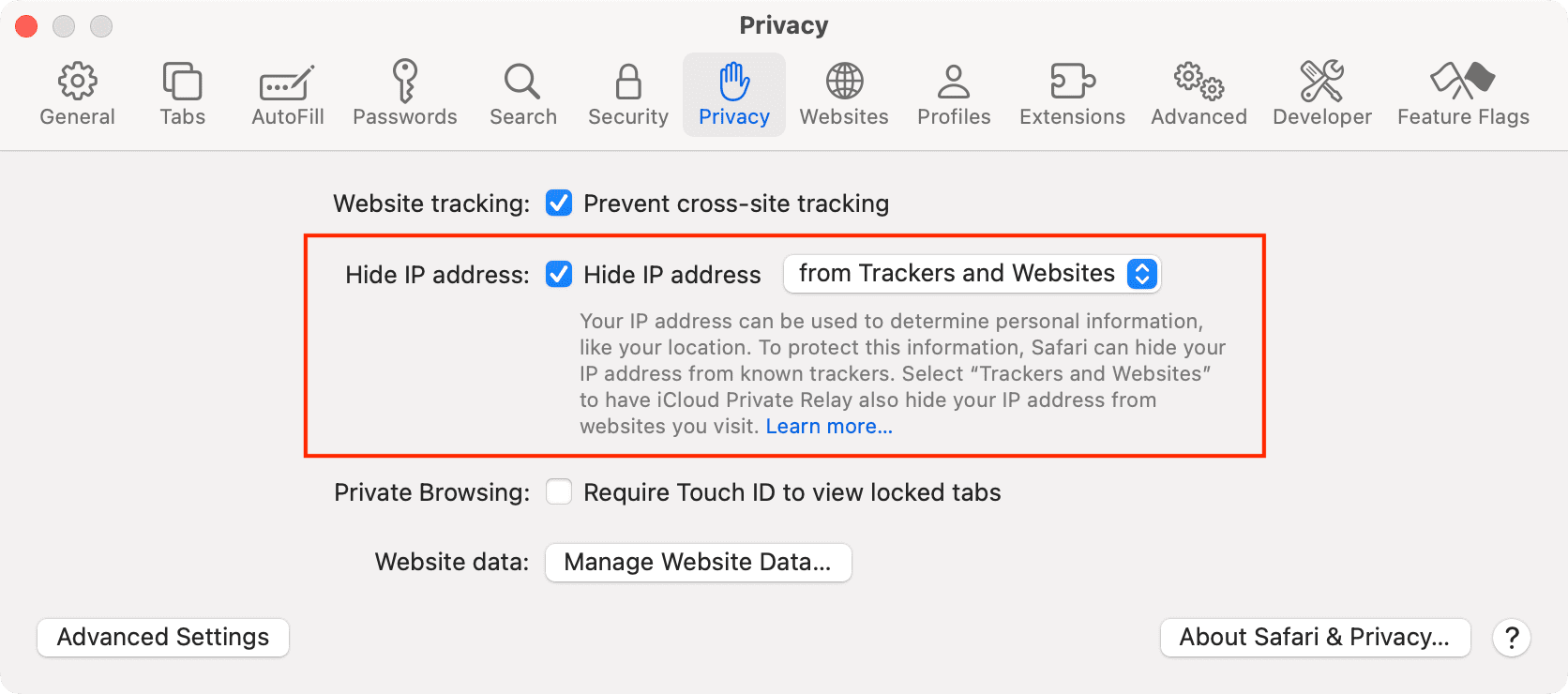
- Open Safari on your Mac, then click Safari > Settings from the top menu bar.
- Go to the Privacy tab.
- Tick the box next to “Hide IP address,” then click the menu that appears and select “from Trackers and Websites” instead of “from Trackers only.”
Enable advanced tracking and fingerprinting protection in Safari
Follow these steps to remove tracking URLs in Safari for Mac and stop trackers from profiling your browsing behavior.
iPhone and iPad
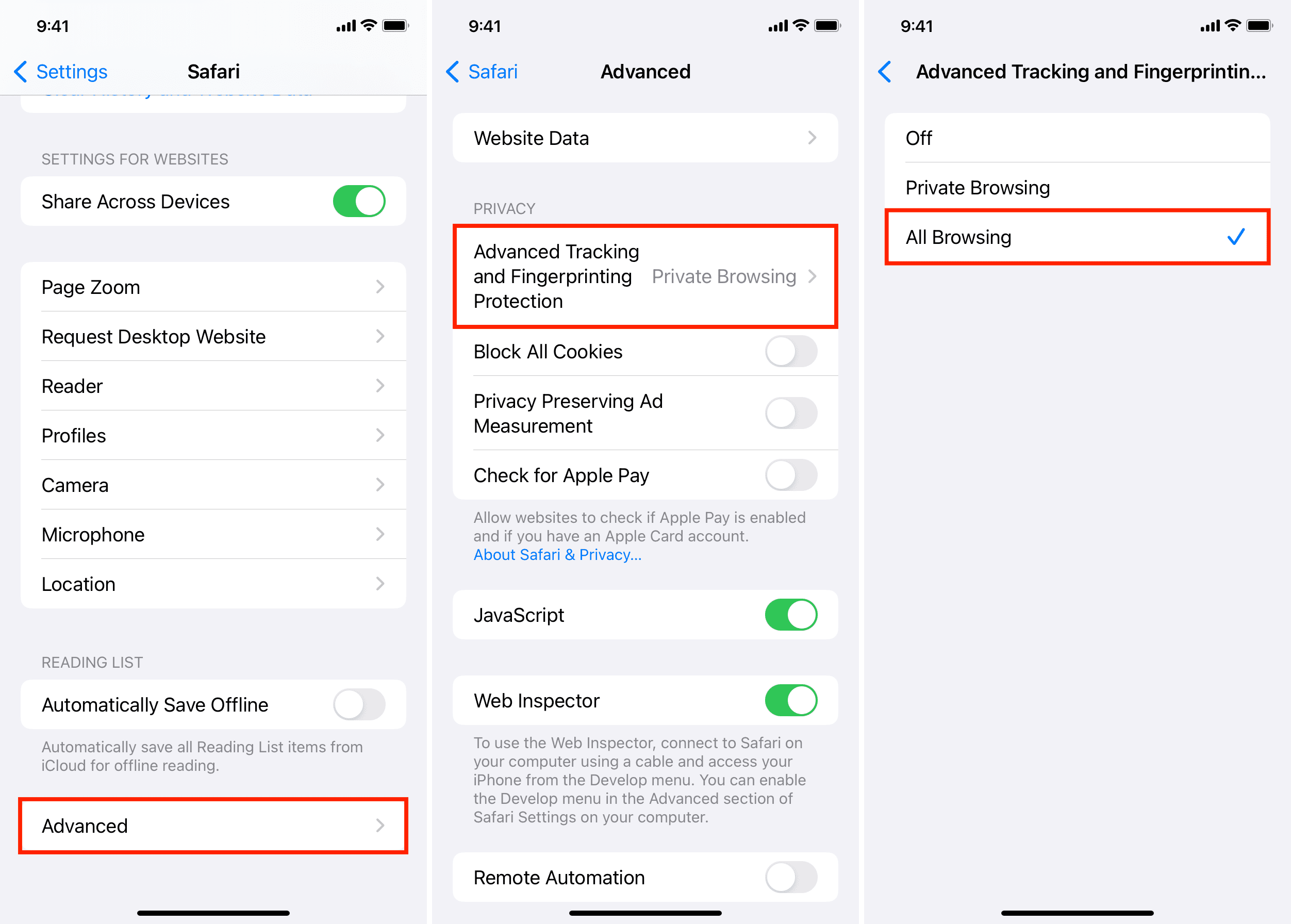
- Go to Settings > Apps, and select Safari from the list.
- Scroll to the bottom and tap Advanced.
- Tap “Advanced Tracking and Fingerprinting Protection.”
- Select “All Browsing” instead of just Private Browsing or Off.
Safari’s private browsing mode automatically removes tracking URLs and stops trackers from profiling you even if you haven’t specifically turned on these options.
Mac
- Open Safari and click Safari > Settings from the top menu bar.
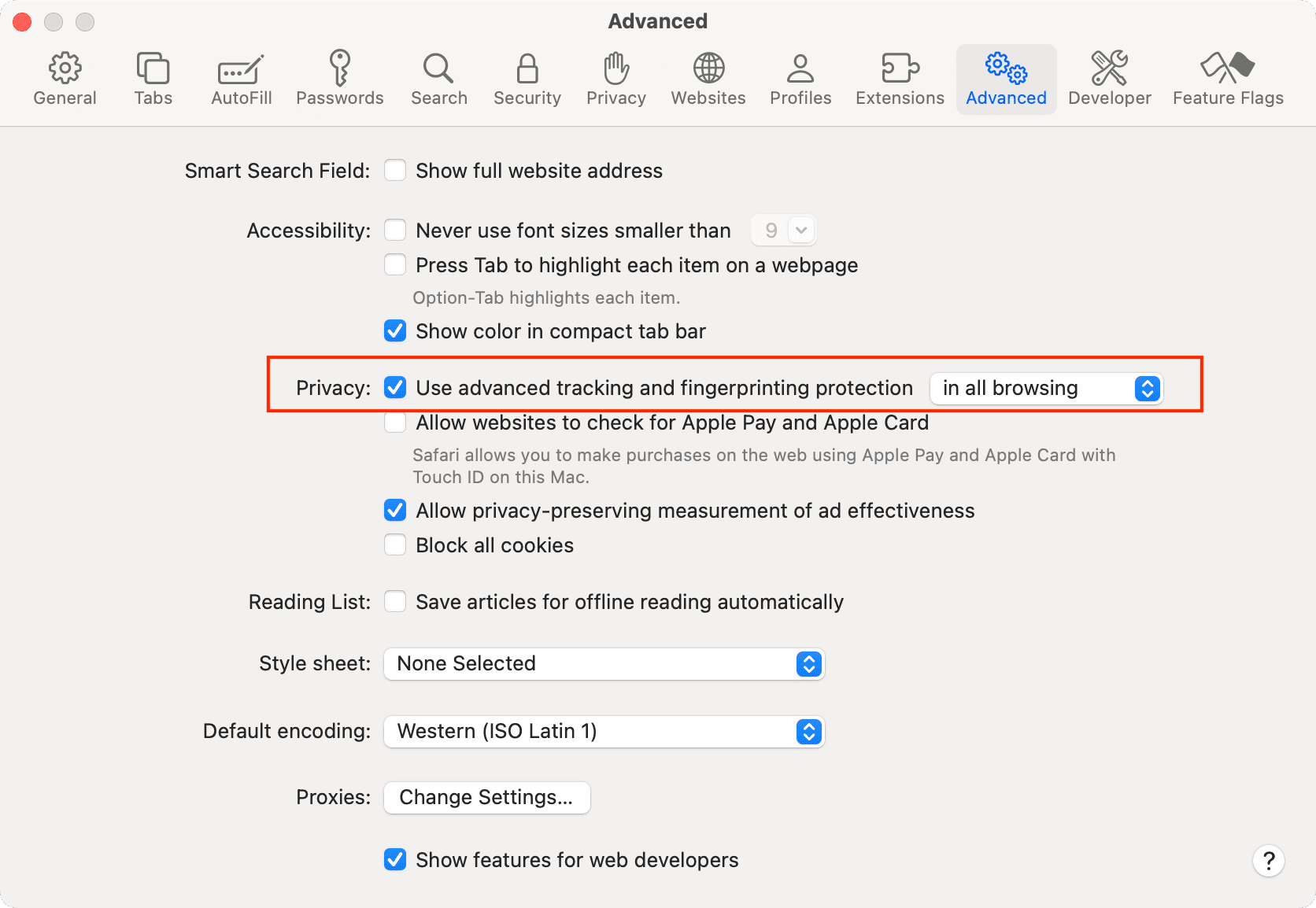
- Go to the Advanced tab.
- Tick the box next to the Privacy option.
- Click the menu next to “Use advanced tracking and fingerprinting protection” and select “in all browsing.”
With these anti-tracking options turned on, you may encounter issues with some websites, ranging from the inability to make web payments, failing to load special offers or discount links, seeing non-localized instead of localized content, and similar. In that case, follow the steps above and turn off the option to hide your IP address from websites. Switching off iCloud Private Relay can also help.
Other handy tips for Safari: