Try these troubleshooting tips to fix AirPlay audio not working on your HomePod speaker from an iPhone, iPad, Mac, or AppleTV.
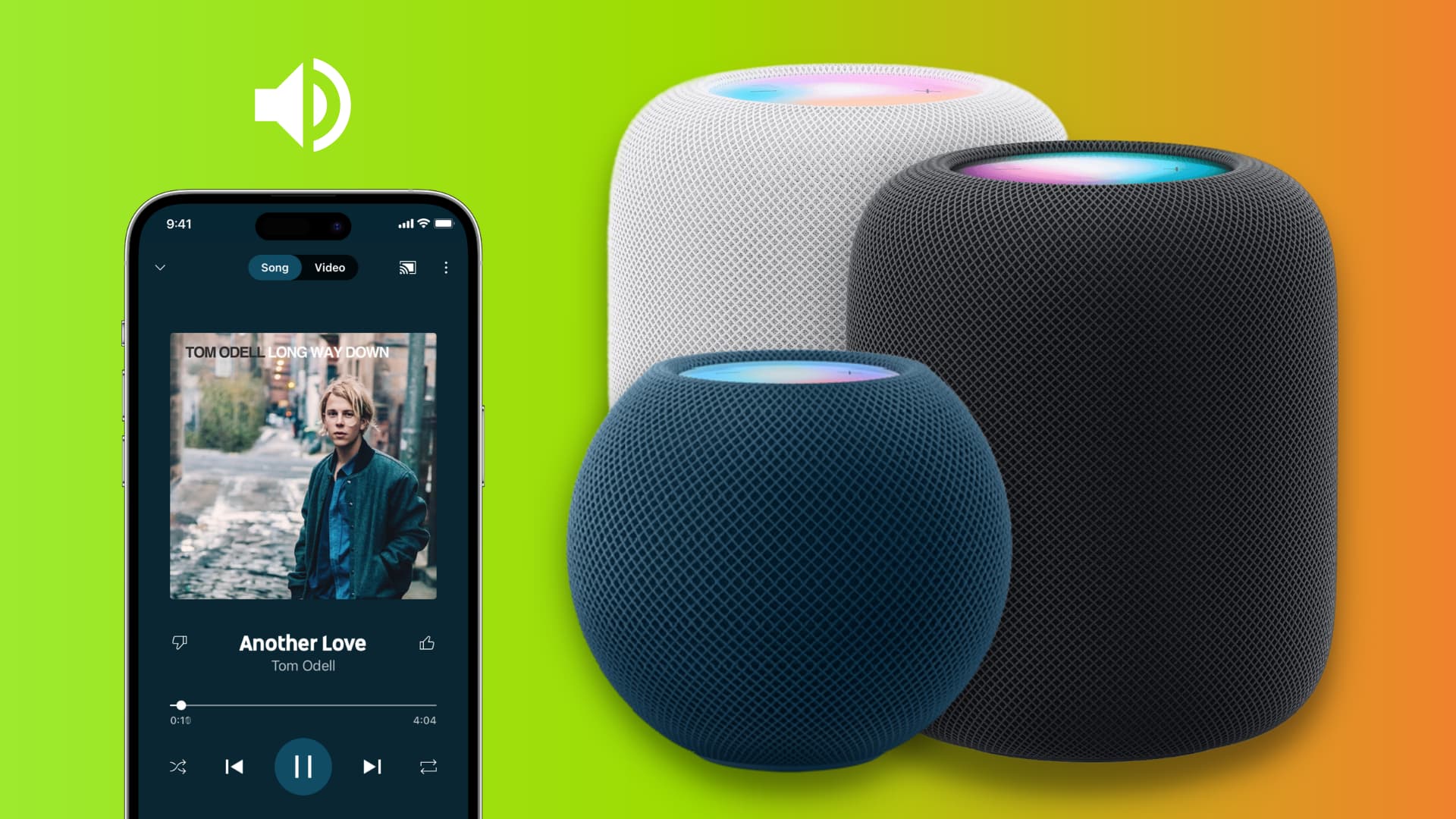
Selecting HomePod as the audio output
On iPhone or iPad
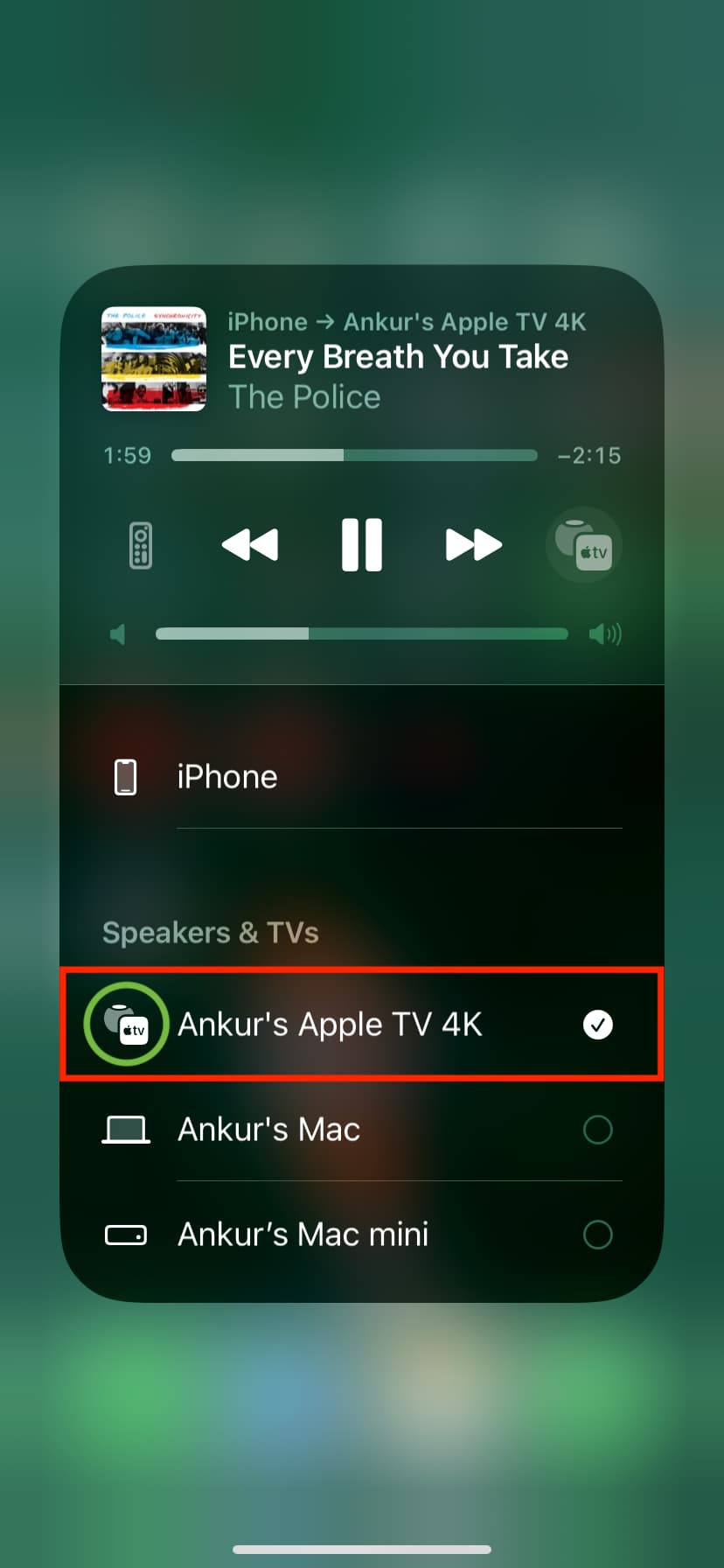
Open Control Center, tap the AirPlay icon in the top-right corner of the Now Playing control, and select your HomePod.

On Mac
Open macOS Control Center, click the AirPlay icon next to the sound slider, and select your HomePod.
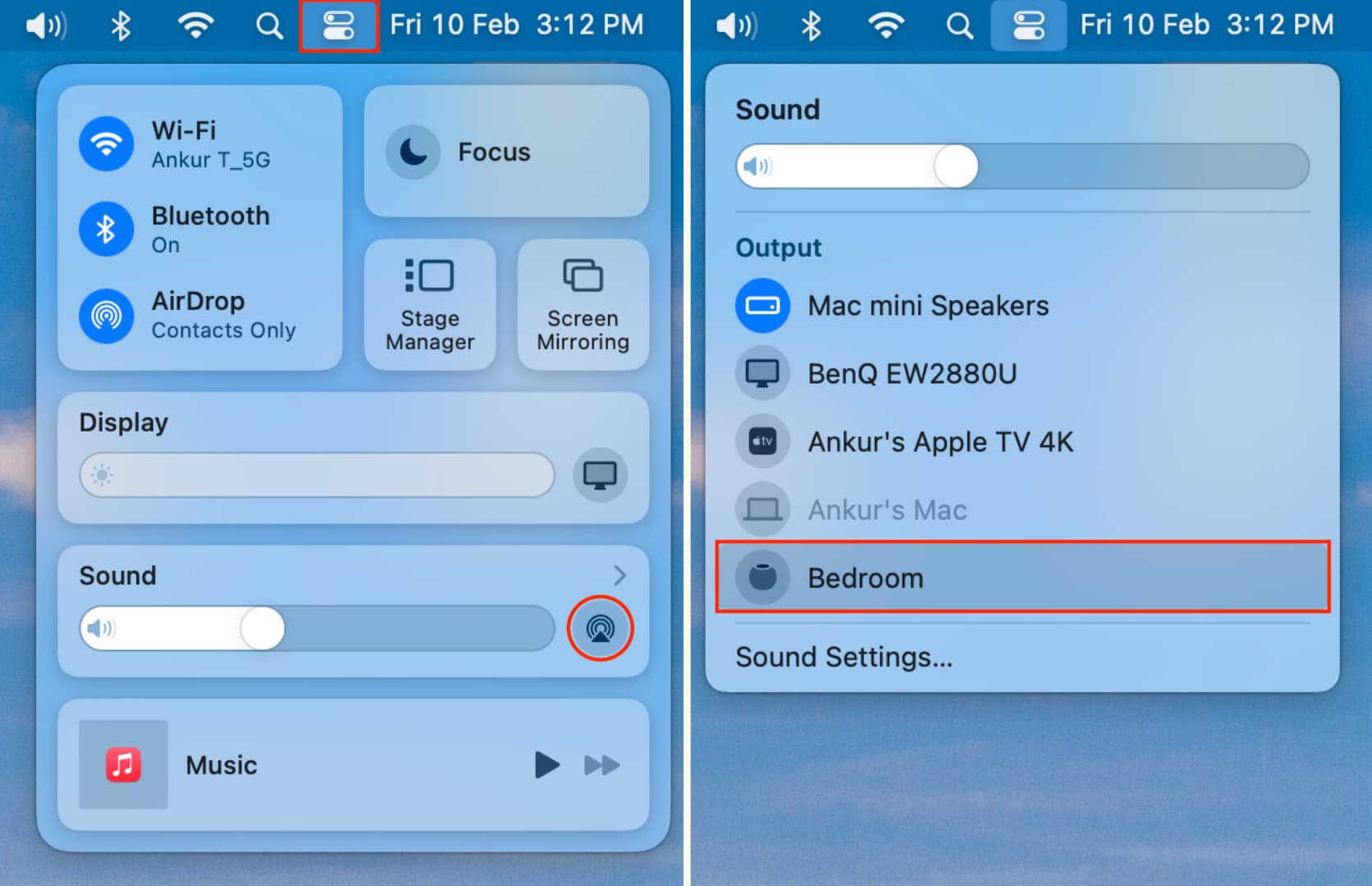
If the volume slider is displayed in the menu bar (System Settings > Menu Bar/Control Center > Sound), click it to select your HomePod from the menu.

On Apple TV
Press and hold the TV button on your Siri Remote to open tvOS Control Center, then click the AirPlay icon and select your HomePod.

Also see: How to AirPlay audio to HomePod without Wi-Fi
Fix issues when using HomePod as a speaker
Selecting your HomePod as the audio destination may sometimes fail with the message “AirPlay: Unable to connect.” You may also hear no sound from your HomePod or the built-in speaker of your iPhone, iPad, or Mac. Our fixes below are applicable to all HomePod models, including the first and second-generation HomePod and HomePod mini.
Stop using HomePod as your Apple TV speaker
If you’ve set up your HomePod as your Apple TV’s default audio output, you won’t be able to use it as the audio destination in the AirPlay menu on your iPhone, iPad, and Mac unless the Apple TV is turned on. Switch on your Apple TV, and you should be able to select the speaker in the tvOS AirPlay menu.
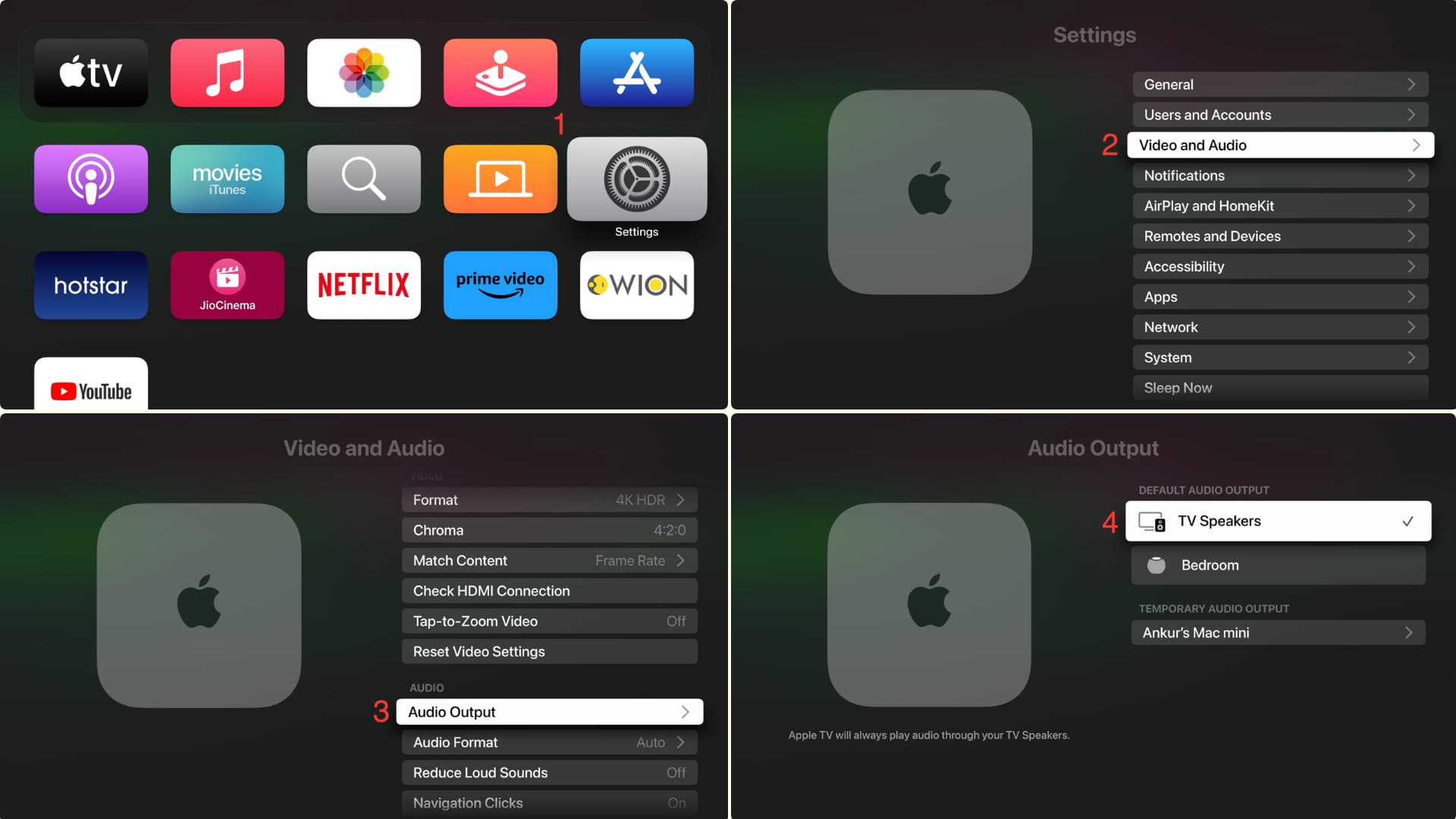
To stop the HomePod from piggybacking on your Apple TV, remove it as the default audio output in tvOS:
- Open the Settings app on your Apple TV and navigate to Video and Audio > Audio Output.
- In the Default Audio Output section, select TV Speakers or another option except your HomePod.
- From now on, your HomePod will appear as a separate AirPlay option in Control Center, and can be selected as an audio destination in the AirPlay menu on your iPhone, iPad, or Mac, even if your Apple TV is turned off.
Make sure HomePod is switched on and not installing an update
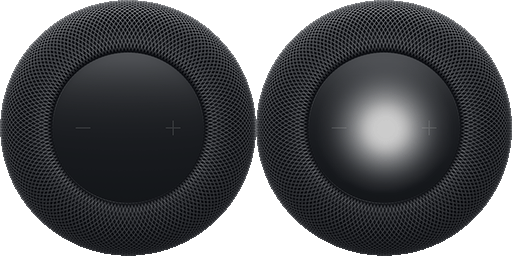
Check that your HomePod is powered on by touching its top surface; it should light up. If you see a white light spinning, the device is currently updating its software. Wait until the latest tvOS software is installed, and don’t unplug the speaker until it has finished updating.
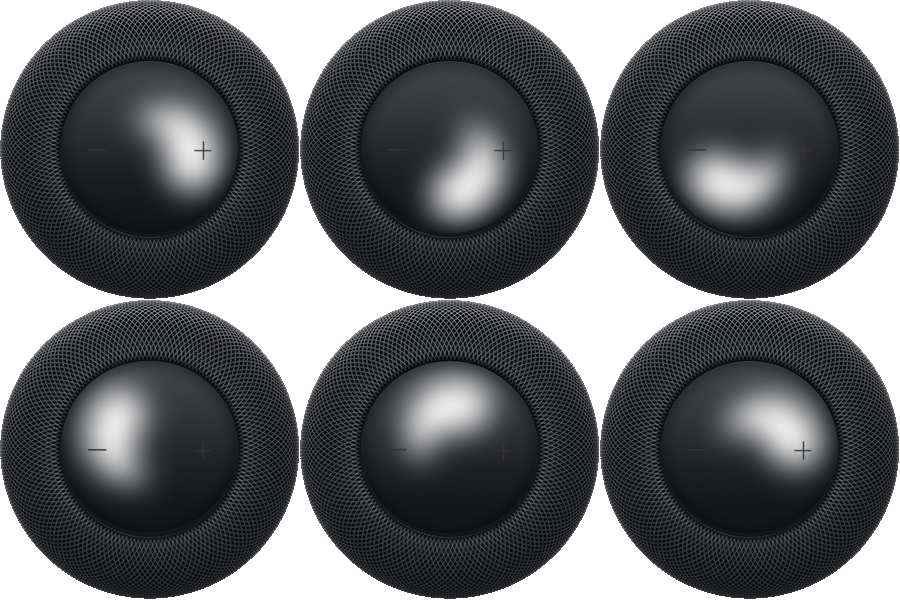
If you see a white light flashing, your HomePod is in trouble, and you may need to reset it to fix the issue. After that, you should be able to select the speaker as an audio output.
Select your HomePod again
If you can’t select your HomePod as the AirPlay speaker, try again a couple of times. First, select your iPhone, iPad, or Mac’s own speaker as the output, then try switching the audio output to your HomePod.
Restart your HomePod
Your HomePod is no stranger to temporary bugs that may prevent it from working properly. To fix such glitches, power cycle your HomePod by turning off the main wall switch or unplugging it from the power outlet. Then, switch on your Siri smart speaker, and you should now be able to select it as an AirPlay audio destination from your iPhone, iPad, or Mac.
Note: Don’t use the Home app on your iPhone to restart your HomePod.
Restart your main devices
On rare occasions, your iPhone, iPad, or Mac may be glitching. To fix this, just turn them off and back on.
Update your devices
Open the Home app and install any pending HomePod updates. This should resolve your problems. While at it, make sure your main devices are running the latest operating system versions.
Restart your Wi-Fi router
AirPlay works over your Wi-Fi network. Turn your router off and then back on after 30 seconds to rule out any network or router issues.
Turn off the VPN
Chris, an iDB reader, reached out to us, sharing that he was experiencing the same problem with his HomePod. He was able to resolve it simply by disabling the VPN on his iOS device. Now, he isn’t sure if this is an issue with all VPNs, but it sure was with his NordVPN.
So, if you also face difficulties AirPlaying to HomePod, try turning off the VPN (if active) on your iPhone or iPad, and it may fix the issue. In case you have a router-level VPN, consider turning it off or changing some of its security settings.
Reset network settings on your iPhone or iPad
Navigate to iOS Settings > General > Transfer or Reset iPhone > Reset and hit Reset Network Settings. After that, the device should connect to your HomePod via your Wi-Fi network and AirPlay audio to it.
Reset your HomePod
Resetting your HomePod is the last fix you should try before taking the speaker to an Apple store for inspection.
You have three easy ways to reset your HomePod. Doing so will erase all settings, so you’ll need to set up your HomePod as new again. After that, the speaker should be selectable as the audio destination in the AirPlay menu on your other devices.
Take your HomePod to an Apple Store
If your HomePod continues giving you a headache after you’ve exhausted all our troubleshooting tips, it’s time to book a visit with an Apple store or authorized Apple service center to get it inspected.
More tips for your HomePod: