Learn how to stop receiving keyboard notifications on your iPhone or iPad whenever you select a text field on an Apple Watch or Apple TV.

Selecting a text field on your Apple Watch automatically lights up your iPhone with a notification saying, “Apple Watch Keyboard. Keyboard Input: Enter text on your Apple Watch using your iOS keyboard. Press to type.” You get a similar notification when you select a text field on your Apple TV.
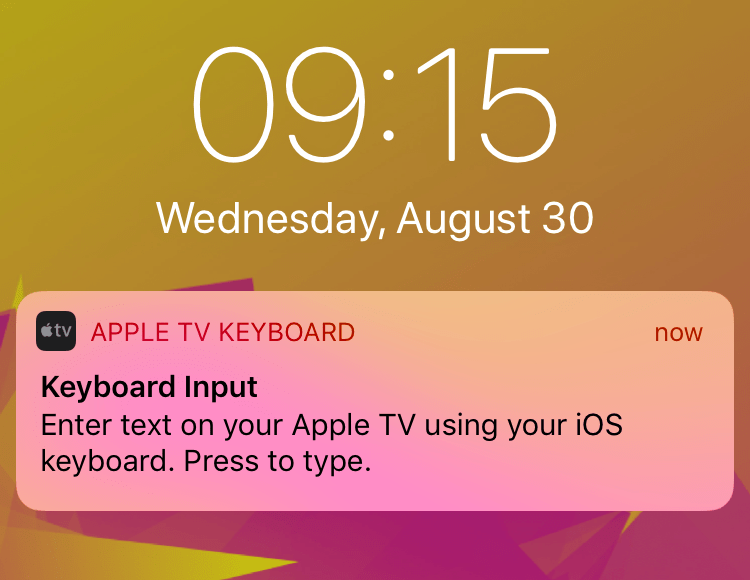
Why it happens
Typing on the small Apple Watch screen or using the Apple TV Siri remote is time-consuming and frustrating, especially when entering long strings of text like your Apple Account password with symbols and special characters.
Using the Keyboard Input notification on iPhone or iPad makes things easy, as you can type on the touchscreen, and it automatically appears on your Apple Watch or Apple TV.
But if you prefer the onscreen keyboard built into your Apple Watch and Apple TV and find the keyboard notification annoying or useless, you can easily switch it off.
Turn off keyboard input notifications on iPhone or iPad
- Open the Settings app on your iPhone or iPad.
- Tap Notifications.
- Scroll down and tap Apple Watch Keyboard or Apple TV Keyboard from the list of apps and services.
- Turn off the switch for Allow Notifications.
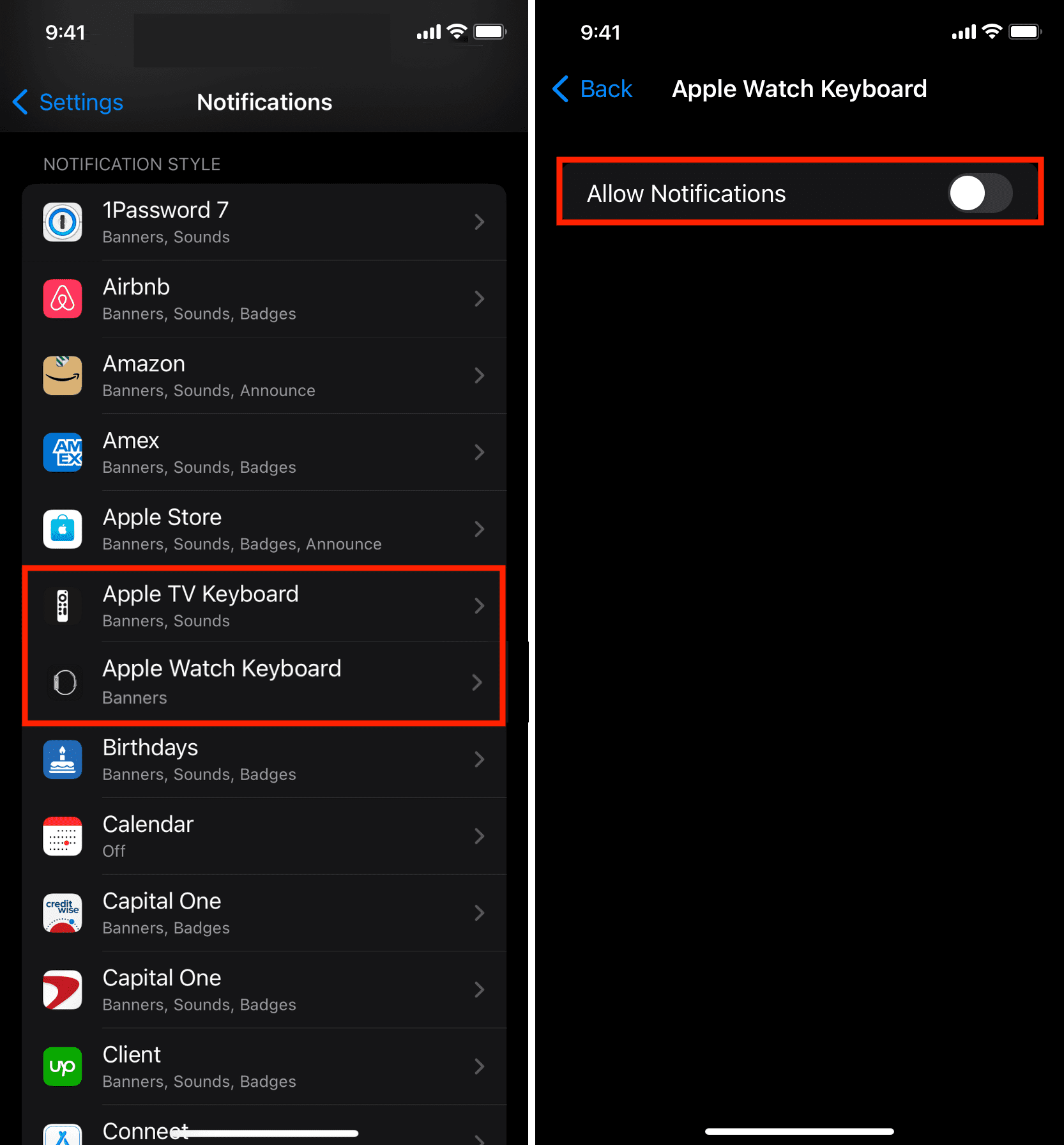
Now, when you select a text field on your Apple Watch or Apple TV, your iPhone or iPad won’t get a keyboard notification. But if you like the utility of using your iPhone to type on your Apple Watch or Apple TV, you can turn off the Sound switch, and the notification will vibrate your device silently.
And if you change your mind, you can always follow the steps above to enable notifications for the Apple Watch Keyboard or Apple TV Keyboard.
Also, check out: