Learn how to enable vibration or haptic feedback for your iPhone keyboard to enhance your typing experience with every keystroke (but at the cost of battery).
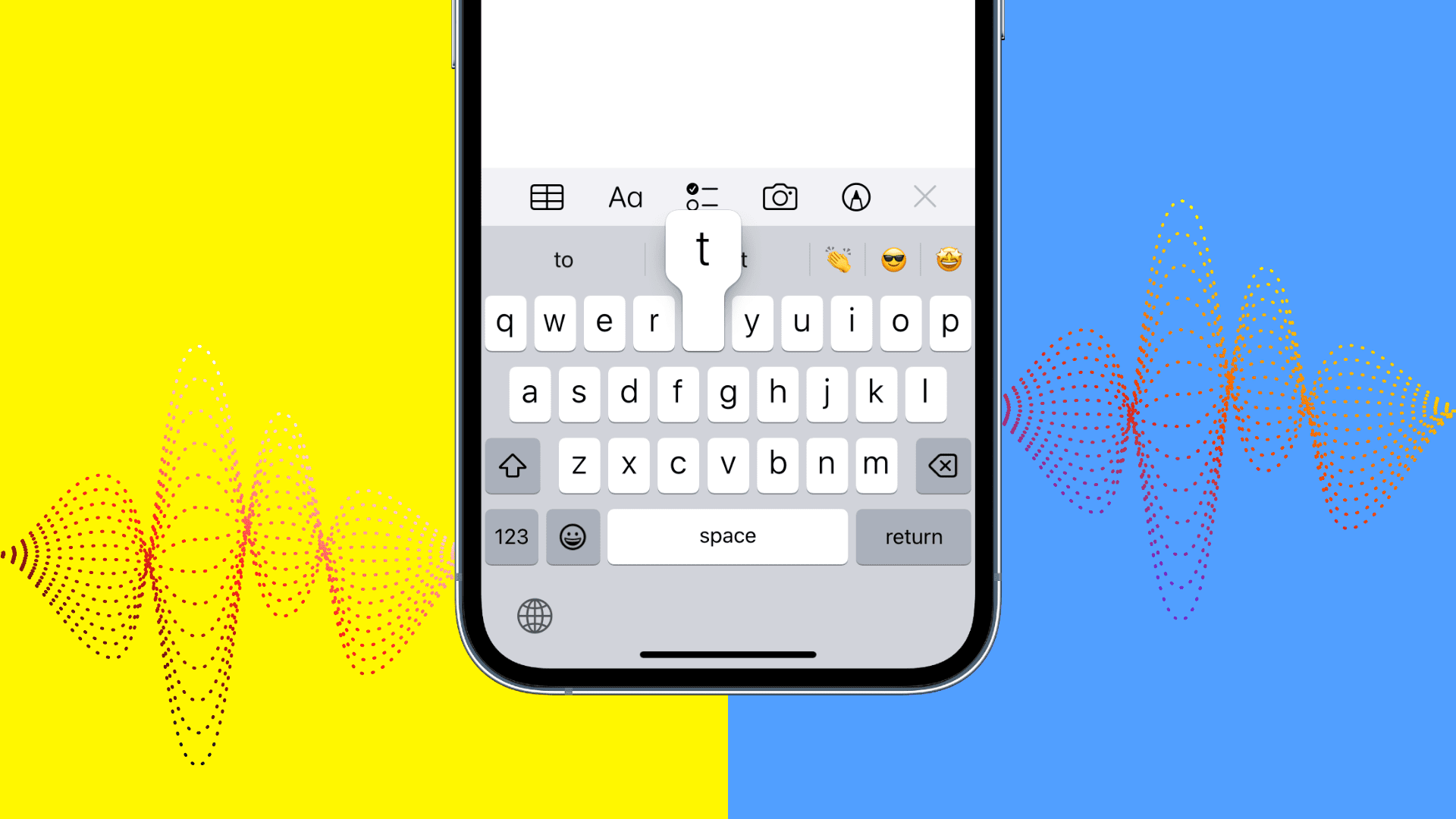
Depending on who you ask, it can be a nice sensation to experience soft vibrations when typing.
But before you do that, you must know that enabling haptic feedback for the iPhone keyboard consumes more battery as the small Taptic Engine has to jump into action every time you hit a key. This is likely why keyboard haptic feedback is disabled by default, but we’ll show you how to turn it on.
Note: iPads don’t have a Taptic Engine, and thus, you can’t get any kind of vibrations on them.
Get haptic feedback when typing on iPhone
- Open the Settings app on your iPhone.
- Tap Sounds & Haptics.
- Scroll down and tap Keyboard Feedback.
- Enable the switch for Haptic.
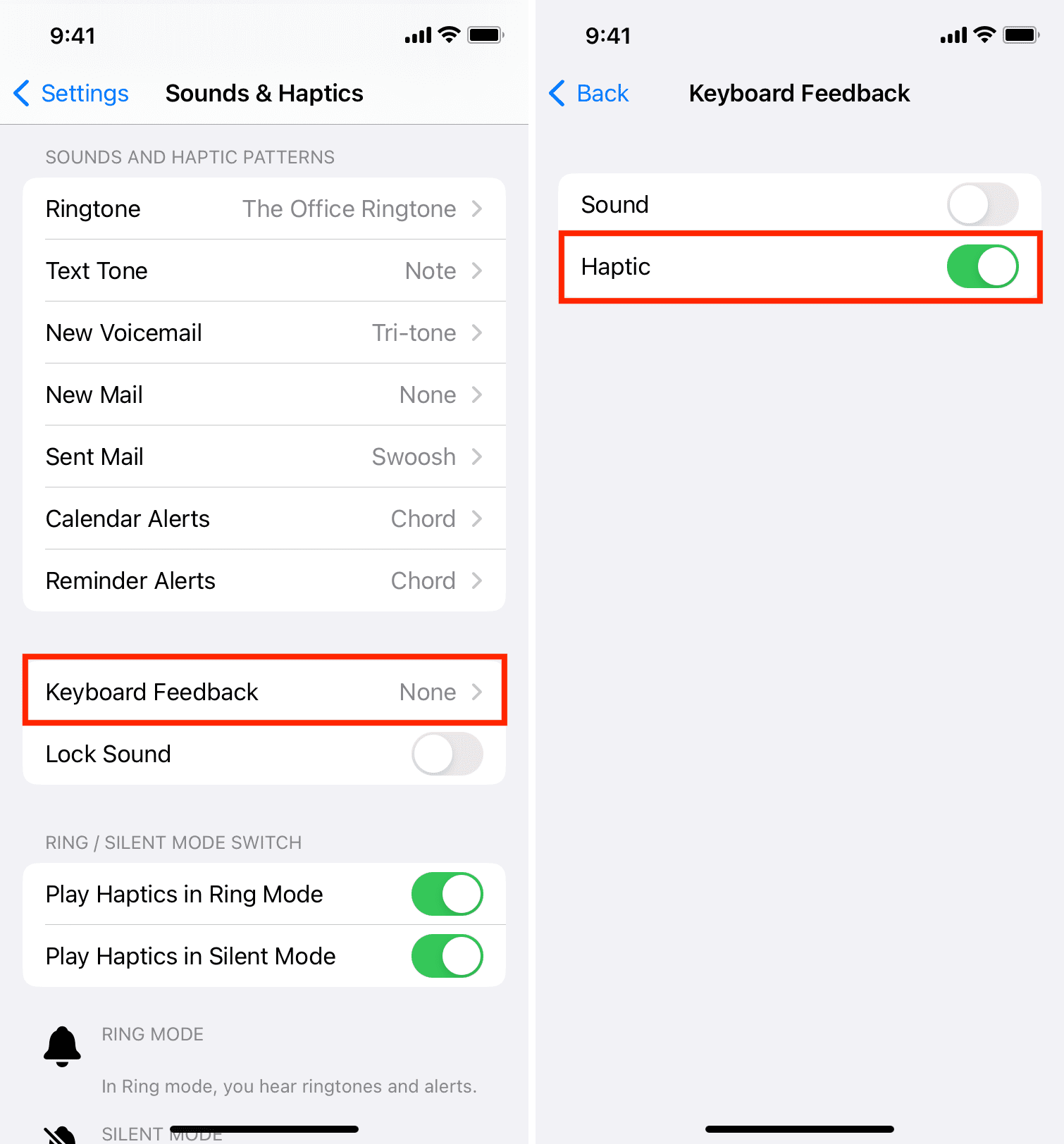
From now on, whenever you type something on your iPhone, you’ll receive soft haptic feedback on each keystroke.
In case you feel no haptic feedback when typing, force quit and reopen the app where you are typing. If that doesn’t work, restart your iPhone.
Down the line, if you ever get tired of this or notice a significant drop in battery backup, follow the same steps to turn it off.
In third-party keyboard apps
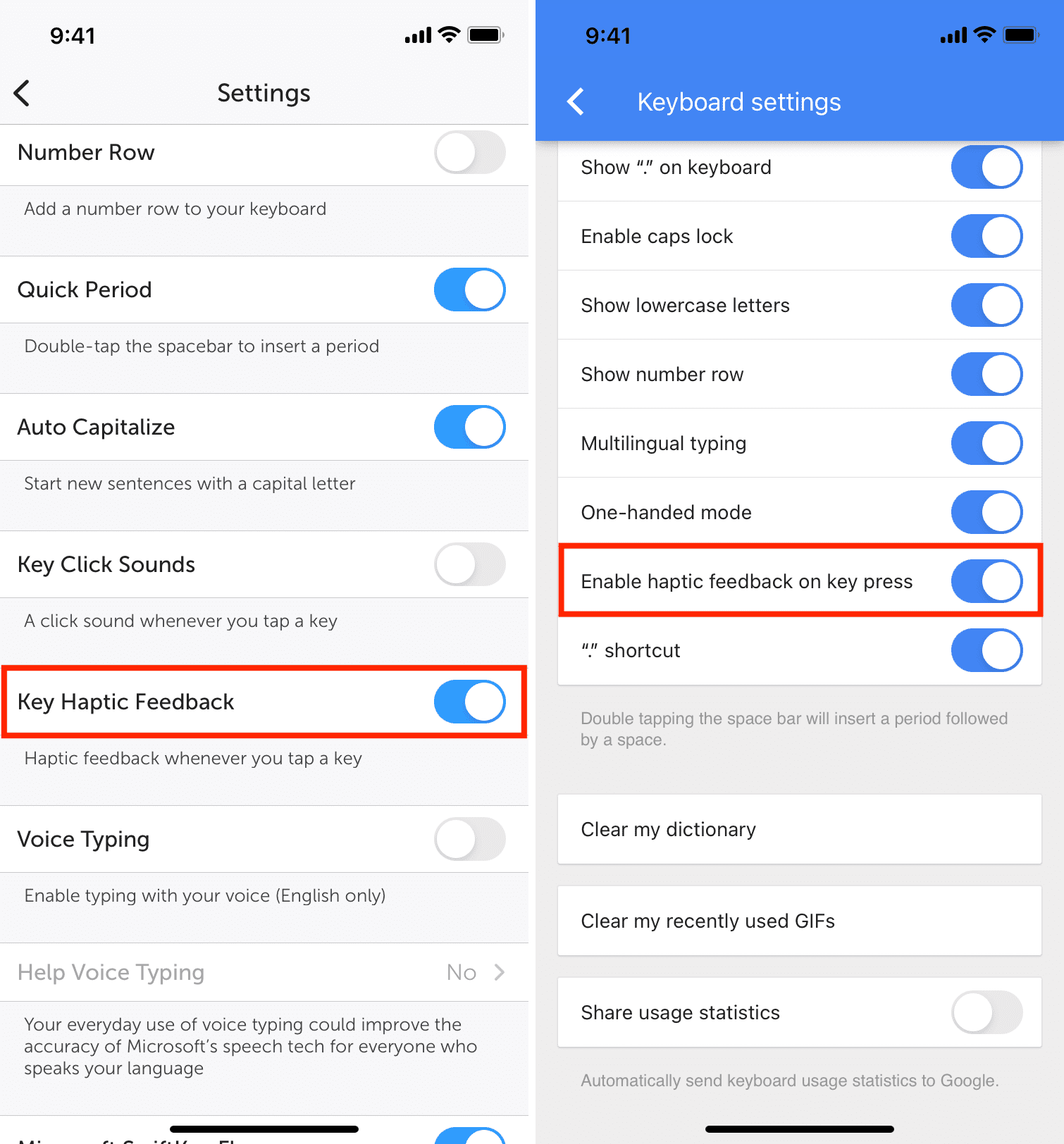
If you use Microsoft SwiftKey or Google Gboard, you can enable haptics from their app settings.
- SwiftKey keyboard: Open SwiftKey and tap Settings. Next, enable Key Haptic Feedback.
- Gboard keyboard: Open Gboard and tap Keyboard settings. Turn on the switch next to Enable haptic feedback on key press.
Useful keyboard tips: