Learn how to use Find My on your friend’s iPhone or iPad to locate your lost iPhone, iPad, Mac, AirTag, or other Apple device.
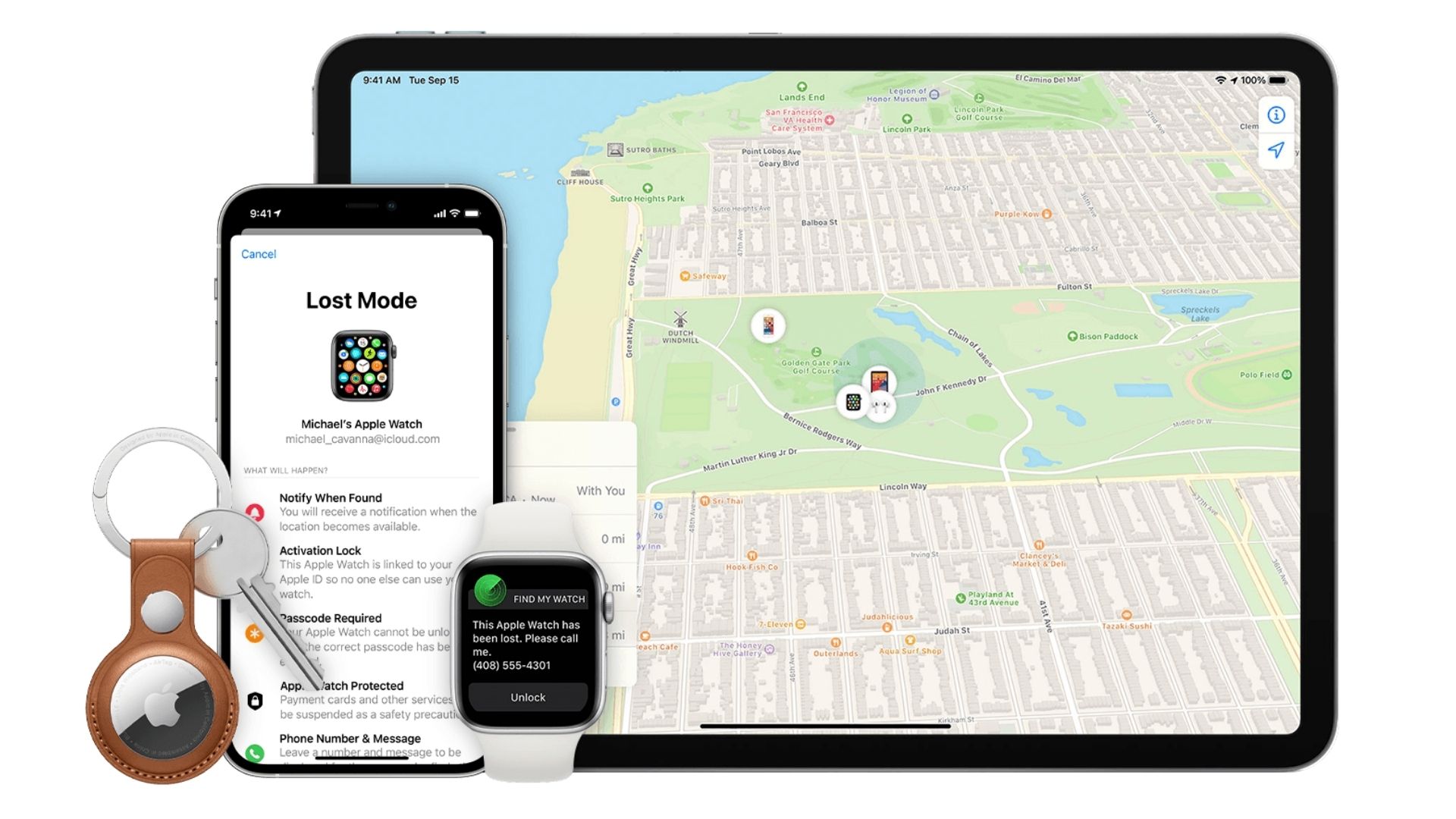
Find My on iPhone, iPad, Mac, and iCloud lets you locate your missing Apple devices, things attached to AirTag, and third-party accessories that support the Find My network. When you misplace one of your devices, you can use it on your other device or iCloud.com to locate it.
But what happens when you own only one Apple device and, for some reason, cannot use iCloud? In these situations, you can find your missing, lost, or stolen device using your friend’s iPhone or iPad.
Meet your friend in person, as you would need physical access to their iPhone, and follow the steps in this guide.
Before you begin: If you’re a part of Apple’s digital family setup, you can open the Find My app on your family member’s iPhone, iPad, or Mac and see the location of your missing device there. You won’t have to sign in or take extra steps.
Also see: What to do if your iPhone is lost or stolen
Why use Find My on your friend’s iPhone instead of Find My on iCloud.com
When you sign in to iCloud on an untrusted computer, it may ask you to enter a verification code sent to your trusted devices or phone number. Now, if you have only one Apple device, and that is lost, you’ll have a tough time logging into iCloud Web from an untrusted computer to use Find My.
However, in our testing, we found that Apple does not ask you to enter the verification code when you follow the steps below to log in to use the Find My service on your friend’s iPhone. All you need is your Apple Account and its password.
Locate your missing iPhone, iPad, Mac, or AirTag using the Find My app on your friend’s iPhone
1) Open the Find My app on your friend’s iPhone and tap Me from the bottom right corner.
2) Scroll down and tap Help a Friend, which will open the iCloud sign-in page in Safari. Tap Sign In.

3) You may now see a prompt to log in using the owner’s (i.e., your friend’s) Face ID or Touch ID. Don’t do that. Instead, tap Use a different Apple Account, and enter your Apple Account email address and password to log in.

4) Tap your missing iPhone or another item to see its location, play an alert sound on it, put it in Lost Mode, or erase it remotely.

On a related note: