Learn how to change the default email app on your iPhone and iPad to Gmail, Outlook, Spark, HEY, or something other than the default Apple Mail app.
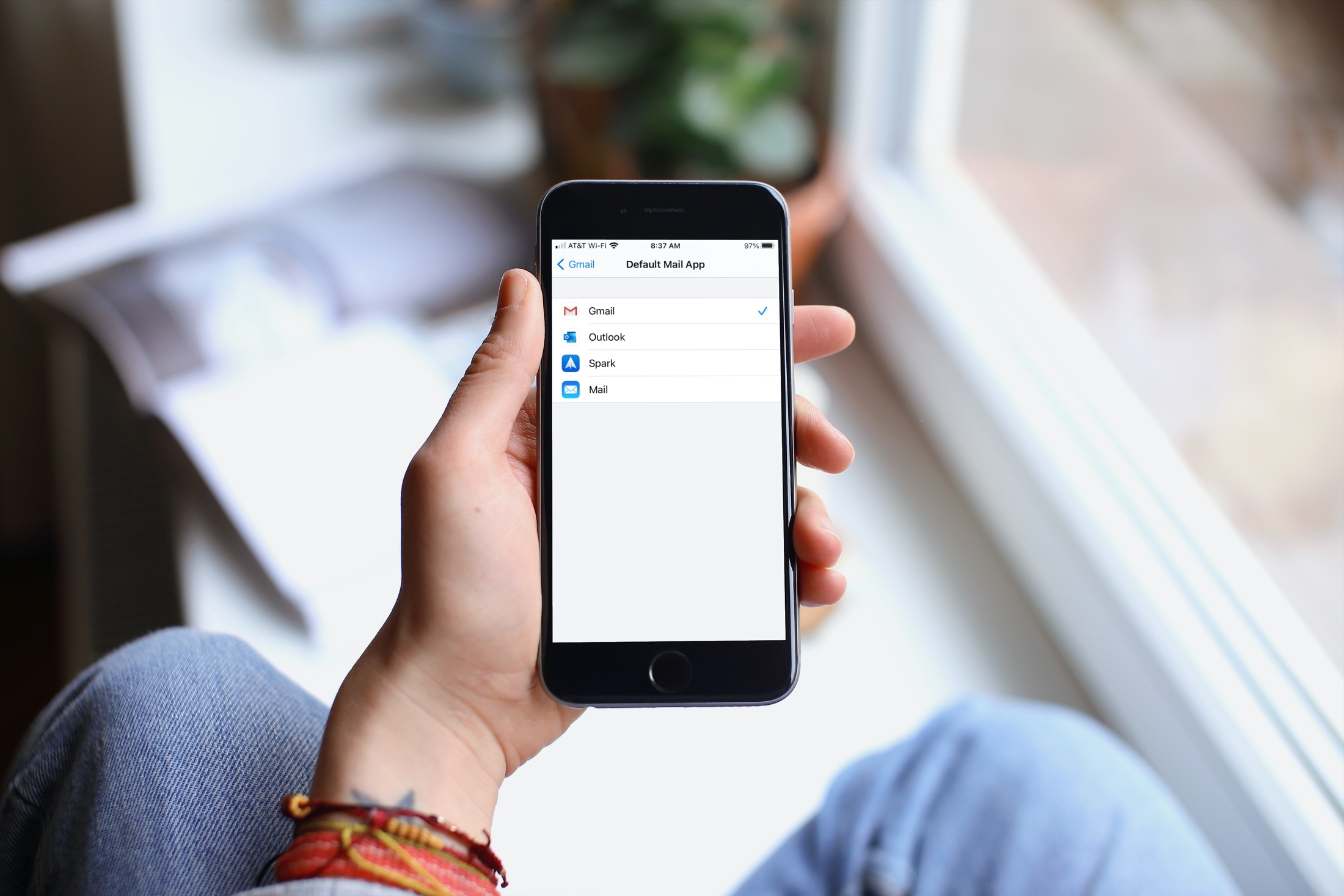
Aside from delayed notifications, there’s nothing specifically wrong with the stock iOS Mail app. But some people just prefer a different app with other features.
If you’re one of those people, just follow the steps below. After that, when you tap to open an email address or a link that lets you send an email, you can use your preferred app automatically without any extra steps.
Before you begin: Make sure the email app you want to set as the default is installed and set up on your iPhone or iPad.
Change the default email app on iOS
- Open the Settings app on your iPhone or iPad running the latest version of iOS.
- Tap Apps from the bottom of the screen.
- Tap Default Apps.
- Set Email to Gmail or another installed mail app.

Alternatively, go to iPhone or iPad Settings > Apps, and select an email app like Gmail. Then, tap the Default Mail App field and choose the email app you want to use. If you have more than one email app installed, you’ll see them all as available options.

Keep in mind that not all email apps have this feature. So if you don’t see the Default Mail App setting as described above, the app may not provide this option, or you might have to wait a bit longer for it. You can reach out to its developer to ask directly.
Out of many, here are some popular email apps that offer the default mail feature and are available on both iPhone and iPad:
Also, check out: 40+ tips for the Mail app on your iPhone, iPad, and Mac