Customize the Safari Start Page on your Mac by selecting just the sections you want to see, using a personal background image, and more.
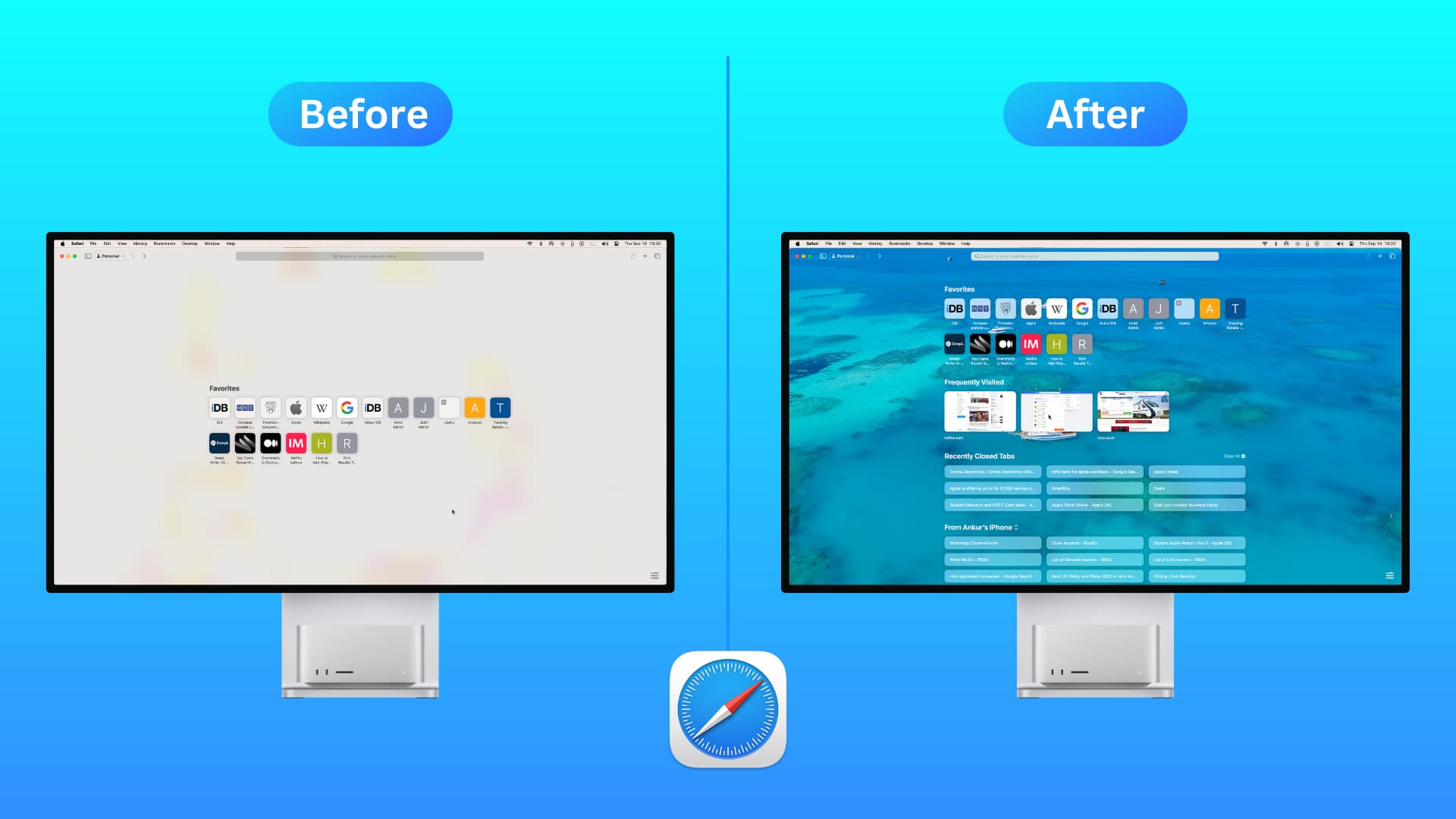
Note: The tips here work on Mac running macOS Big Sur or later.
1. Select the sections you want to see on the Safari Start Page
1) Open Safari, and you should be on its Start Page. If not, open a new tab to see the Start Page.
2) Click Edit or the settings icon from the bottom right.

3) You’ll see a list of items that you can display on your Start Page. Just check the boxes for those you want to use:
- Favorites: Important websites you have marked as your favorites and folders you might have created to manage your favorite bookmarks.
- Suggestions: Websites Siri finds in Mail, Messages, and other apps.
- Frequently Visited: Websites you visit on a regular basis.
- Shared with You: Links people have shared with you in apps like Messages.
- Privacy Report: A snapshot of the Privacy Report. You can click it for more details.
- Reading List: Put your Safari Reading List on the Start Page.
- Recently Closed Tabs: Web pages you were viewing earlier but closed recently.
- iCloud Tabs: Sites you have open in Safari on your other devices, like iPhone and iPad.
- Background Image: Set a picture as the Start Page background. Explained later below.
Note: In addition to using the settings icon, you can also right-click on a blank spot on your Safari Start Page and select or unselect the desired options.
2. Reorganize the Start Page sections
By default, Favorites is shown at the top of the Safari Start Page, followed by the other sections. But you can easily change their position by dragging the options up or down.

3. Change the Start Page background
Another thing you can do to personalize the Safari Start Page is to use a background image. Apple gives you around 16 options to pick from, or you can choose an image of your own.
Pick a pre-provided wallpaper
Click Edit on your Safari Start Page, check the Background Image box, and select a wallpaper. You can view them all by scrolling through them to the right. Some wallpapers must be downloaded first.

Use your own image
To use a picture or other image on your Mac, click the plus sign (+), select the photo in Finder, and click Choose. Your new Start Page wallpaper will come into effect.
Drag from Photos or Finder
Open Photos or Finder, select the picture, and drag it onto your Safari Start Page. You’ll see the background image change immediately.
Choose a different image
If you use one of your own photos or images and want to change it later, it’s easy. Click Edit on your Safari Start Page, followed by the tiny X in the upper left corner of the image you picked. The background will be removed, and you can click the plus sign to pick a different one or leave the background gray.
4. Remove items from the Start Page
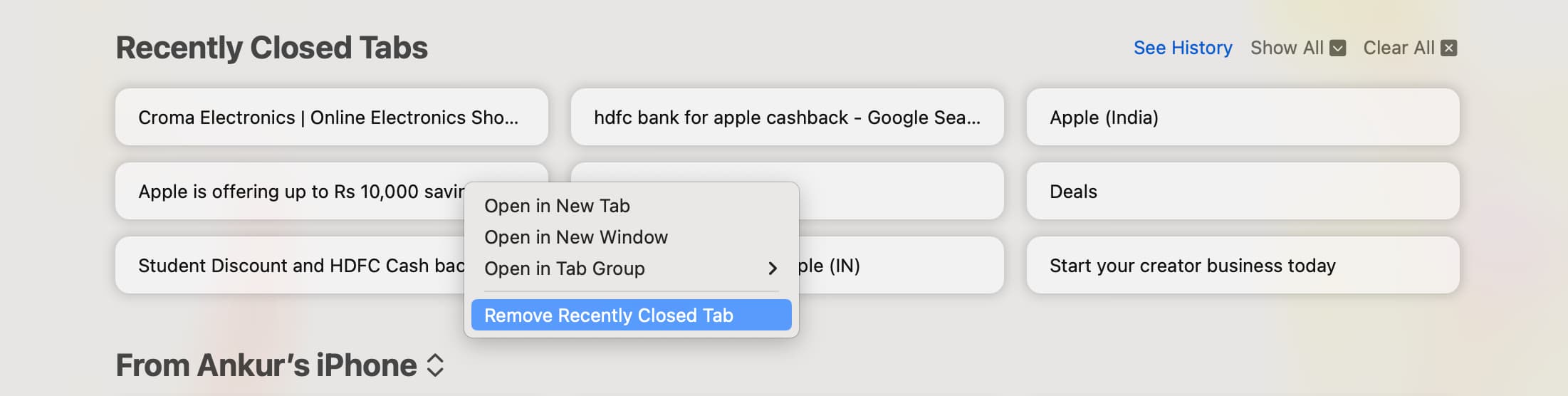
If you don’t like one of the sites that appear under Recently Closed Tabs on your Safari Start Page, right-click over that site’s name and remove it. Similarly, you can easily remove items from the Reading List or Favorites.
5. View frequently visited sites as thumbnails
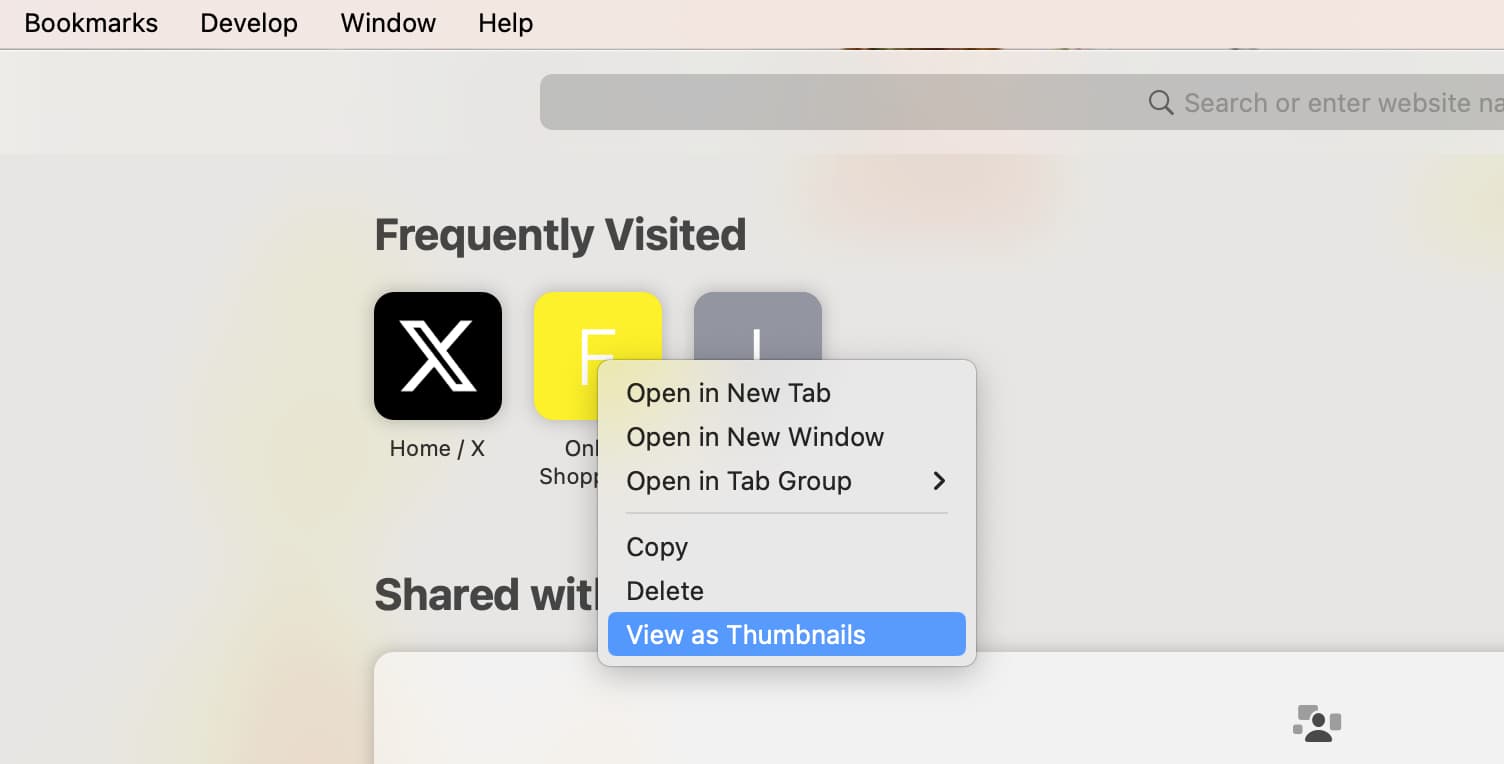
Frequently visited sites appear as icons, but you can right-click over this section and show them as big thumbnails.
6. Set your Start Page for tabs and windows
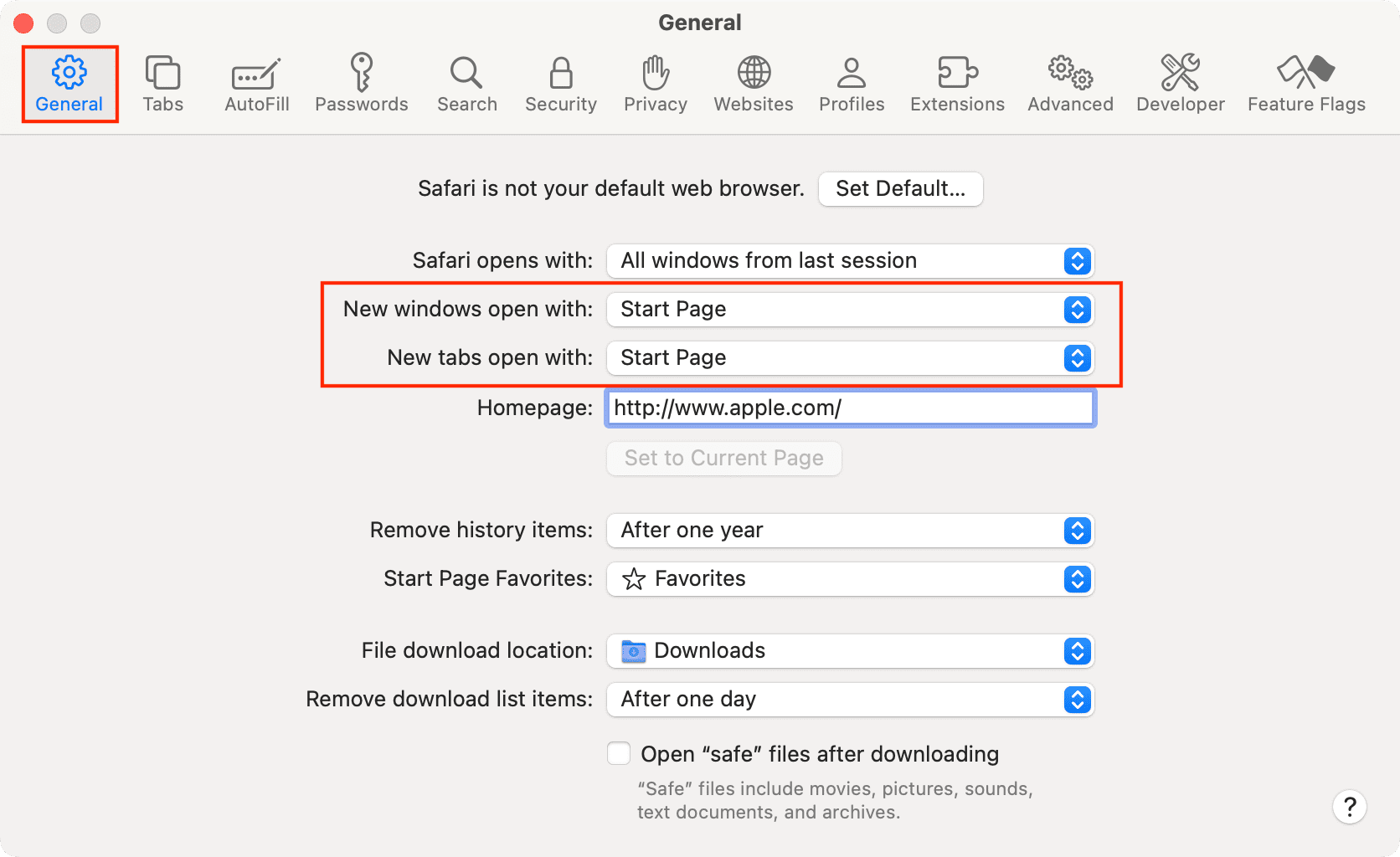
Remember, your Safari Start Page is different than the Homepage that you can configure in your Safari Settings. And if you did make a switch away from your Start Page for new tabs and windows and want to change it back, here’s a reminder for how to do it.
- Open Safari and click Safari > Settings or Preferences from the menu bar.
- Select the General tab.
- Click the drop-down boxes for New windows open with and/or New tabs open with and set it to Start Page.
If you’re like me and love options to customize your apps, then you’ll enjoy these ways to personalize your Safari Start Page on Mac.
How do you feel about the customizations for the Start Page in Safari on Mac? Will you take advantage of them, and if so, which ones are you happiest to see?
More on Safari: