Learn how to add web pages to Safari Reading List on iPhone, iPad, or Mac and read them later, even when you don’t have an internet connection.

The Reading List feature in Safari is handy for saving web pages that you want to read later. You can save them in Safari on both iOS and Mac so that you can access them anywhere.
What makes the Reading List feature even better is that you can read your items even when you have no Wi-Fi or cellular connection.
Add pages to your Safari Reading List
On iPhone and iPad
- Open Safari and visit the page you want to save.
- Tap the options button in the URL address bar.
- Tap the three dots icon and choose Add to Reading List from the next screen.

On Mac
- Open Safari and go to the page you want to save.
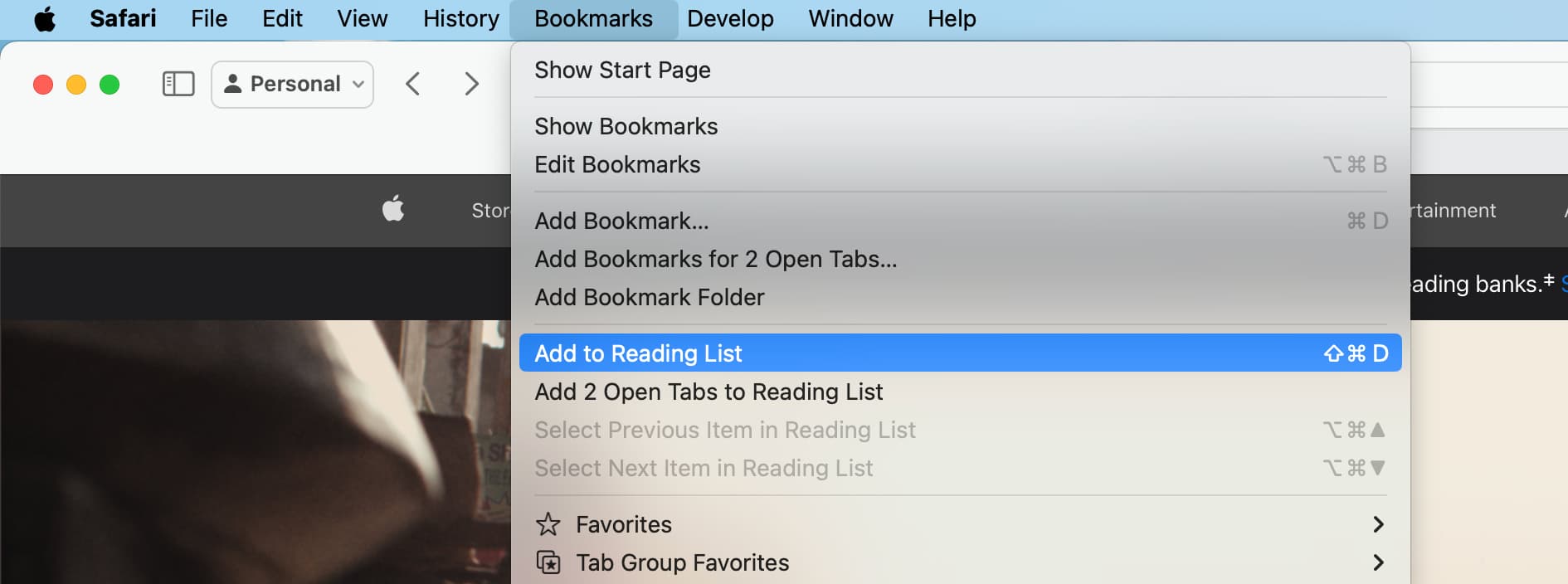
- Click Bookmarks > Add to Reading List from the top menu bar. You’ll notice that you have the option to save all of your open tabs if you like, with the Add n Open Tabs to Reading List.
Access your Safari Reading List and read the articles
On iPhone and iPad
- Open Safari, tap the three dots icon, and select Bookmarks.
- Tap the Reading List option from the top, which looks like a pair of glasses.
- With your Reading List open, just tap an article to open it in the current tab. To open it in a new tab, touch and hold the article, then select Open in Background.

On Mac
- Open Safari.
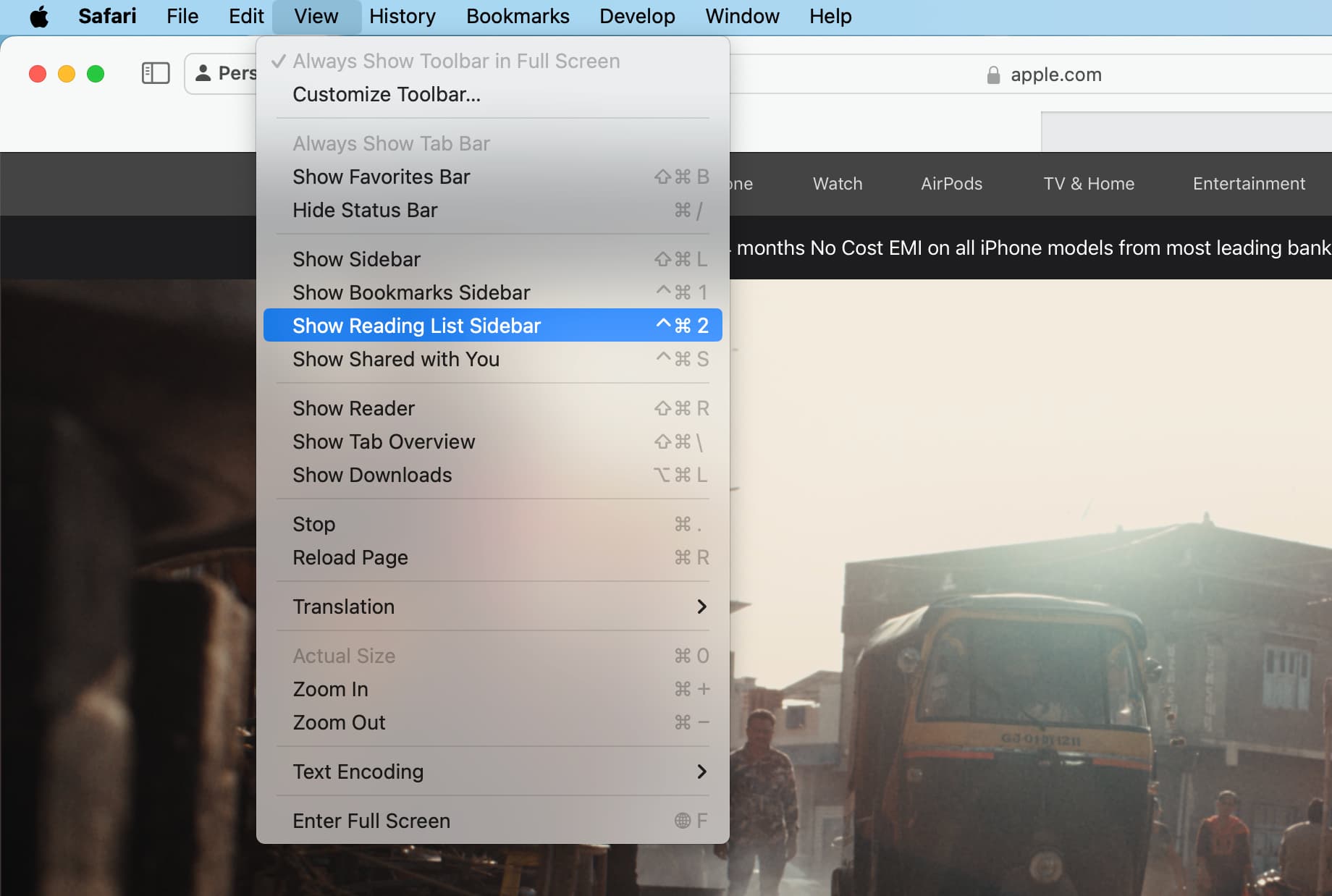
- Click View > Show Reading List Sidebar from the menu bar. Then, select a saved article to read.
Mark items as read
On iPhone and iPad
Access your Reading List, swipe right on an article, and tap Mark Read. The Safari Reading List will keep track of the articles you read; tap the three dots icon and select Show Unread to see those.

On Mac
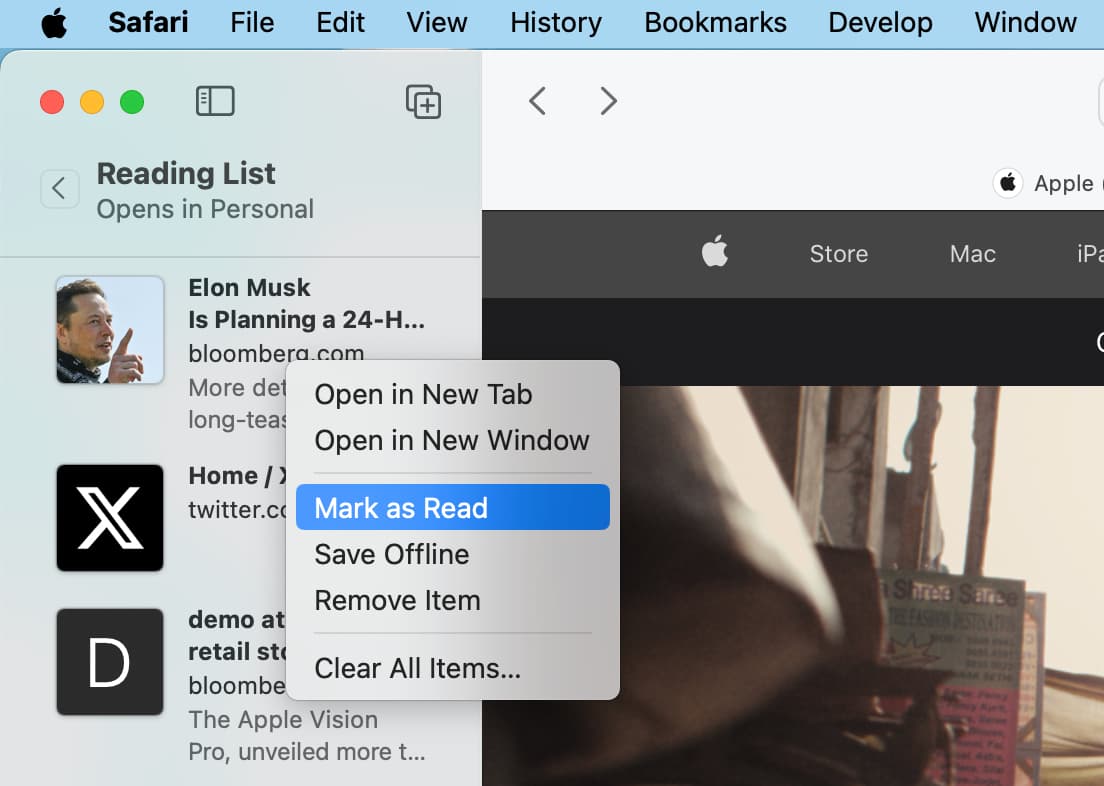
Access your Reading List in the Safari sidebar. Now, swipe right on the trackpad and select Mark Read. You can also right-click on the saved article and choose Mark Read.
Remove an article or clear your list
On iPhone and iPad
You can remove articles from your Reading List one at a time or several at once. For one, swipe left and tap Delete.
To remove several items, tap the three dots icon > Select Items, mark the ones you want to remove, then tap Delete at the bottom.

On Mac
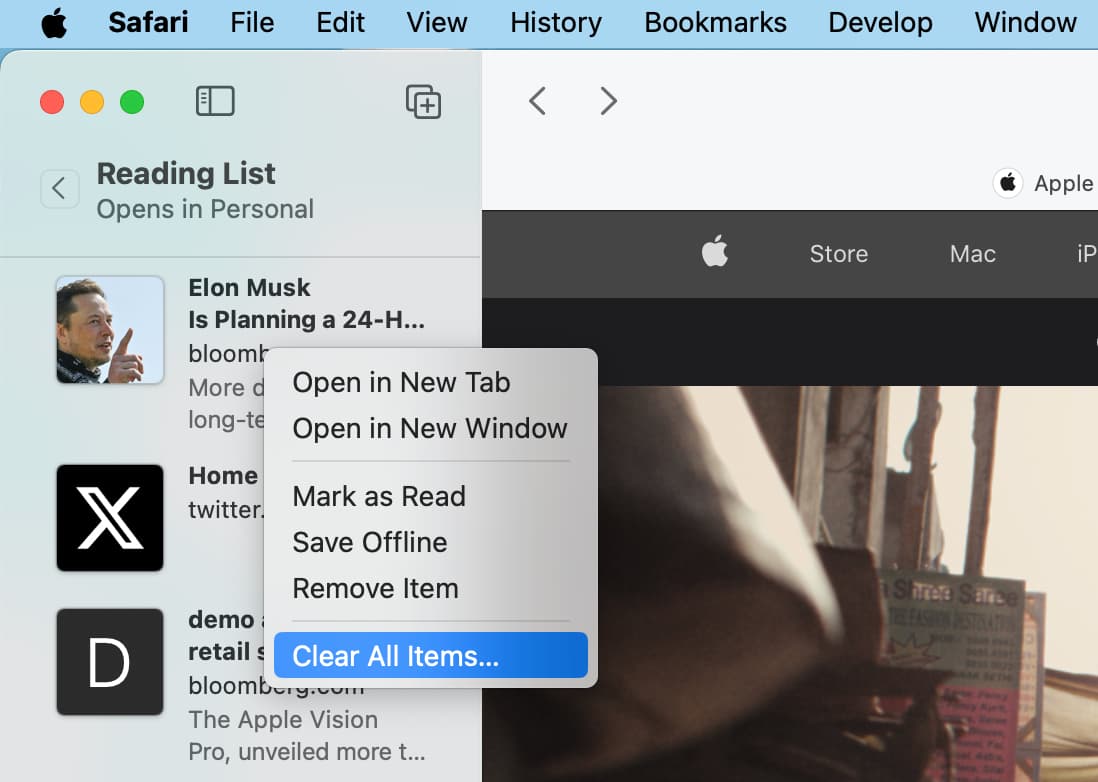
Swipe left or right-click over a Reading List article and choose Remove or Remove Item.
You can also right-click an article and choose to Clear All Items.
Clear Safari’s Reading List cache
Nowadays, webpages are optimized for high-resolution Retina graphics and include other rich media assets, so Safari’s Reading List can eat up quite a lot of storage space fairly quickly. Deleting them all on your iPhone or iPad can free up substantial space.
- Open the Settings app and tap General > iPhone/iPad Storage.
- Select Safari from the list of apps.
- Swipe left on Offline Reading List and tap Delete.
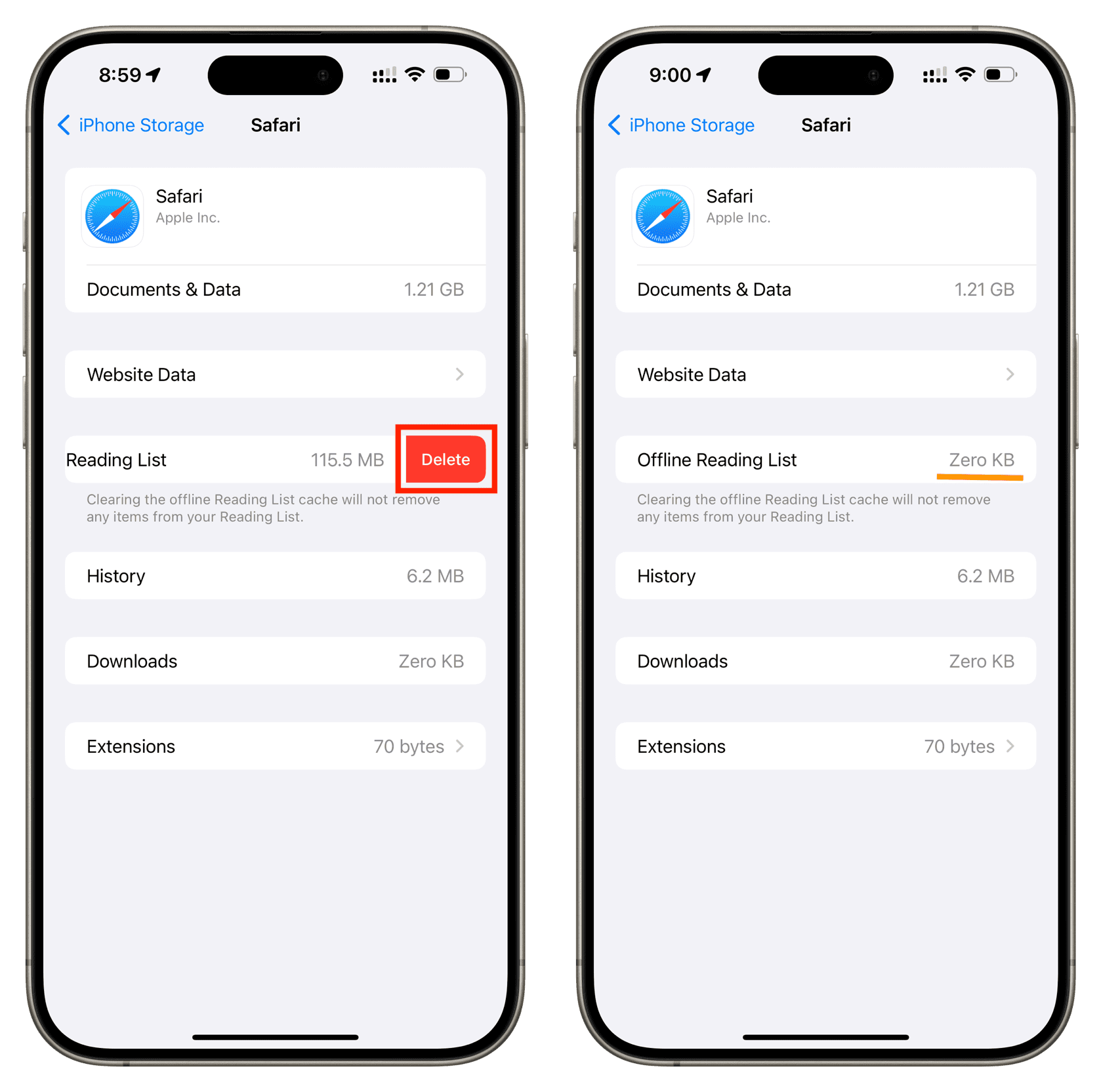
This will remove all offline reading items. You’ll now need an active Wi-Fi or cellular connection to read these articles.
Enable the offline reading feature
You can have your reading list articles automatically save locally for offline reading.
On iPhone and iPad
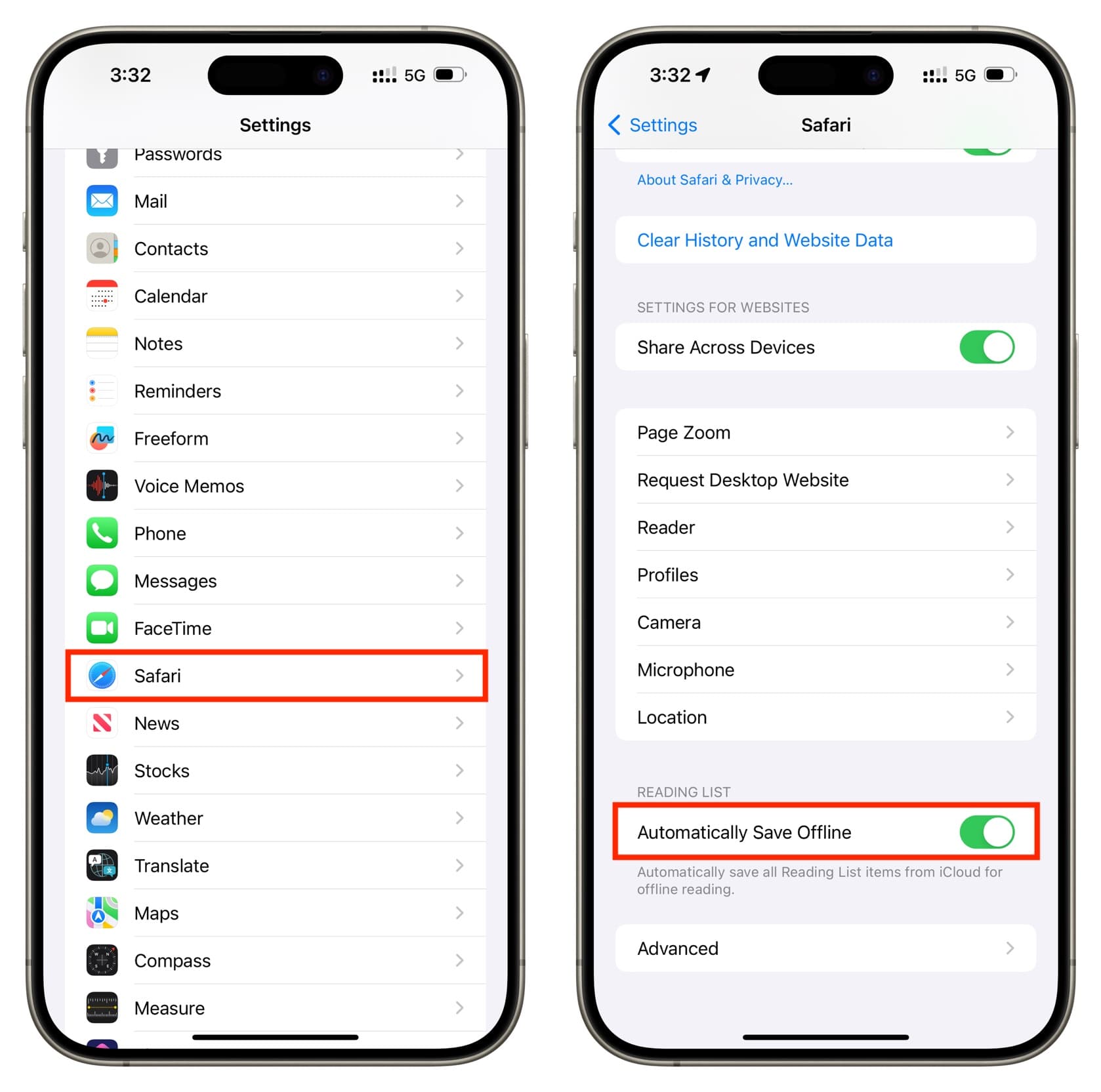
- Open iOS Settings, tap Apps, and select Safari.
- Scroll down to Reading List and turn on the toggle for Automatically Save Offline.
On Mac
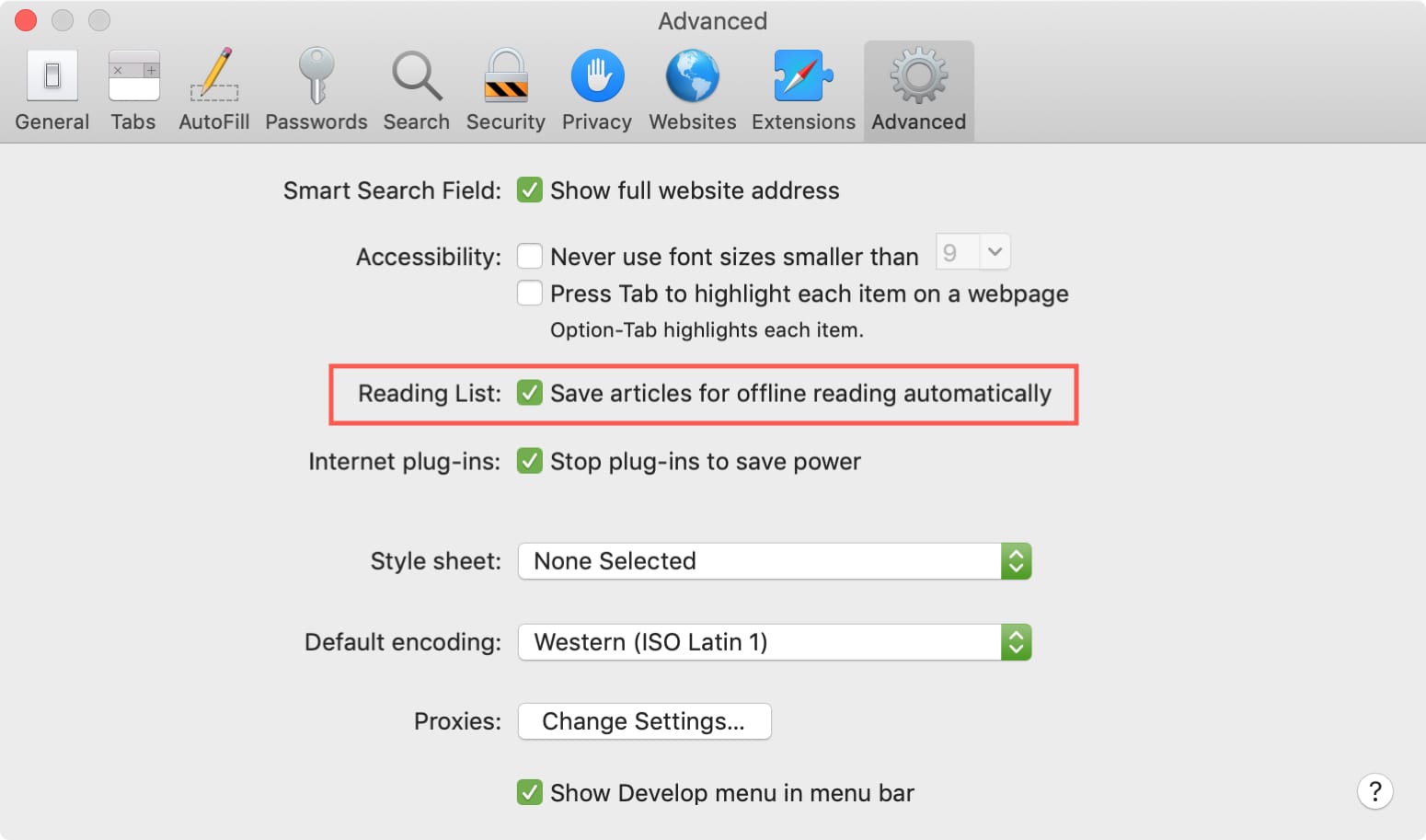
- Open Safari and click Safari > Settings or Preferences from the menu bar.
- Choose the Advanced tab.
- Next to Reading List, check the box for Save articles for offline reading automatically.
Useful Safari tips: