In this brief tutorial, we tell you about the new Sound Glow feature added to HomePod and HomePod mini running software version 27.2.
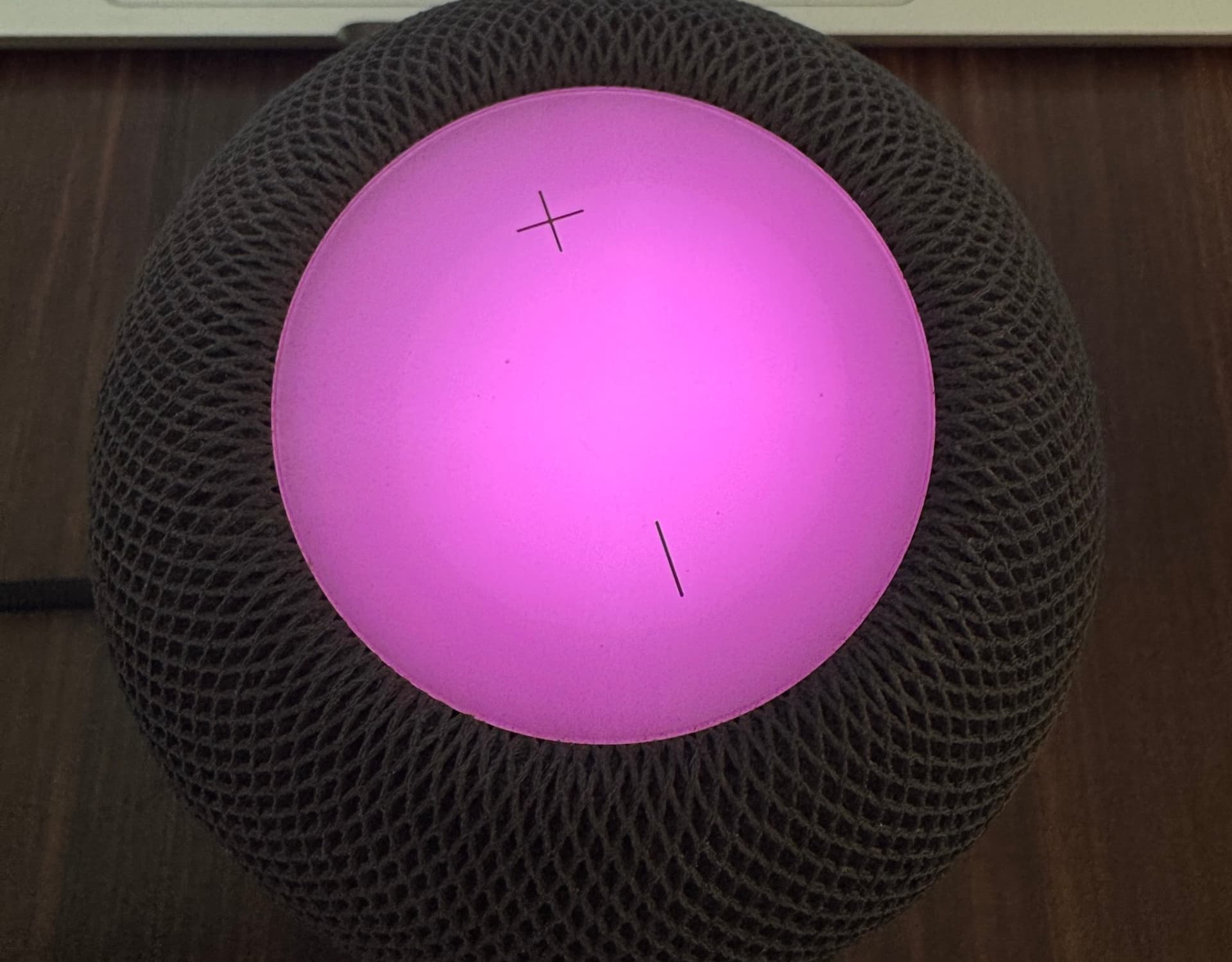
Have you used the Visualizer in the Apple Music app on Mac, or Sync Lights with Music in a Tesla Model Y Premium? Both turn sound into light, with colors and glowing patterns that move with the music on your Mac screen or across the Tesla car’s interior accent light strip.
Along the same lines, HomePod software version 27.2 adds a new party trick that lets you watch your music come to life by turning the top circular display into glowing/pulsing lights that dance to the album art color (usually) and the rhythm of your currently playing music, podcast, or video. It usually shows two or three of the album cover’s dominant colors, with the white glow ball moving slightly to give it a bouncy motion.
Apple calls this feature Sound Glow, and it adds nothing functionally but is certainly cool aesthetically, a party trick, if you will. If you have set up multi-color or neon lights in your room, this new glowing effect (though nowhere as bright as your lights) will fit right in.
Here’s how to turn on and use this new light effect.
Supported models
Sound Glow is available on all HomePod models running software version 27.2 or later, except for the original HomePod released in 2018. Here’s the full list:
- HomePod mini (released in 2020)
- HomePod 2 (released in 2023)
- HomePod mini 2 (released in 2026)
Turn on Sound Glow music effect for your HomePod
- Download iOS 27.2 or iPadOS 27.2 or later on your iPhone or iPad.
- Then, update your HomePod to version 27.2 or later. As of writing, this is in public beta, with general release expected next week.
- Open the Home app.
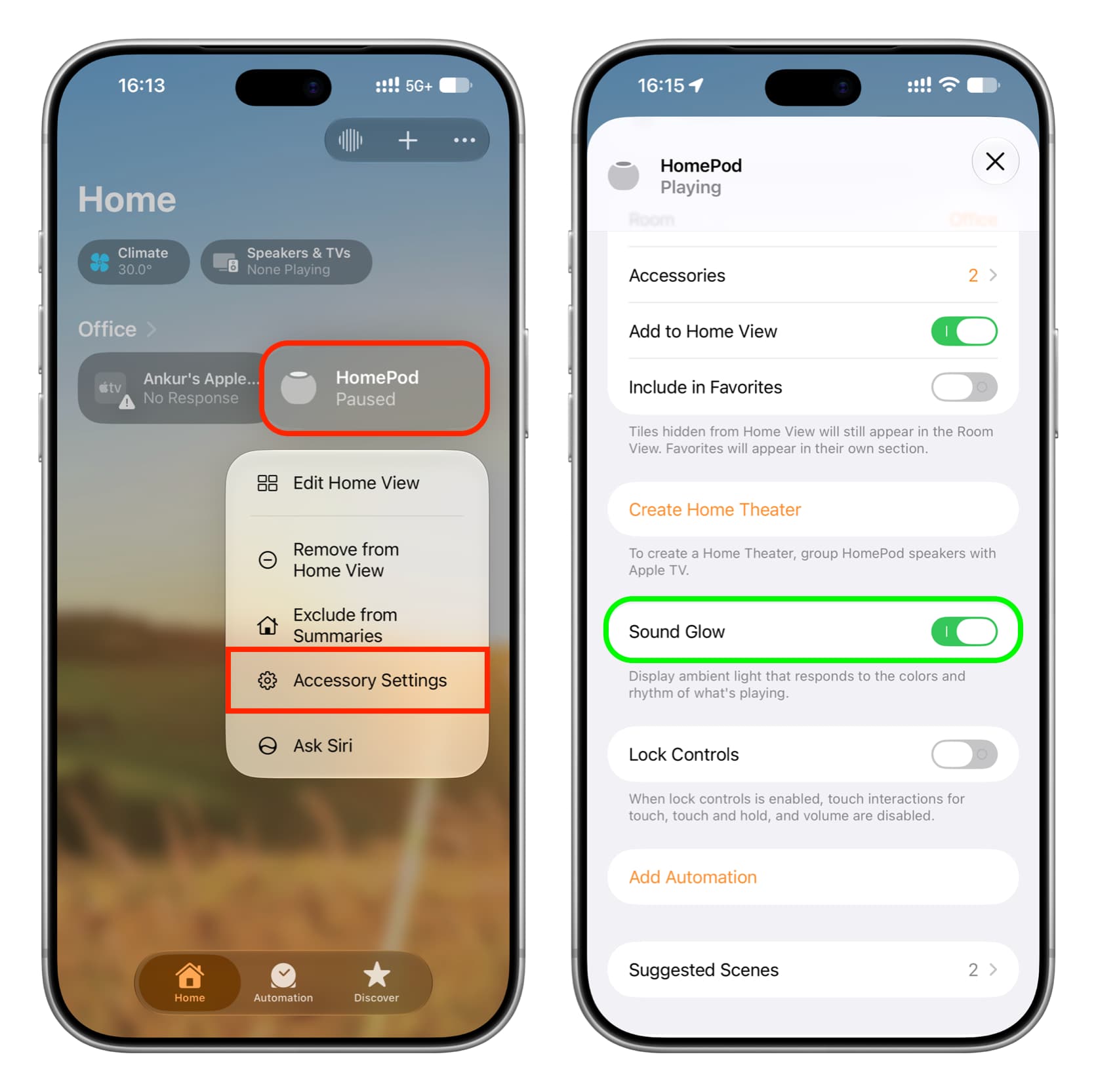
- Touch and hold your HomePod tile, then select Accessory Settings.
- Turn on Sound Glow.
Now ask Siri on HomePod to play a song or play one on your iPhone and select HomePod as the speaker. You’ll notice the top HomePod display glows in various colors and seems to match the song’s beat somewhat. If the effect isn’t apparent with a particular song, try another.
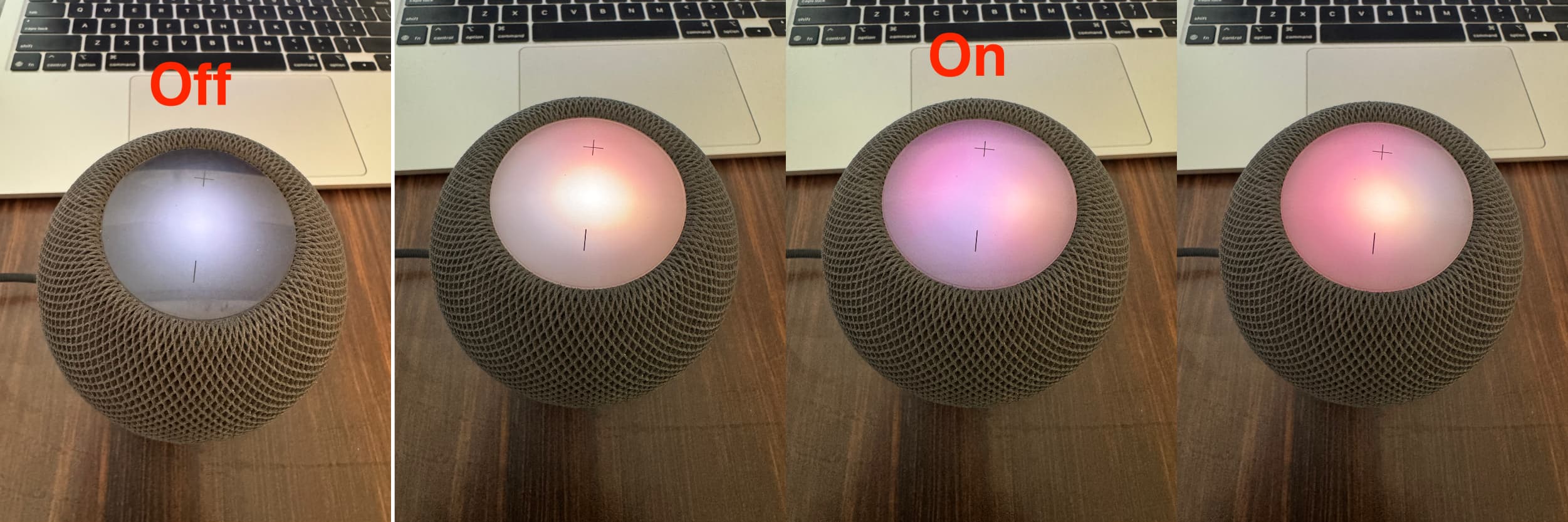
If you don’t find the effect useful or once the novelty wears off, follow the same steps as above to turn it off. Note that it was switched off by default on my HomePod mini.
Manage HomePod Sound Glow on Mac
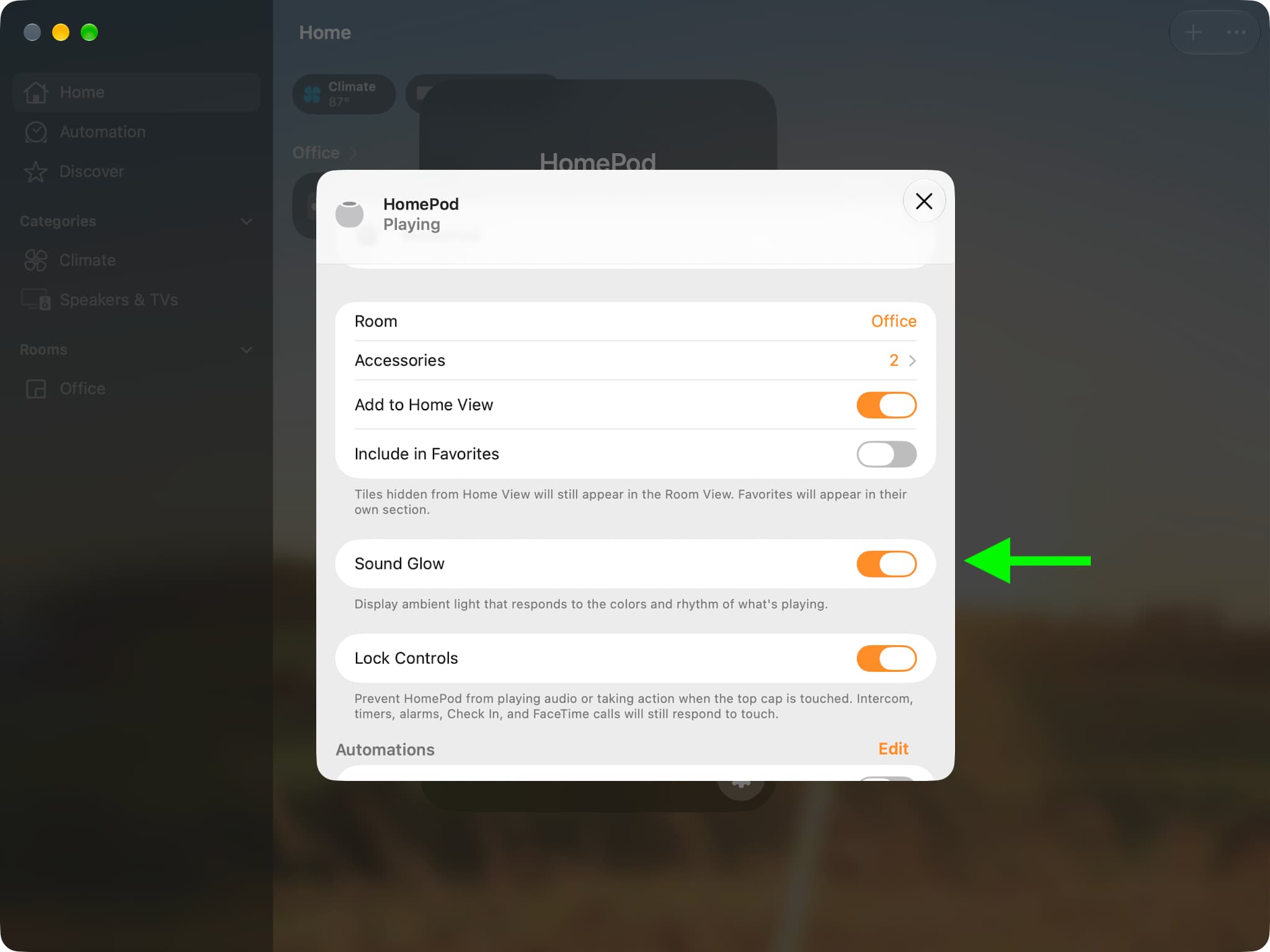
The steps are similar to iOS. Just go to HomePod settings in the macOS 27 Golden Gate Home app to toggle Sound Glow on and off.
HomePod Sound Glow effect on Apple TV
You can access Sound Glow settings in tvOS 27 only if your HomePod is set as a default speaker for your Apple TV (and not when you’re temporarily routing Apple TV sound to your HomePod). Go to tvOS Settings > Video and Audio > Audio Output and select your HomePod.
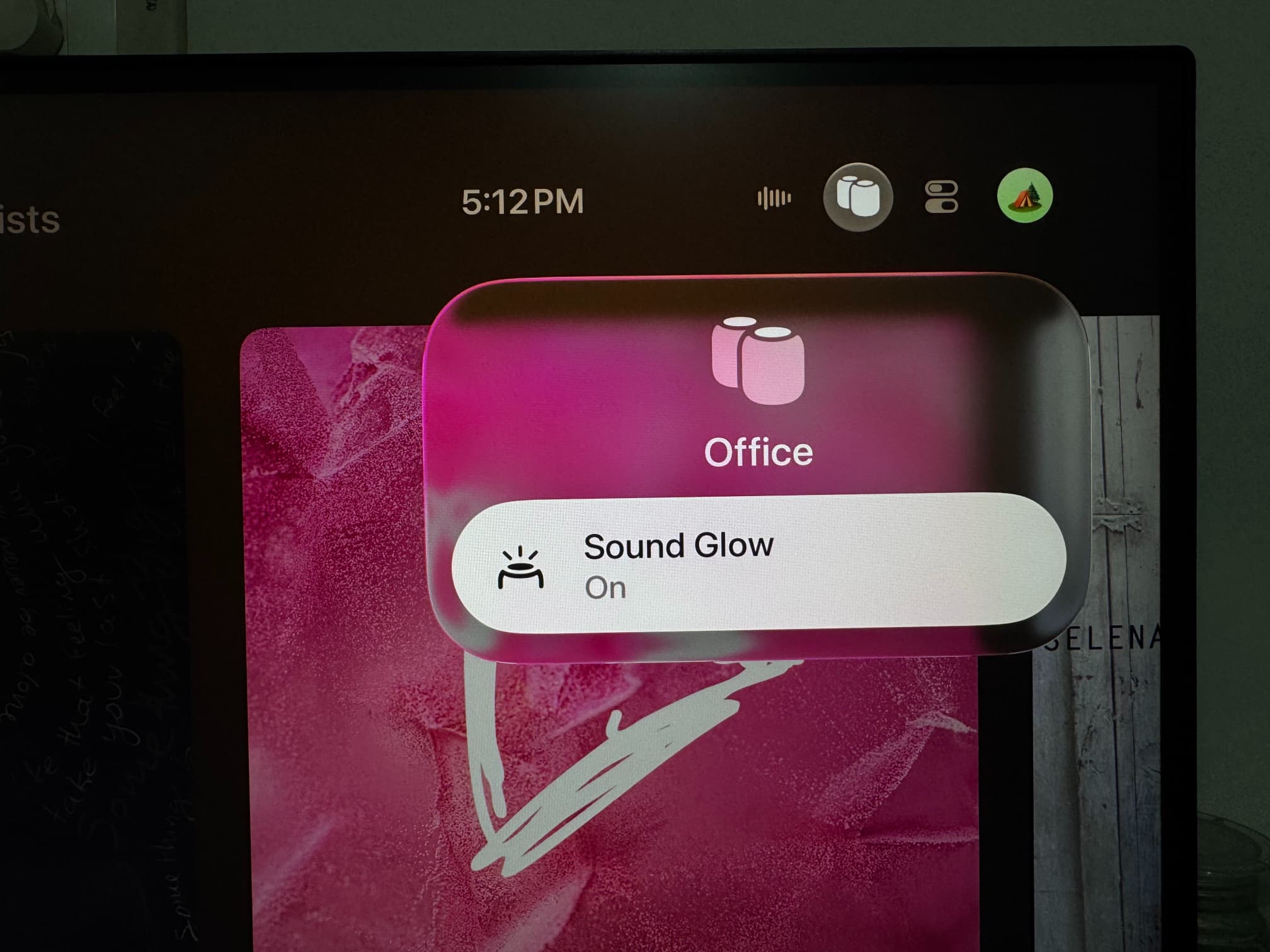
You will now see a new HomePod tab in tvOS 27 Control Center. Switch to it to enable or disable Sound Glow for your HomePod or HomePod mini.
What do you think of this? Here are some videos of Sound Glow in action on X:
Also, check out: