Learn how to use the new drawing and sketching tools in the Apple Freeform app on Mac running macOS 27 Golden Gate.
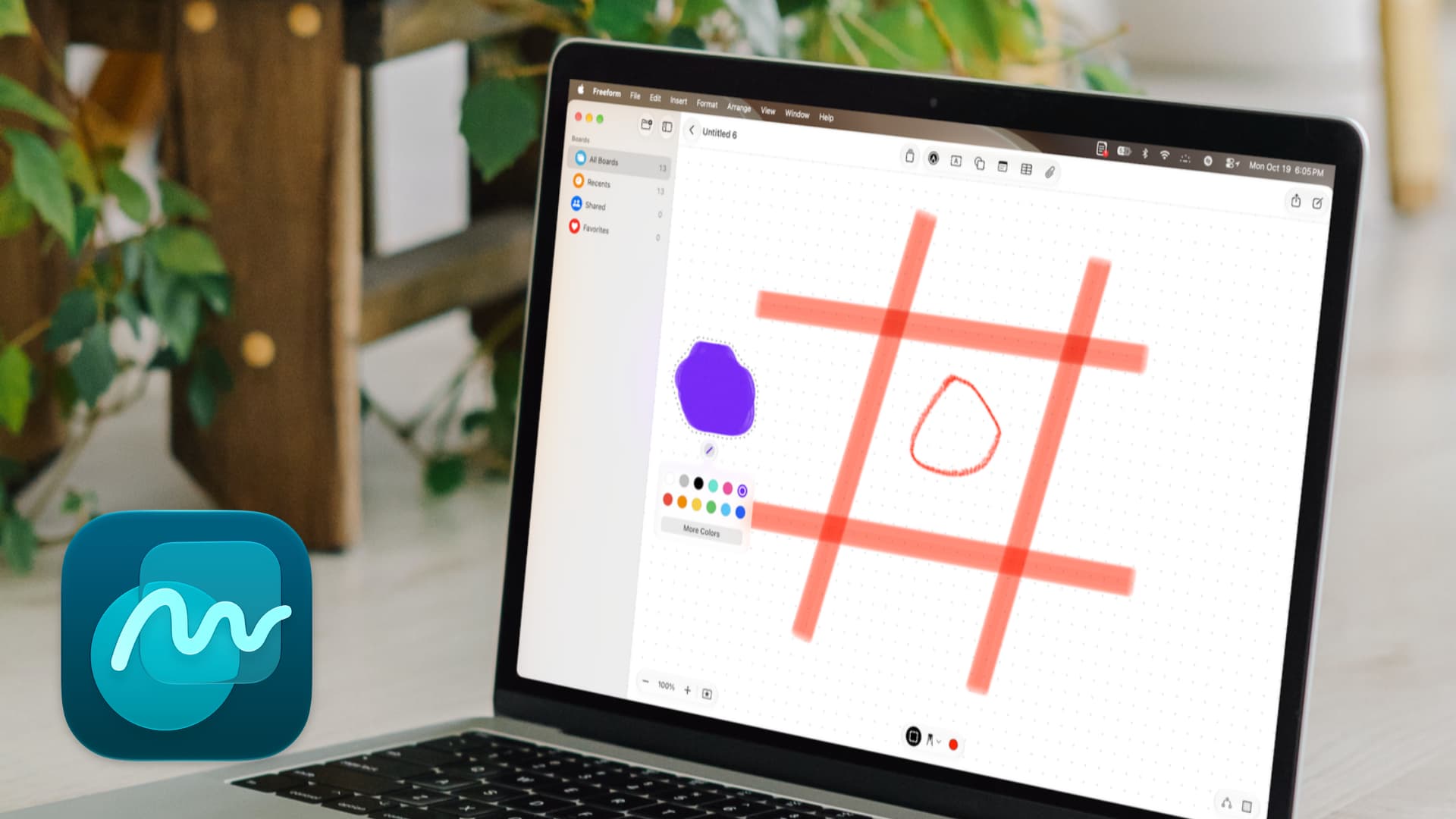
macOS 27 has added a new native drawing option to the Notes app and the Freeform app. Before this, if you wanted to sketch something quick on your Mac, you had to use the touchscreen on your iPhone or iPad as a companion drawing board. This setup was definitely cool and even useful at times, but it came with challenges, which we have discussed in our Notes app post.
The new macOS Golden Gate update keeps that old Continuity feature while also adding built-in drawing tools that rely on your Mac’s trackpad and mouse. These sketching tools in Freeform now give you more options to create your digital whiteboard the way you like.
On top of that, if you have used Freeform, you know that your boards (projects) sync via iCloud and are available on all your iPhone, iPad, Mac, and Apple Vision Pro. Having the option to draw on Mac now means that if you draw on a board on iPad, you can access, edit, fine-tune, etc., right on your Mac when you’re away. The opposite is also true: you can do a quick sketch on Mac and then use the Apple Pencil on iPad to improve it.
A suggestion before you begin
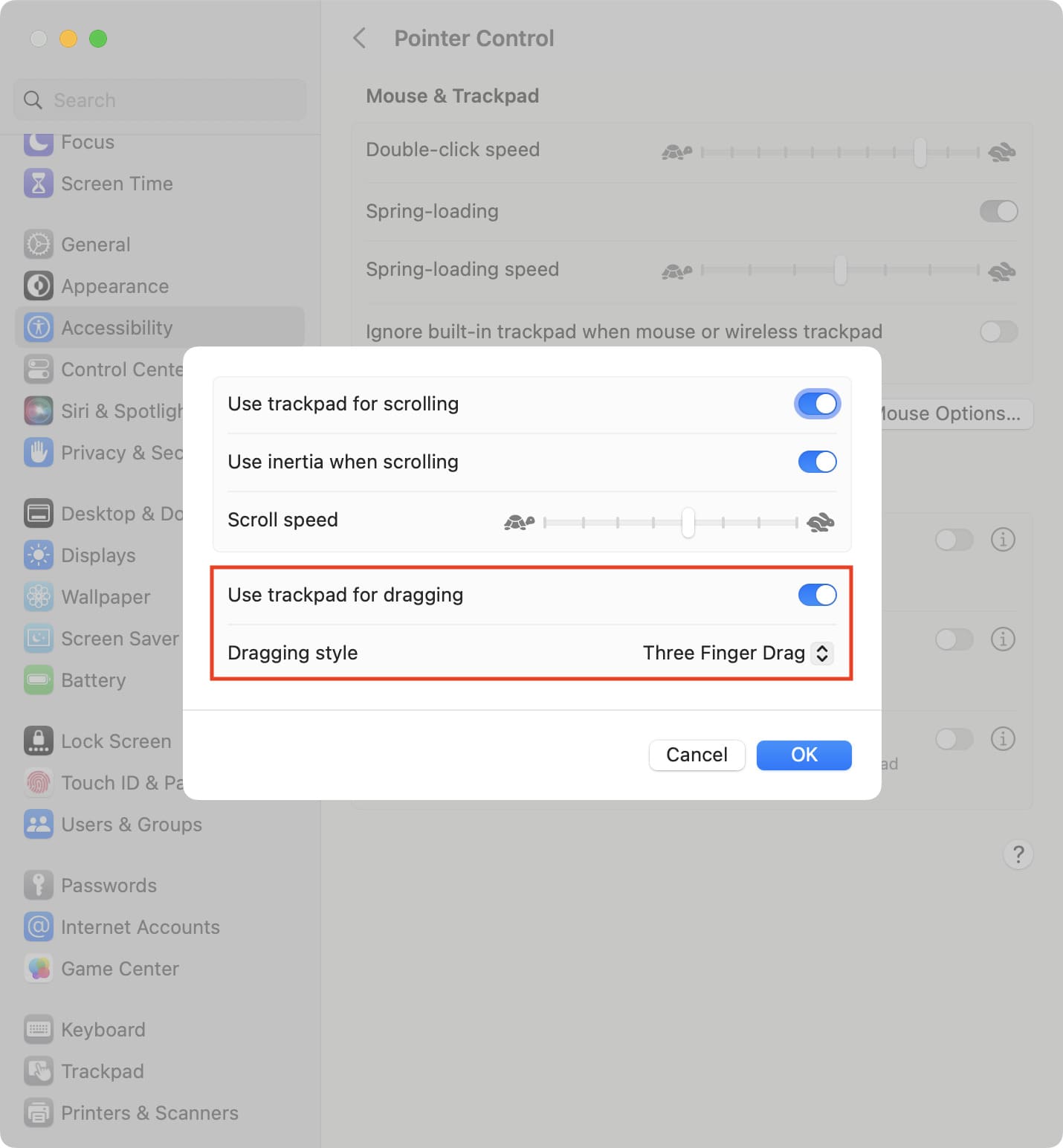
Three-finger drag is turned off by default on Mac. So, when drawing in Freeform, you’ll have to force-press and drag on the MacBook or Apple Magic Trackpad, which is hard, unintuitive, and frustrating (at least for me). To make your life easier, turn on three-finger drag in System Settings > Accessibility > Pointer Control > Trackpad Options. After that, you can draw quickly by dragging with three fingers instead of holding down the trackpad. It’s so much better.
Draw in Freeform board on Mac
1) Update your Mac to macOS 27 Golden Gate or install it on a partition.
2) Open the Freeform app and select your board or create a new one.
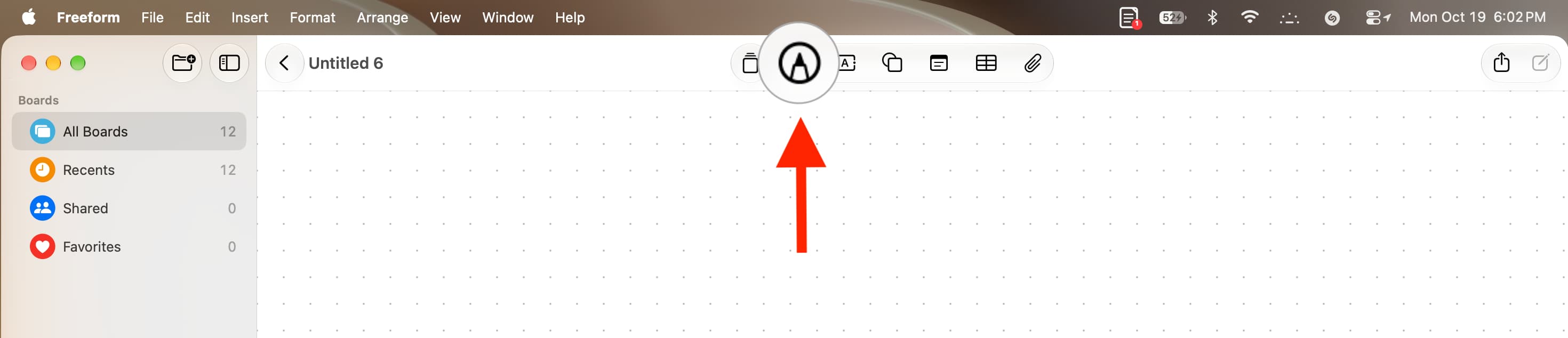
3) Click the new markup button in the top toolbar to enable drawing mode.
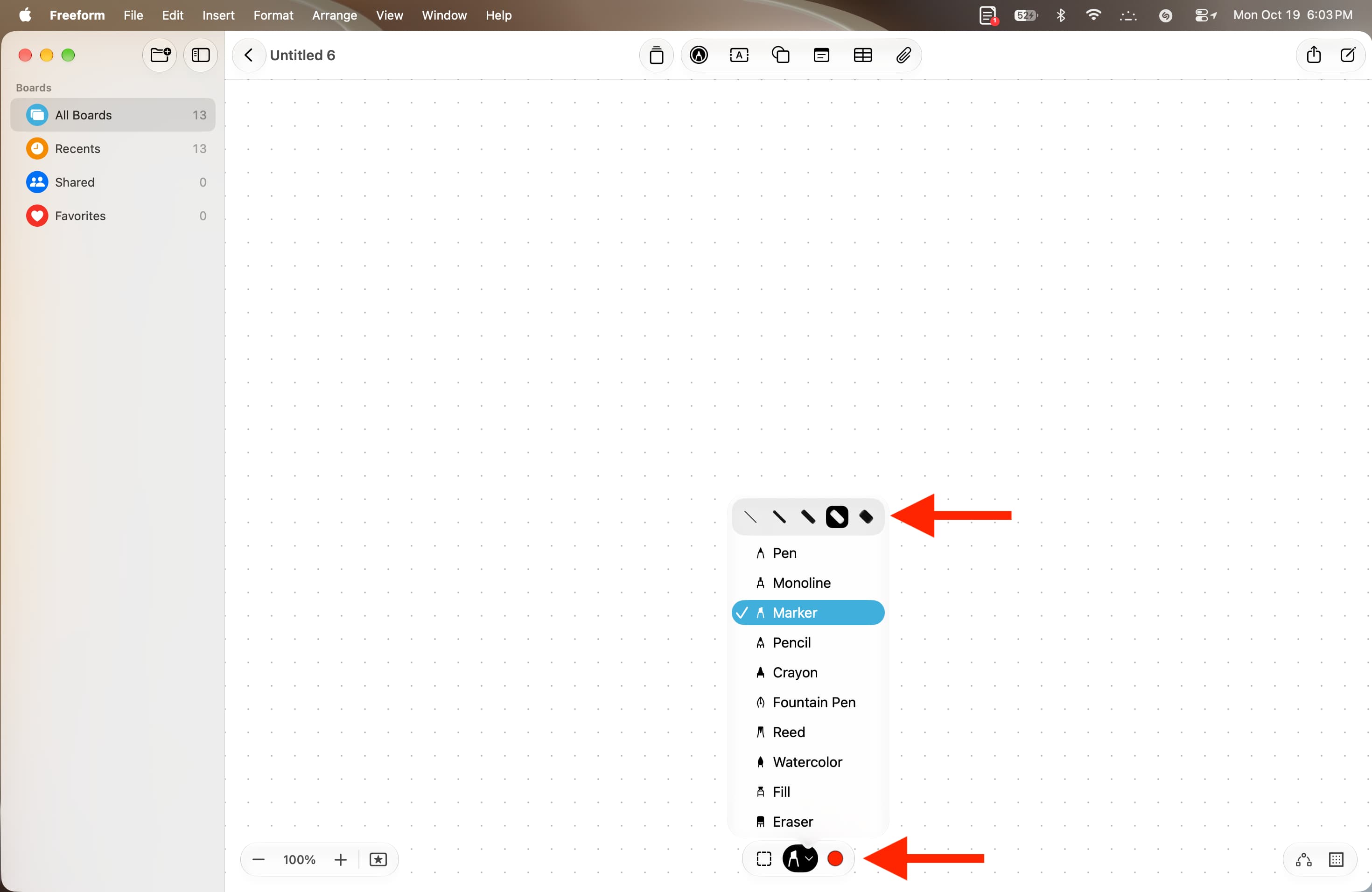
4) Now, select your preferred drawing tool by clicking the little arrow next to the pencil icon at the bottom:
- Pen
- Monoline
- Marker
- Pencil
- Crayon
- Fountain Pen
- Reed
- Watercolor
- Fill
- Eraser
After selecting a tool, choose its thickness, then pick a color using the circular dot at the bottom.
5) Now use the board to unleash your creativity. Press and drag on the trackpad, or drag with three fingers (if you have enabled it).
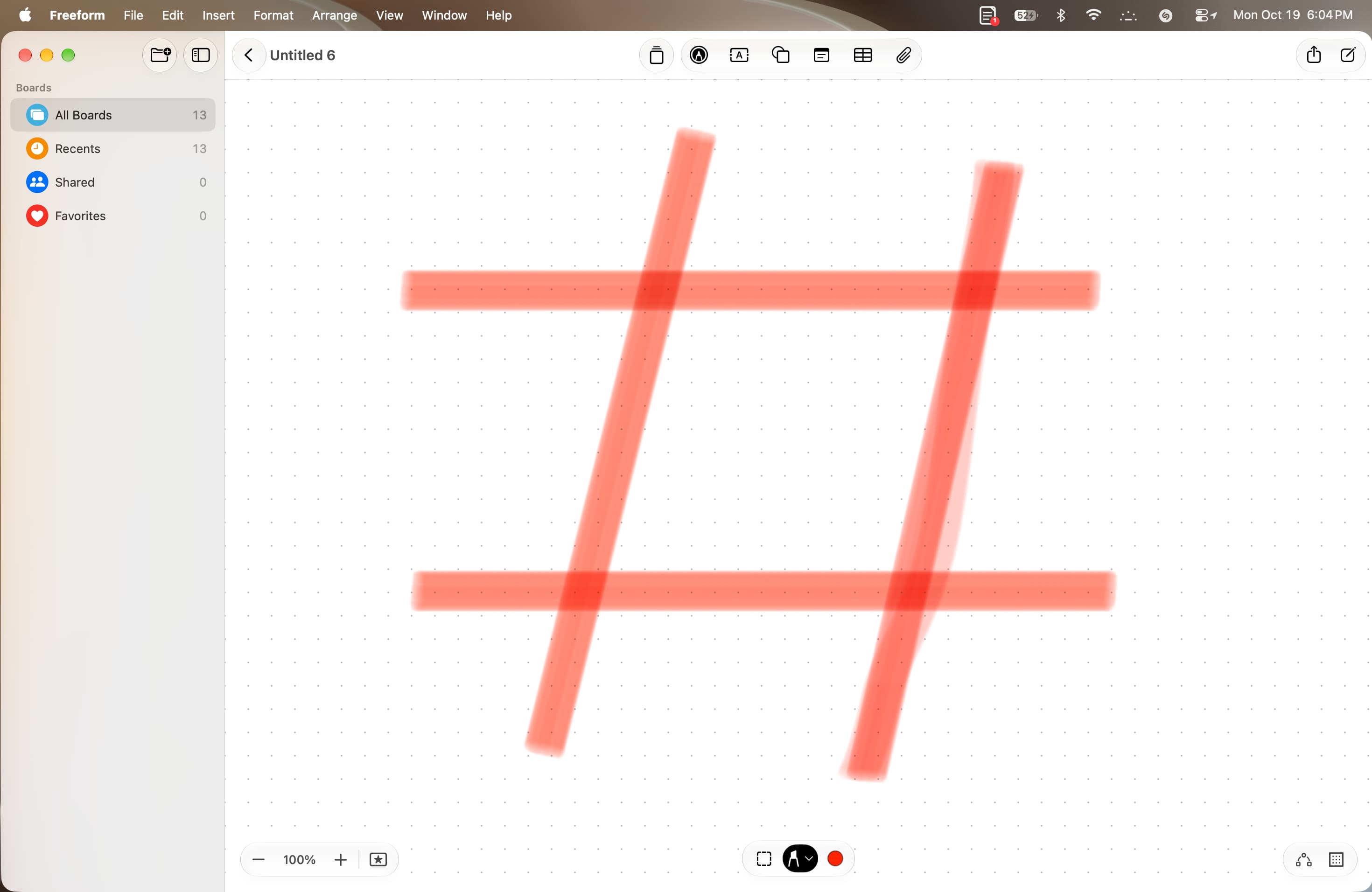
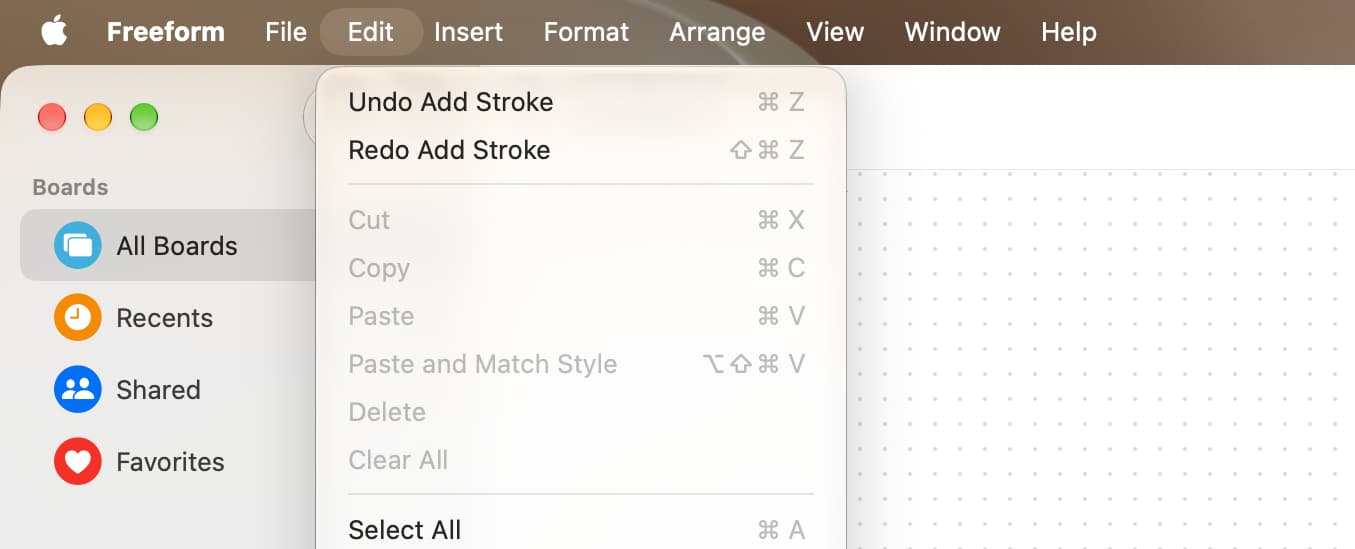
Use the Edit menu from the top or press Command + Z to undo and Shift + Command + Z to redo.
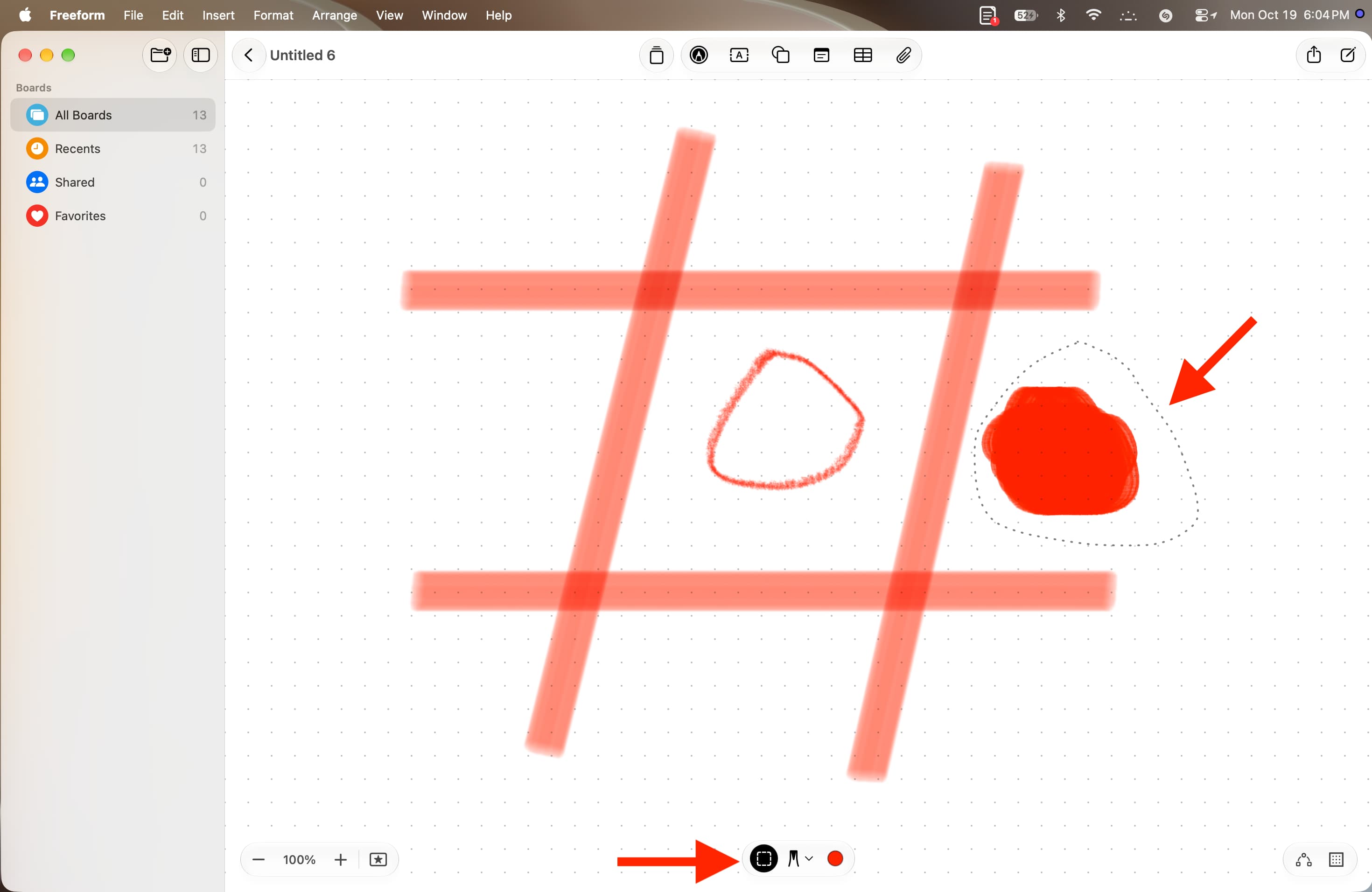
6) If you want to move a drawing elsewhere, click the selection tool icon at the bottom. Then drag around the drawing to create a dotted border which selects it.
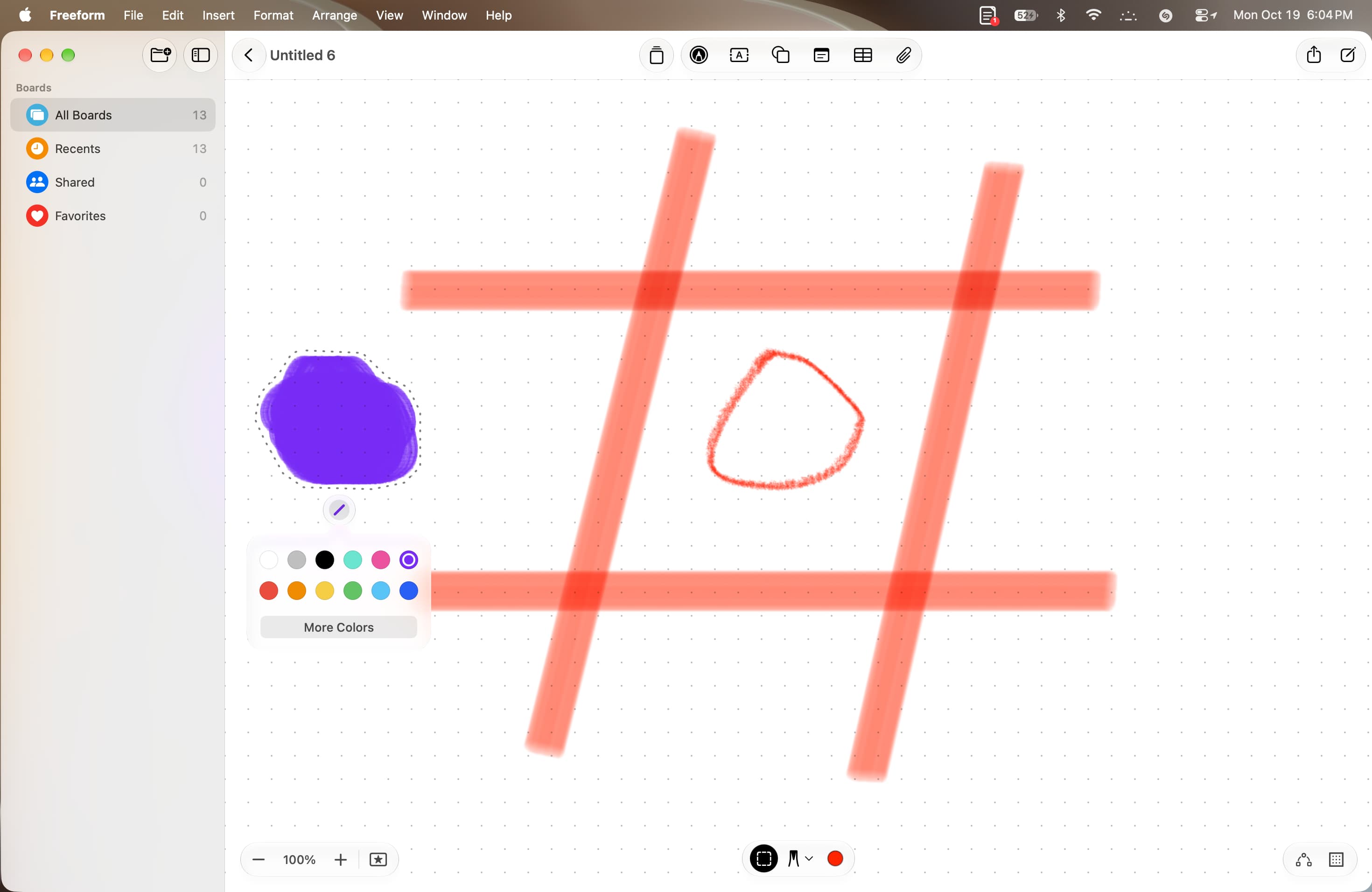
Then drag to move it to another spot. You can also change the drawing’s color when it’s still selected.
Freeform boards constantly save everything as you work. When you have finished drawing, click the same markup icon at the top to exit sketching mode. You can now use text, shape, and other tools on this same board, as needed.
You can also drag and select the entire drawing.
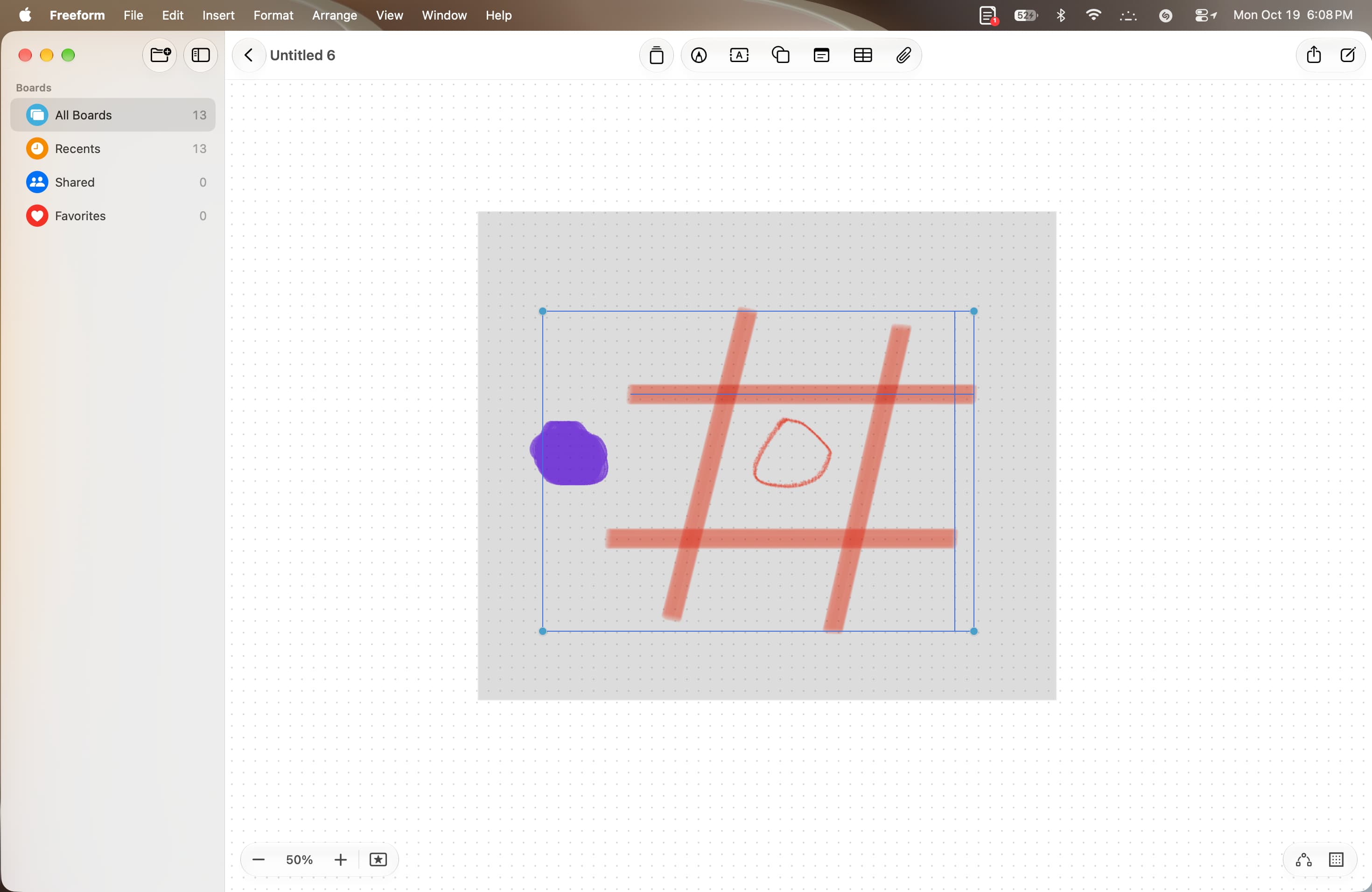
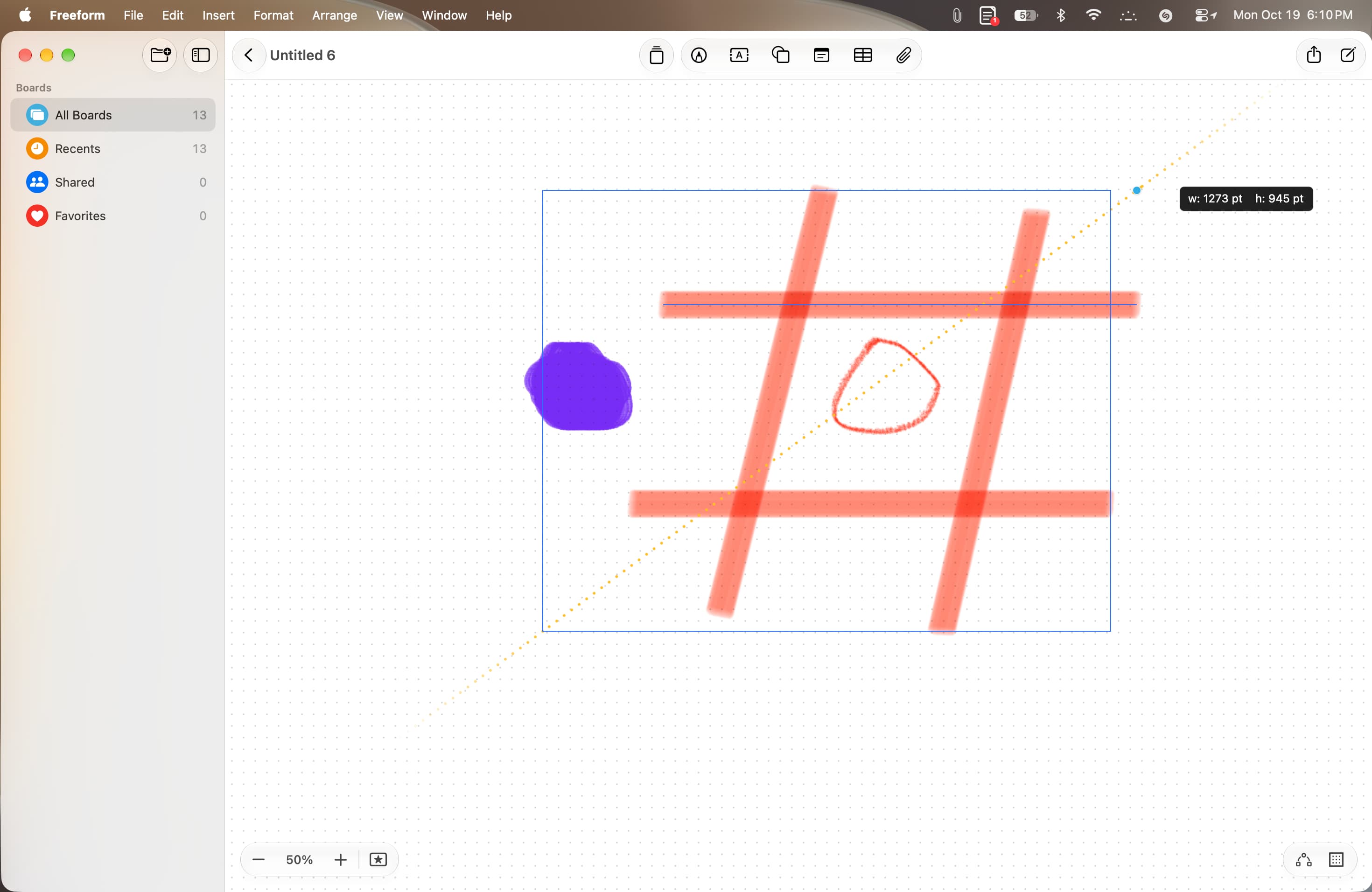
Then, use the four corner dots to change the size (hold the Option key to scale proportionally on all sides). You can also use the arrow keys on the keyboard to move the selected drawing precisely.
Extra info: The Freeform app on macOS 27 now supports Dark Mode and folders. To enable Dark Mode, turn it on in macOS Control Center. And to create a new folder to organize your boards, click the icon at the top of the left sidebar.
Also, check out: How to quickly insert emojis in macOS 27 with this colon trick