Learn how to deactivate the camera shutter sound on your iPhone so you can take pictures quietly, without disturbing others.
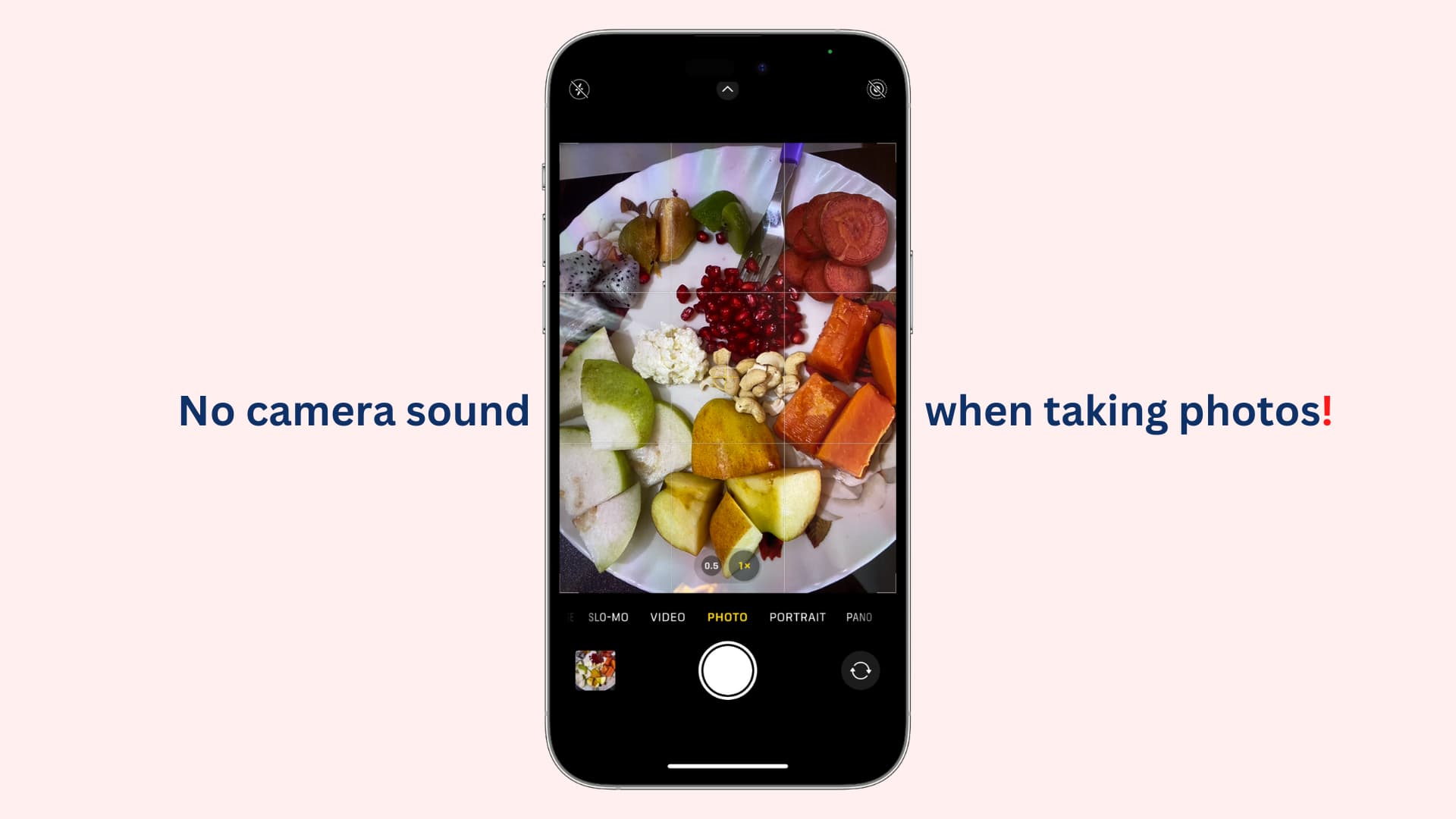
iPhone and iPad have no dedicated setting to disable the camera sound when you take a photo. But with some workarounds, you can adjust the shutter volume or mute it completely.
So, if you’re trying to capture a photo while your baby is asleep or your pet is secretly doing something cute, you can be as sneaky as you’d like and capture natural expressions.
Important: It may be illegal to take pictures without informing the other party in a few countries like Japan, South Korea, and the United Arab Emirates. So, in these regions, even after muting your iPhone, the Apple Camera app will still make the shutter sound when you snap a photo.
Turn on silent mode
The easiest and quickest way to disable the camera sound on your iPhone is by activating silent mode from Control Center. If you have an older model, you can also push down the mute/ring switch to activate silent mode.

Note: This will also disable the screenshot sound on your iPhone.
Turn off the iPhone media volume
Open Control Center and drag the volume slider down to zero. If you only want to lower the camera sound, adjust it to 10 or 20 percent. Then, open the Camera app and take a photo without the loud shutter sound.

Take a Live Photo
Another easy way to have no camera shutter sound is to shoot Live Photos instead of standard stills.

Take pictures with earphones connected to your iPhone
Connect your AirPods or other wireless/wired earphones to your iPhone and take a photo using the iOS Camera app. The shutter sound will play through the earphones instead of the iPhone speakers, so only you can hear it.
Snap a silent picture with QuickTake
Open the Camera app, switch to VIDEO mode, and start recording. While recording, use the white shutter button to take pictures without sound. Keep in mind that starting and stopping the video recording produces alert sounds. For completely silent photos, use QuickTake instead.
- Open iPhone Camera and stay in PHOTO mode.
- Touch & hold the circular shutter button to start a QuickTake video recording, and then, without lifting your finger, slide the shutter button to the right to lock it.
- Tap the white circular shutter button from the bottom right to take pictures without the shutter sound.
- When done, tap the stop button. The video and pictures you took are saved to the Photos app. You can delete the video if it’s not needed.

Play music to cover up the camera shutter sound
Play a song on your iPhone and then take a picture. While this doesn’t disable the camera sound, it can mask it, making it less noticeable to those around you.
More camera tips for you: