Learn how to type accented letters on Mac keyboards to accurately spell out international names and write foreign words in your documents, emails, messages, and more.
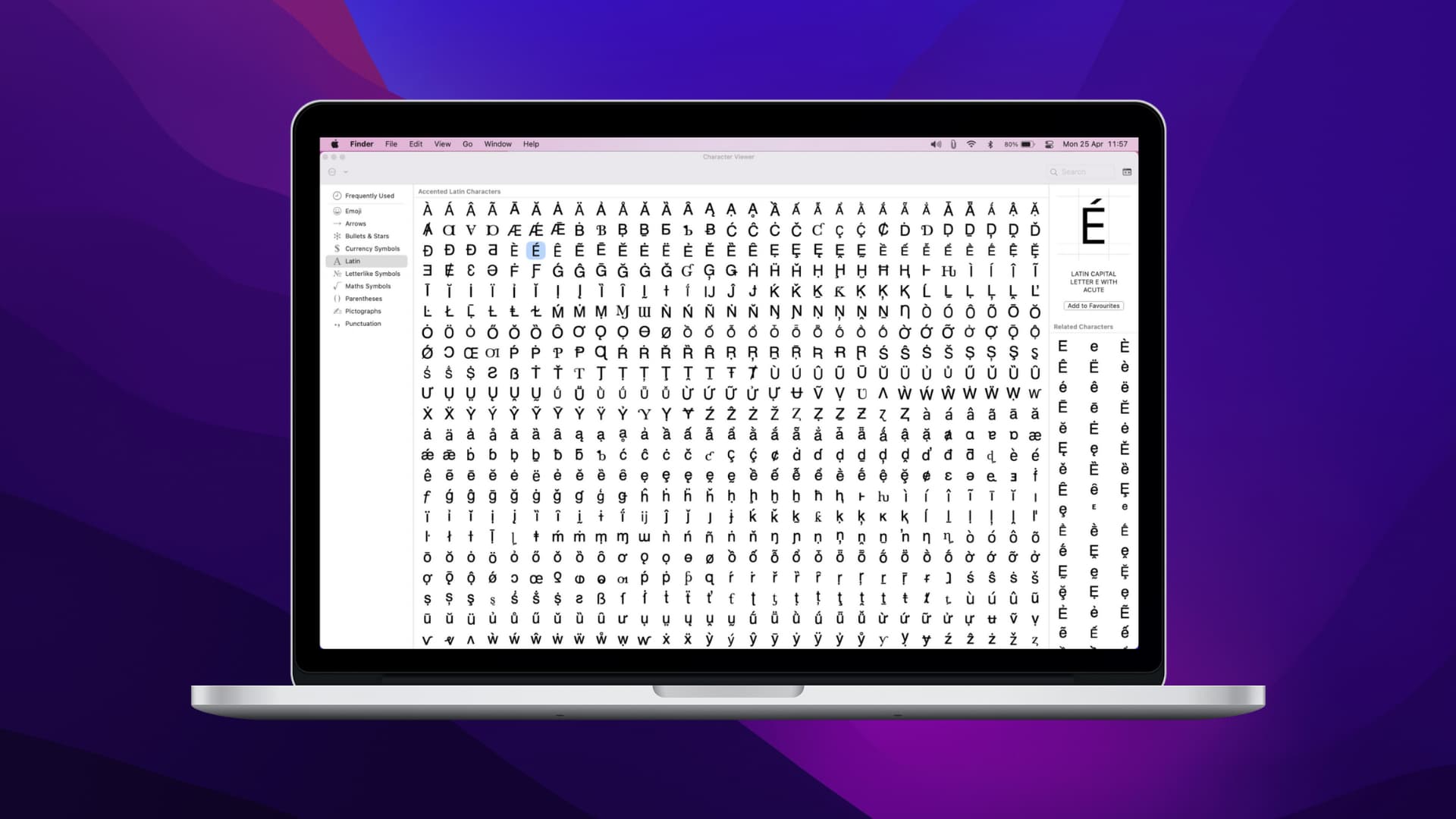
If you message people around the world or write documents in a particular language, you’ll want to use accents, also called diacritical letters or just diacritics.
You can enter accent marks in three different ways using your MacBook’s built-in keyboard and without downloading specialized apps. Follow along to learn how.
Hold down a letter
This is by far the fastest and easiest way to type diacritical letters on a Mac. Just hold down the key for the letter you’d like to accent.
Try it now: Hold the A, E, I, O, or U key, and you should see a menu with relevant diacritics. Then, press the number key corresponding to the required accent or click the diacritical letter directly with the mouse or trackpad.
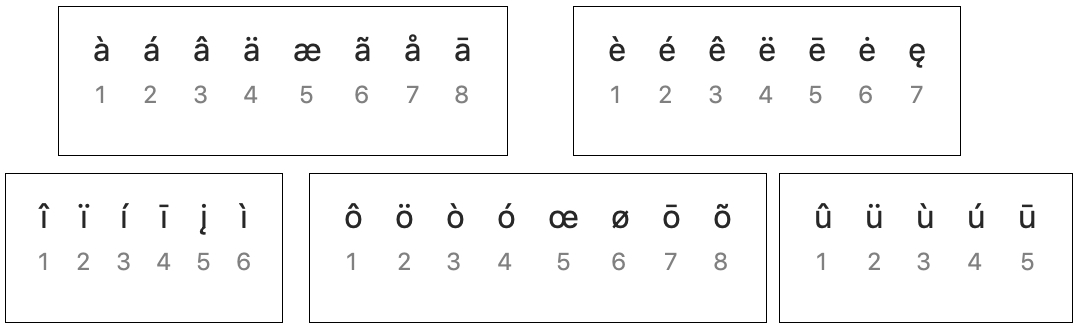
Note: The key repeat feature may clash with accents. With it, you can type a repeating character like “e” in “yippeeeeeeeeeeee” by holding the corresponding key “E.” If you cannot enter accents, turn off key repeats and restart your Mac.
Use Character Viewer
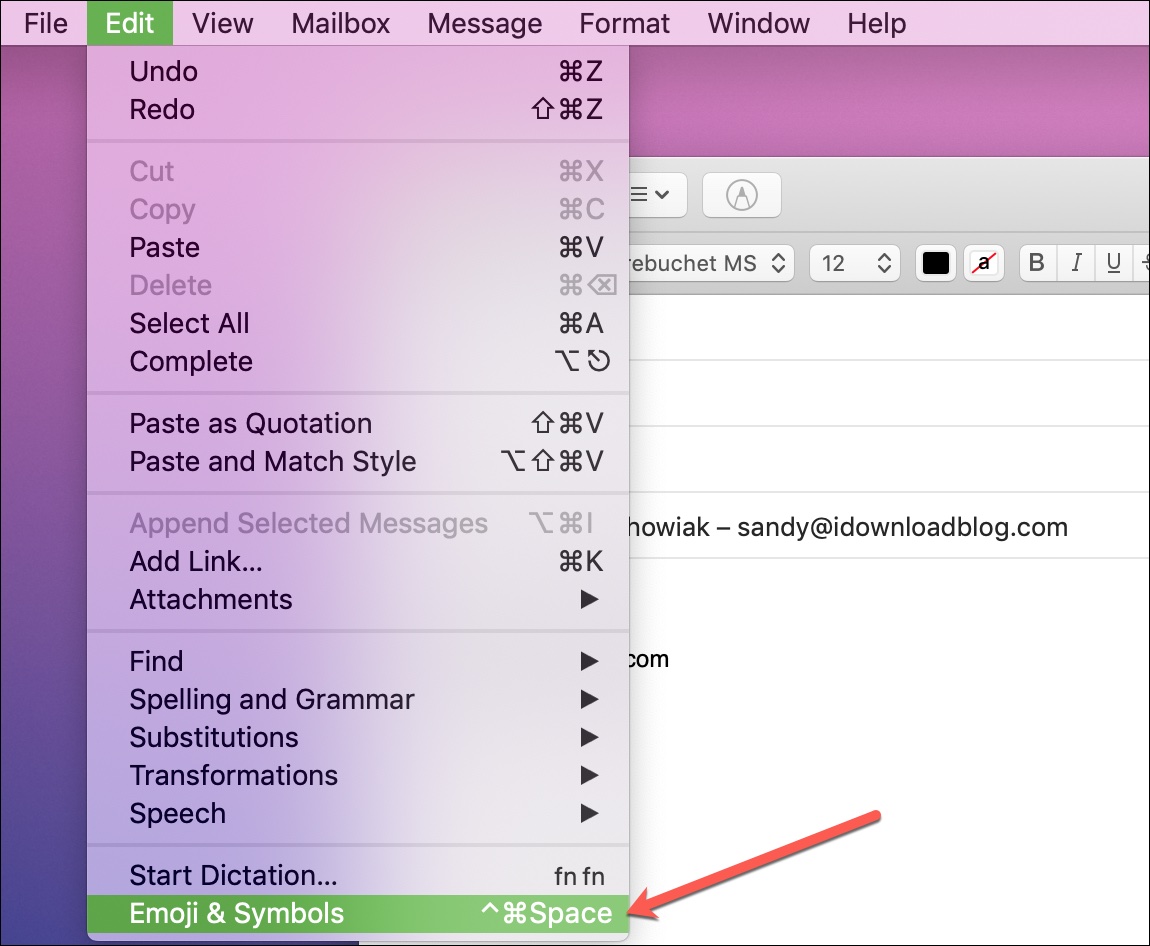
The built-in Character Viewer tool also lets you enter accented letters. To open Character Viewer in an app you’re using, click the Edit menu and select Emoji & Symbols. Or, press the Control + Command + Space Bar keys. You can also click the keyboard layout icon in the menu bar and choose Show Emoji & Symbols.
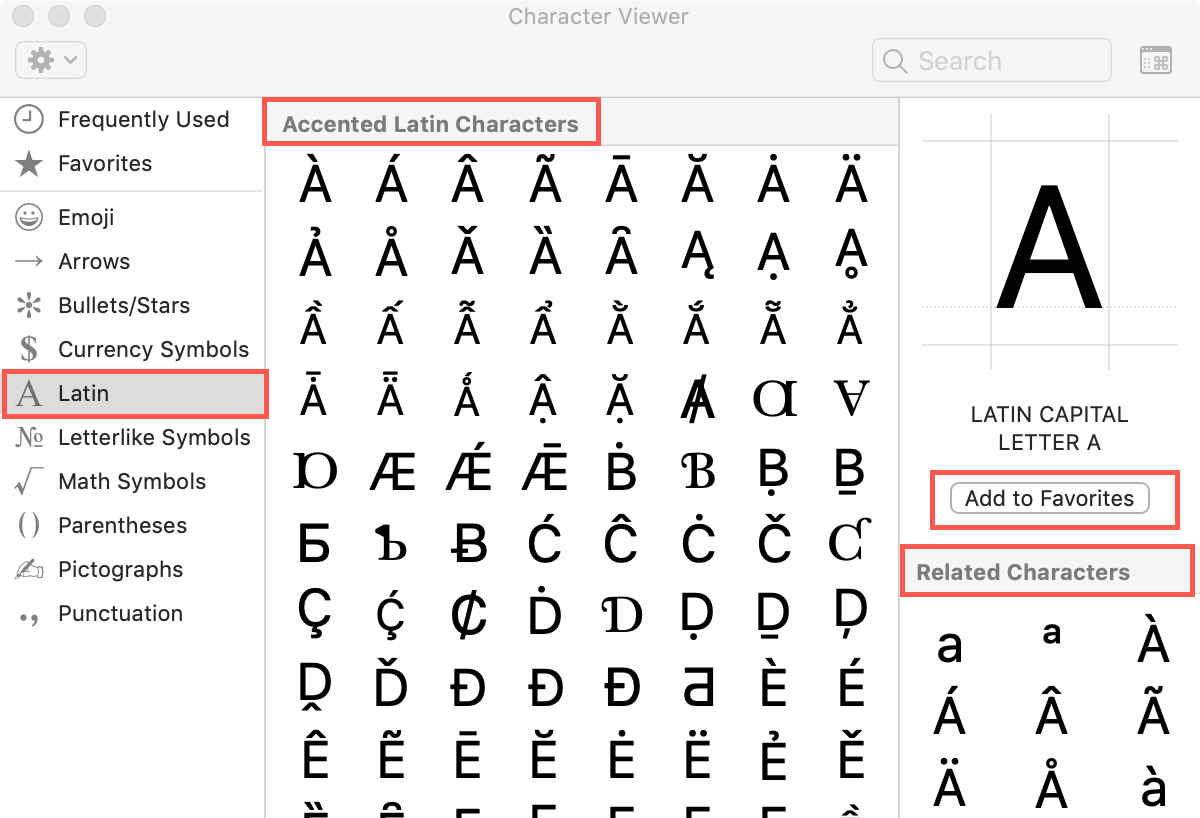
Select Latin in Character Viewer’s sidebar, then scroll down and select the Accented Latin Characters section. Choose a letter and select an accent, then drag and drop it into place in another app. Accented letters include uppercase and lowercase variants. You can also see Related Characters on the right or click the Add to Favorites button to mark a selected accent as your favorite.
Keyboard shortcuts
Use these keyboard shortcuts to enter letters with accents and foreign characters.
Accents:
- Acute é: Press Option + E, then release the keys and press E
- Circumflex ê: Press Option + I, then release the keys and press E
- Grave è: Press Option + ` and then release the keys and press E
- Tilde ñ: Press Option + N, then release the keys and press N
- Umlaut ü: Press Option + U, then release the keys and press U
Foreign characters:
- French C cedille ç: Press Shift + Option + C (uppercase) or Option + C (lowercase)
- OE ligature œ: Press Shift + Option + Q (uppercase) or Option + Q (lowercase)
- German sharp ß: Press Option + S
- Nordic O slash ø: Press Shift + Option + O (uppercase) or Option + O (lowercase)
- Nordic A ring å: Press Shift + Option + A (uppercase) or Option + A (lowercase)
- Ordinal number ª: Press Option + 0 (masculine) or Option + 9 (feminine)
- Spanish/French quotation marks «»: Press Option + \ or Shift + Option + \
- Upside-down exclamation mark ¡: Press Option + 1
- Upside-down question mark ¿: Press Shift + Option + ?
Typing accented letters is super easy on a Mac’s keyboard with built-in options. The keyboard shortcut is the fastest way to enter diacritics in macOS, but Character Viewer is another quick-access option.
Which one do you prefer? Or do you use both?
More on typing: