Learn about a few easy ways to insert a tab character on your iPhone or iPad for indentation purposes to help guide the flow of text in your documents.

Did you notice a Tab key is nowhere to be found on the stock keyboard?
If you haven’t needed a dedicated tabulator key, you could be forgiven for missing it. Don’t worry, there are other ways to enter a tab character on your iPhone or iPad, and we show you how.
Insert a tab character on iPhone via a text replacement
Creating a text replacement for a tab character doesn’t work on an iPhone or iPad. Instead, you can create an appropriate replacement on your Mac, as these things sync via iCloud to your other devices, so they’ll appear on your iPhone and iPad.
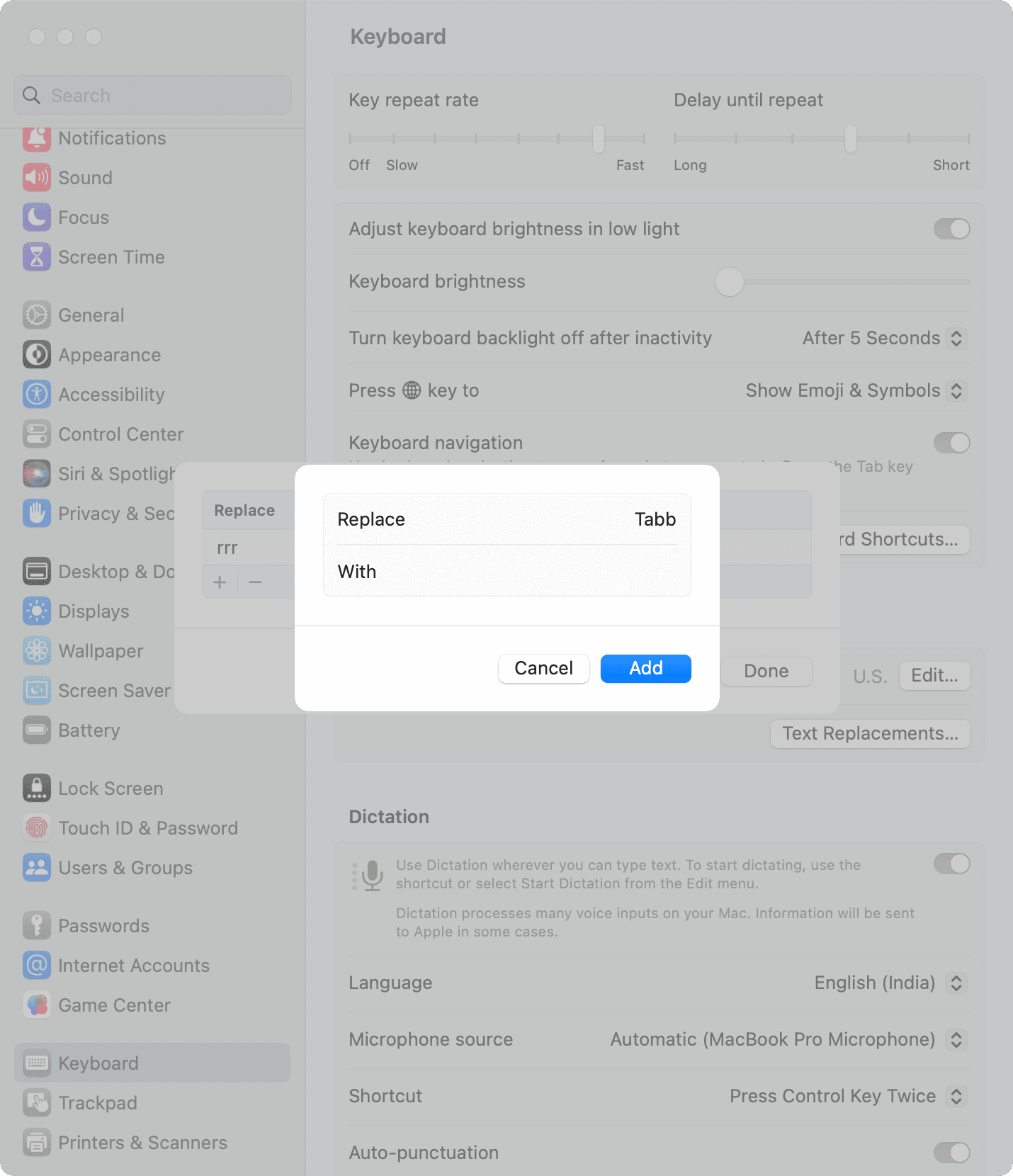
To create a text replacement for a tab key:
- Open System Settings, then select Keyboard in the sidebar and click the Text Replacements button on the right.
- Click the plus sign (+) to create a new text replacement.
- Enter the trigger phrase like “Tabb” in the Replace box.
- Then, select the With box, and press the Option + Control + Tab keys simultaneously to insert a tab.
- Finally, click Add or press the return / enter key, then click Done to save the changes.
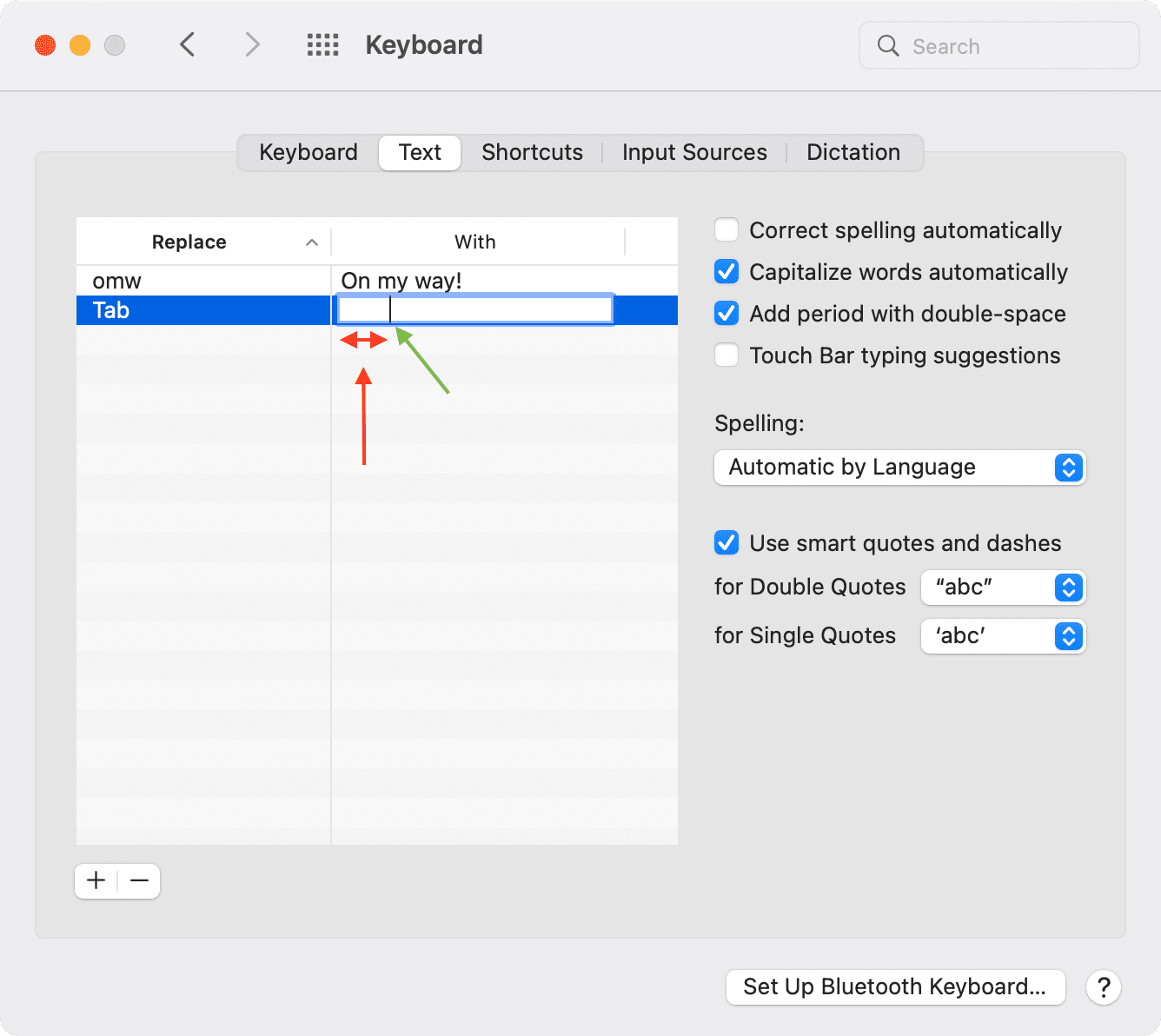
And this is how the same interface looks on macOS Monterey and earlier:
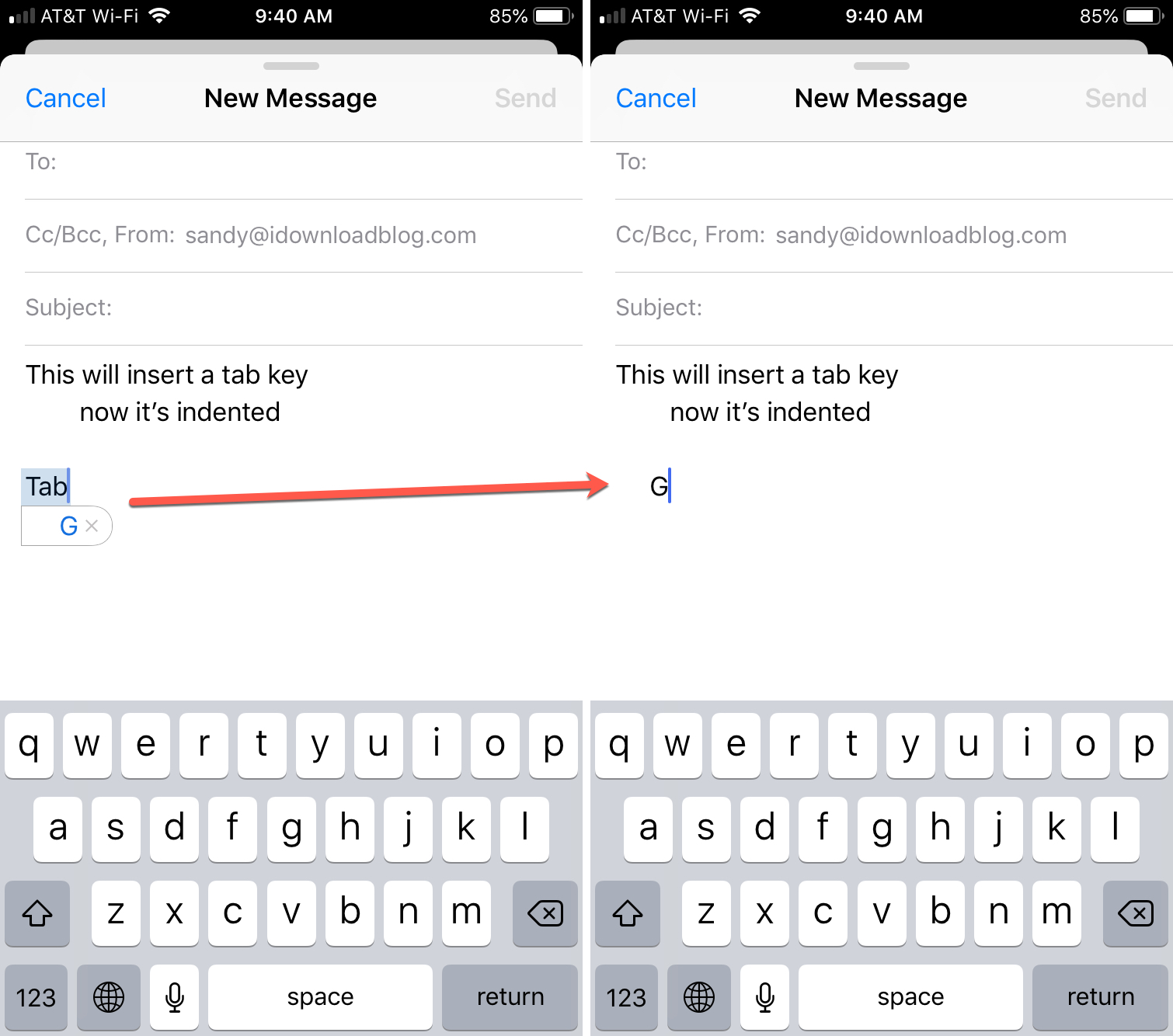
Your text replacement is also available on your iPhone and other devices signed with the same Apple account thanks to the magic of iCloud. To use this text replacement on your iPhone, open a document and position the cursor where you’d like to insert a tab character, then type your trigger phrase defined in step 3 above. When a text replacement appears inline, tap the Space key to accept it.
Built-in indentation features in apps
Some Apple apps, like Mail and Notes, and third-party apps, like Evernote and Edison Mail, provide a built-in option to indent text. Open an existing document, such as an email or a note, and start typing. Several options should appear above the keyboard. Tap Aa, then hit the right indent text button that has a right-pointing arrow to indent text.
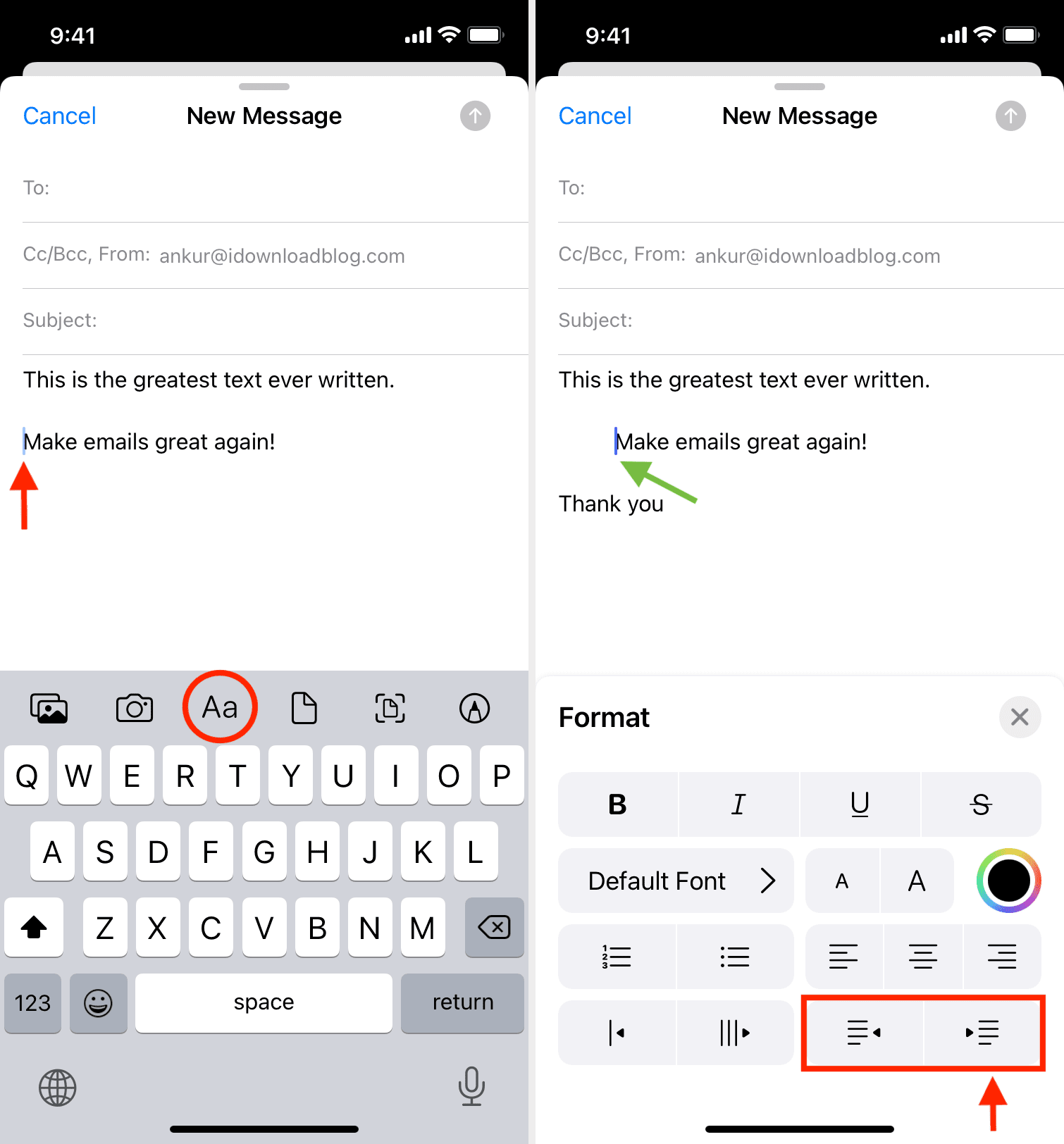
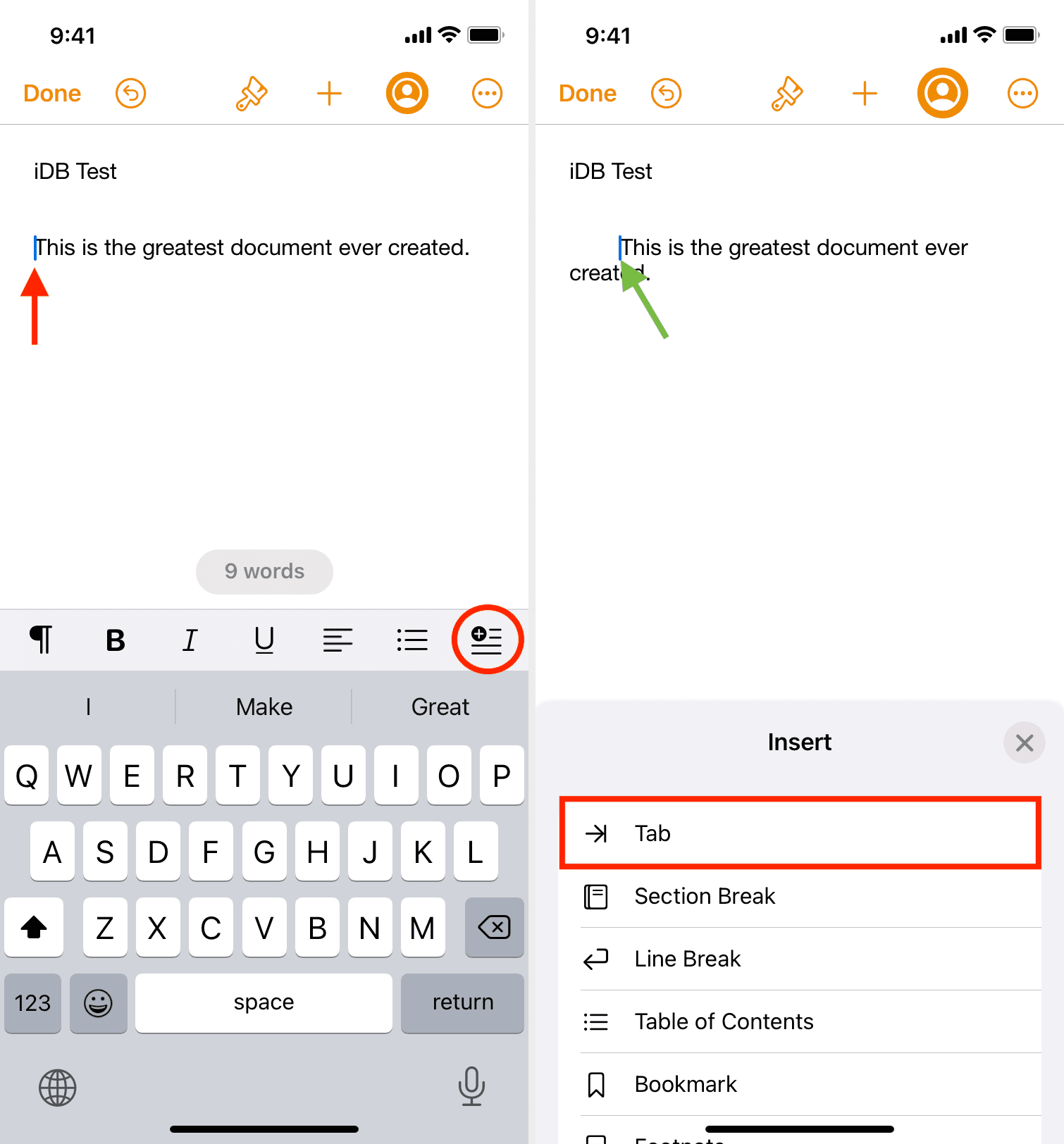
You cannot indent note titles, email subject lines, and other special-purpose text fields. The design of the text indentation icon may vary from one app to another. Don’t worry, it’s easy to figure out! For instance, a dedicated “Tab” option in Pages is revealed after tapping the icon comprising four lines and a plus sign. If an app lacks an indentation feature, the first method and the following one will come in handy.
Insert a tab character on an iPhone using dictation
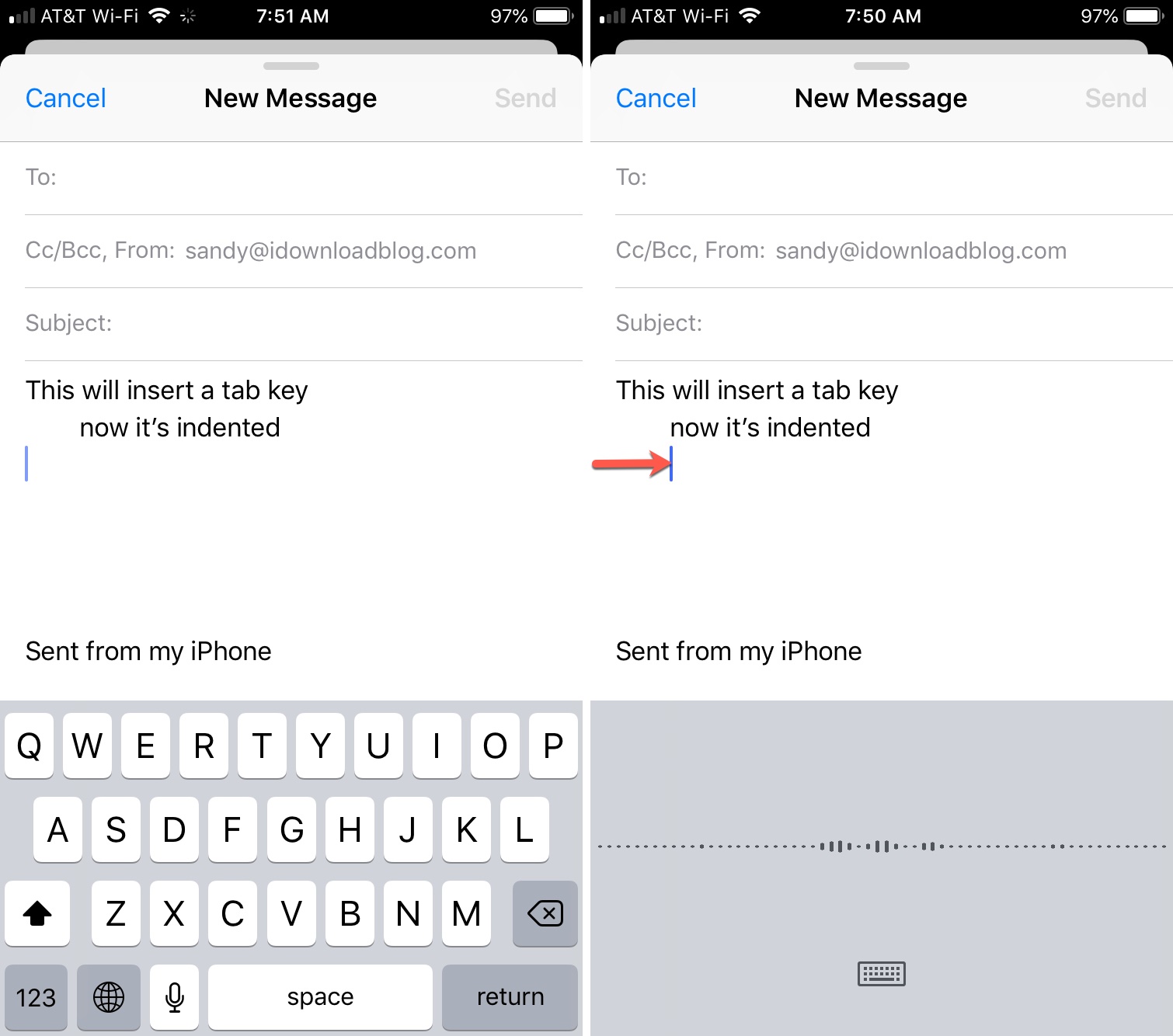
Open a document like an email message in the Mail app and position the cursor to the place where you’d like to insert a tab character. Tap the microphone key on the onscreen keyboard to use dictation; say “Tab key” and a tab character will be added at the insertion point, as noted by Six Colors.
Have you been struggling without a dedicated Tab key on the stock keyboard? And if so, what workarounds, if any, do you use? Let us know in the comments down below!
Other keyboard tips for you: