Learn how to cycle through open tabs in Apple’s Safari browser on the iPhone, iPad, and Mac using a familiar gesture, an on-screen button, or a keyboard shortcut.
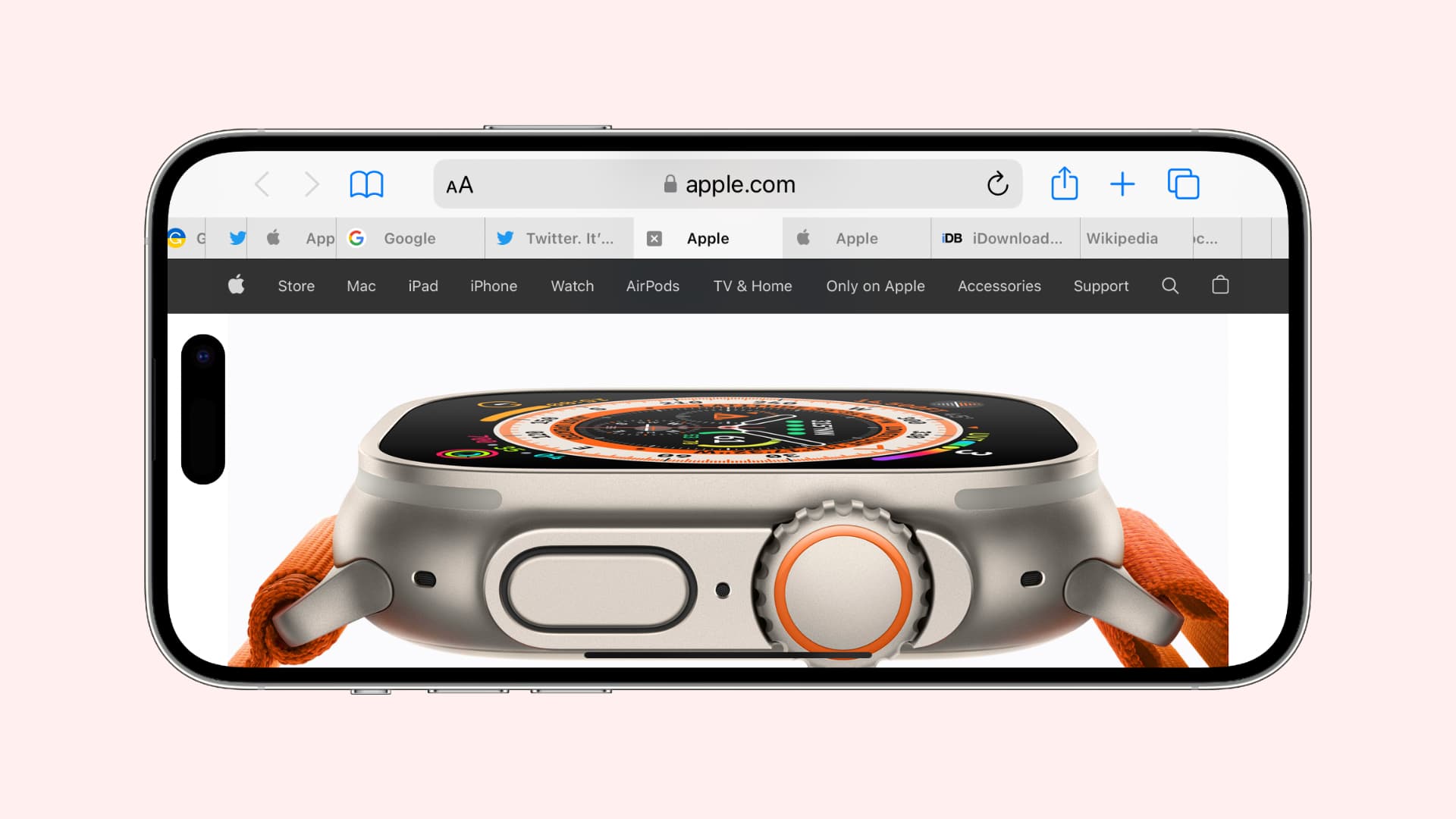
Tabbed browsing makes you more productive by loading a bunch of websites in a single browser window, so you can quickly switch between them by clicking tabs. This is especially handy for online research and multitasking, as you can read the news in one tab and keep an eye on your Gmail inbox in another, and so on.
If you have an overwhelming number of tabs open in Safari on your iPhone, iPad, or Mac, we’ll show you a few ways you can quickly cycle through them.
iPhone
Swipe across the bottom address bar when in portrait orientation to switch between open tabs. You can do this with your thumb in one-handed mode.

You can also swipe up from the bottom address bar and hold to see all open websites as tiles and select one.
Landscape tab bar
- Navigate to Settings > Apps > Safari.
- Turn on the switch for Landscape Tab Bar. iPad owners should also disable the “Hide Tab Bar While Scrolling” setting to keep the tab bar visible (swiping down always reveals the tab bar).
- Open Safari and rotate your iPhone to landscape mode to show the tab bar.
- If there are more tabs than fit the tab area, swipe left or right with your finger over the tab bar to quickly scroll through all of the open tabs, just like that.
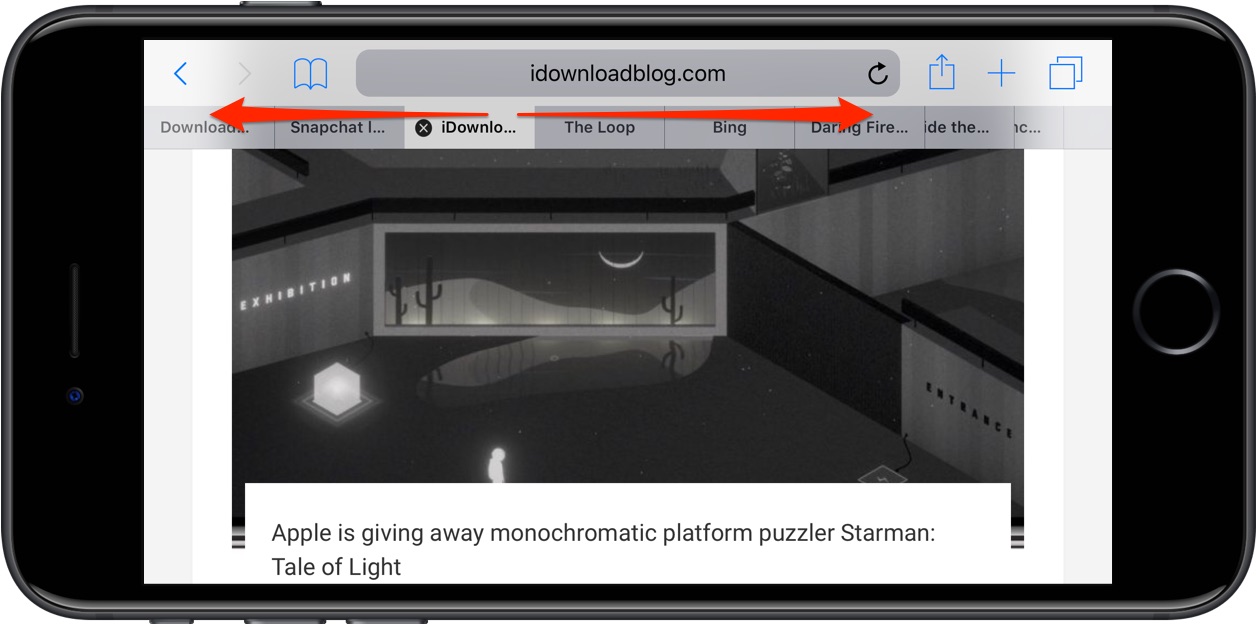
Touching and holding a tab lets you move it to another position in the tab bar.
iPad
Tap the tabs at the top of the screen. Or, pinch in with two fingers to see all open websites as tiles and select one.
Mac
To cycle through open Safari tabs on a Mac, press Command + Option + left or right arrow key.
Aside from the keyboard shortcut, you can swipe left or right over the tab bar using the trackpad to cycle through open Safari tabs with ease. To instantly jump to the first nine open tabs, press the Command + 1 to 9 keys.
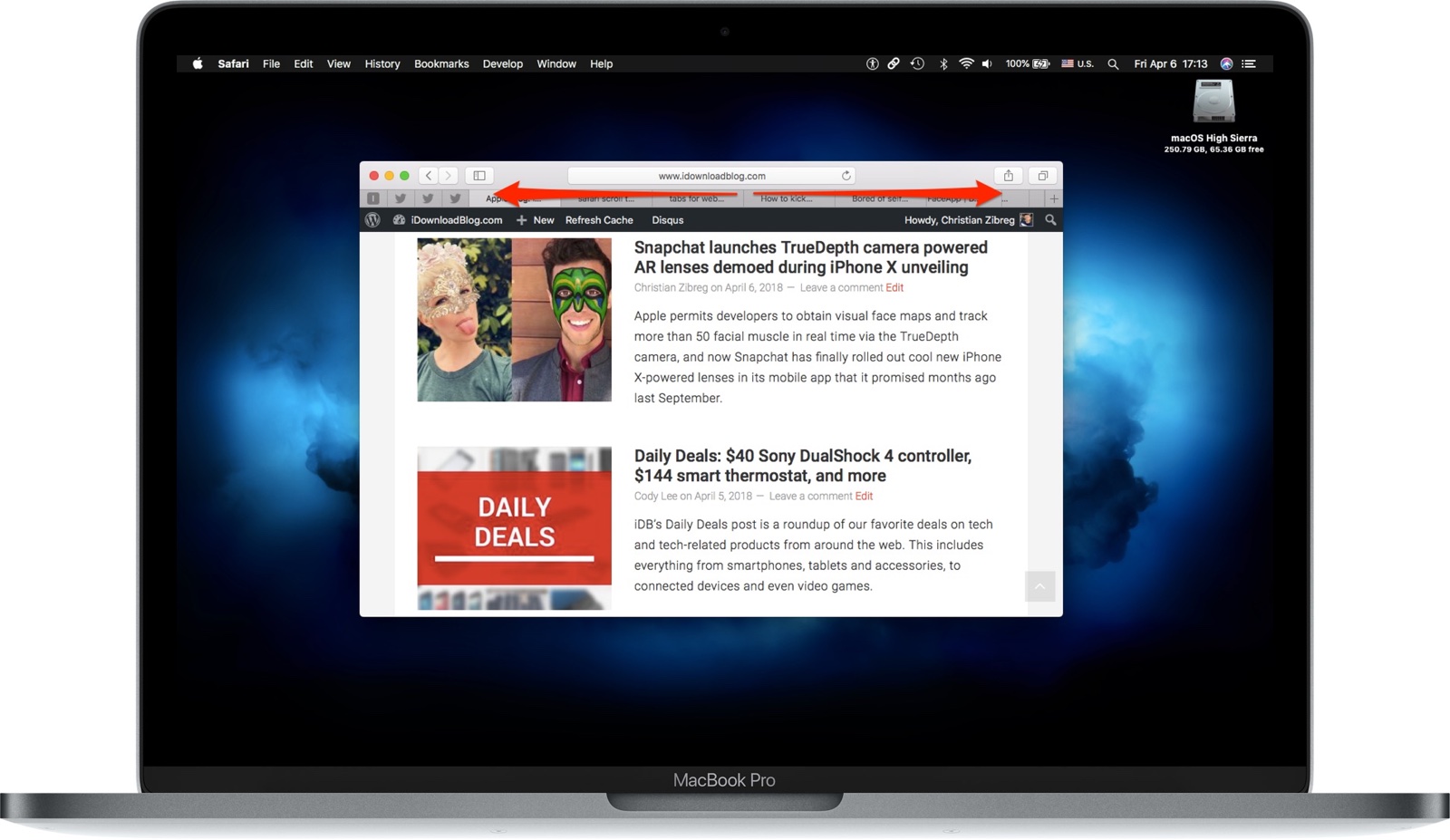
Now you know how to swoosh through your open tabs like nobody’s business. Safari lets users of all experience levels browse the web easily. You can also view two tabs at the same time, which is handy for online research and other purposes.
If you use Safari for business or personal projects, you can create tab groups dedicated to work, social, personal, media, and so forth. iPhone and iPad owners should also check out our tips to customize and personalize Safari.