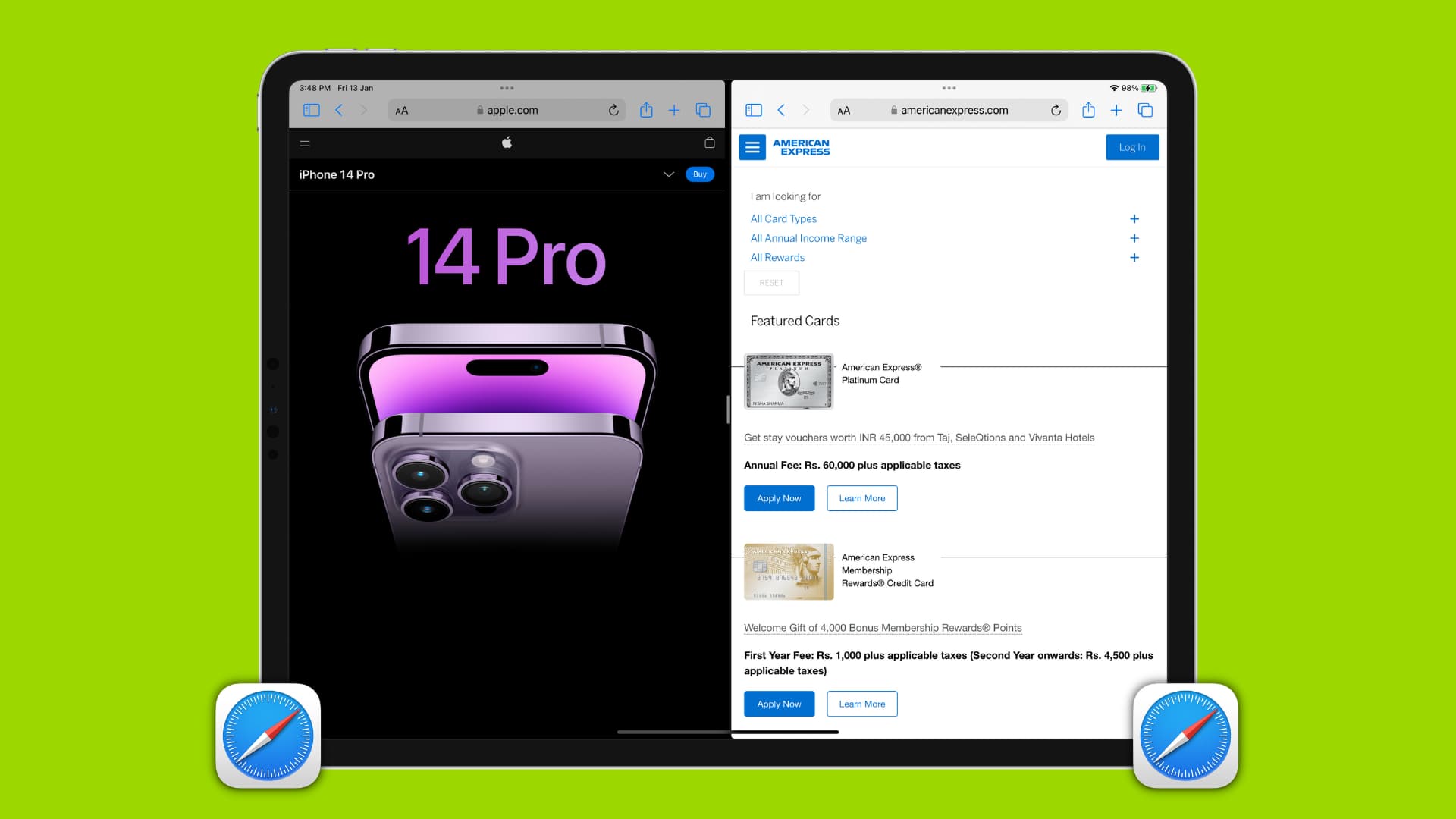
iPadOS 26 has removed Slide Over and Split View. So, to view two or more websites at the same time in Safari, you’ll have to use the new Windowed Apps feature or Stage Manager. We’ll explain both below.

Use Windowed Apps to open multiple Safari tabs in iPadOS 26
The new Windowed Apps feature allows you to open multiple app windows on iPad (much like a Mac), resize the windows, and arrange them how you want for a better multitasking experience. Since Slide Over and old Split View are gone, you must enable Windowed Apps or Stage Manager to open and view multiple websites at the same time in Safari.
1) Open the Settings app on your iPad running iPadOS 26, tap Multitasking & Gestures, and check Windowed Apps.

2) Launch Safari and visit the first website.
3) Now, open a second Safari window using one of these methods and visit another website here:
- Swipe down slightly from the top of the screen to view the new Safari top menu bar, and select File > New Window.

- Swipe up a little from the bottom of your iPad screen to reveal the Dock. Then, touch and hold the Safari icon and select New Window.

- If you have two or more tabs open, touch and hold one of the tabs, then drag it out to detach it from the current window and open it in its own separate window.
4) Now, adjust the windows manually or use the automatic move & resize option:
- Manual method: Once you’ve two or more Safari windows, touch and hold the small resize tab in the lower-right corner of one of the windows and drag it inward to make the window smaller. Repeat this for the second, third, and other Safari windows you have open. Then, touch the top of the Safari window and drag to place them at the desired spots.

- Automatic Move & Resize: Touch and hold the traffic light buttons in a corner of the Safari window to expand it. Then, select any desired option under the “Move & Resize” and “Fill & Arrange” sections, except for the one that fills the entire screen.

Use Stage Manager to open several Safari windows on iPad
Instead of Windowed Apps, you can also use Stage Manager to multitask with ease. This can be handy if you already like using Stage Manager on your Mac and would like that experience on your iPad as well.
1) Go to iPad Settings > Multitasking & Gestures and select Stage Manager.

2) Open Safari and visit a website.
3) Then, open a second Safari window using the top menu bar or bottom Dock. Both these methods are explained in the Windowed Apps method above.
4) Resize the full-screen window if needed.
5) You’ll now have one Safari window on the screen and another as a small tile on the left side of the screen. Touch the Safari window there and drag it onto the screen.

6) Now, resize and move the open windows accordingly so you can view both. You can also hold the traffic light button to move, resize, and arrange them automatically.

If your iPad is on iPadOS 18 or older
You can view two Safari tabs, windows, or websites at the same time on your iPad using Split View and Slide Over. We’ll show you four ways to do that.
Drag a tab for Split View
1) Make sure you have at least two tabs open in Safari.
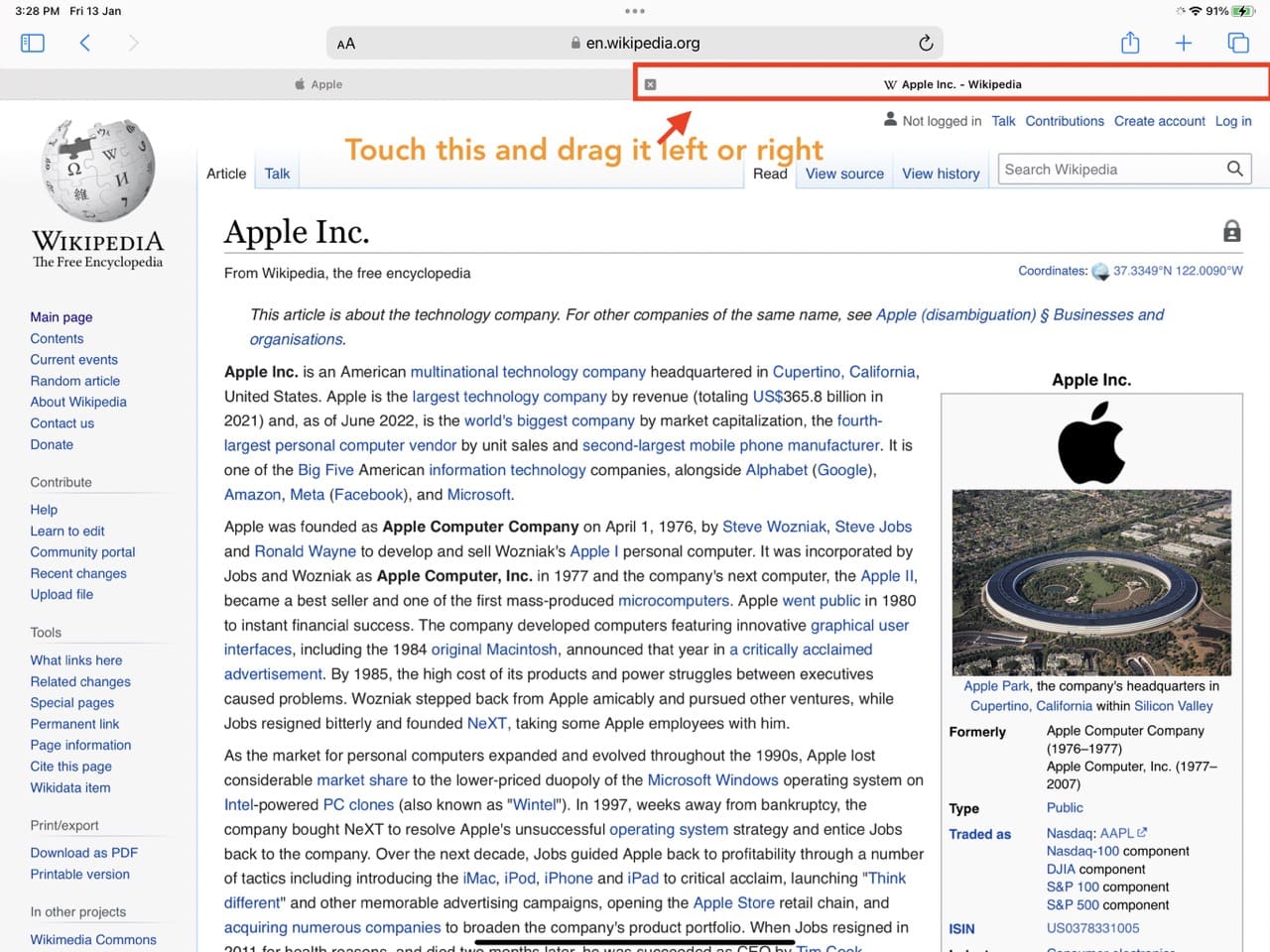
2) Touch and hold one of the tabs and drag it to the left or right edge of the iPad screen to open it in Split View.
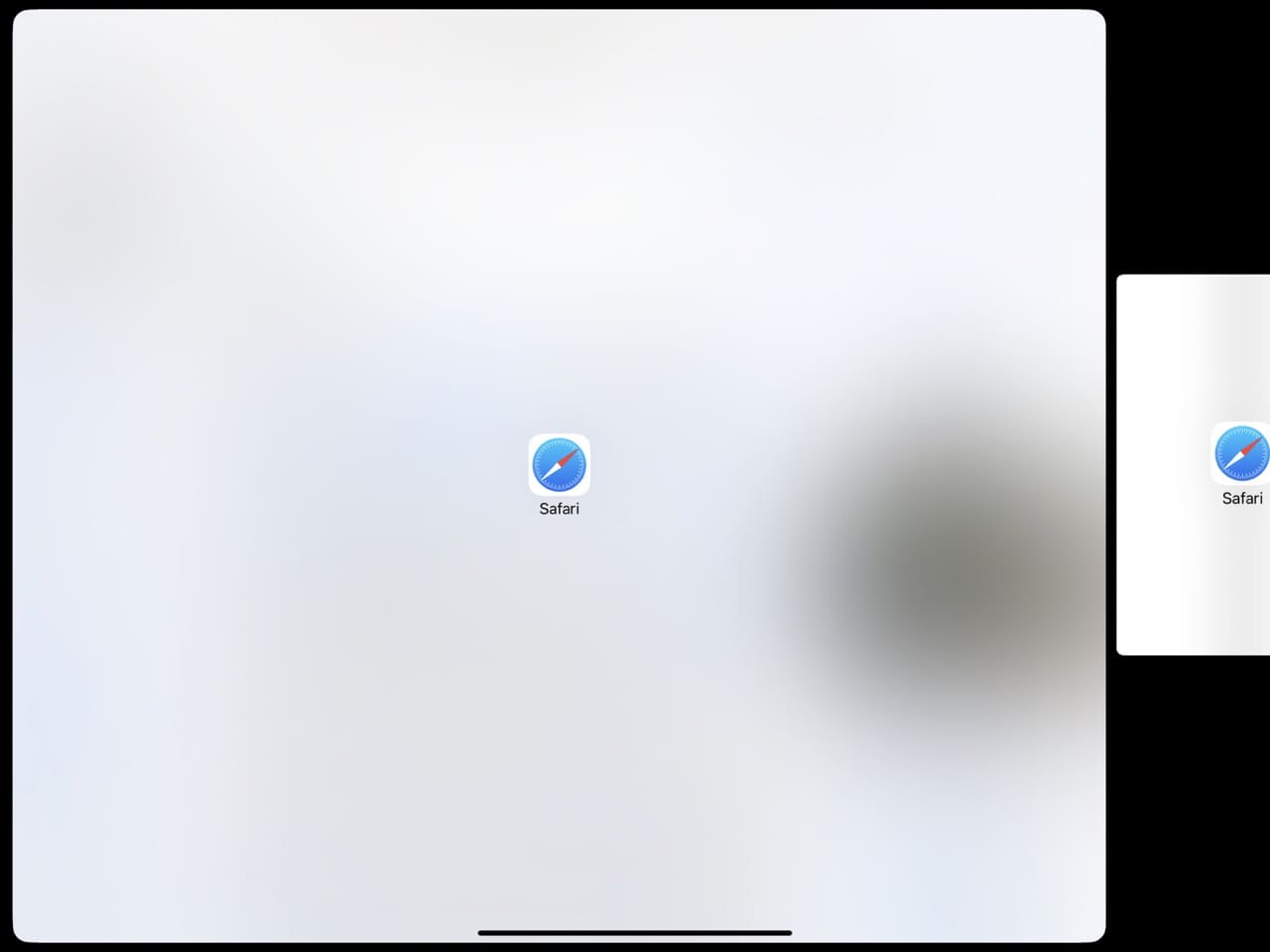
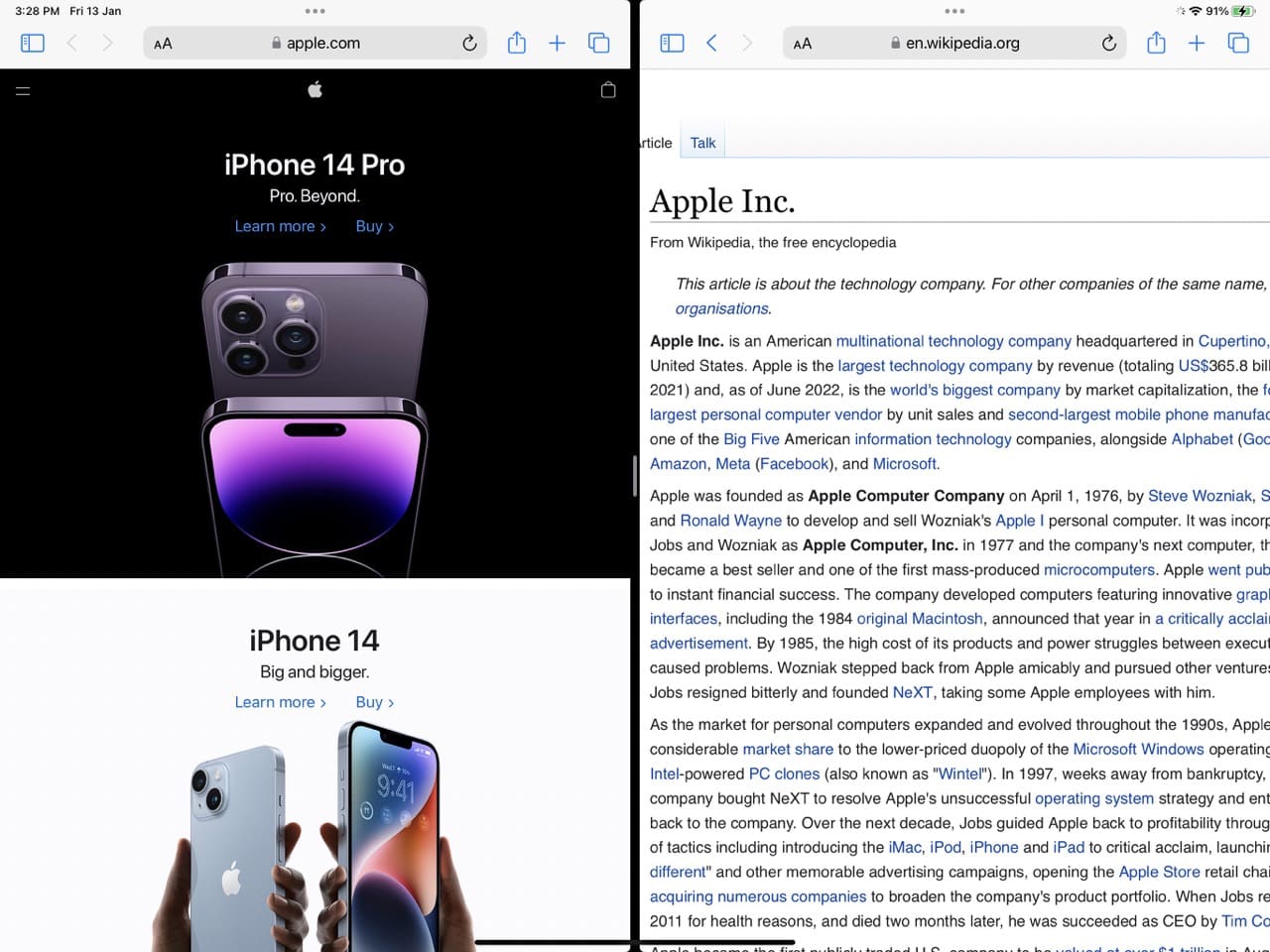
Both tabs will take half the screen, which you can easily adjust by dragging the middle divider line.
Open in New Window
1) Open a website in Safari on iPad.
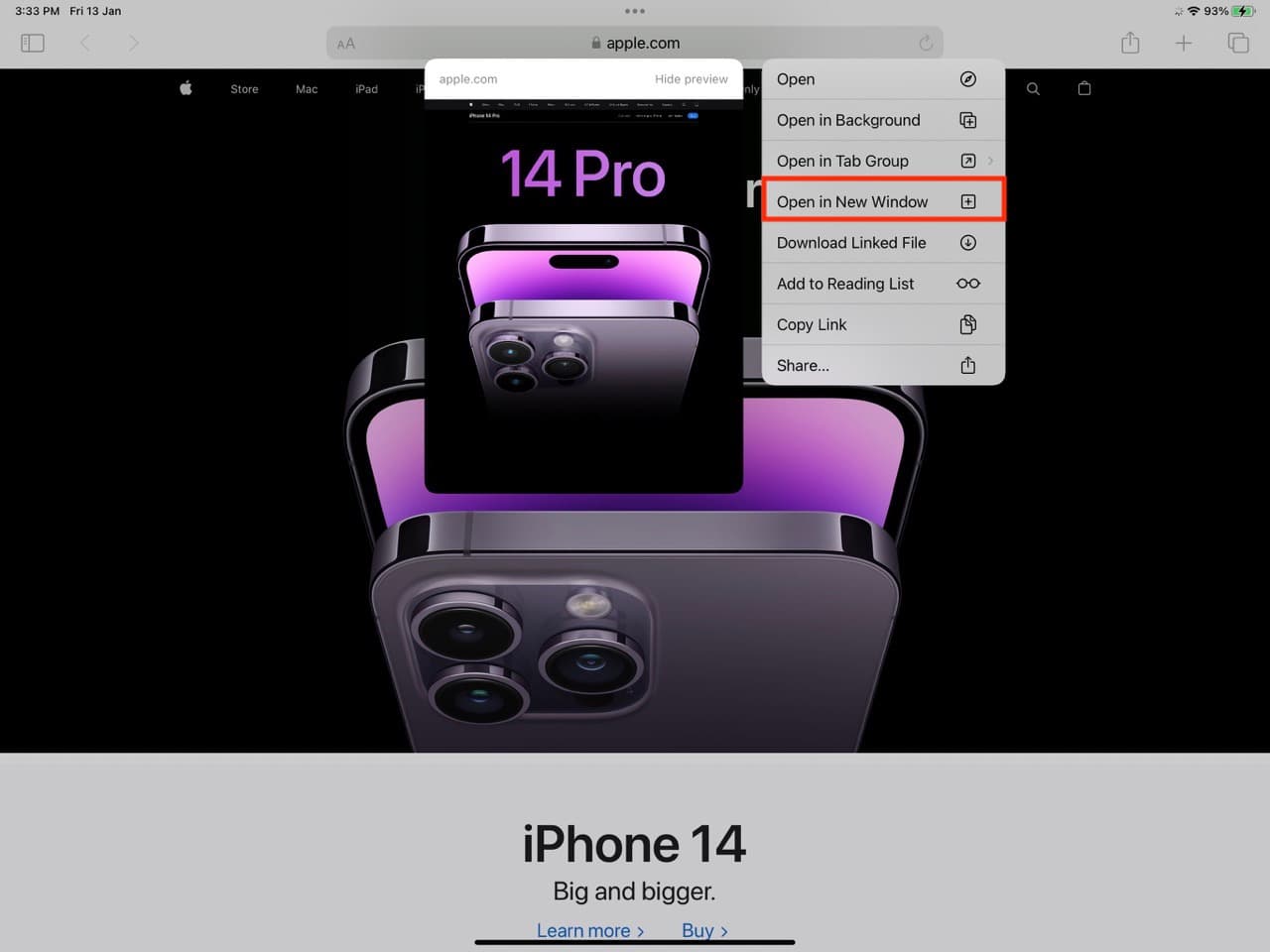
2) Touch and hold a weblink of this website and tap Open in New Window. This link will now automatically open in a new window in Split View.
Drag a Safari window in Split View
Follow these steps to enter Split View and open two tabs or sites side-by-side if you already have two or more Safari windows active on your iPad:
1) Open Safari.
2) Swipe up slightly from the bottom of the screen to see your iPad’s Dock.
3) Touch and hold the Safari app icon and tap Show All Windows.
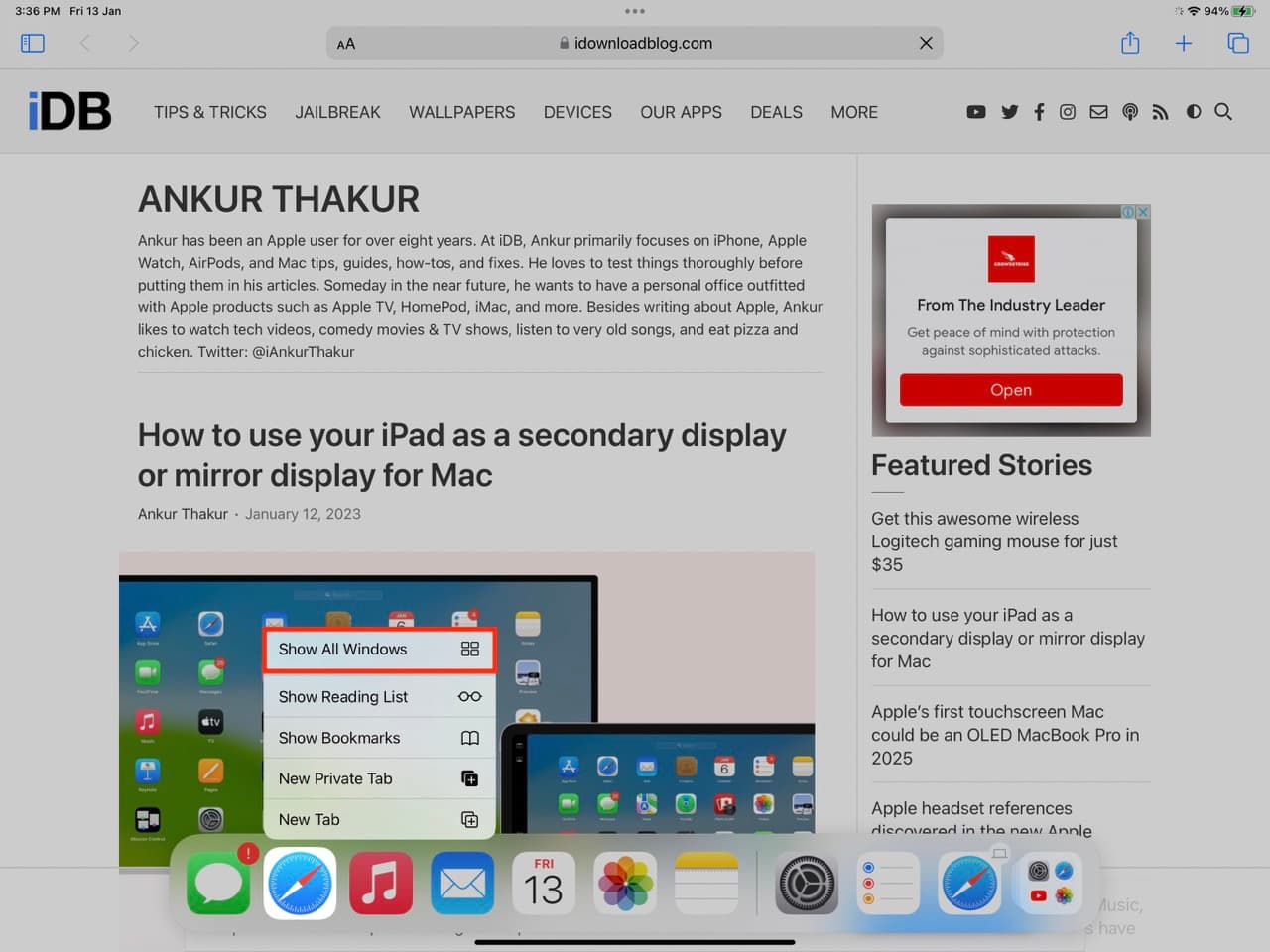
This will display all your Safari windows as small tiles.
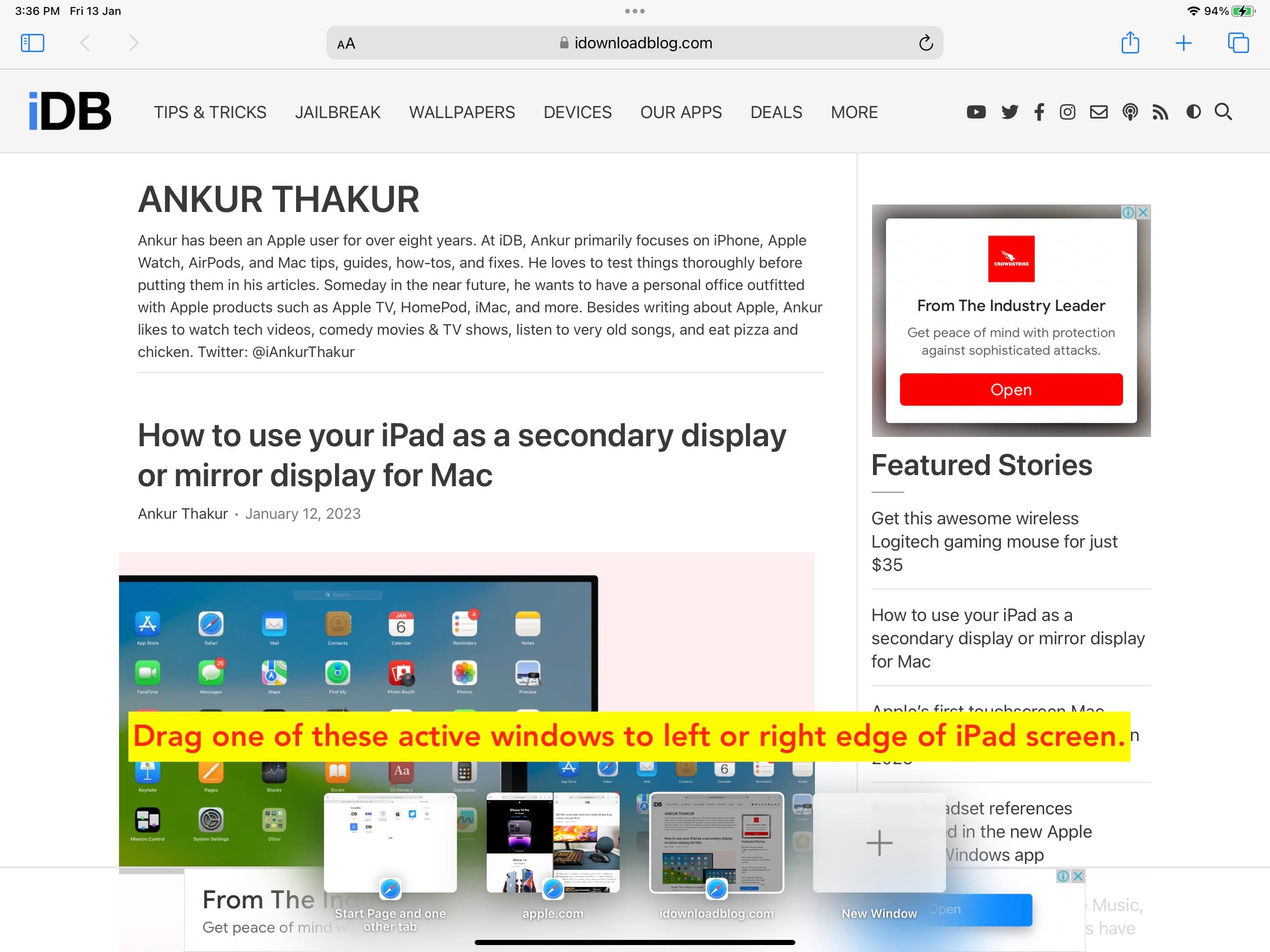
4) Touch and hold a Safari window and drag it to the left or right of the screen to open it in Split View.
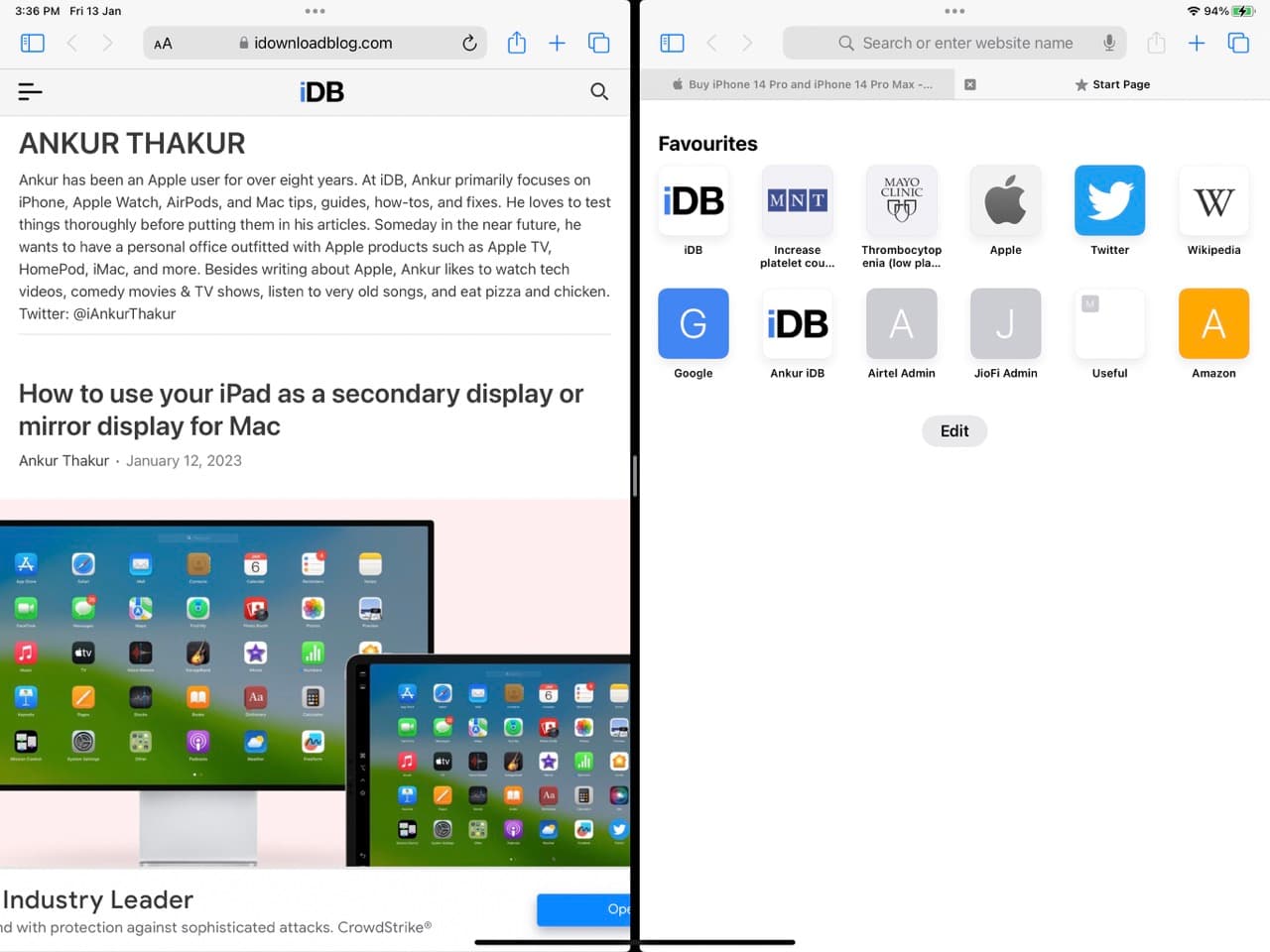
If Split View is already open, following the above steps will replace the existing tab with the new window.
Use Slide Over
1) Make sure you’re in Safari.
2) Swipe up slightly from the bottom of the screen to reveal the Dock.
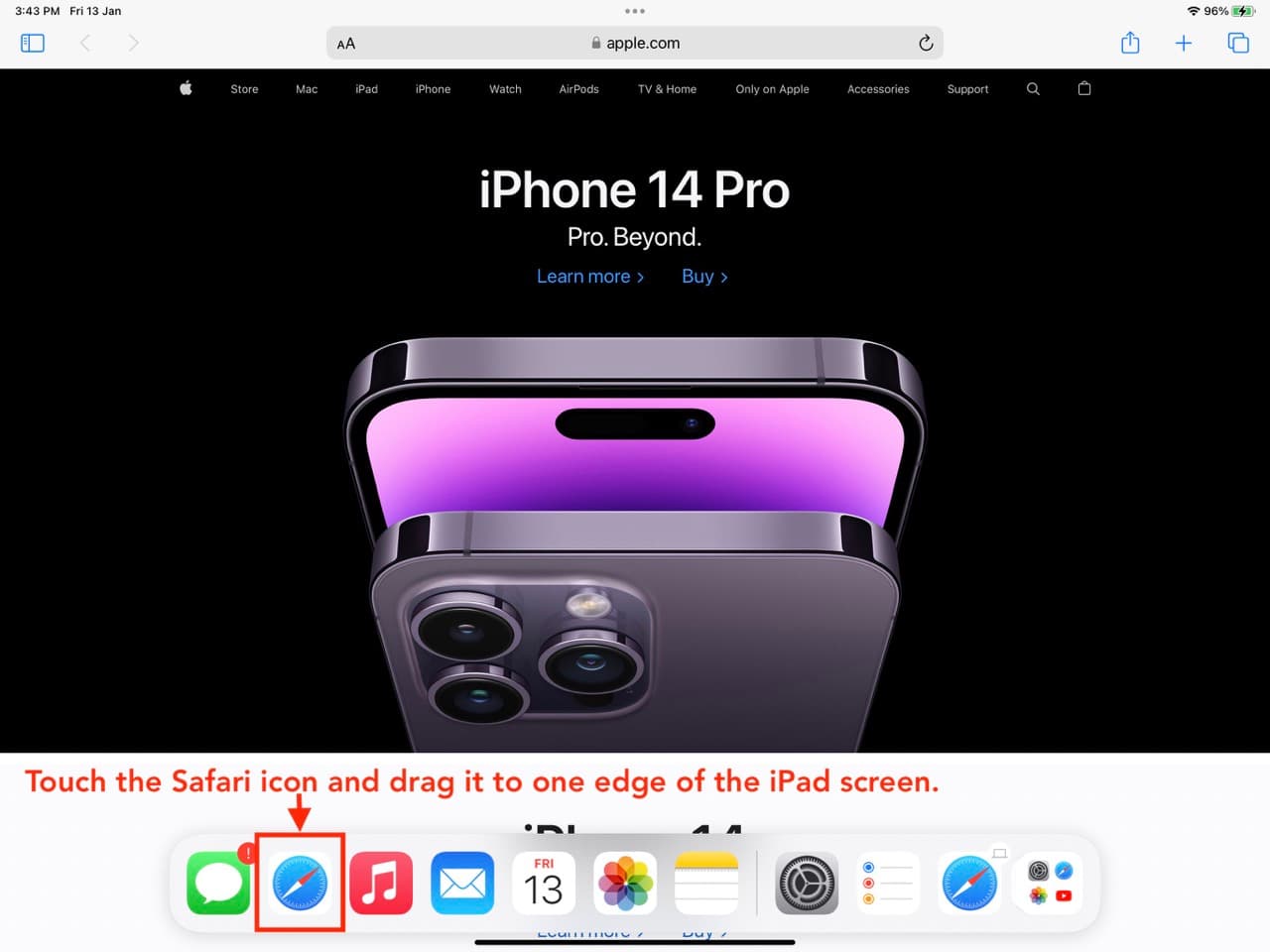
3) Touch and hold the Safari icon in the Dock and drag it over the current Safari screen. It will open in a Slide Over view. You can open the second website here.
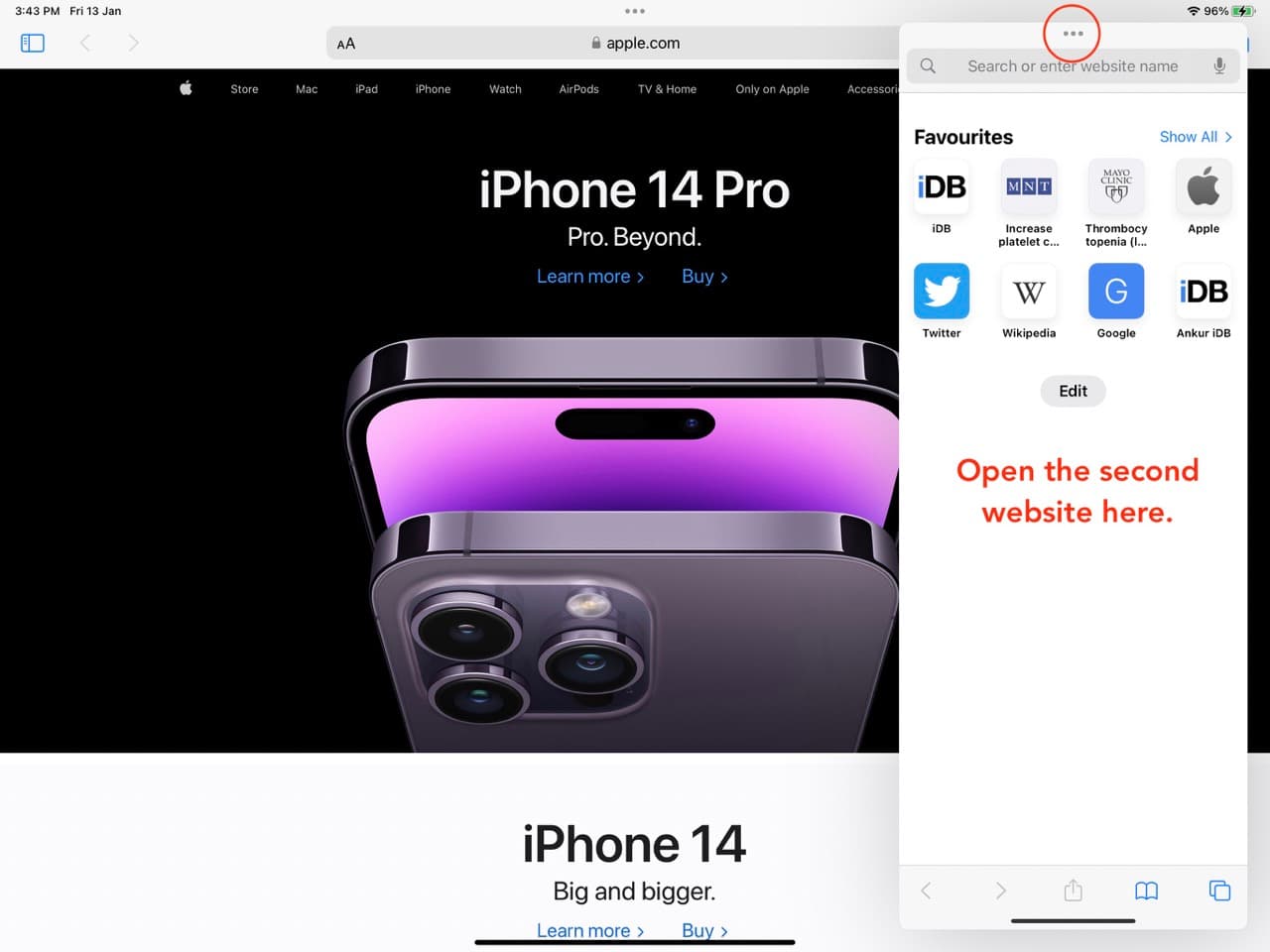
To hide it temporarily, touch the three dots at the top and slide it to one edge of the iPad screen. And tap the arrow tab to bring it back on the screen.
Check out next: How to fix Safari tabs disappearing on iPad and iPhone