Don’t like it when your iPhone vibrates every time you receive a new email? Me neither! So, in this post, we’ll show you how to turn off vibrations for incoming emails on your iPhone.
There are two ways to go about it:
- If you have several email accounts on your iPhone, you can disable vibrations on a per-account basis, or you can choose to disable all vibrations for all accounts in one fell swoop.
- If you only have one account, either way works.
Switch off new email vibrations for all email accounts
- Open the Settings app on your iPhone.
- Tap Sounds & Haptics.
- Select New Mail.
- Tap Haptics at the top of the screen, then make sure None is selected.
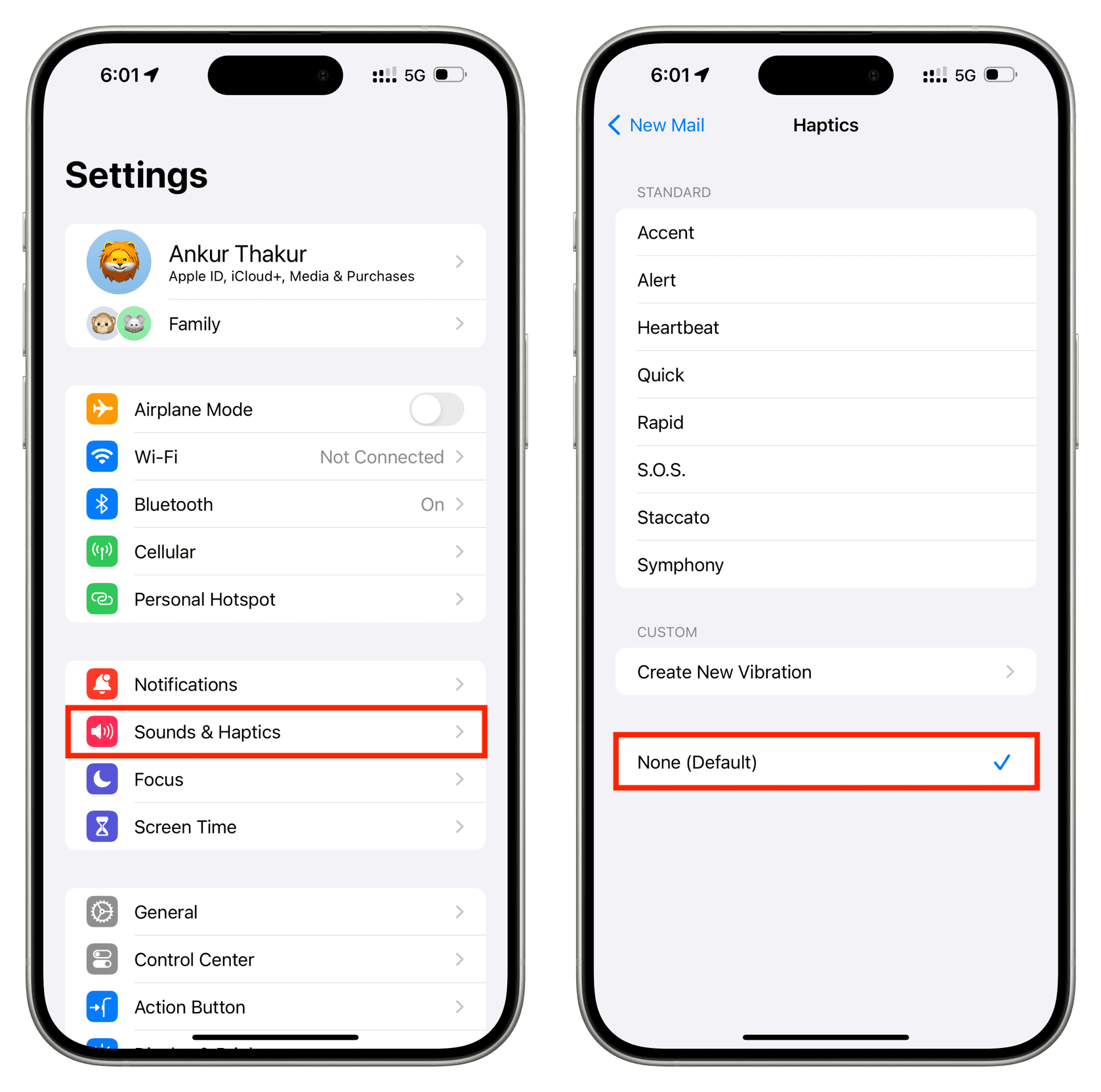
With this particular setting, you’ll not get any vibration when you receive new emails, regardless of how many email accounts you have set up on your device.
Turn off new email vibrations on a per-account basis
Follow these directions to stop your iPhone from vibrating when you receive new emails from specific accounts. For example, with this method, you can choose to receive vibrations for your work emails but not for your private emails. It can also let you get vibrations only from people you’ve marked as VIPs.
- Open the Settings app on your iPhone and select Notifications.
- Select Mail in the list of apps.
- Tap Customize Notifications from the bottom.
- You’ll see a list of all email accounts available on your device. Tap one. After that, make sure the switch for Alerts is turned on. Then, tap Sounds > Haptics and select None.

On a related note: