In this quick step-by-step tutorial, we show you how to add an email account to the Apple Mail app on your iPhone, iPad, or Mac.
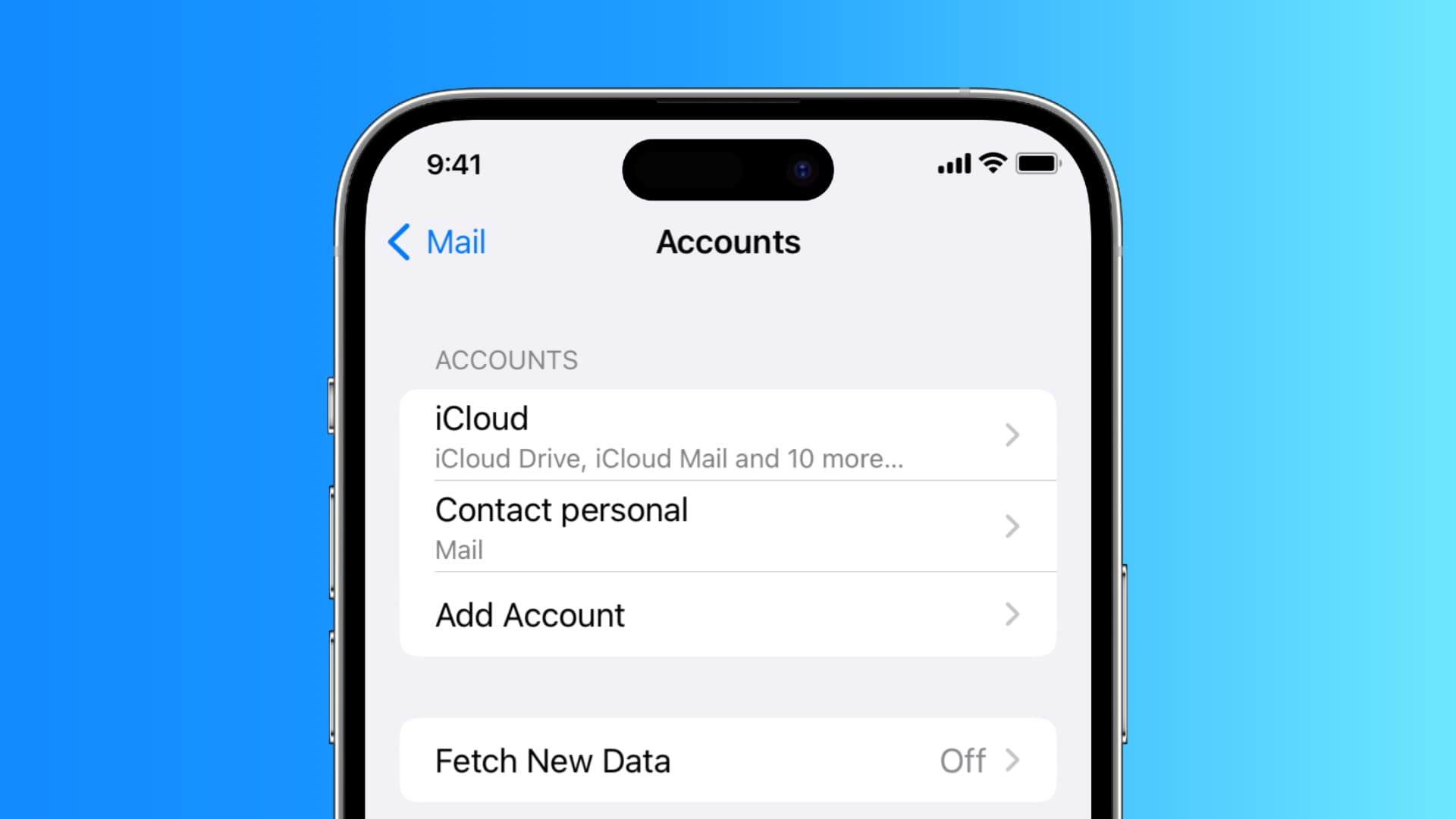
One nice feature of the Apple Mail app on iOS and macOS is that you can add multiple types of email accounts, including iCloud, Gmail, Outlook, Yahoo, or a custom email service.
If you haven’t set up additional accounts yet, this quick tutorial will help you manage your inbox and send emails from every account you have, all from one spot.
iPhone and iPad
1) Open the iOS Settings app, tap Apps at the bottom, then select Mail from the list of applications.
2) Tap Mail Accounts at the top.
3) Tap Add Account.

4) Enter your full email address like example@gmail.com or example@outlook.com and tap Next.

Or, tap ‘choose from a list’ and select the type of account you’d like to add: iCloud, Microsoft Exchange, Google, Yahoo, AOL, or Outlook. You can also choose Other to set it up manually.

5) Follow the prompts to sign in using your account email address and password. The steps here will depend on the type of account you choose. Also, make sure to allow iOS to access your account.
6) Once signed in, make sure the switch for Mail is green and tap Save.

7) Then, open the Apple Mail app, and you’ll see the account listed under Mailboxes.
Mac
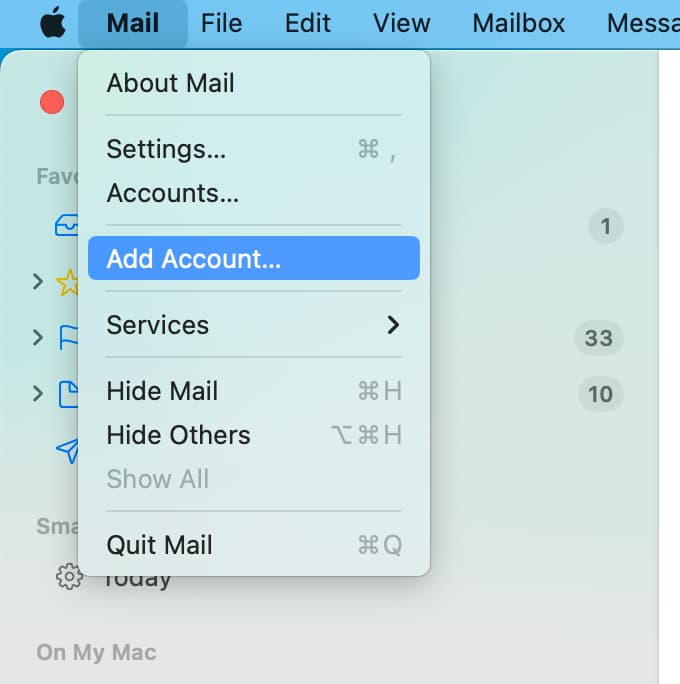
1) Launch the Mail app, and from the top menu bar, click Mail, followed by Add Account.
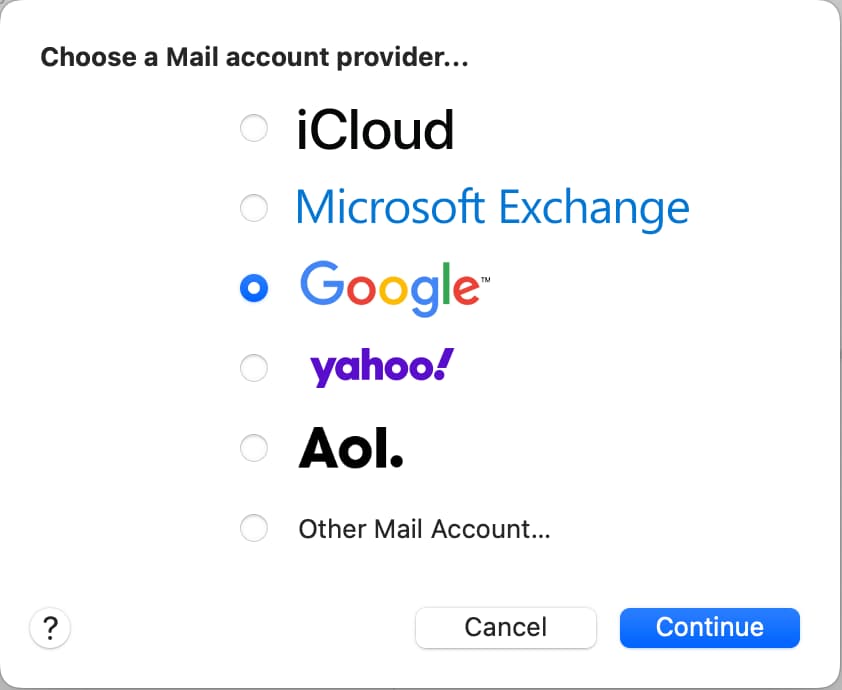
2) Enter your email address you’d like to sign in to. Or choose from a list of account types you’d like to add, such as iCloud, Exchange, and Google. After that, click Continue.
Note: If the sign-in page doesn’t open, restart your Mac and follow the above steps again.
3) Follow the prompts to sign in and connect the account, which depends on the type of account you choose.
When you finish, you’ll see that the account has been added on the left side. When you go back to the Mail app, you’ll see the account listed under Mailboxes in the sidebar.
You can also go to Mac System Settings > Internet Accounts > Add Account and select your email provider. Then, complete the sign-in process and make sure the Mail option is left enabled.
Also, check out: