Learn how to add specific people as important senders so their emails always go to the VIP mailbox in Apple Mail on your iPhone, iPad, and Mac.
We all have very important people (VIP) in our lives.
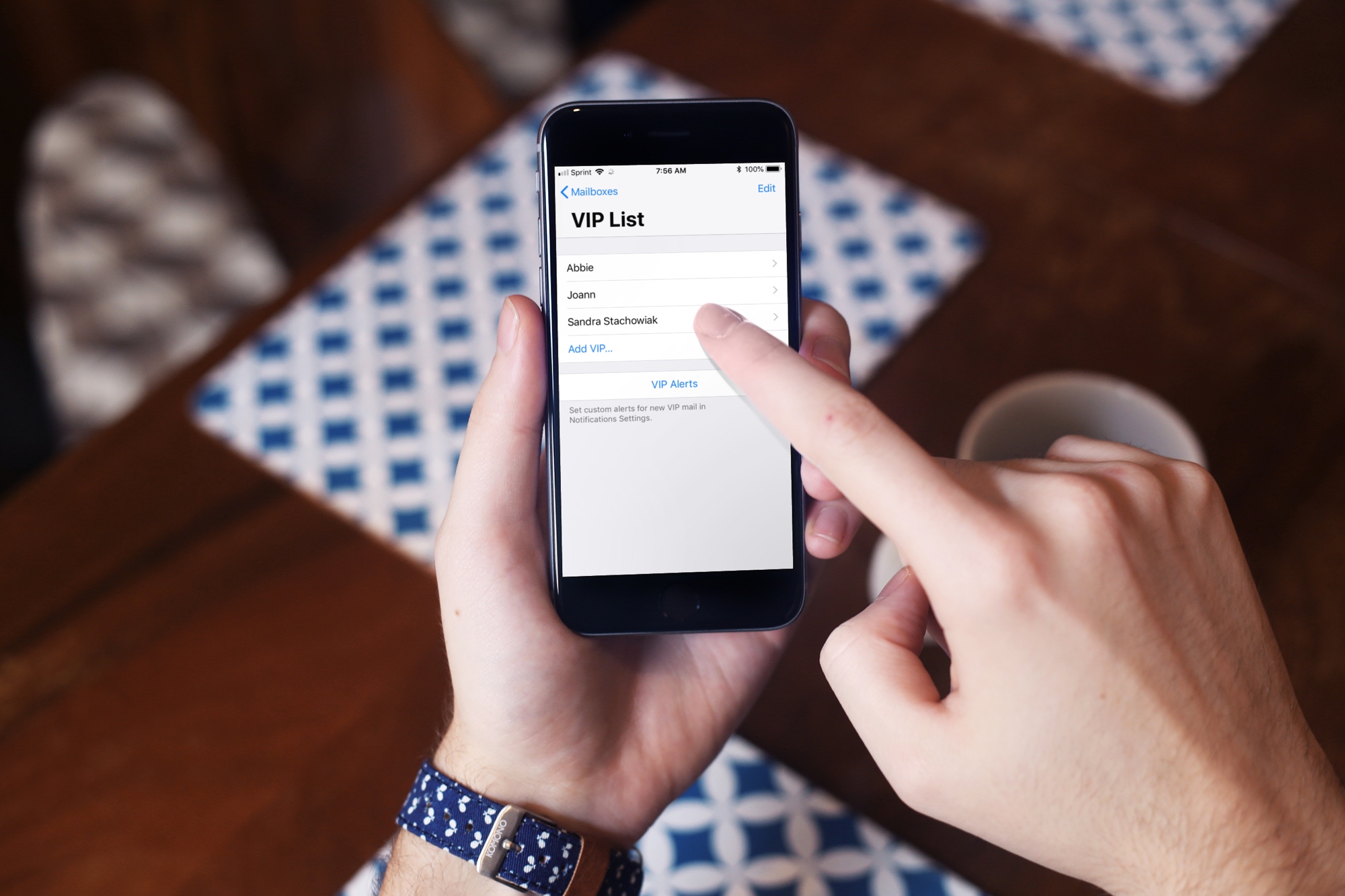
Apple’s Mail app provides a special VIP mailbox for emails from senders who are on your VIP list, making it easy to see all their emails in one spot. Plus, you’ll get notifications for their emails, and you can customize them in Settings > Notifications > Mail > Customize Notifications > VIP.
If you haven’t used this feature before, here’s how to add or remove people from your VIP list in the Mail app.
iPhone and iPad
You can add and remove people from your VIP list in the iOS Mail app in two ways: right from their email message or in your mailbox list.
Add VIP senders from their emails
- Go to the Mail app and open an email from a sender you want to add to your VIPs.
- Tap their name or email address (you may have to tap twice) and select View Contact Card.
- Tap Add to VIP and then tap the checkmark icon. You’ll be taken back to the email message, with a star appearing next to the sender to indicate they are a VIP.

To remove that sender as a VIP later, repeat the steps above and tap Remove from VIP.

Manage your VIP list in the mailbox list
- The second way to add a VIP is to open the Mail app and go to the Mailboxes screen.
- Tap the blue info icon ⓘ next to the VIP mailbox and choose Add VIP.
- Select a contact, and they’ll pop right into your VIP list.

To remove one or more people from your VIP list, tap the info button ⓘ next to the VIP mailbox, tap Edit in the top-left corner, then touch the red minus sign to delete a person from your VIP list.

Mac
You can only add or remove people from your VIP list in the Mac Mail app from their email. Managing VIP senders via the mailbox screen like in the iPhone and iPad’s Mail app is unsupported in Mail for Mac.
- Select or open an email message in the Mail app.
- Click the downward-pointing arrow next to the sender’s name, and choose Add to VIPs from the menu.

To remove a person as your VIP, choose Remove from VIPs instead.

Mail’s VIP list ensures you’ll always receive emails from those very important people in your life and find them in a dedicated place.
Do you use this feature? Let us know in the comments!
Also, check out: