Learn about various ways to switch to a different account on your Mac desktop or MacBook.
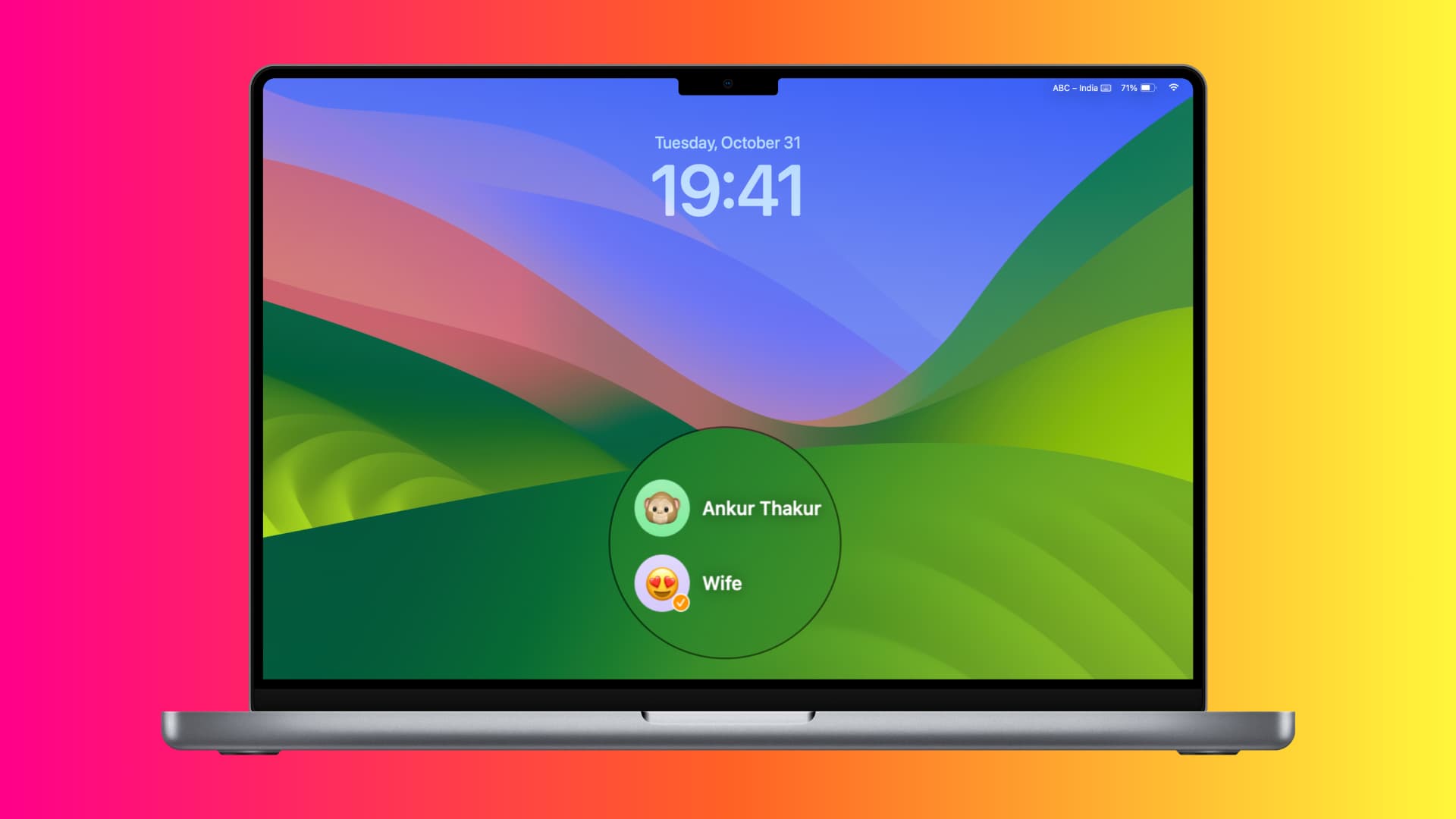
Unlike the iPhone or iPad, where you’re limited to just one user account, you can add multiple administrator and standard accounts to your Mac. This keeps everyone’s files and experience separate, even when using the same computer. You can also enable a guest user account that automatically deletes everything once the guest has finished using your Mac.
After adding two or more user accounts or enabling the guest account, you may want to switch between them regularly. For instance, you might be working on your Mac, and then your child may need to log in to their account to work on a Keynote presentation for school.
Instead of shutting down your computer to select another user account, you can easily switch between them using these methods.
Using Touch ID
This is one of the best and fastest methods to switch to another user account without using your mouse or trackpad, provided you have a MacBook with Touch ID or use Apple’s Magic Keyboard with Touch ID on your Apple silicon iMac, Mac mini, Mac Studio, or Mac Pro.
It only works if you have set up Touch ID for both accounts and two or more users of that Mac are logged in at the same time. What this means is that:
- You power on your Mac and log in to a user account (or are already logged into one account).
- Next, you log out of this user account and log in to another using one of the other methods explained in this tutorial. After completing this step, it basically means you have logged into two accounts on your computer after powering it on.
- Now you can use Touch ID to switch between these logged-in accounts. Here’s how:
Press the Touch ID button on your MacBook or Magic Keyboard until it clicks.
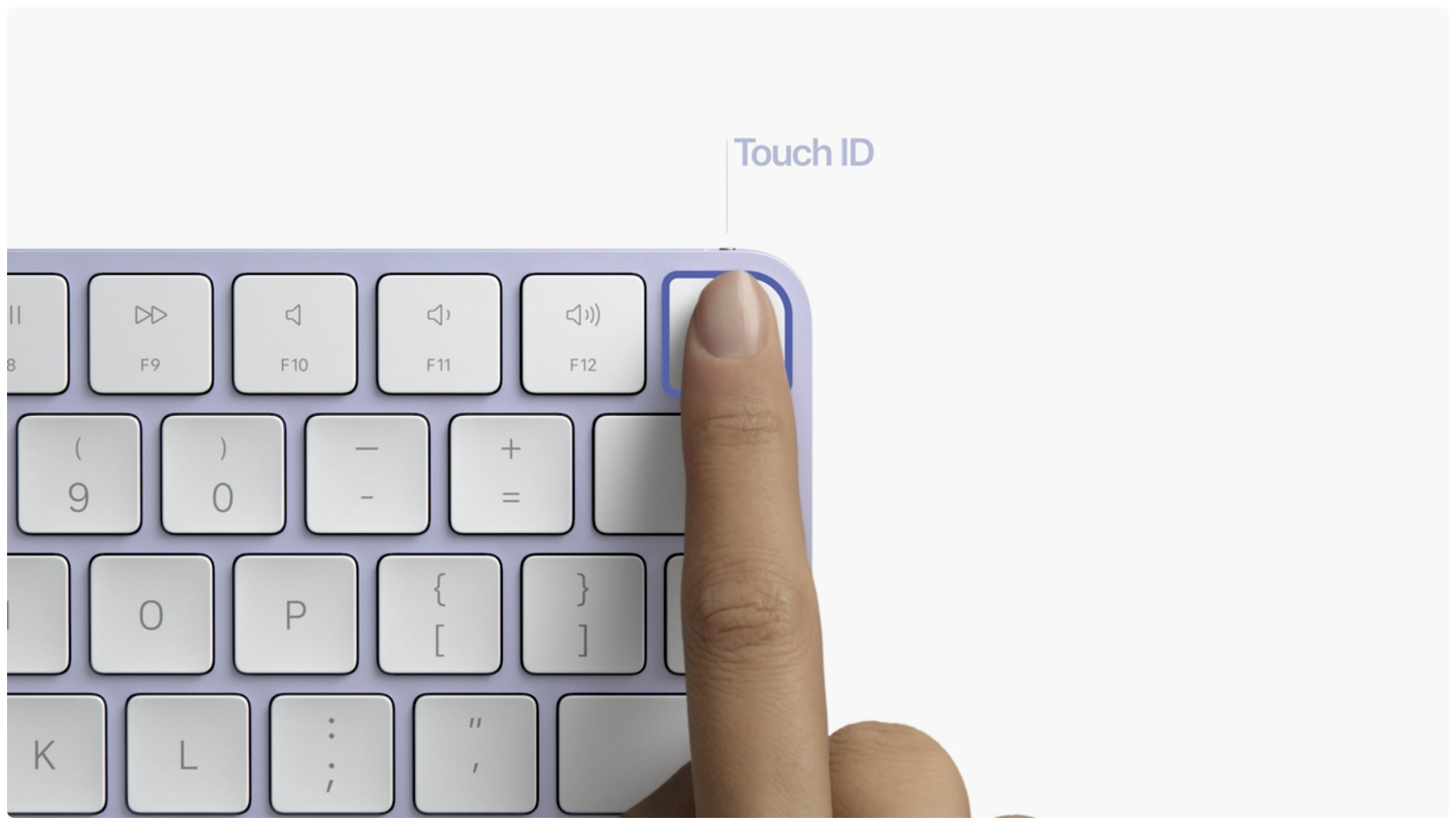
If you have a MacBook with Touch Bar, place your finger on the Touch ID button, and shortly after, “Press Touch ID to switch to account name” will appear on the thin Touch Bar strip. Now, press the Touch ID button, and it will take you straight to your account.

If Touch ID is not set up for both accounts, you’ll see the Lock Screen, where you can select the user and type their password.
From Control Center
Edit your Mac’s Control Center and add the Fast User Switching button there.

Then click the Fast User Switching icon and select the user you want to switch to. Enter their account password or use Touch ID to log into it.

If your work involves switching users multiple times every day, you can add a button for it in the top menu bar.
Go to System Settings > Menu Bar (formerly Control Center) and check the box next to Fast User Switching. You can choose to show the full name, account name, or just a small icon, as shown in the screenshots below.
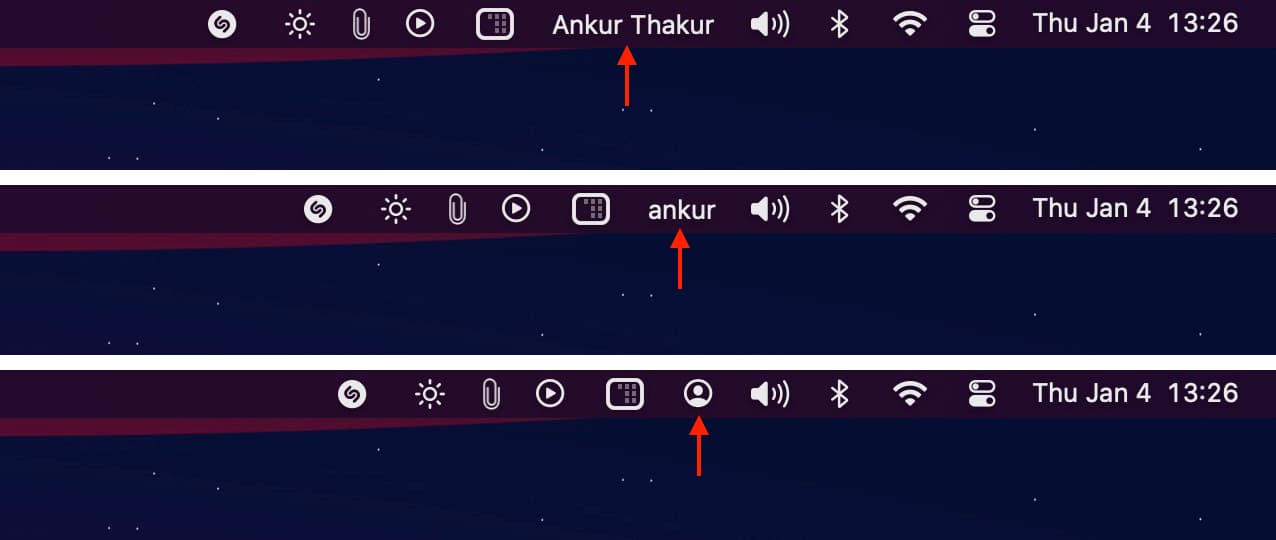
From now on, whenever you have to switch users, click the user icon or name and select another.
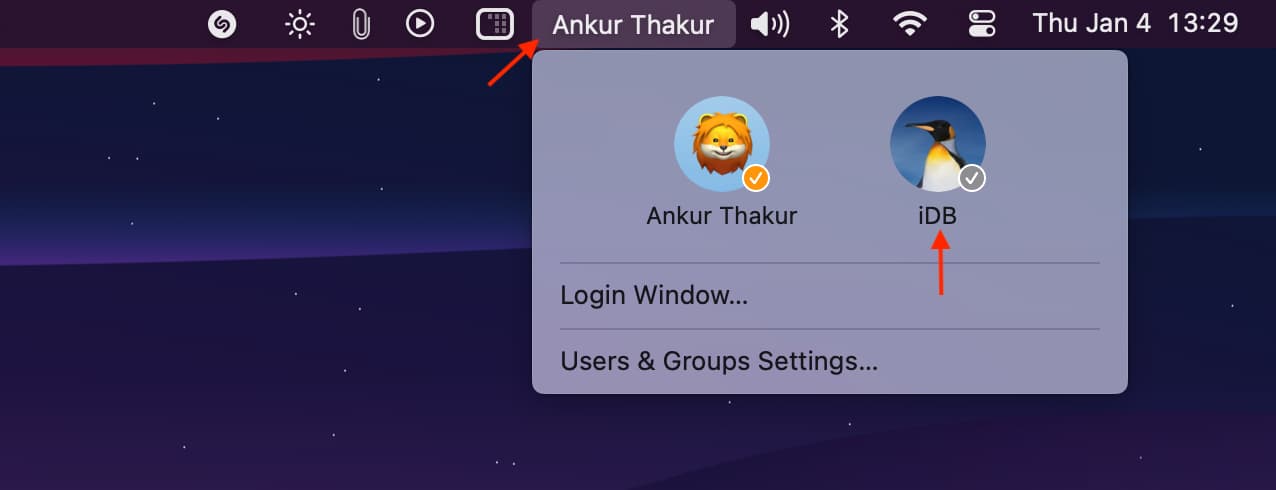
Switch from Lock Screen
This approach requires no user setup, and unlike the next method explained below, it will not quit the open apps of the current user account even if you switch to another.
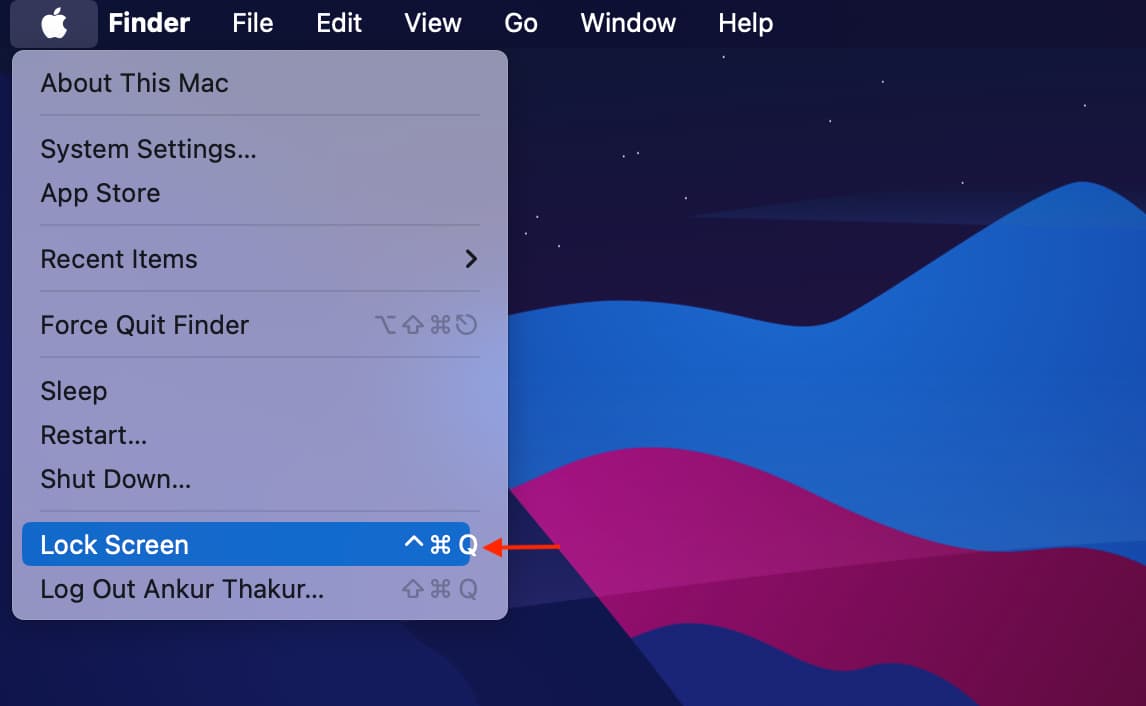
1) Click the Apple icon from the top left corner and select Lock Screen.
2) Hover the mouse over the user account to show all accounts on this Mac and select another.
3) Use Touch ID or enter that account’s password to log in.
4) Follow the above steps to go back to the previous account.
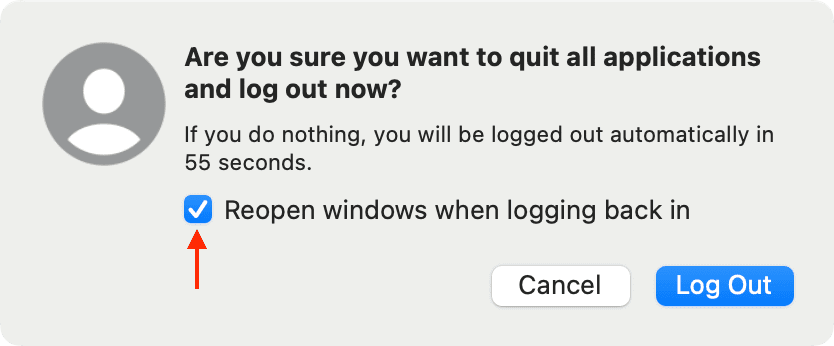
This method involves logging out of one account and logging into another. Doing so will quit all open apps, but you can check the box for “Reopen windows when logging back in” to make it easier to go back to all your previously open apps when you log back in.
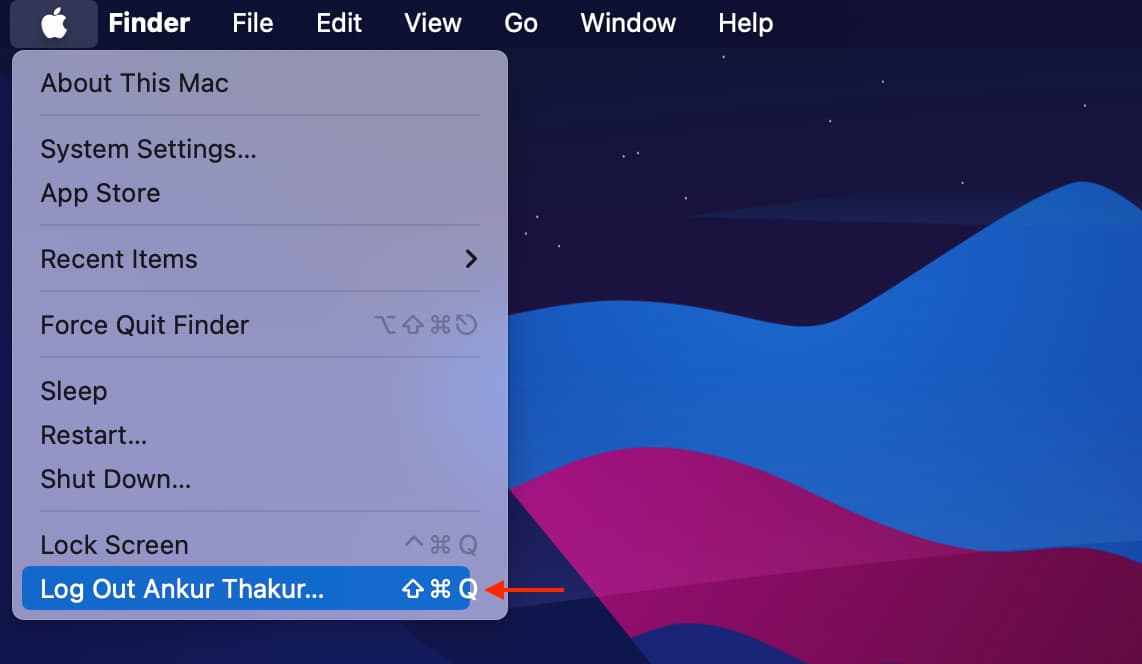
1) Click the Apple icon and select Log Out current user.
2) Check “Reopen windows when logging back in” if you want and click Log Out.
3) Select another user and log in to it.
With the Hot Corner tip
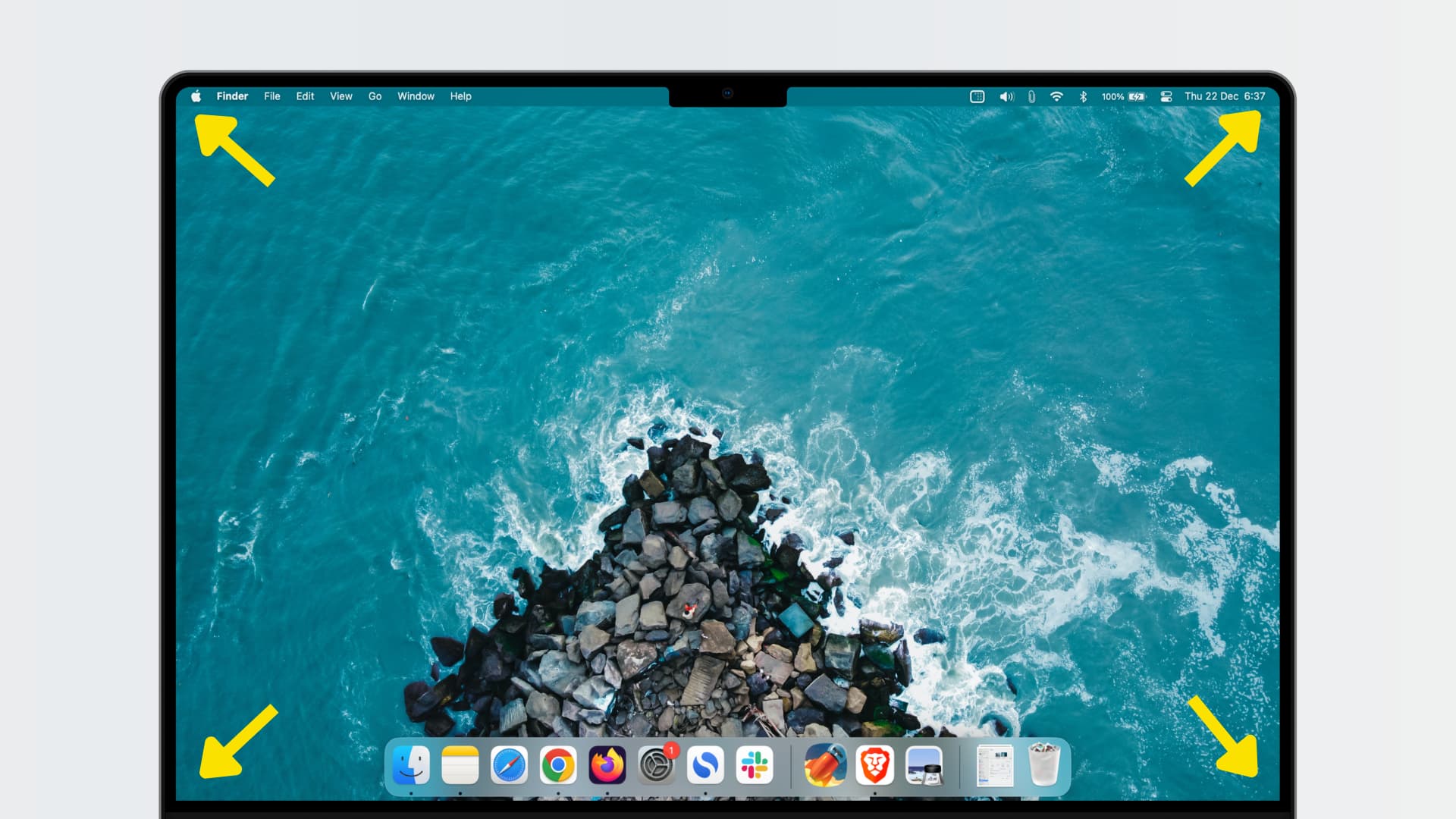
1) Go to System Settings > Desktop & Dock > Hot Corners and set one of the four corners of your screen to take you to the Lock Screen.
2) Now, drag the pointer to that corner to get to the Lock Screen, and from there, select another account to log into it.
While restarting or powering on
Lastly, you can always shut down or restart your Mac, then hover your mouse pointer over an icon to view all your computer accounts. Next, select an account and enter its password to log in.
On a related note: