Is your iPhone alarm not going off or making no sound? In this tutorial, we list all the solutions to fix alarms not working, ringing, sounding, or vibrating on your iPhone and iPad.
Increase the iPhone alarm volume
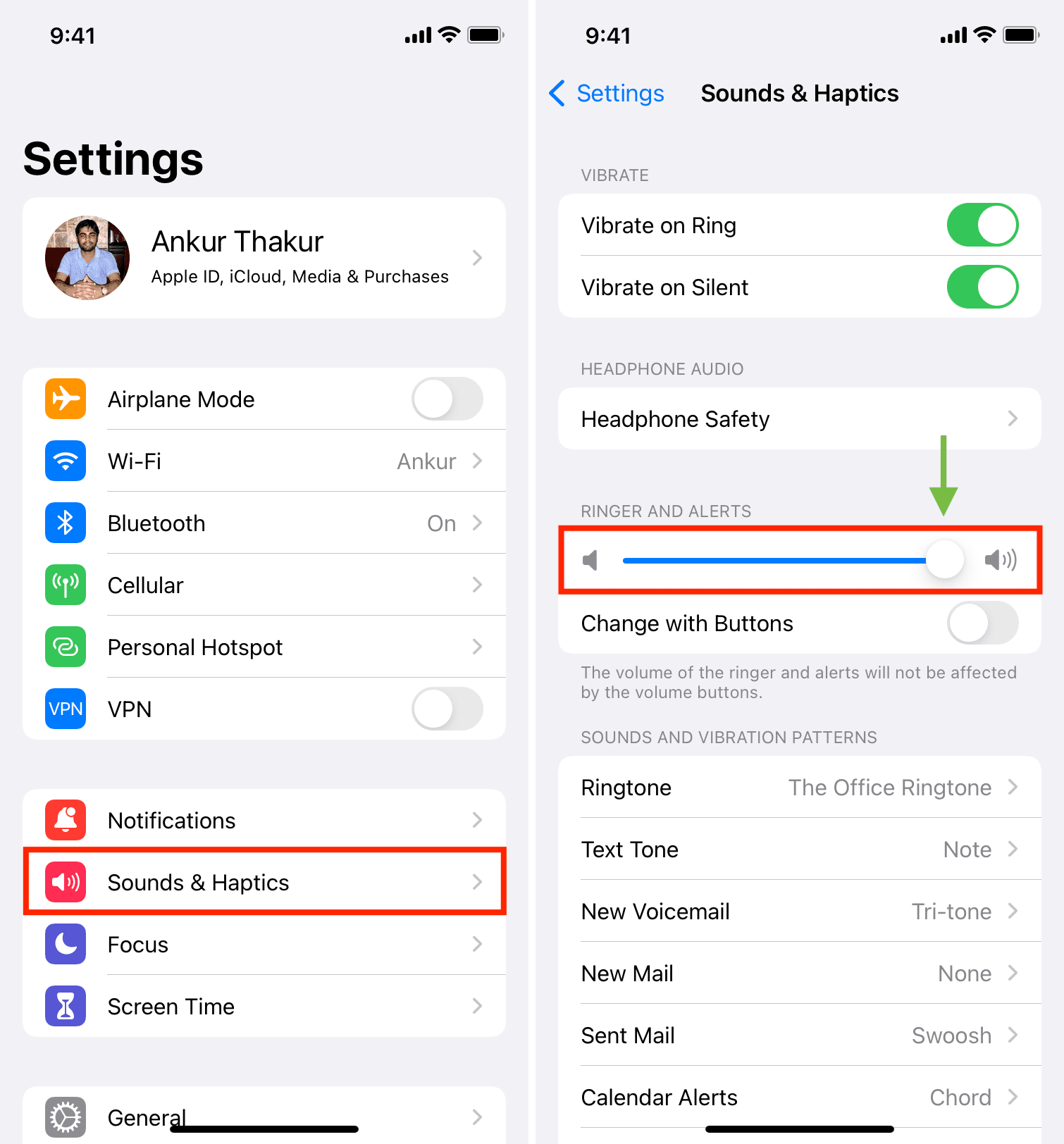
The iPhone alarm volume level is the same as the volume level you set for your iPhone ringtone and alerts. So, if you change your iPhone ringtone level, it affects your alarm as well.
Follow these steps to increase your iPhone alarm volume:
- Open Settings and tap Sounds & Haptics.
- Drag the Ringer and Alerts slider to the right to increase your iPhone alarm volume.
- Important: Change with Buttons lets you increase or decrease the iPhone ringtone, alerts, and alarm tone by pressing the volume buttons (when media isn’t playing on your iPhone). Because of this, you can accidentally decrease the ringer and alert volume. As a result, your alarm will be inaudible when it goes off. I’d recommend you increase your alarm volume using step 2 and turn off Change with Buttons.
Now that you have increased your iPhone alarm volume, create a new alarm that’s 2 minutes ahead of your current time, and lock your phone. When the alarm rings, you should hear the loud tone. In case the iPhone alarm is not making a sound, is quiet, or only vibrates, follow the remaining solutions below.
Make sure the alarm has a ringtone
Your iPhone alarm can wake you up via:
- Sound and vibration
- Only sound
- Only vibration
- By waking the screen (no sound or vibration)
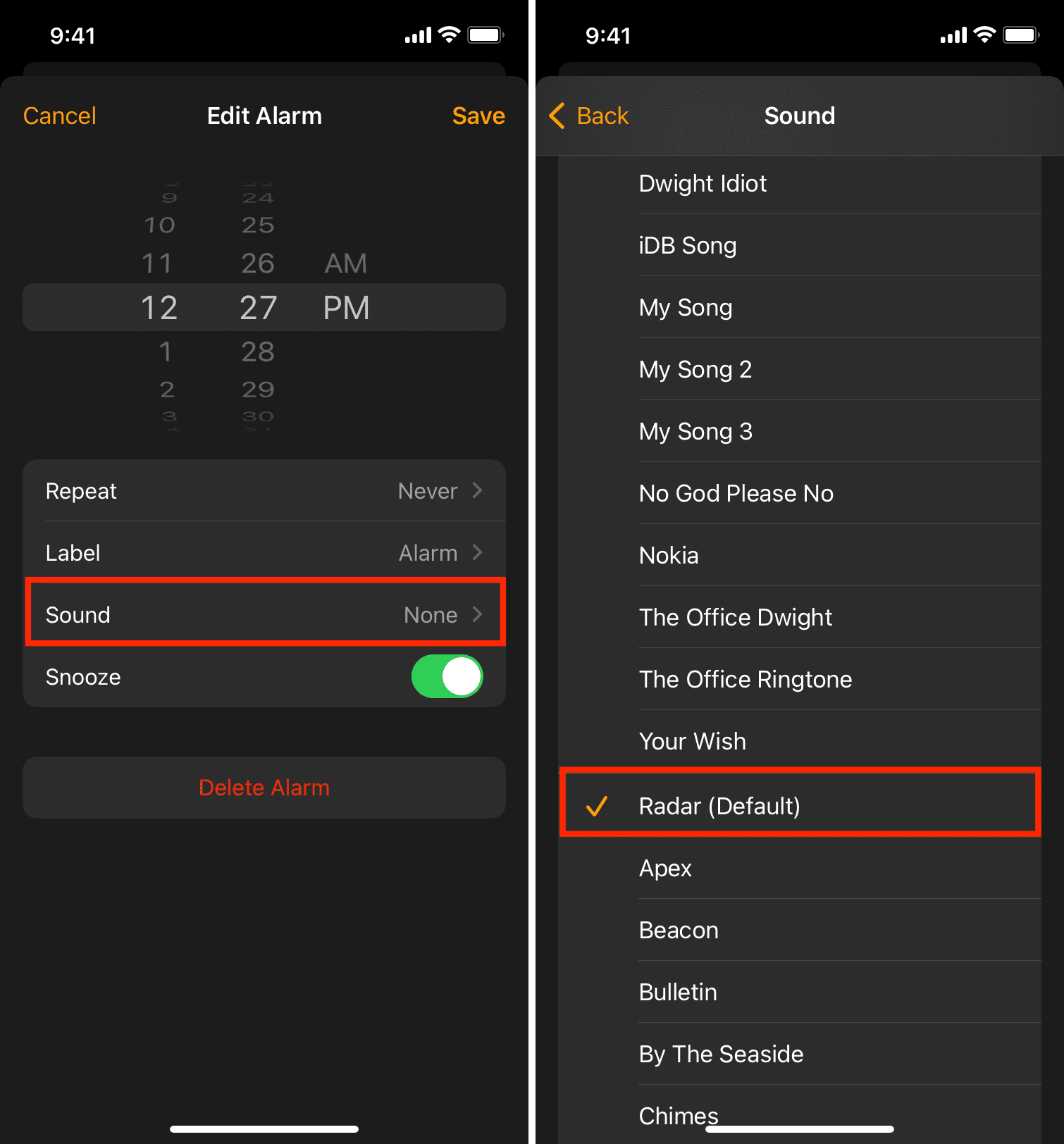
If your iPhone alarm goes off without sound, that’s because a ringtone isn’t set for that alarm. Here’s how to fix this:
- Open the Clock app and tap Alarms.
- Tap one of your alarms.
- Does it say “None” next to Sound? If yes, tap it.
- From the next screen, choose a loud alarm ringtone. You can also pick a song from your Music app.
- Now, go back to the previous screen and tap the checkmark icon to save the alarm with sound. From now on, your iPhone alarm will play the tone you set and no longer go off silently.
Set the loudest iPhone alarm
While following the above steps, you’ll have a long list of ringtones to choose from. Use the one that works best for you. In my opinion, the default iPhone alarm tone, Radar, is among the loudest.
Important: Your iPhone alarm and all media may sound low if the speaker holes are blocked by dirt. Use a soft (non-metal) object to clean the speaker grills carefully.
Double-check your alarm
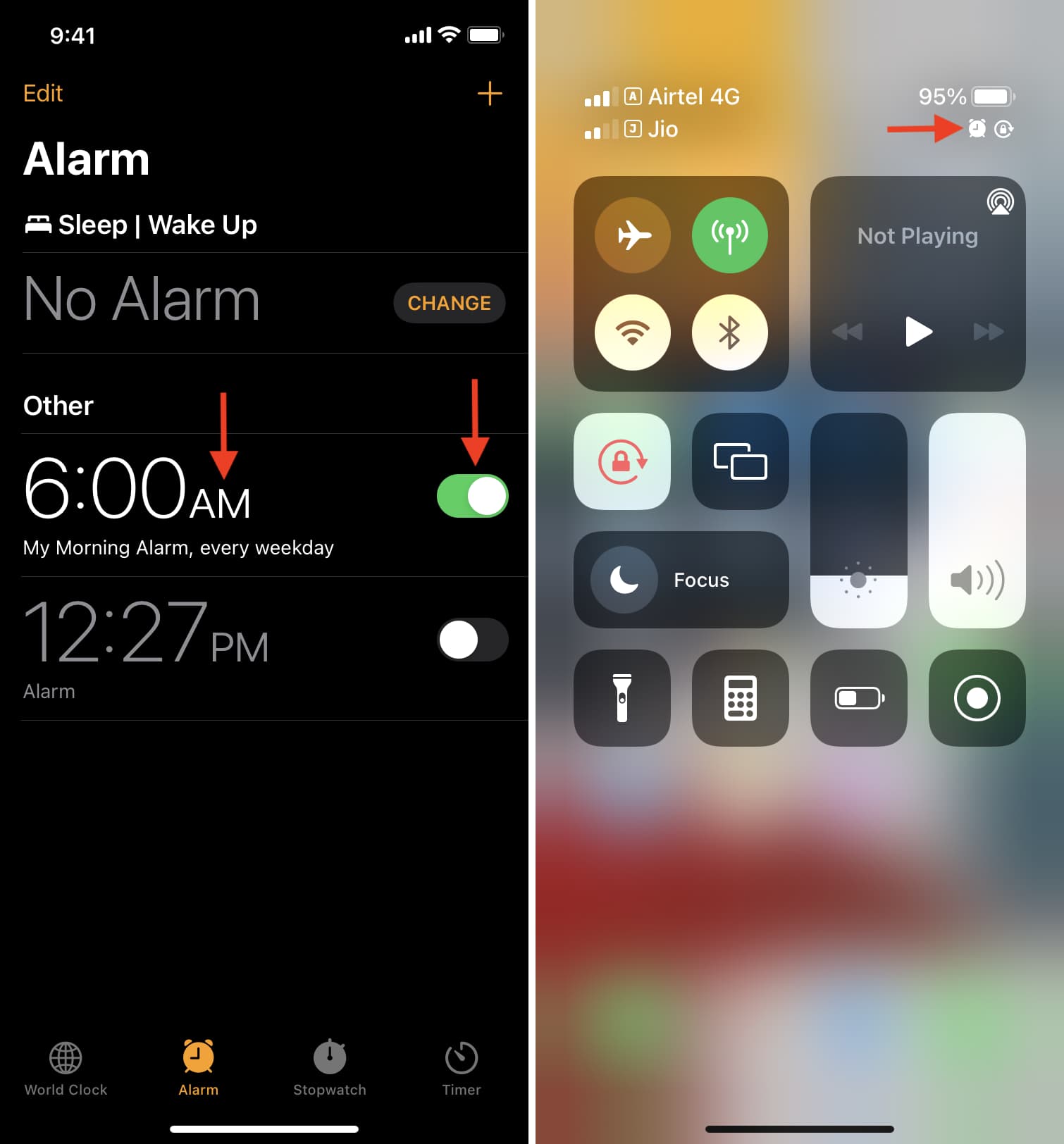
One of the main reasons your iPhone alarm is not going off is that you forgot to enable it or set the wrong time. To check, open the Clock app and tap Alarms. From here, make sure the toggle next to the alarm is green. Also, give special attention to AM or PM.
When you have set and enabled an alarm, you’ll see the tiny clock icon in the iPhone Control Center or status bar.
Set your alarm to repeat
Say you wake up every day at 6 AM. Now, instead of setting seven different alarms for each day, you can have the same alarm repeat daily.
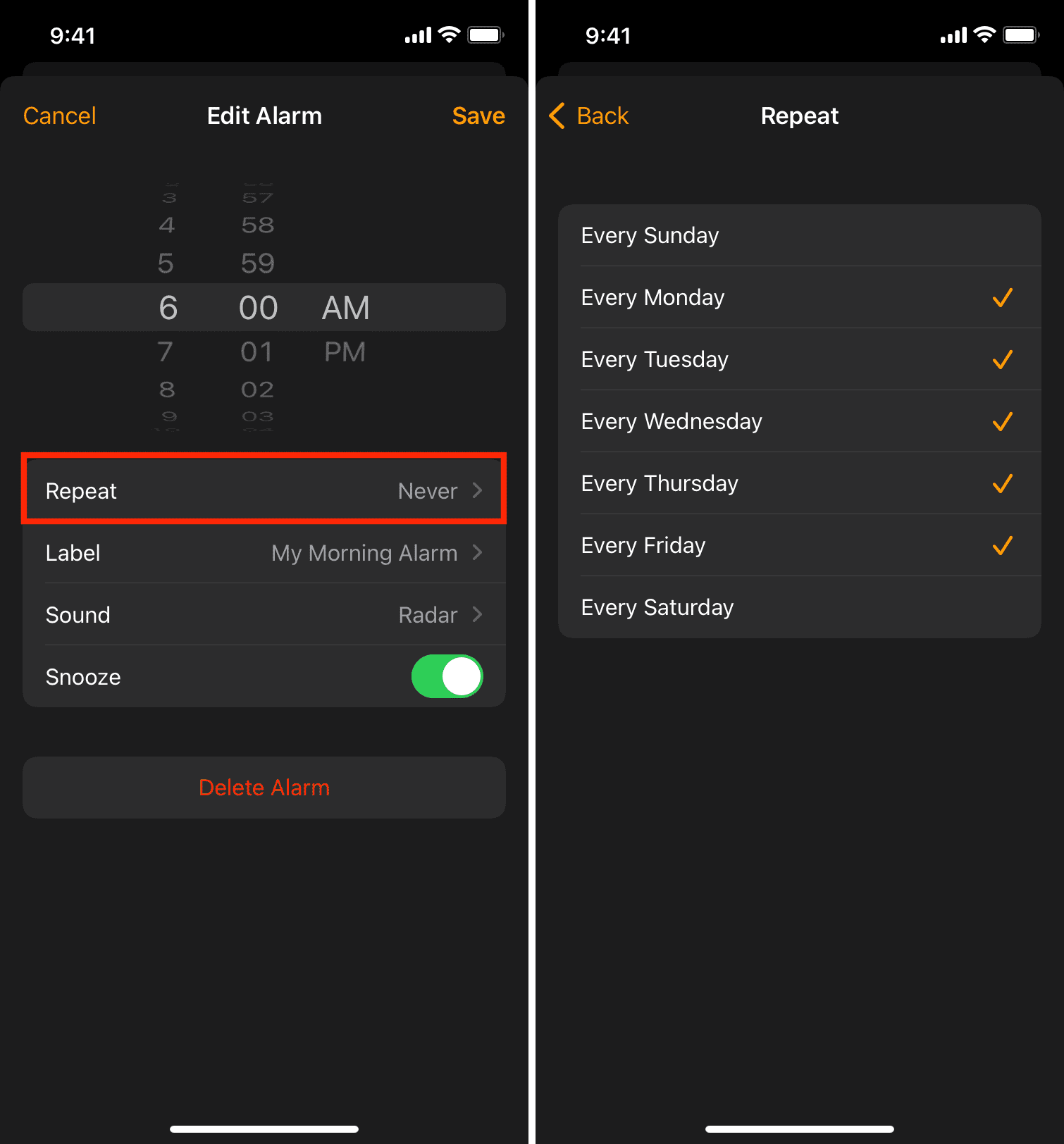
If your daily alarm isn’t going off, it’s likely because you haven’t set it to repeat. Follow these steps to fix it.
- Go to the Alarms section inside the iPhone Clock app.
- Select an alarm.
- Tap Repeat.
- Choose Every Sunday, Monday, Tuesday, Wednesday, Thursday, Friday, and Saturday as per your convenience. I like to exclude Saturday and Sunday.
- Now, go back to the previous screen and save the alarm by tapping the checkmark icon or the Save button. From now on, this alarm will ring on all the set days.
Turn off Sleep Schedule
Sleep Schedule (formerly called Bedtime) can conflict with your alarm if their times are the same. For instance, if you configured the wake-up time in Sleep as 6 AM and also have an alarm for 6 AM, the latter may not go off.
To fix this, you can change the alarm time to something else, like 6:05 AM, or turn off the Sleep Schedule. Now, your iPhone alarm and Sleep Schedule won’t conflict, resulting in the alarm going off correctly at the set time in the proper tone.
Restart your iPhone
On rare occasions, your iPhone alarm may be quiet due to minor glitches. Turn off your iPhone and turn it back on to ensure you don’t miss your upcoming alarm.
Set the correct time on iPhone
Your alarm may not work as expected if the device time is incorrect. You can address this by letting your iPhone set the precise time automatically. For this, go to Settings > General > Date & Time and turn on the toggle for Set Automatically.
Update your iPhone
It’s also possible that your alarm sound is affected because of bugs in the current version of iOS. Go to iPhone Settings > General > Software Update to install the most recent version of iOS available for your device.
Delete existing alarms and add a new one
You can invoke Siri and ask it something like “Set an alarm for 6 AM.” You can also say convenient terms like “Wake me up at 7 in the morning.” But to rule out the rare possibility of an incorrect alarm, I recommend you be precise and say the desired alarm time as mentioned in the first example.
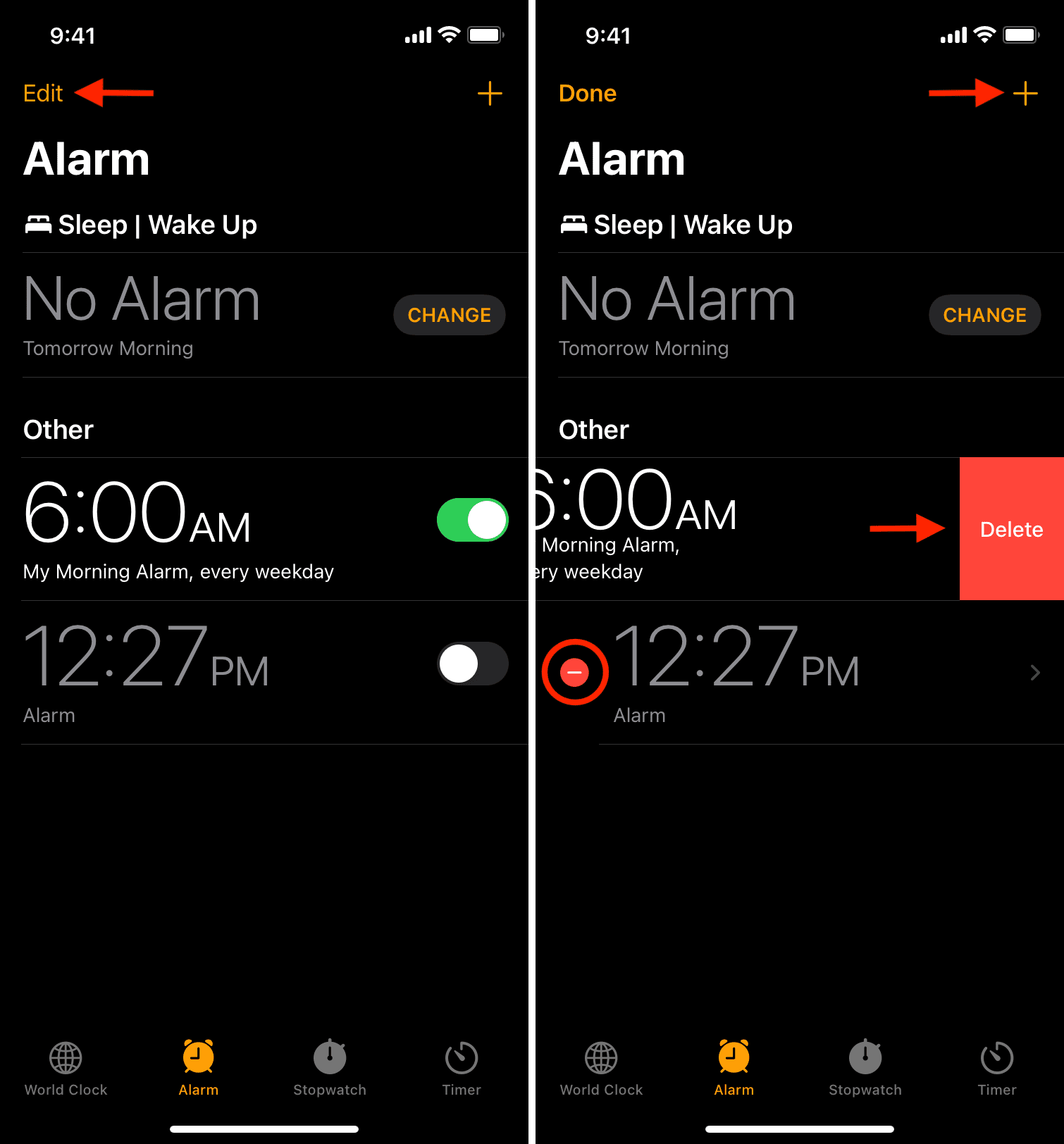
In addition to using Siri, you can also manage your alarms manually. Here’s how to delete an alarm on iPhone and set a new one:
- Open the Clock app and tap Alarms.
- Tap Edit.
- Tap the red minus button to delete an alarm. Now repeat this process to remove all unnecessary alarms.
- Once you have a clean slate, tap the plus icon (+) to add a new alarm.
- Set the correct time, giving proper attention to AM and PM.
- When everything is in order, tap the checkmark icon or the Save button. You should see that the toggle next to this alarm is green. Now, you can rest assured that your iPhone alarm will go off at the set time.
Reset All Settings
Finally, if nothing helps, reset all your iPhone settings. This will erase all the settings you have changed or added to the default state and fix the non-sounding iPhone alarm.
FAQs
Does the iPhone alarm ring in silent and DND mode?
Yes. Your iPhone alarm sounds even if your iPhone is in silent (vibrate only) mode or Do Not Disturb mode.
Does the iPhone alarm sound from the built-in speaker when connected to AirPods or wired headphones?
Yes. The iPhone alarm sounds through the internal device speakers even if you have connected AirPods, Bluetooth earbuds, or wired earphones.
On some occasions, your iPhone alarm may not sound through the on-device speakers due to temporary glitches or iOS bugs. To fix this, restart and update your iPhone.
Additionally, your iPhone may get stuck in headphone mode on rare occasions. As a result, you won’t hear the alarm tone or any media via the built-in speakers. See our tutorial to fix this.
Will the iPhone alarm work if a song or movie is playing?
Yes. Your iPhone alarm will sound even if media is playing and the screen is locked or unlocked.
Will the iPhone alarm go off in Airplane Mode?
Yes. The alarm is independent of wireless features, and thus it works even if your iPhone or iPad is in Airplane Mode.
Can I use a third-party app for alarms on iPhone?
Sure, you can. Search for “alarm” on the iOS App Store and get one with good ratings. However, note that third-party alarm apps may not go off if you force close the app. In some cases, the alarm may not go off if the alarm app isn’t on the screen.
Do alarms sync via iCloud to my other Apple devices?
No. The alarm you set is a device-specific feature. It doesn’t sync via iCloud to your other iPhones or iPads, even if they have the same Apple Account.
Will the alarm work if my iPhone is switched off?
No. Your alarm won’t sound if the iPhone is switched off. Some Android phones offer a scheduled power-on feature that switches on the device automatically at the alarm time and rings the alarm. But iOS doesn’t allow that. Therefore, before going to bed, make sure your iPhone isn’t turned off and has sufficient battery to be on stand-by for the next few hours.
My iPhone doesn’t vibrate during alarms?
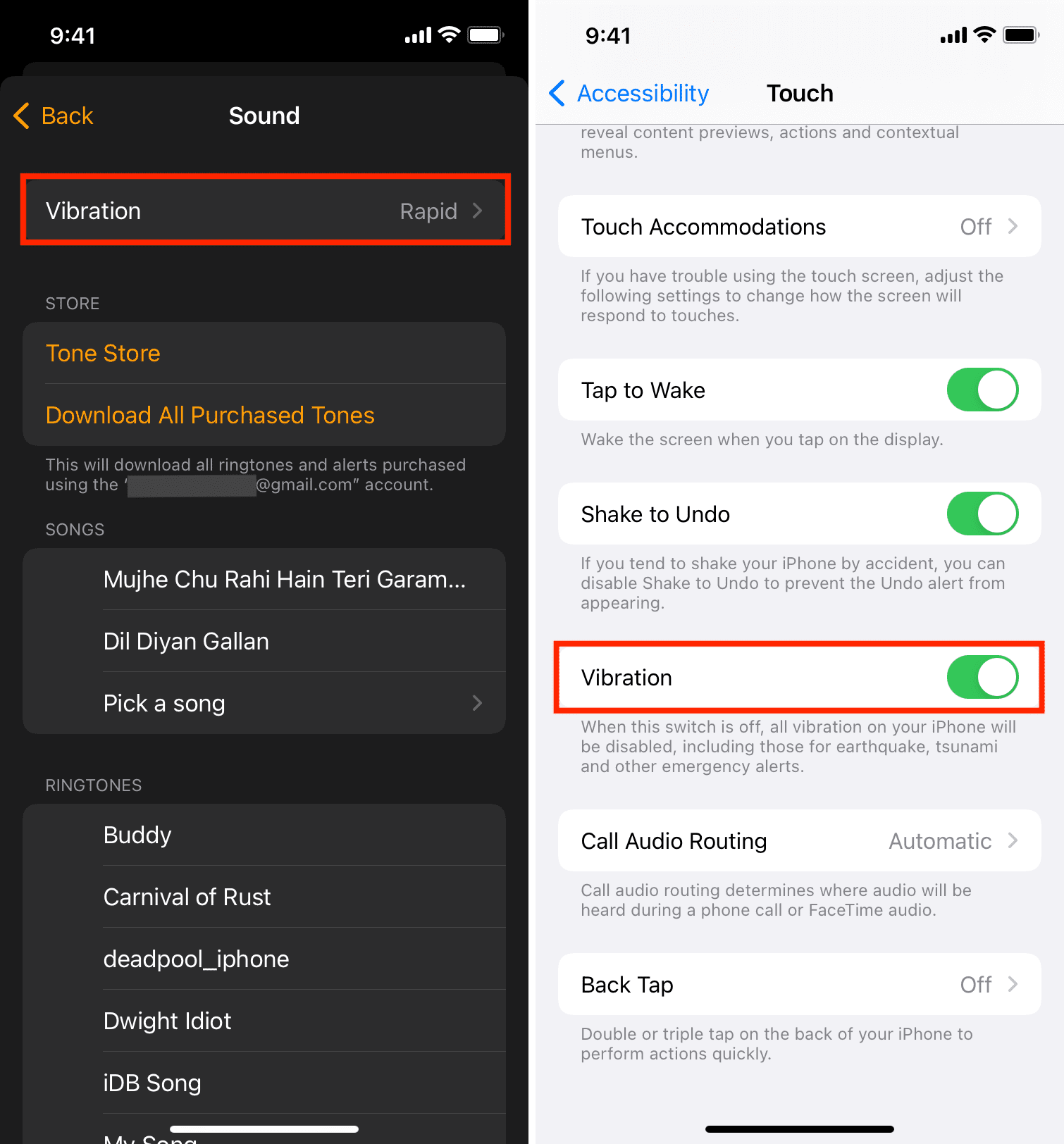
Go to the Clock app > Alarms > select an alarm > Sound > scroll to the top > tap Vibration and choose an option except None. Now, go back and save the alarm. Also, make sure your iPhone’s vibrations are working.
Note that iPad doesn’t have a vibration motor, so you can’t set vibrating alarms on it.
How long does the iPhone alarm ring for?
Your iPhone alarm will ring continuously for 15 straight minutes if you don’t hit the Snooze or Stop button. I tested this.
Note: Some sites mention that after 15 minutes, there is a 90-second break, and the alarm starts ringing again. However, I found it to be untrue in my testing. The alarm on my iPhone kept sounding for 15 minutes, and after that, it stopped. I left it untouched for the next 20 minutes, and the alarm didn’t start ringing again.
Check out next: