In this tutorial, we’ll show you how to trigger specific actions by tapping twice or thrice on the back of your iPhone. It works even with a case, cover, or skin!
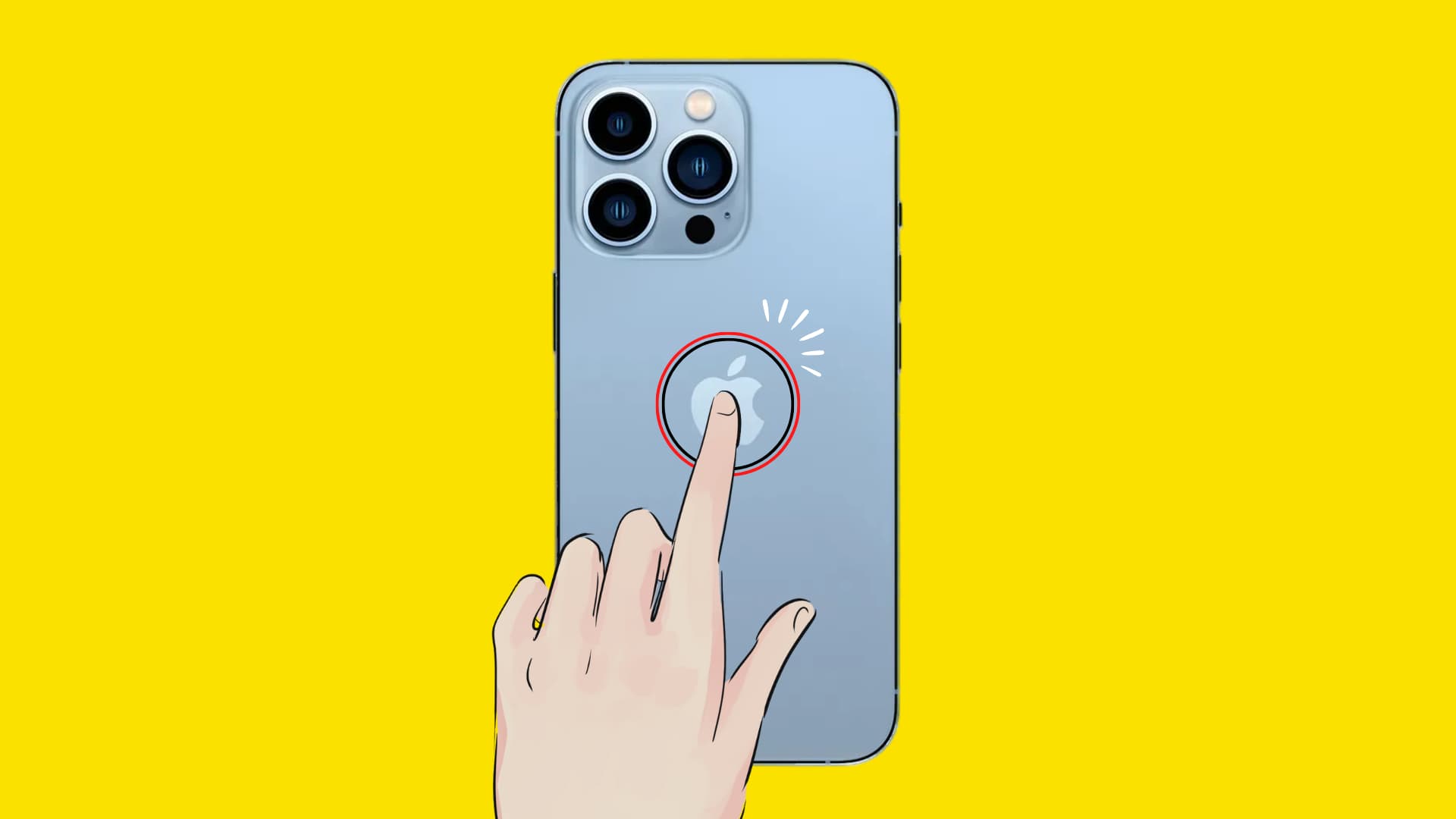
iPhone has a cool accessibility feature called Back Tap that lets you perform various actions when you tap the back of your phone two or three times in quick succession.
These custom iPhone actions range from common system features, like invoking Control Center or Reachability, to popular ones, such as taking a screenshot or scrolling, to running a workflow in the Shortcuts app.
Back Tap is supported on iPhone 8 or later, running iOS 14 or later. Note that the Back Tap feature is unavailable on iPad and iPod touch.
Here’s a short video showing how to use Back Tap on your iPhone. And if you prefer the written instructions, we also have that below.
Run custom iPhone actions with Back Tap
1) Open the Settings app and tap Accessibility > Touch.
2) Scroll down to the bottom and tap Back Tap.

3) Select Double Tap or Triple Tap and pick the action you want to assign to it.
4) Now, you can go back, select the remaining tap, and set it to do something else. If you like, you can also leave one of the taps empty.

After this, whenever you double or triple-tap the back of your iPhone, it will trigger the set action. Back Tap works well even if you have a case on your iPhone. However, some extra rugged cases may hinder this function.
If you don’t want to see a banner when you trigger an action with Back Tap, turn off the Show Banner option there.
Running your favorite shortcut with Back Tap
The ability to assign a workflow from the Shortcuts app to Back Tap makes this one of the quickest ways to launch custom shortcuts in iOS. Simply import your favorite shortcuts into the Shortcuts app if you haven’t already, which makes them available to the rest of the system and visible in Share sheets and other places. Then, follow the steps in the previous section to assign your saved workflows from the Shortcuts app to your back taps.
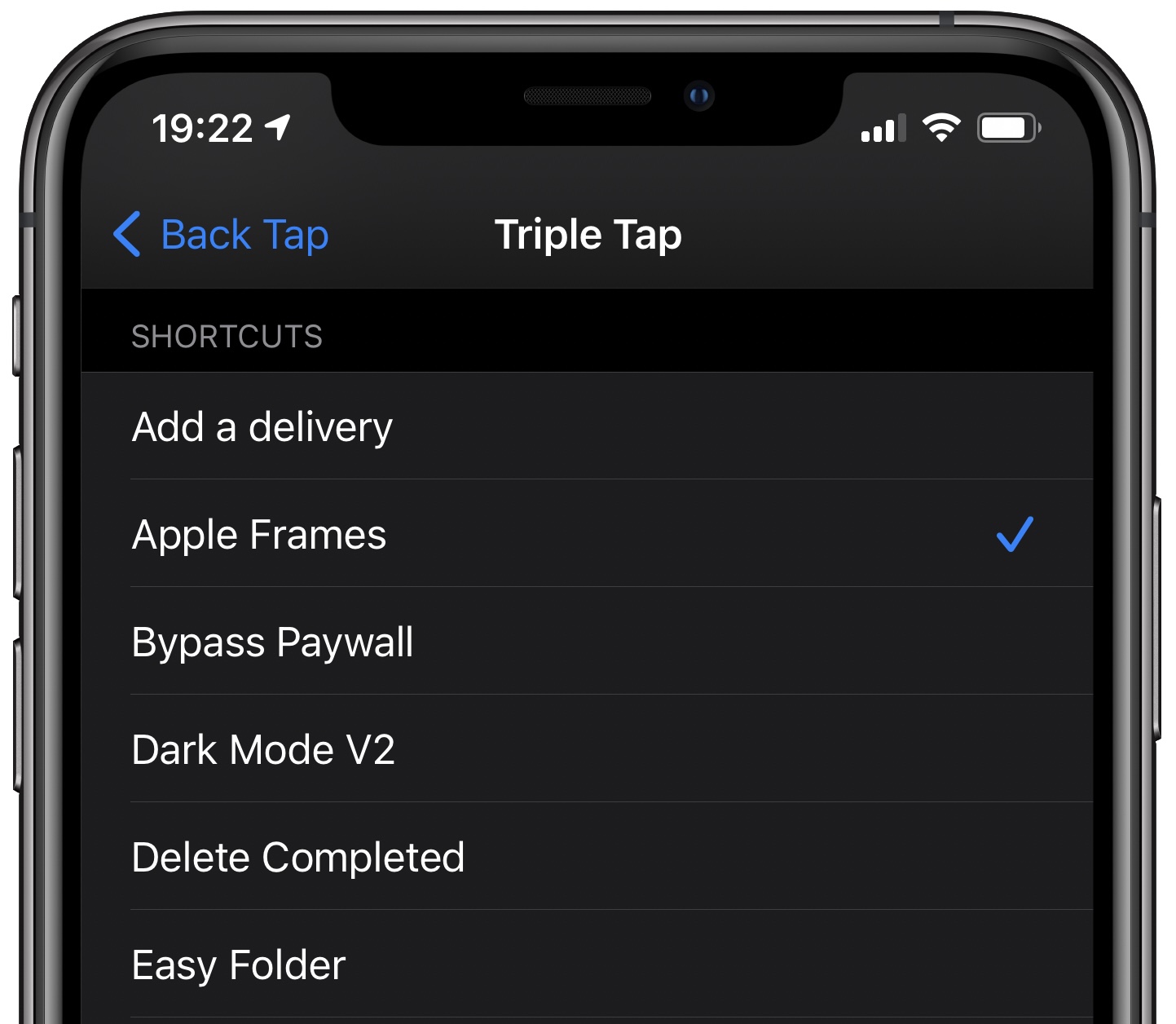
Disable the Back Tap feature
If you won’t be using the Back Tap feature at all or if you’re experiencing false back taps, you can disable it from accessibility settings:
- Open Settings and go to Accessibility > Touch > Back Tap.
- Pick Double Tap or Triple Tap.
- Select None.

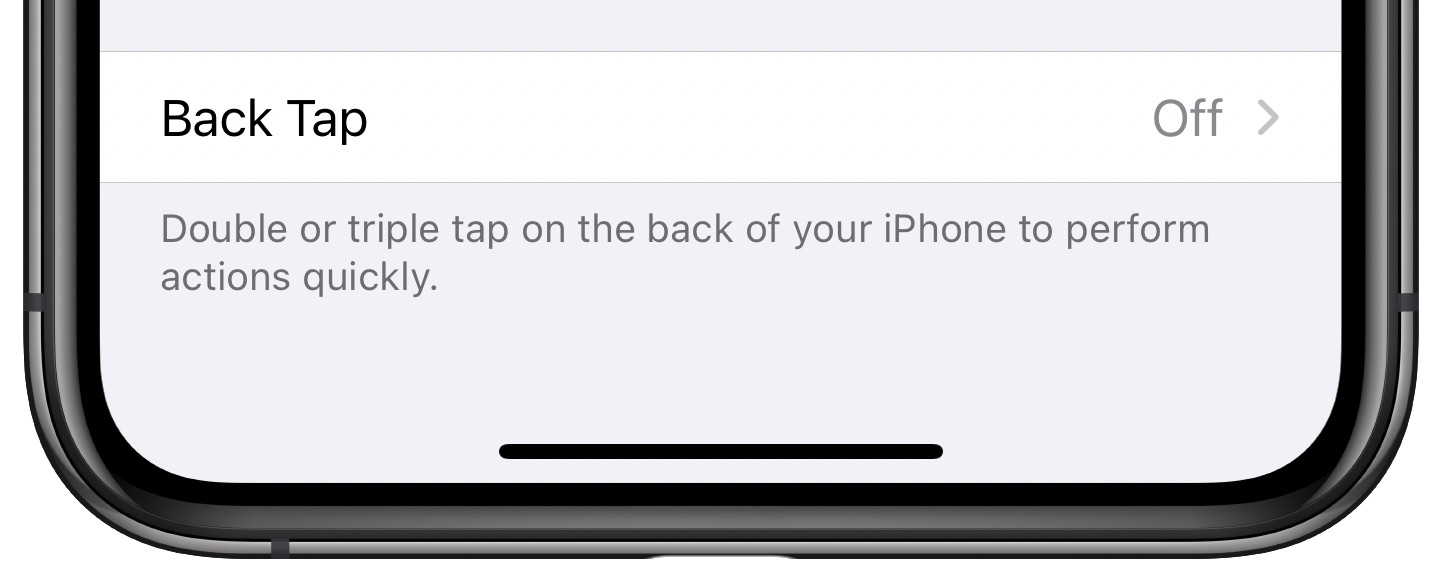
With both double and triple-tap back gestures set to “None,” the Back Tap feature will be disabled. You can confirm that’s the case by going to Settings > Accessibility > Touch. From there, verify that the Back Tap option listed at the bottom of the screen is set to “Off.”
Also, check out: