Find out why you see a “Back Tap Double Tap Detected” or “Back Tap Triple Tap Detected” banner at the top of your iPhone screen, and check out the steps to turn it off to prevent it from disturbing your workflow.

Why does this appear?
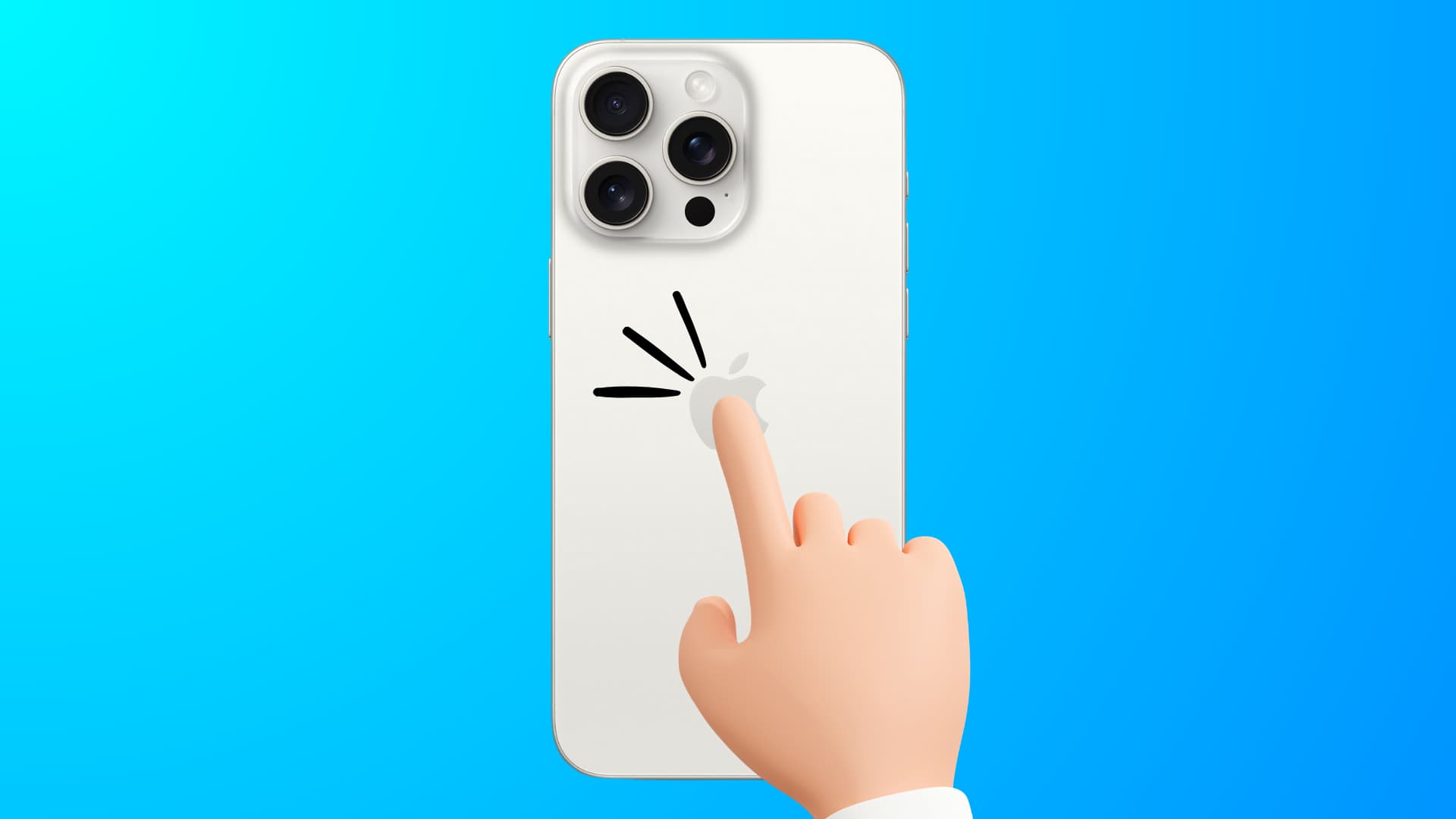
You see a “Back Tap Detected” banner when you accidentally or intentionally double or triple-tap the back side of your iPhone, and the Back Tap accessibility feature kicks in. This banner is meant to give you visual confirmation that the Back Tap feature has actually worked.
Why is it confusing?
While the Back Tap feature has existed in iOS accessibility settings for several years, the banner confirmation was added with the iOS 18 update and is also present in iOS 26. So, people who have been using Back Tap are confused by this notification every time they tap the rear side of their device twice or thrice.
Of course, this banner is a lot more puzzling for folks who don’t know about the Back Tap feature, and it’s activated accidentally on their iPhones. Remember, it isn’t uncommon to double or triple tap the iPhone’s backside unknowingly when taking it out of the pocket, keeping it in the purse, or holding it in the hand.
Turn off the Back Tap Detected banner on your iPhone
Disable it from settings if you don’t want to see this banner every time you use Back Tap.
- Open the Settings app on your iPhone.
- Select Accessibility from the list of options.
- Go to the Touch section.
- Scroll down to the bottom and tap Back Tap.
- Turn off the Show Banner button to disable the “Back Tap Detected” alert.

You can also set Double Tap or Triple Tap to None, completely turning off the Back Tap feature, so you get no banner when you tap the rear side of your iPhone.
Also, check out: