Learn all the ways to quickly switch between open apps on your Mac and multitask like a pro.
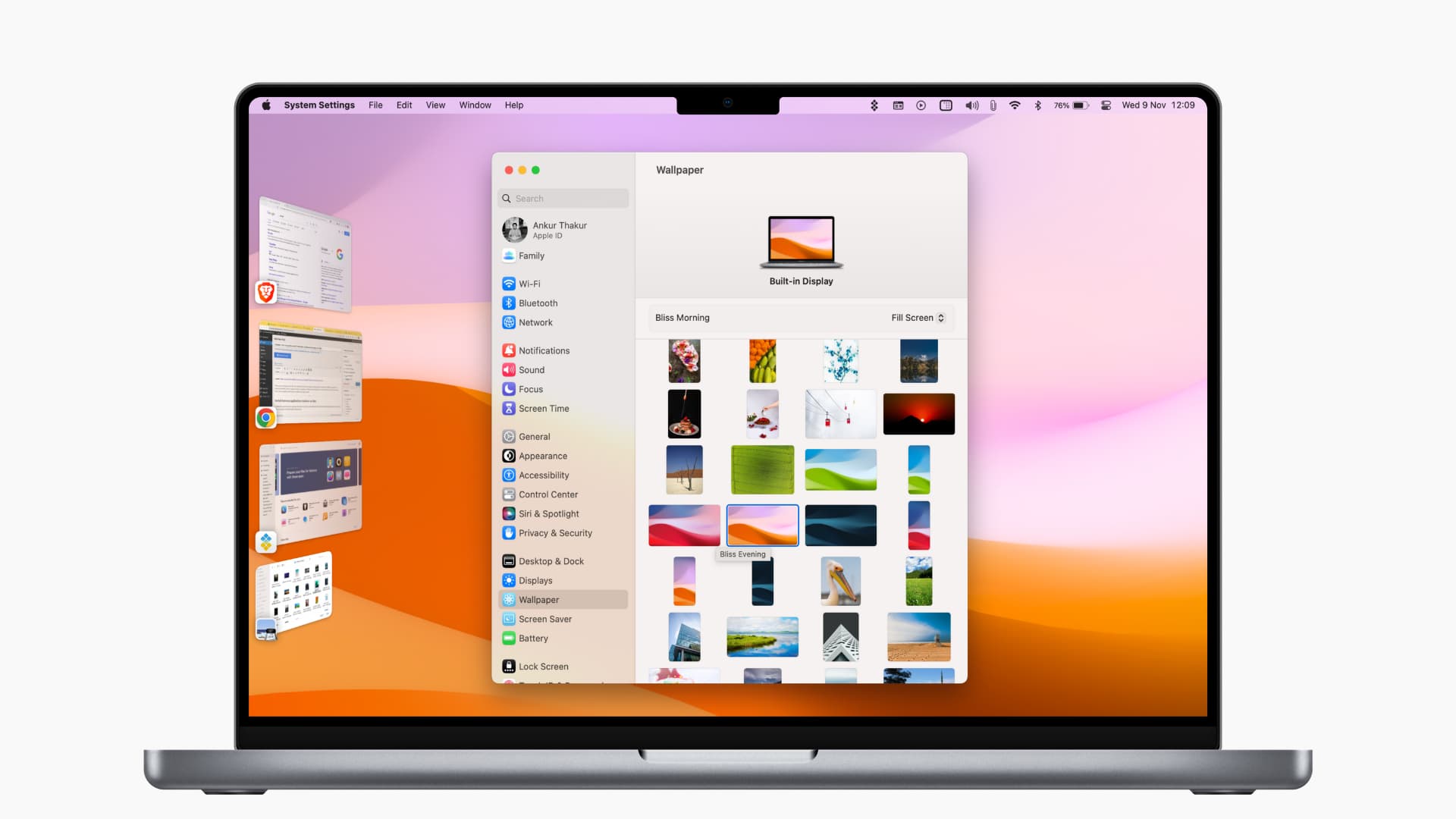
Whether it’s gestures, keyboard shortcuts, or multitasking features like Stage Manager, there are plenty of ways to navigate open apps on the Mac.
With many apps running at once, switching between multiple overlapping windows by clicking their apps’ corresponding icons in the Dock quickly becomes a chore.
Save time by switching between Mac apps using keyboard shortcuts, Stage Manager, or trackpad gestures.
Keyboard shortcut
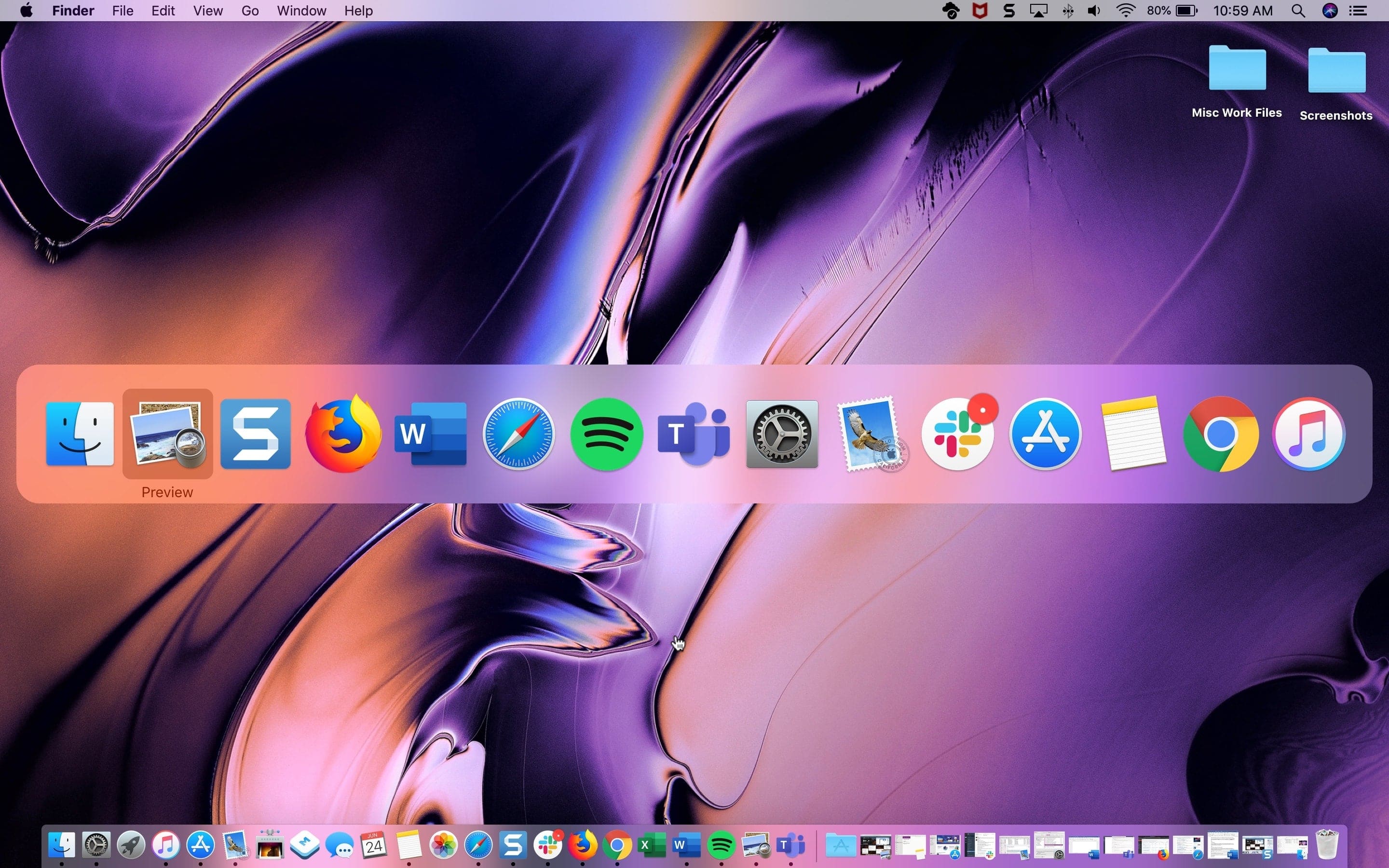
- Press and hold the Command + Tab keys together to bring up an overlay lined up with icons of all the open apps.
- While continuing to hold Command, press the Tab key to cycle through apps or Shift + Tab to go in the opposite direction (or use the left and right arrow keys).
- With the app you’d like to bring to the foreground selected, release the keys.
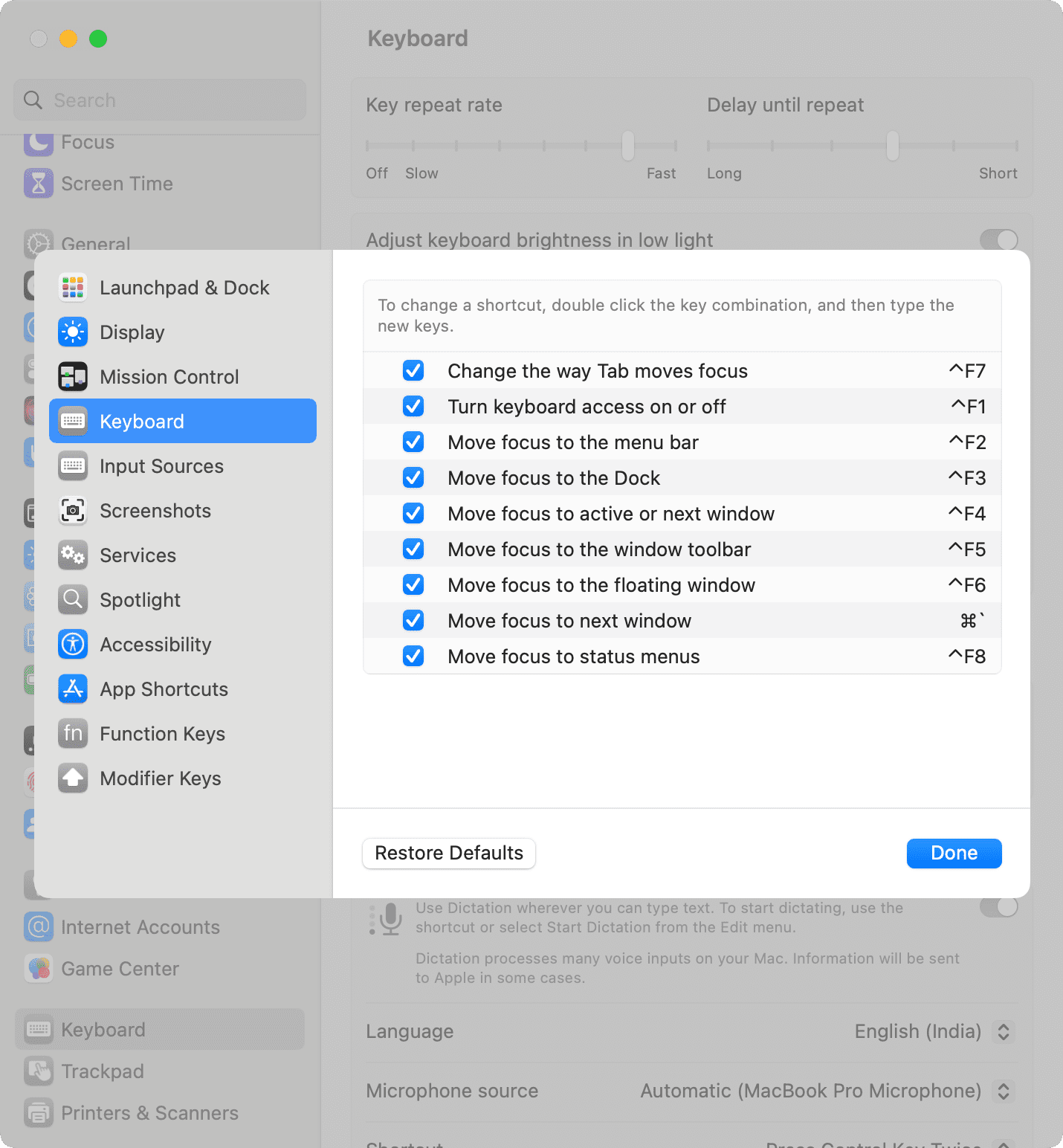
To change this keyboard shortcut to some other combination, go to System Settings > Keyboard > Keyboard Shortcuts and select Keyboard in the sidebar.
Stage Manager
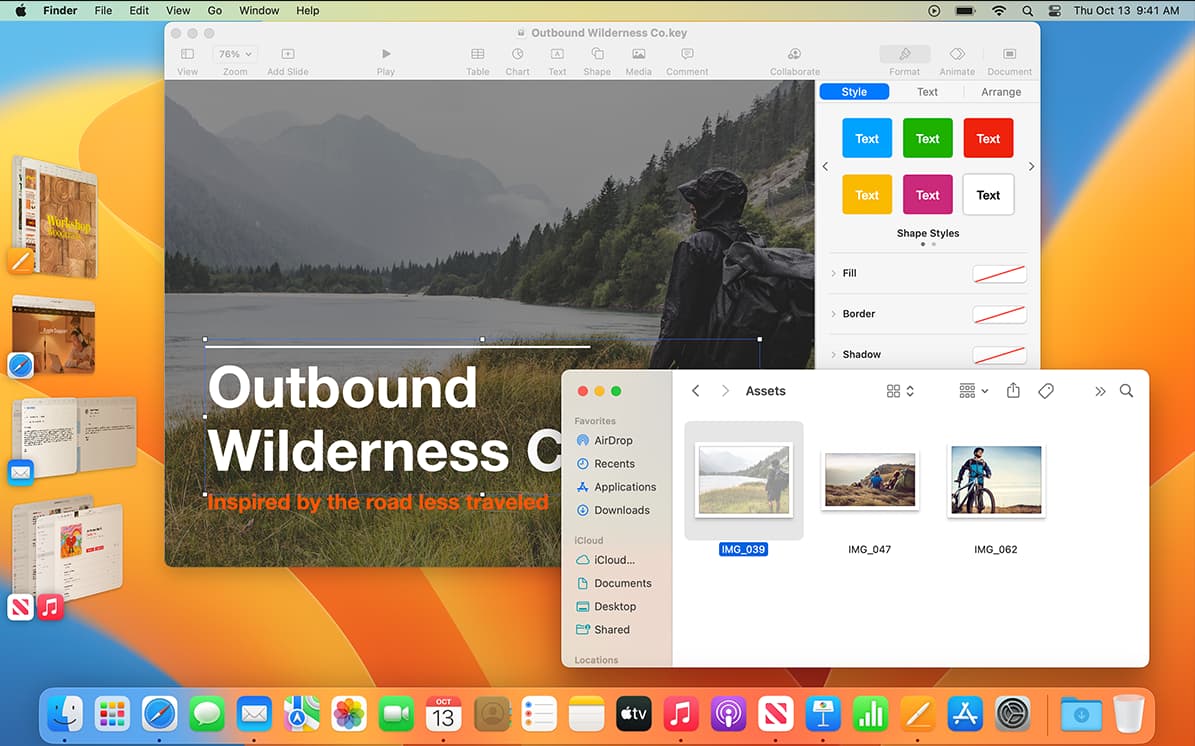
Go to System Settings > Desktop & Dock (macOS Ventura and later) and turn on Stage Manager to quickly switch between open apps by bringing the pointer to the left edge and selecting one of the open apps that will swoosh into view.
Trackpad gesture
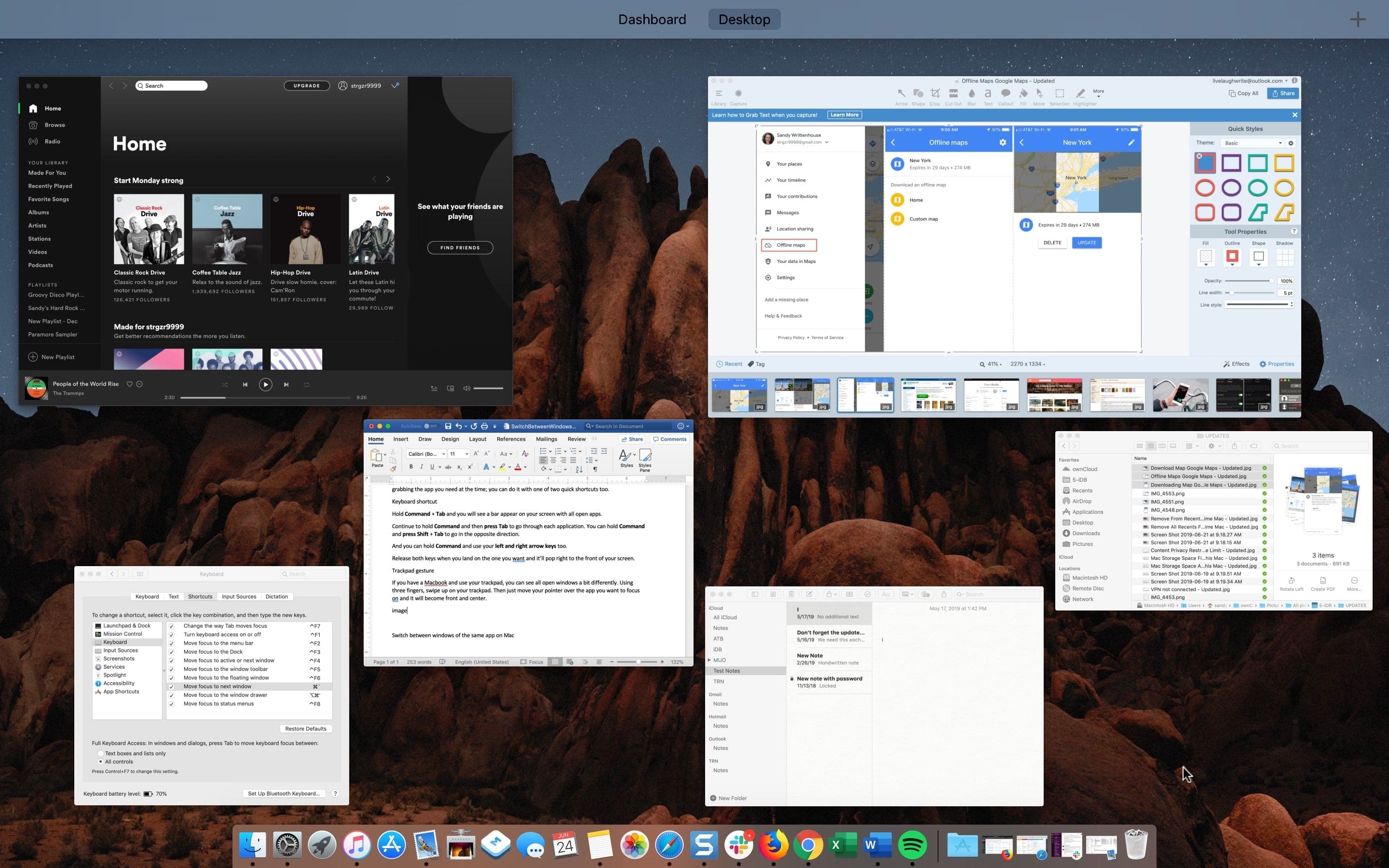
On Mac laptops and Mac desktops using a standalone trackpad, you can invoke Mission Control for a God view of all open apps; swipe up on the trackpad with three or four fingers and then click the app window to make it front and center.
Cycling through the windows of the same app
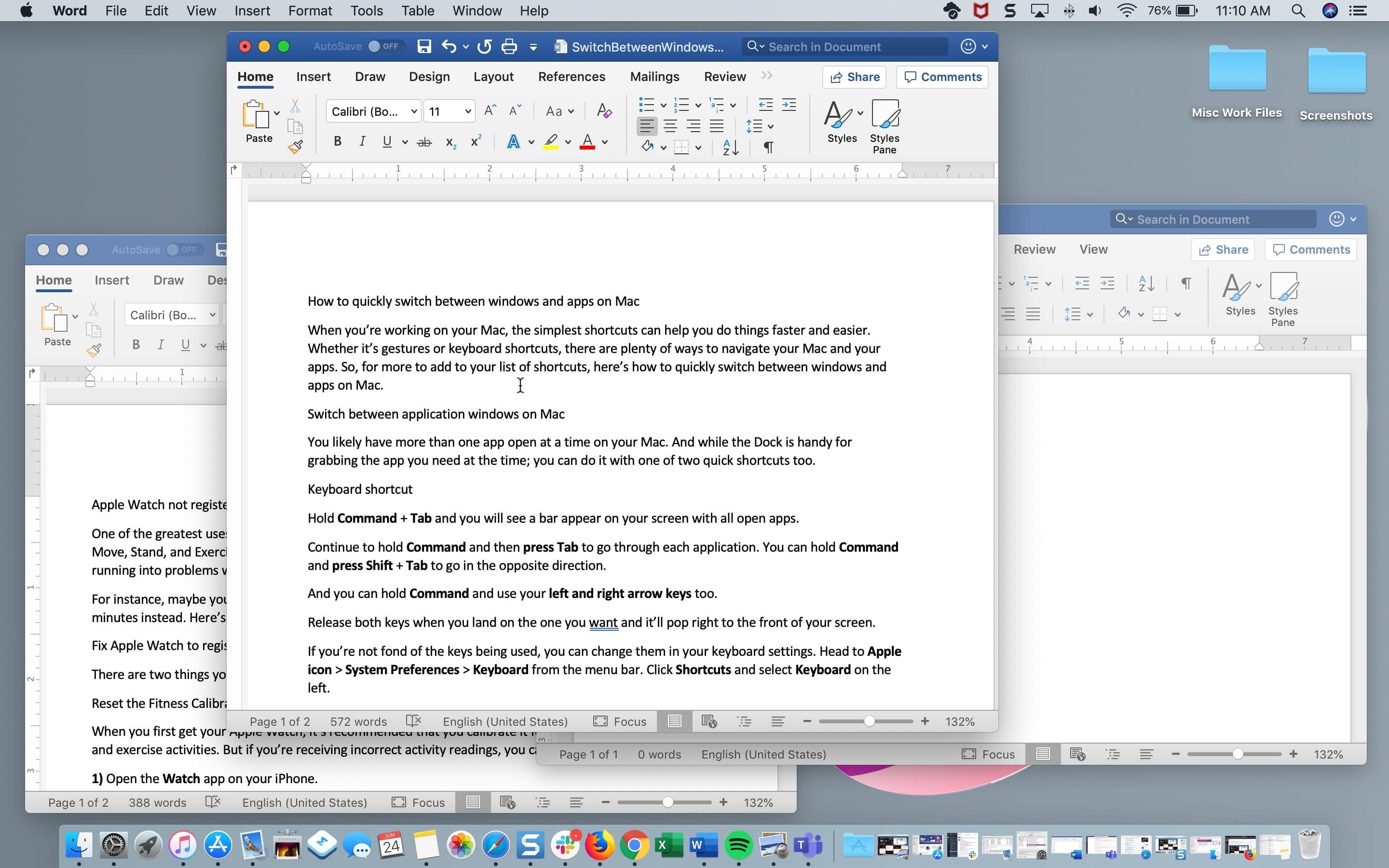
macOS also lets you switch between multiple windows of the same app. For instance, you may have several Word documents or Firefox/Chrome browser windows open at once.
Press Command + ` (tilde) to switch between the current app’s windows.
Continue holding Command while repeatedly pressing the tilde ` key to cycle through the windows, and then let go to land on the one you want.
Note that swiping up on the trackpad with three or four fingers will display all app windows instead of the windows from the current app.
Switching between open apps using the keyboard shortcuts detailed above is the fastest way to multitask without lifting your finger from the keyboard. It may take some time memorizing and getting used to these shortcuts. But once you start using them, you will not want to imagine your life without them.
Also, check out: 2 ways to switch between apps on iPhone