Learn how to disable keyboard click sounds on your iPhone keyboard to type in silence and stop annoying others around you.
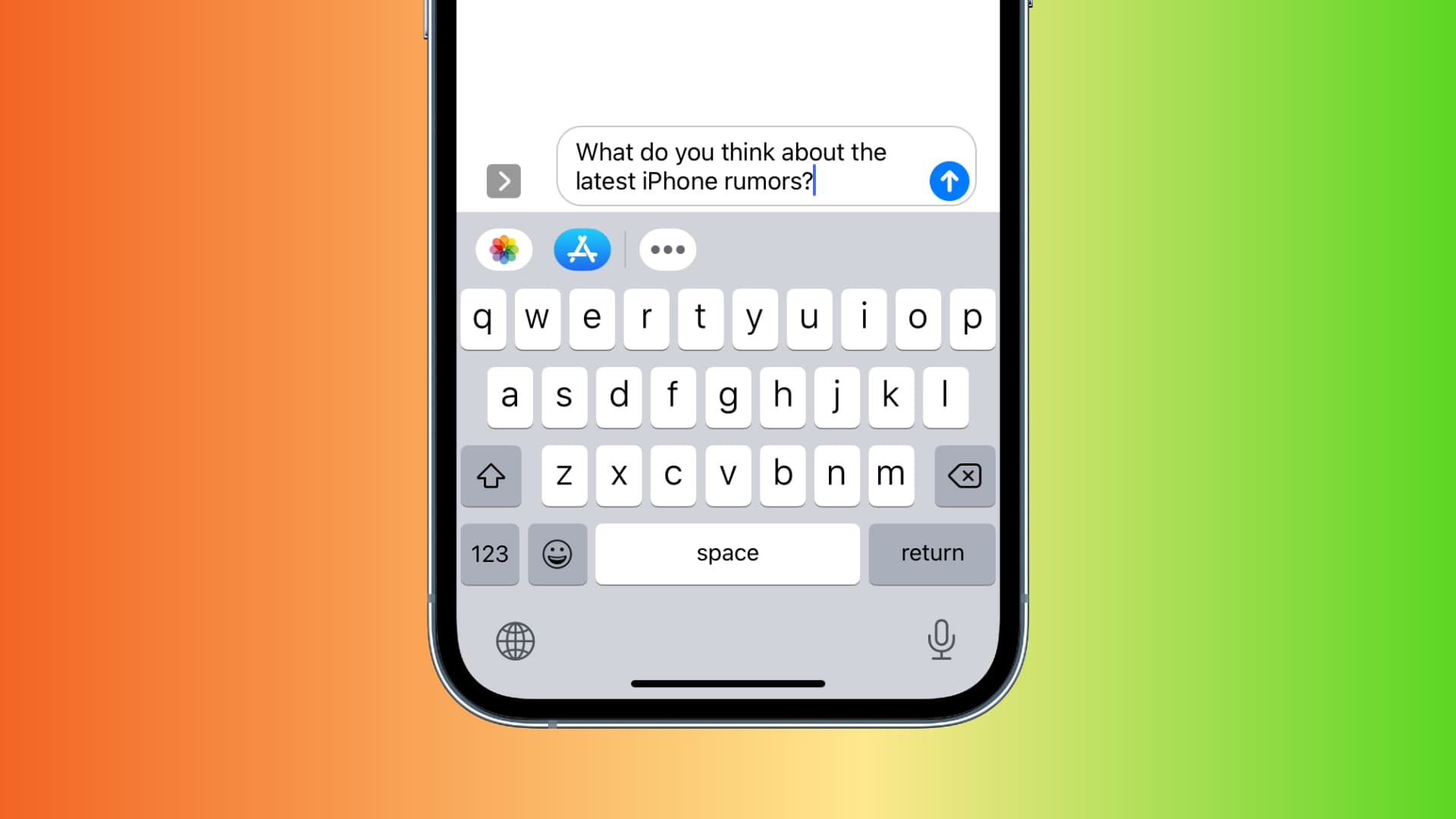
iPhones and iPads make a clickety-click sound when you type on the onscreen keyboard. This may not bother you if you’re typing a text to a friend while at home.
However, keyboard clicks can be annoying as hell if you start composing a long email in a public library or take notes in the classroom. Thankfully, you can easily disable these keyboard clicks temporarily or turn them off altogether.
Turn off keyboard clicks in Settings
There’s a dedicated option in the Settings app to turn off keyboard clicks.
- Open the Settings app.
- Tap Sounds & Haptics.
- Tap Keyboard Feedback.
- Turn off the Sound switch. This will stop playing clicking sounds with each key press until you toggle the switch again.

On iOS 26 and later, you can also disable keyboard sounds by going to Settings > General > Keyboard.

Turn on silent mode
Turning on silent mode will also mute keyboard clicks.
- To enable silent mode on newer iPhone models, tap the bell icon in Control Center or head to Settings > Sounds & Haptics and turn on Silent Mode.
- On older models, push down the physical mute switch located at the top-left edge of the device.

Focus modes like Do Not Disturb disable all notification sounds, but not system sounds like keyboard clicks.
And that’s how you type in silence on your iPhone and iPad.
What do you think of keyboard clicks? Are you a fan of this feature, or does it irritate you? Let us know in the comments!
More keyboard tutorials: