Learn how to receive fake calls on your iPhone so you can excuse yourself from boring meetings and awkward social situations.
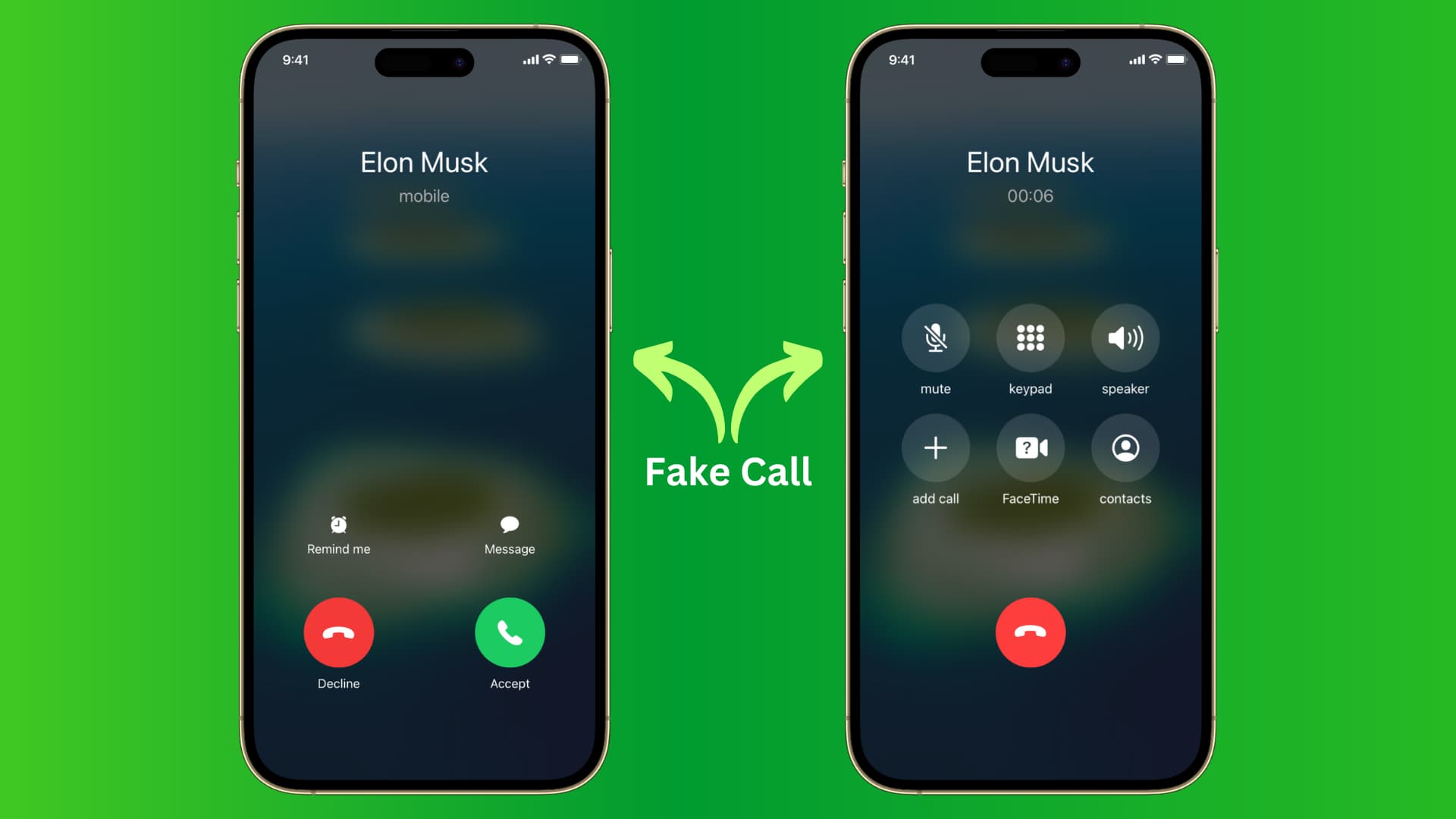
Sooner or later, it happens to all of us… You’re stuck with a date you don’t like, a mind-numbing meeting, or a boring gathering, and then out of the blue comes that super “important” phone call you really need to take. And just like that, you’re saved by the bell!
With the right app, you can receive a fake phone call to your iPhone and rescue yourself from all kinds of awkward situations.
How to get a fake call on your iPhone
1) Download the free Call Simulator (formerly Fake Call) app from the App Store and open it.
2) By default, you’ll receive a fake call after 3 seconds with the caller’s name showing as Musk or Elon Musk.
- Tap Time to pick something from 3 seconds later to 1 hour later.
- Use the Contacts option to pick any of your saved contacts.
- You can also change the ringtone that plays when you get this fake call.
- Next, adjust the artificial voice that starts talking when you pick up the call, and change your wallpaper.
3) With everything set to your liking, tap the Start button.
4) Choose the calling screen you’d like to use. One on the left is free to use and looks closest to the iOS calling screen. The display will turn blank now. Do not lock the screen or exit the app, or you won’t receive a fake call.
5) Soon, you’ll get the fake call. Use the on-screen buttons to accept or decline the call like you would any other call. If you pick up the call, you’ll hear the voice (configured in step 2) talking through the earpiece.
6) Once you hang up the fake call, double-tap the screen to return to the Call Simulator app or swipe up to exit the app and go to the iPhone Home Screen.

And that’s one of the ways you can receive a fake call on your iPhone to excuse yourself.
The App Store offers other similar apps. I’ve tested most of them before settling on the Fake Call app, which works best and closely mimics the original iOS calling screen. If you don’t like the above app, however, try Fake Call – Call From Private.
Check out next: