Learn how to silence message notifications from unknown people who are not saved in your iPhone contacts list.
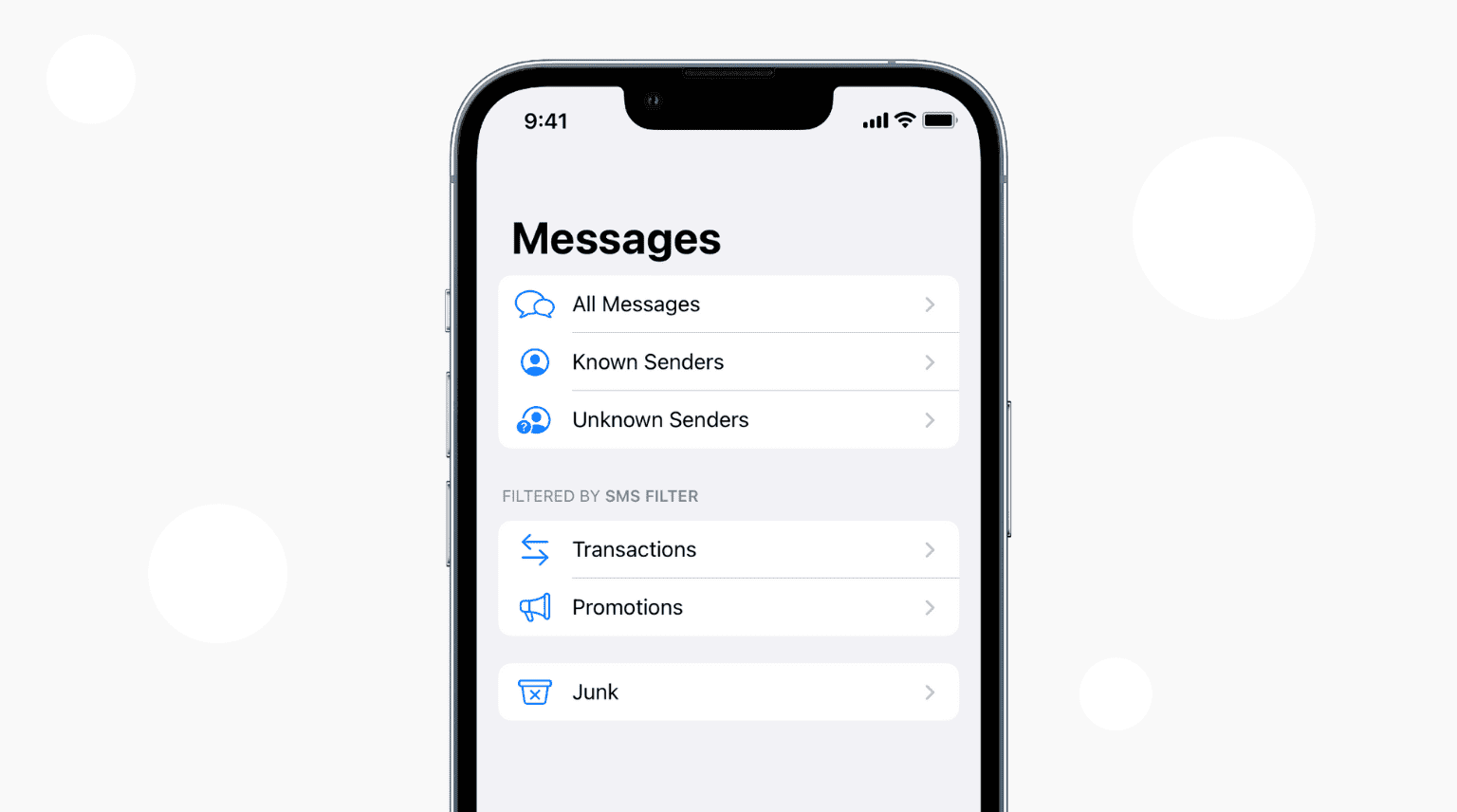
If you don’t want to get notifications from people you don’t know, you’ll be happy to learn that you can configure your iPhone to suppress iMessage notifications from non-contacts.
Stop receiving iMessage notifications from people who aren’t in your contacts
- Open the iOS Settings app on your iPhone or iPad.
- Scroll to the bottom and tap Apps. Then, select Messages from the next screen.
- Turn on Screen Unknown Senders.
- Optional: For SMS Filtering, you can tap Text Message Filter and select None, Text Message Filter, or another downloaded third-party app like Truecaller.

On older versions of iOS, scroll to the Message Filtering heading and tap Unknown & Spam. Then, turn on the switch for Filter Unknown Senders.
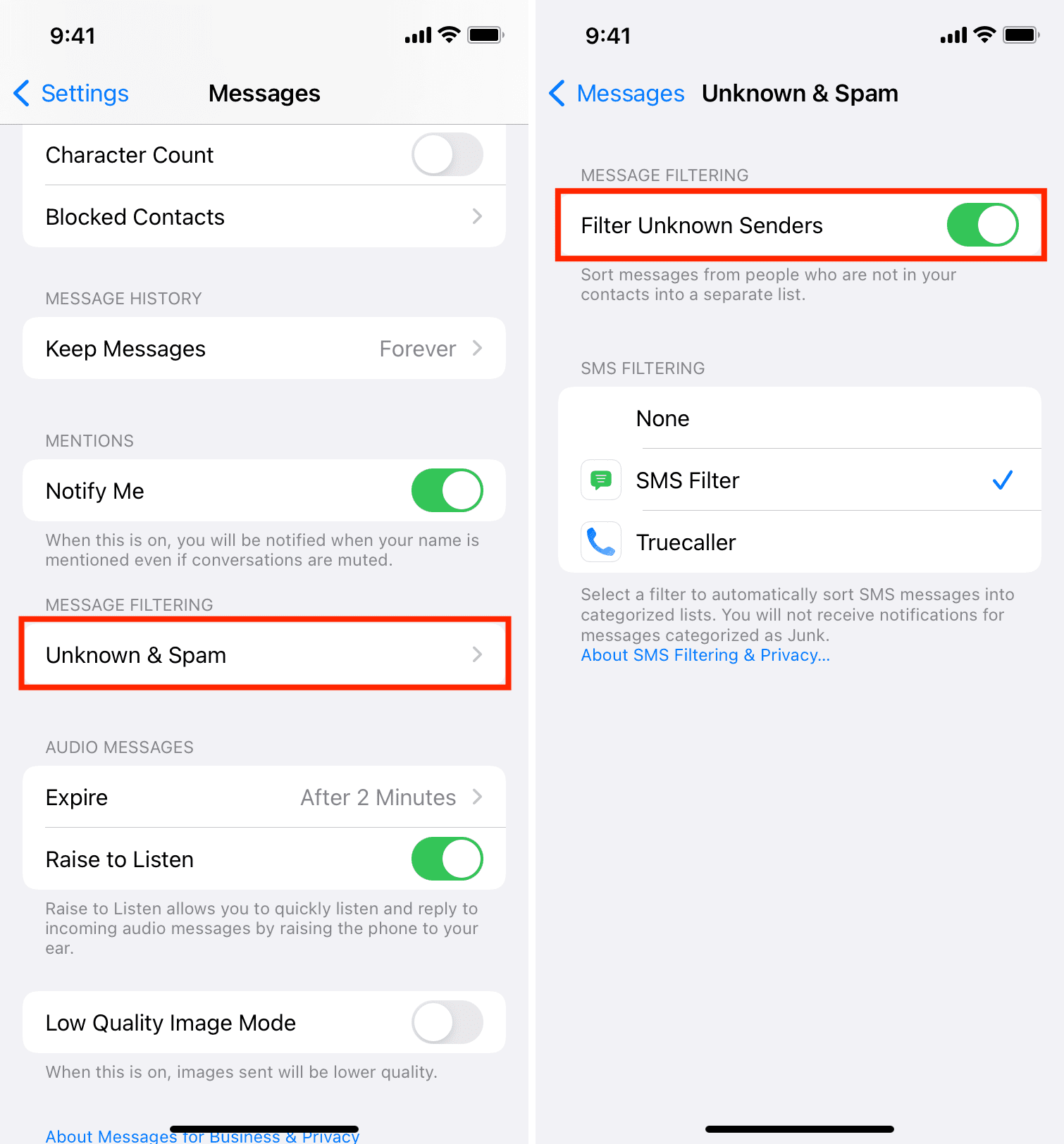
From now on, you’ll no longer get alerts, sounds, or vibrations for incoming messages sent by people who are not on your contact list.
However, you should still see the red badge on the Messages app icon and blue dots in the Messages app for unread messages, whether they were from unknown senders or not.
Important: You’ll see that messages from people you have chatted with, received their number in the Mail, talked with on call, and so forth will be listed under the main known messages, even if their phone number isn’t saved to your iPhone. I also noticed that old messages from people who were once saved to your contact list will be listed as known senders.
Where do filtered messages go?
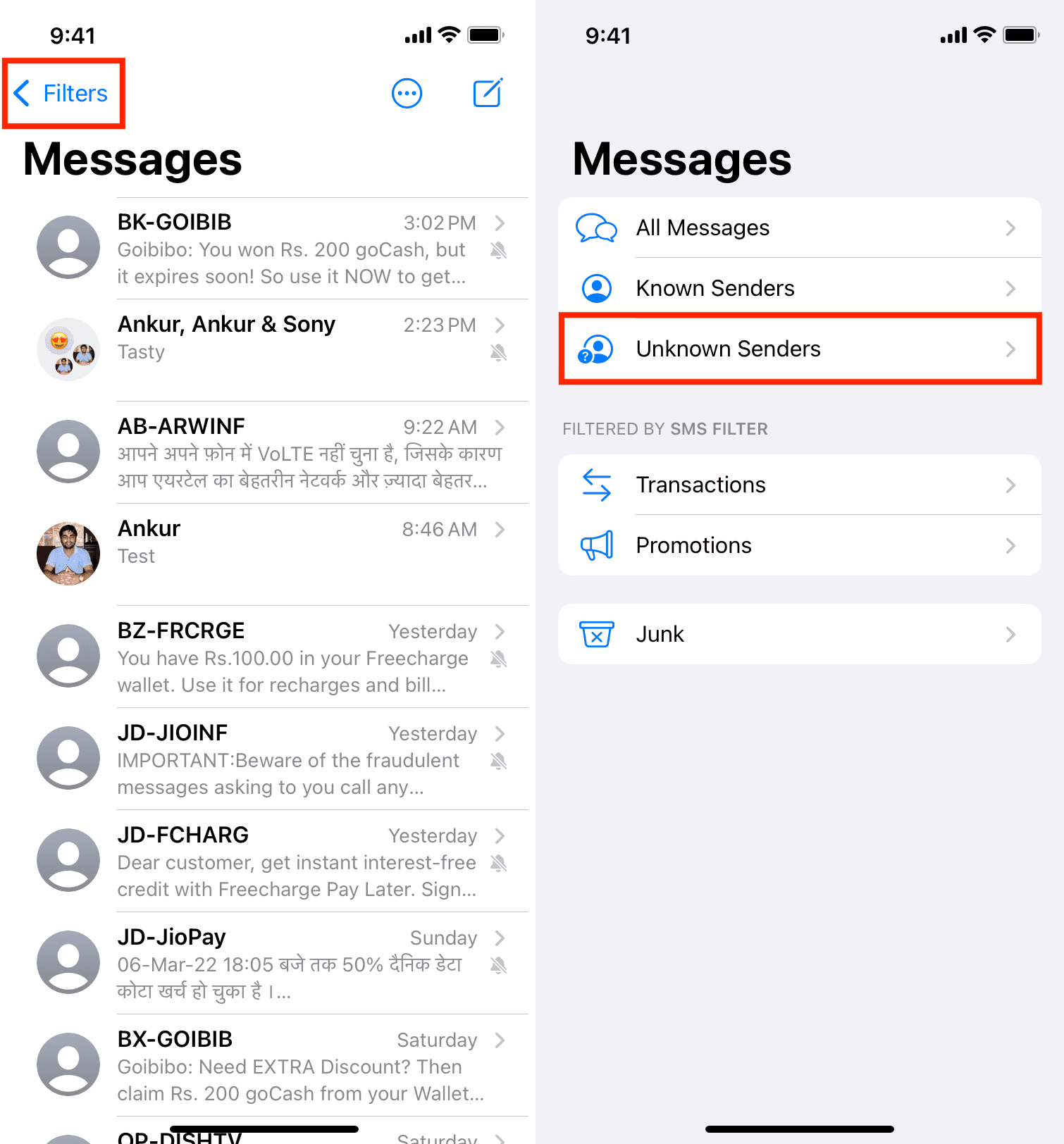
After enabling Screen Unknown Senders, open the Messages app, tap the three lines icon at the top, and select Unknown Senders to see all texts from people who are not saved to your contacts. Tap the same three lines icon and select Messages to see all your known texts.

On older versions of iOS, tap <Filters from the top left, followed by Unknown Senders to see messages from this category.
Now you know how to turn off message notifications from unknown people. This sorting is a handy touch, as it prevents unwanted clutter in the Messages app when you happen to have a lot of conversations among contacts and non-contacts at a given time.
However, it also means that you might miss texts from distant relatives, old friends, and such. So, make sure you open the Messages app periodically to see such texts.
On a related note: