Learn how to stop your iPhone, iPad, or iPod touch from automatically backing up to your computer when you connect it using a USB cable.

Whenever you make important changes to your iOS device and then plug it into your Mac or Windows PC, Finder or Apple Devices app/iTunes may launch and attempt to automatically sync and back up your device.
Although it’s generally a good idea to back up your devices frequently in case of failure, some people would rather do it manually because they have a lot of data on their devices, and it will go on for ages before the backup process completes and can move on to syncing.
When the backup is in session, it will keep you waiting and may prevent you from doing other things, like syncing video files to the VLC app on your iPhone or using your iOS device as a pen drive.
The last major thing I can think of is if your computer is running out of space and you know you have a lot of photos or videos on your iOS device, and you just don’t have the room to store such a backup. Disabling this automatic backup will prevent that precious storage on your Mac from disappearing when it doesn’t have to.
We’ll show you three ways to prevent your iOS device from automatically syncing with your computer when you plug it in.
1. Turn off computer backup and use iCloud instead
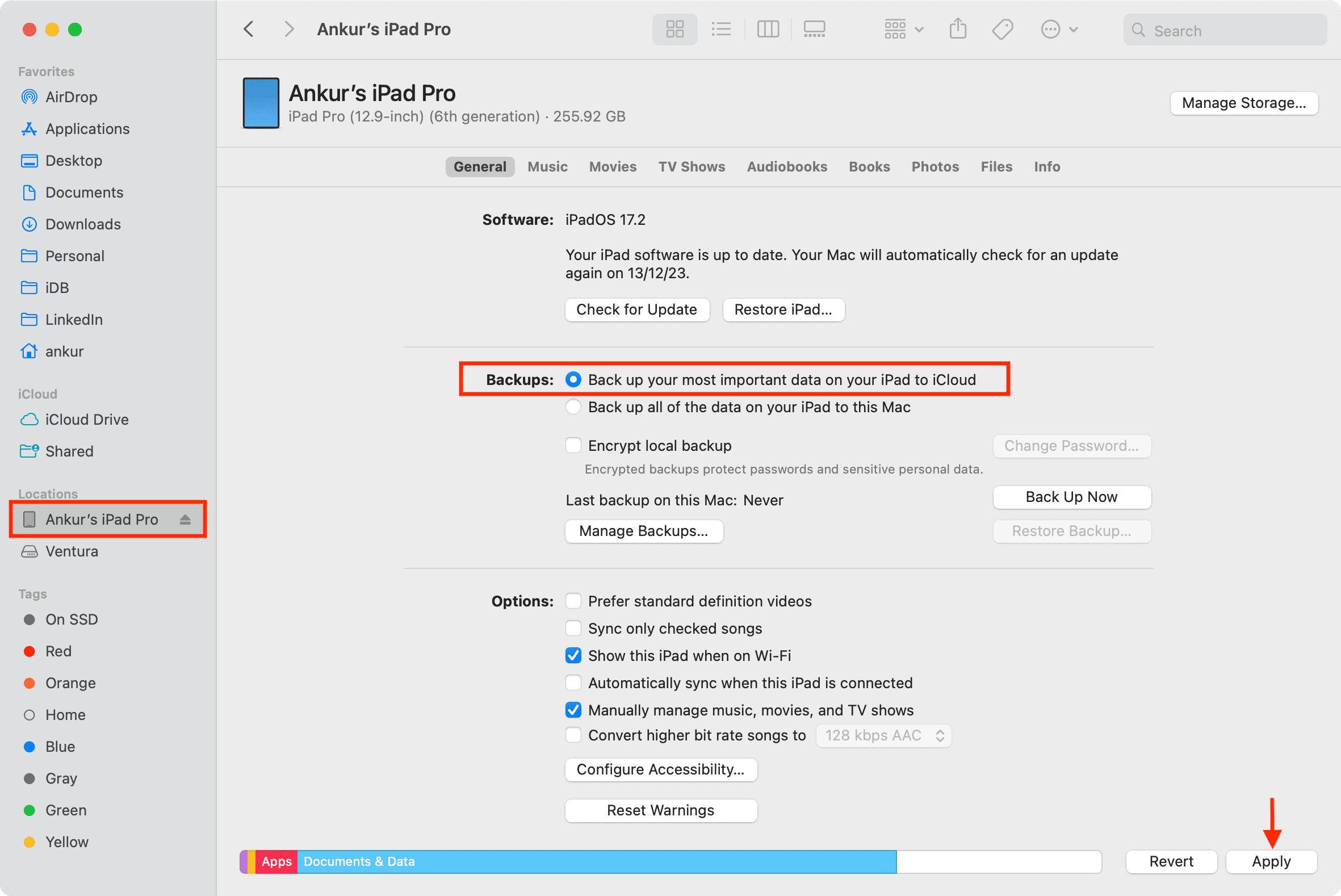
One way to keep the device from automatically backing up to your computer is to set it to back up via iCloud instead. We’ll show the steps for Finder on Mac, but they are fundamentally similar in the Apple Devices app on Windows PC.
- Connect your iPhone or iPad to it and find the device in the Finder sidebar.
- From the General section, check the box for “Back up your most important data on your iPhone/iPad to iCloud” and hit Apply.
Also, check out: How to back up important iPhone data without a full device backup
2. Switch off automatic backup by preventing auto-sync
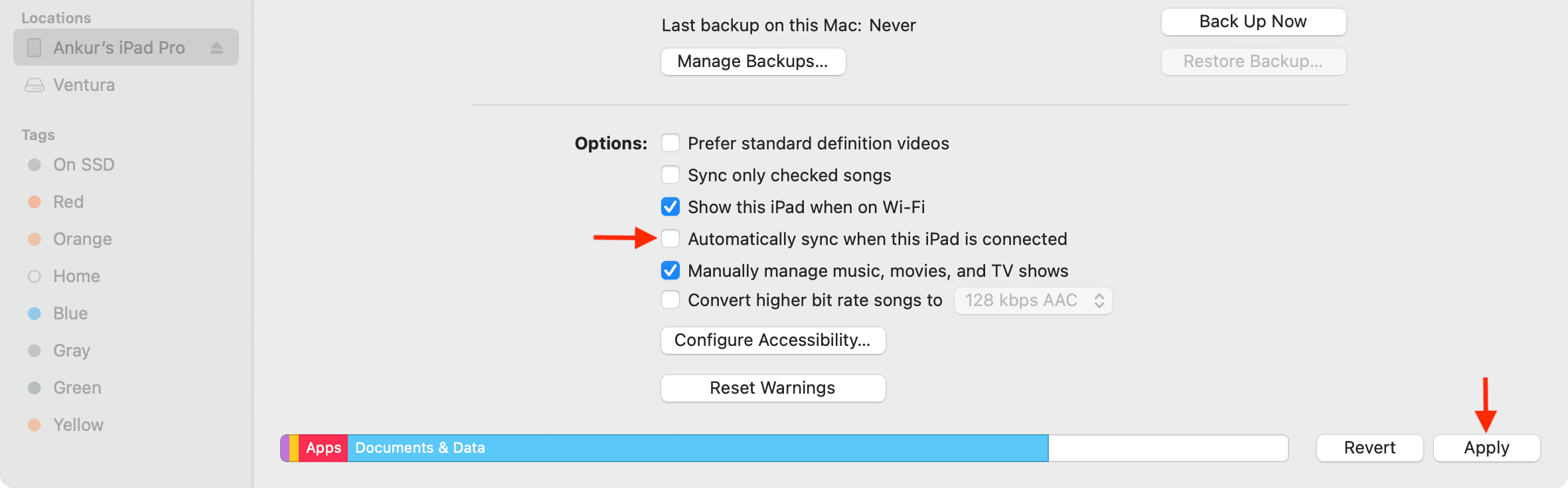
Another thing to note is that backing up only occurs when you sync your iOS device with it. So you can actually prevent Finder or iTunes from automatically backing up your device by preventing your device from being automatically synced when it’s plugged in.
Simply uncheck the “Automatically sync when this iPhone/iPad is connected” option in the General section of your iOS device and hit Apply.
In iTunes, go to its settings and uncheck “Prevent iPods, iPhones, and iPads from syncing automatically.”
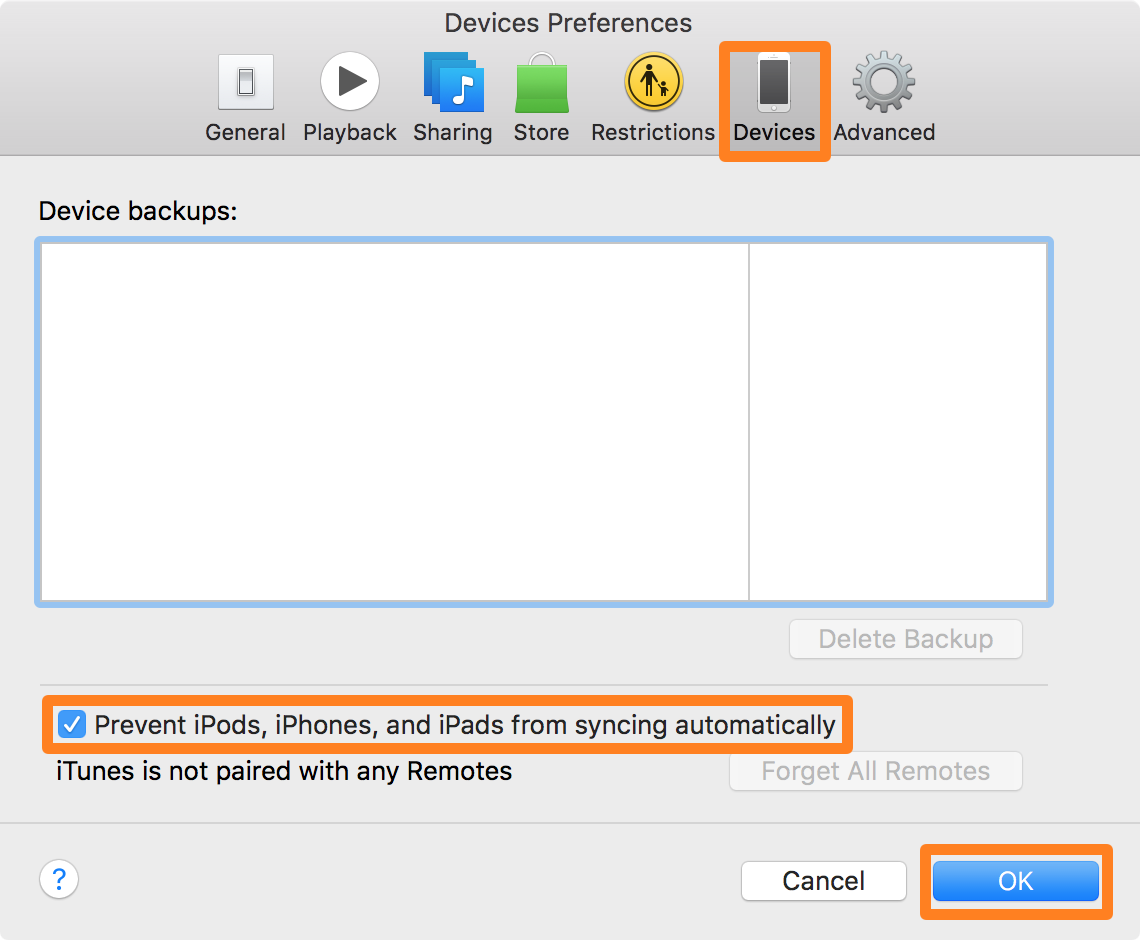
Now, your device won’t automatically sync when you plug it in and launch Finder, Apple Devices app, or iTunes, which means it shouldn’t automatically back up to your computer either. It’s like magic!
3. Disable automatic iTunes backup with Terminal
If you don’t really want to use either to back up your device, you can also use Terminal to handle the situation.
Ah… good ol’ Terminal! I know lots of advanced Mac users are going to love this approach even more.
To turn off automatic iTunes backups with Terminal on your old Mac, follow these steps:
1) Quit iTunes on your Mac.
2) Launch Terminal and enter the following command:
defaults write com.apple.iTunes DeviceBackupsDisabled -bool true

3) Press the return key on your keyboard to execute the command.
4) Restart your Mac. It’s good practice to do this after a command like this, but you can also probably get away with the killall Dock command.
Note: You can re-enable automatic backups by using the same command above and replacing -bool true with -bool false.
On the same note: