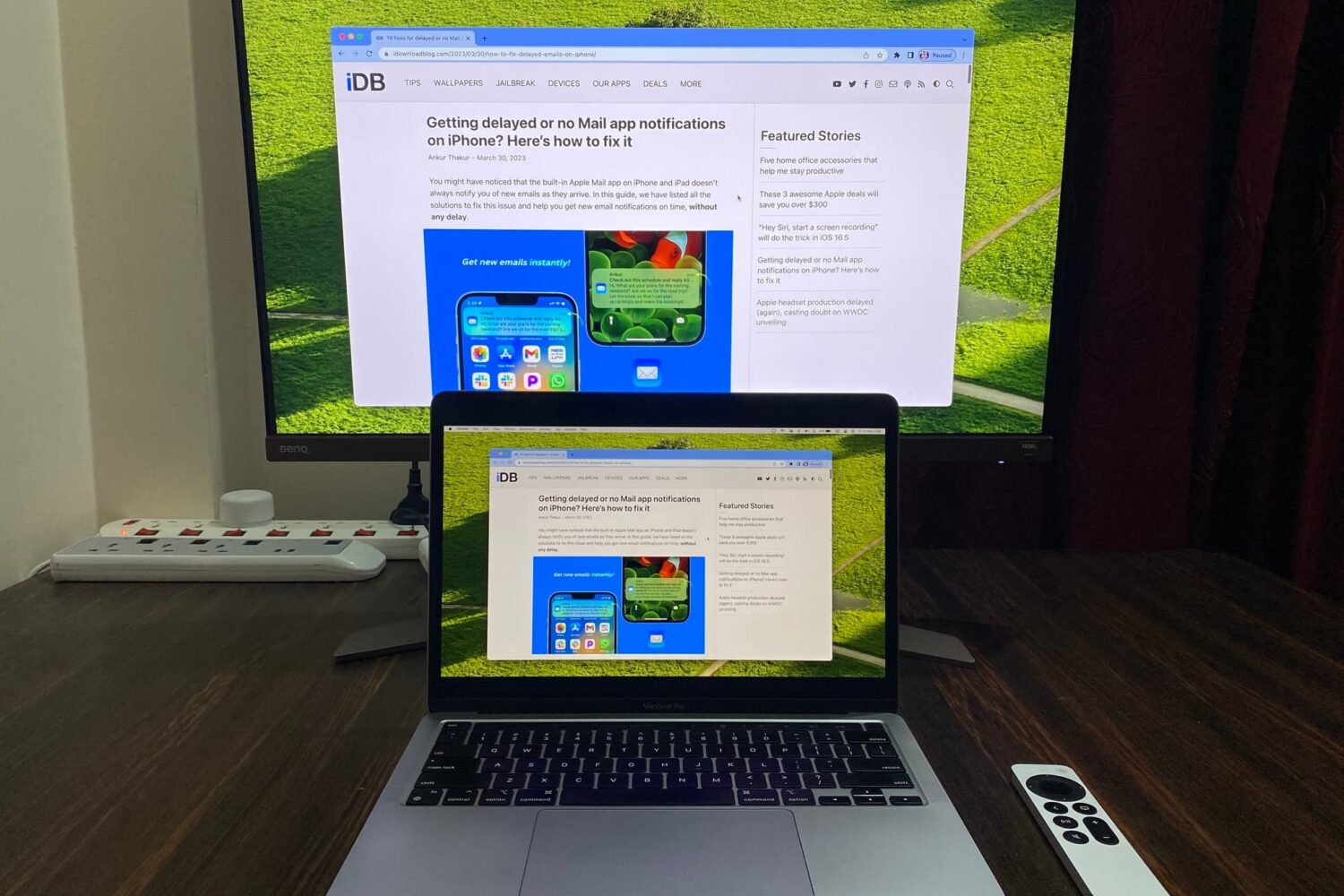
Learn how to mirror your Mac’s screen to your Apple TV to see the same things on the big screen or use the television as a separate, secondary display.
How to mirror or extend your Mac display to Apple TV
Learn how to master your Apple devices with our comprehensive tutorials. From iPhone and iPad to Mac, Apple Watch, AirPods, and more, our expert guides will help you unlock the full potential of your Apple products. Discover new features, tips, and tricks each day to enhance your user experience.
Learn how to mirror your Mac’s screen to your Apple TV to see the same things on the big screen or use the television as a separate, secondary display.
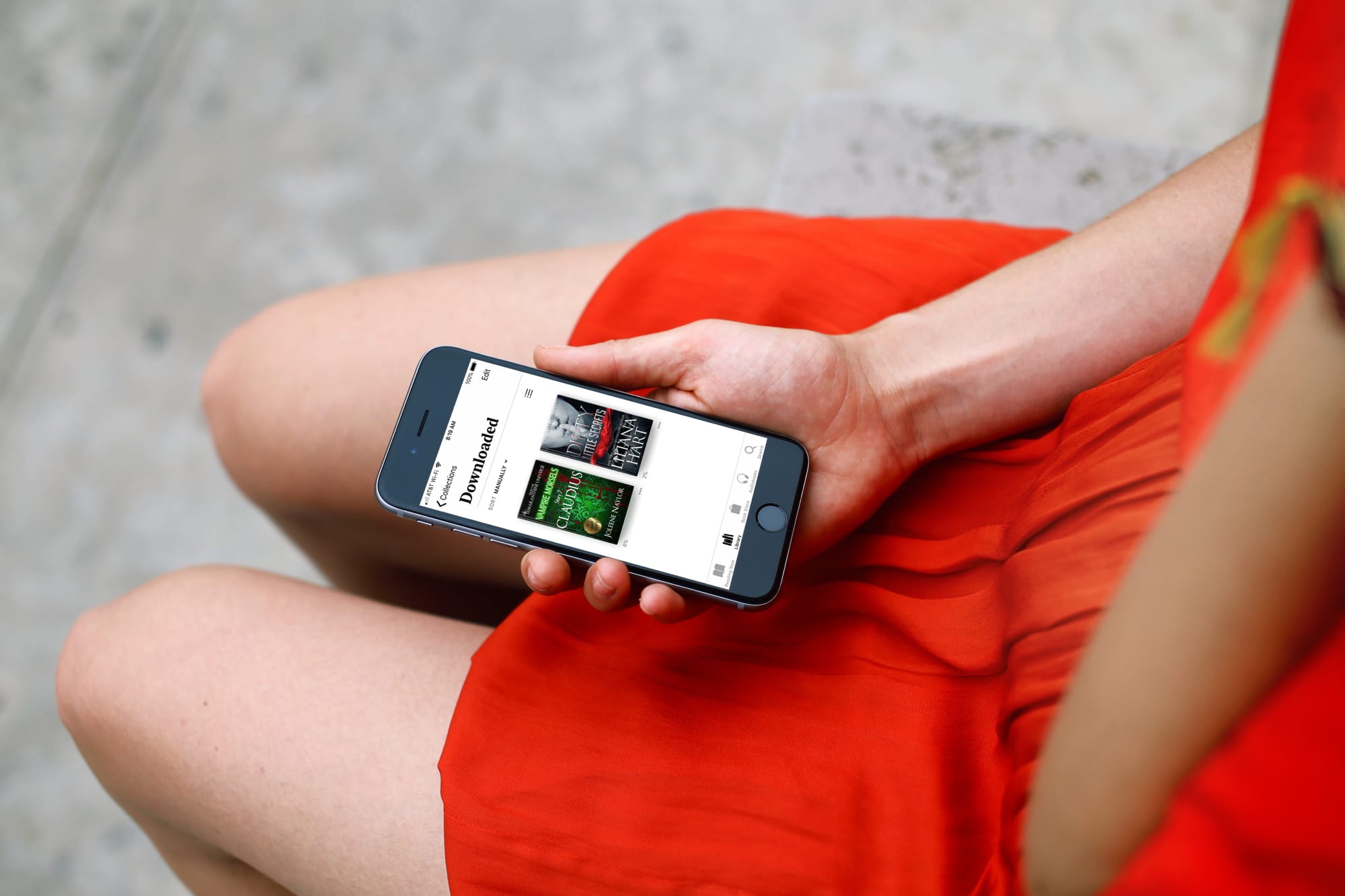
Learn about a quick and simple way to filter your digital library by displaying only downloaded titles and PDFs in the Apple Books app for offline reading.

The table of contents (TOC) feature of the Apple Pages app automatically creates a table of contents in the sidebar for you to navigate your document easier. Plus, you can pop that TOC right into your document if you like.
This tutorial walks you through how to use the table of contents view in Pages.
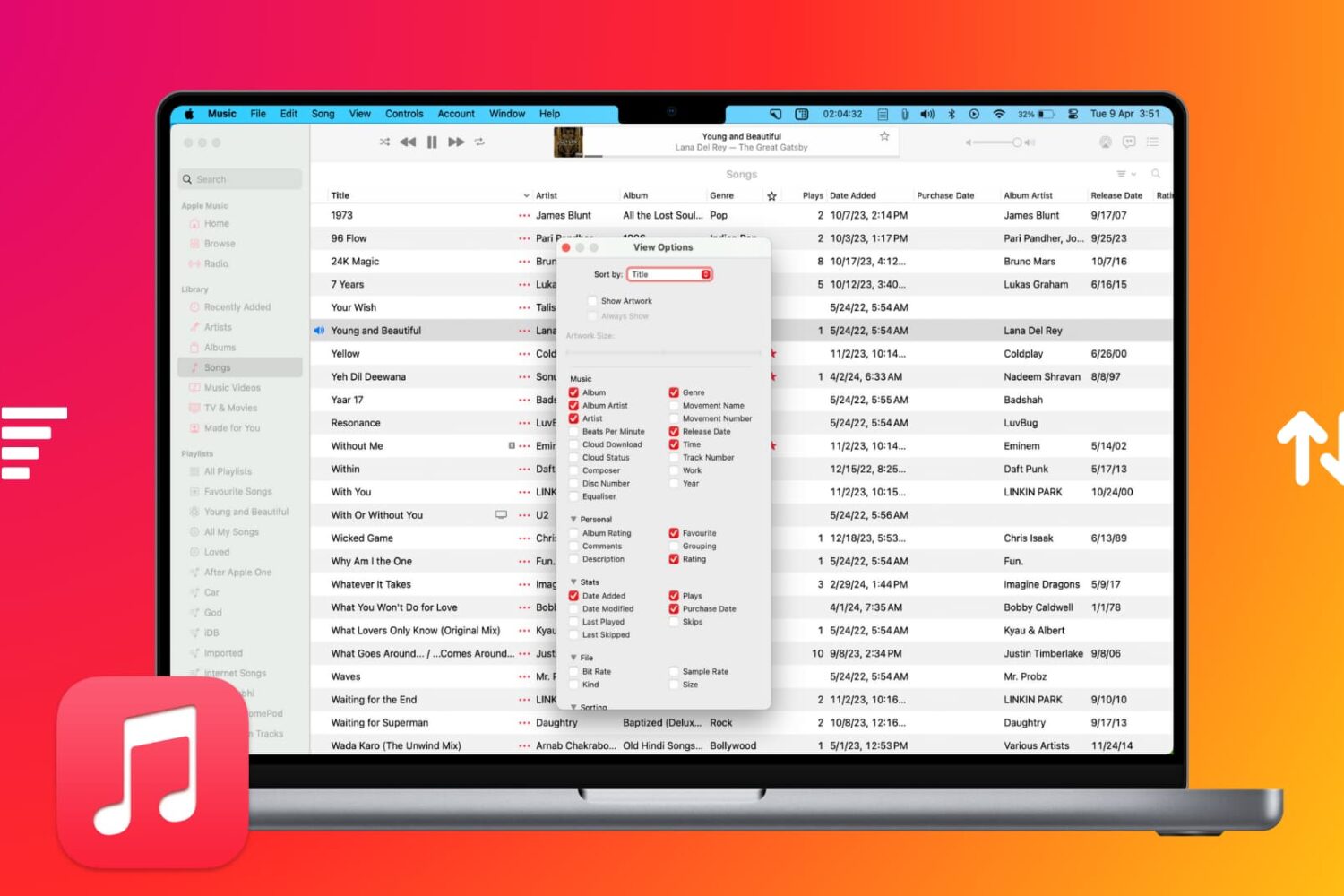
Learn how to sort your music collection to your liking, ensuring easy access to your favorite songs, albums, playlists, and more.

Learn how to get information about a song in your library or the Apple Music catalog, including metadata like title, artist, album, composer, genre, and more.
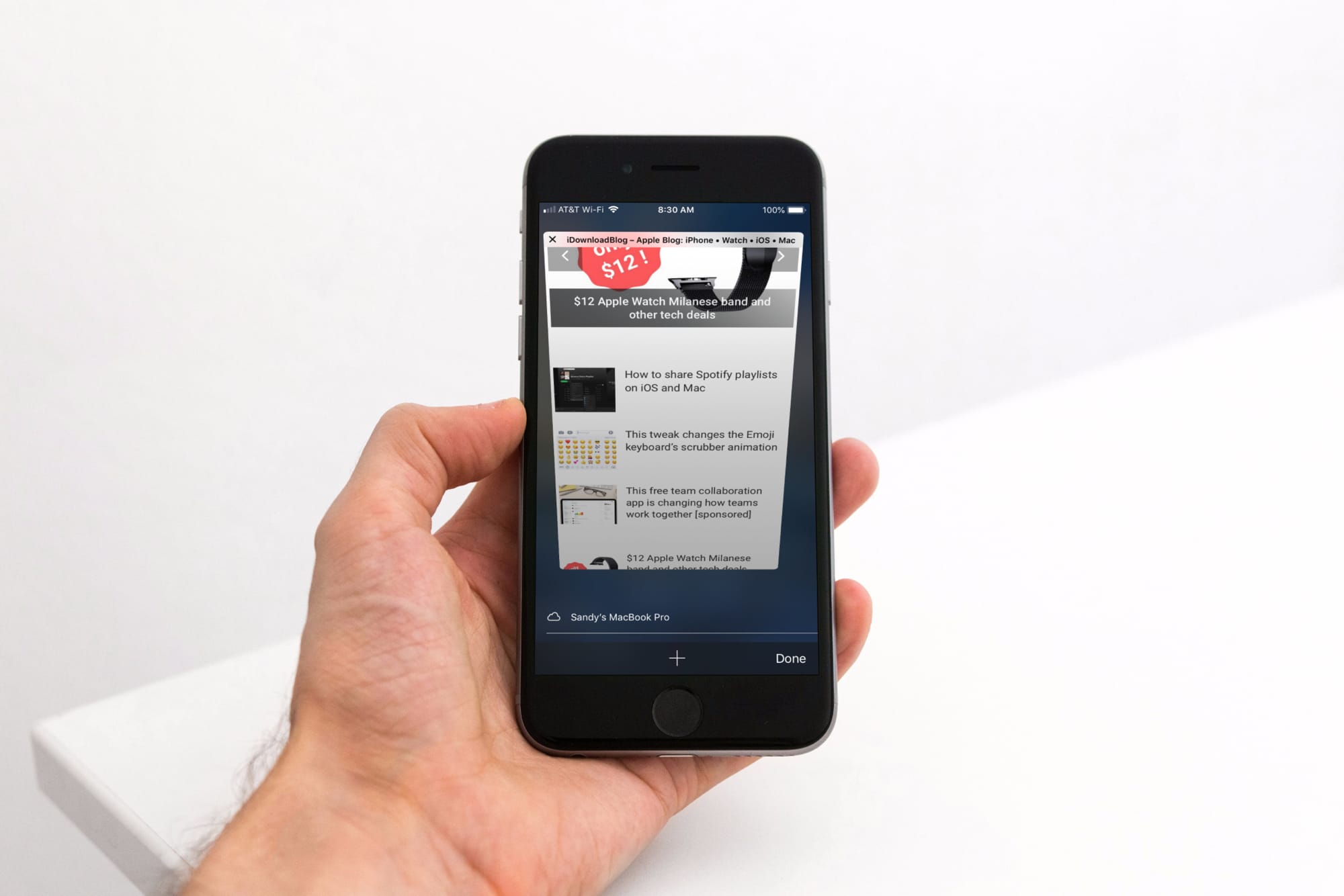
Learn how to enable unrestricted web browsing to retrieve the missing private tab button in Safari on your iPhone or iPad.

Learn how to extract ZIP files on Mac to see what’s inside and also compress files and folders to save storage space and share them faster.
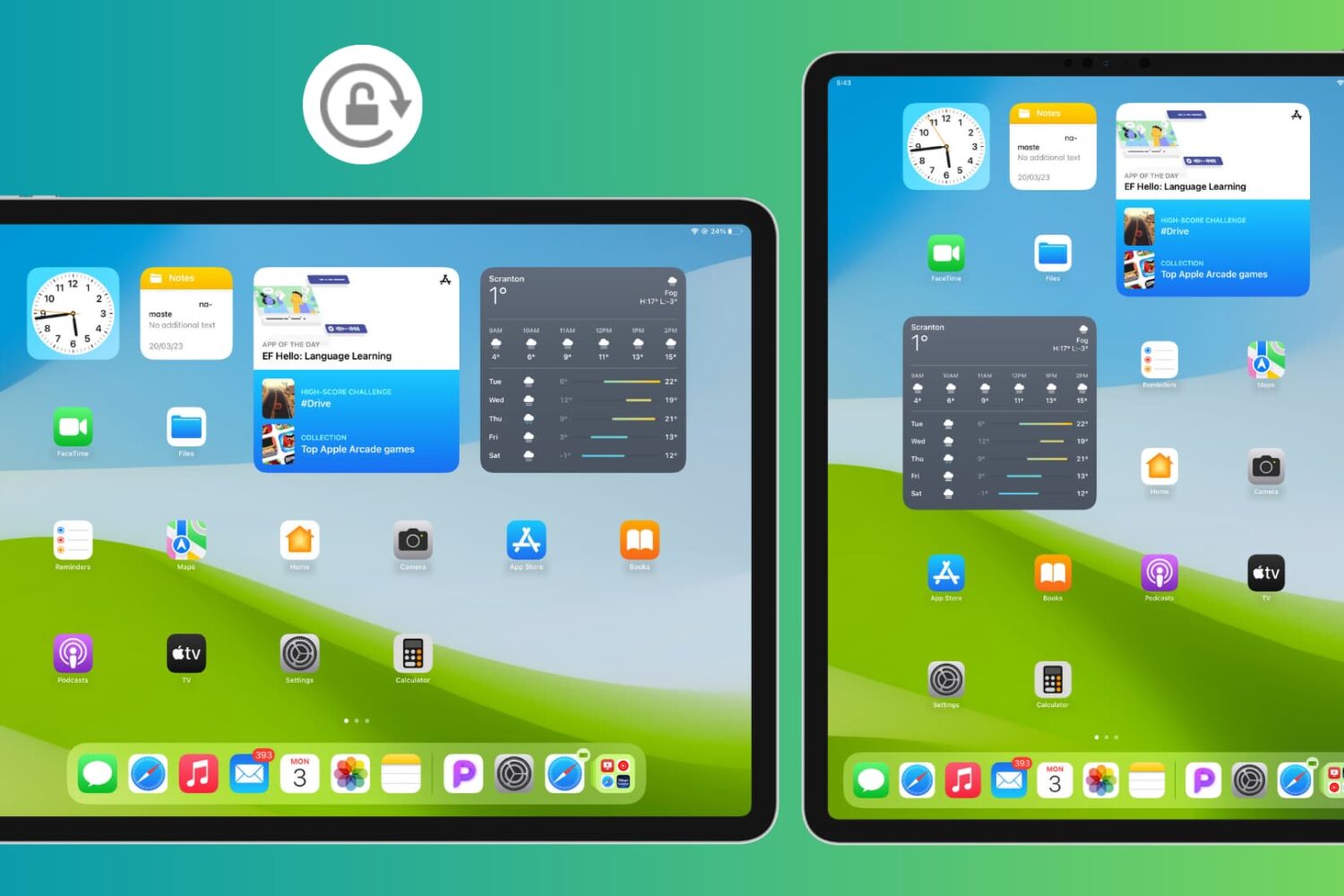
Learn how to prevent your iPad screen from rotating or changing orientation with simple steps and settings adjustments.
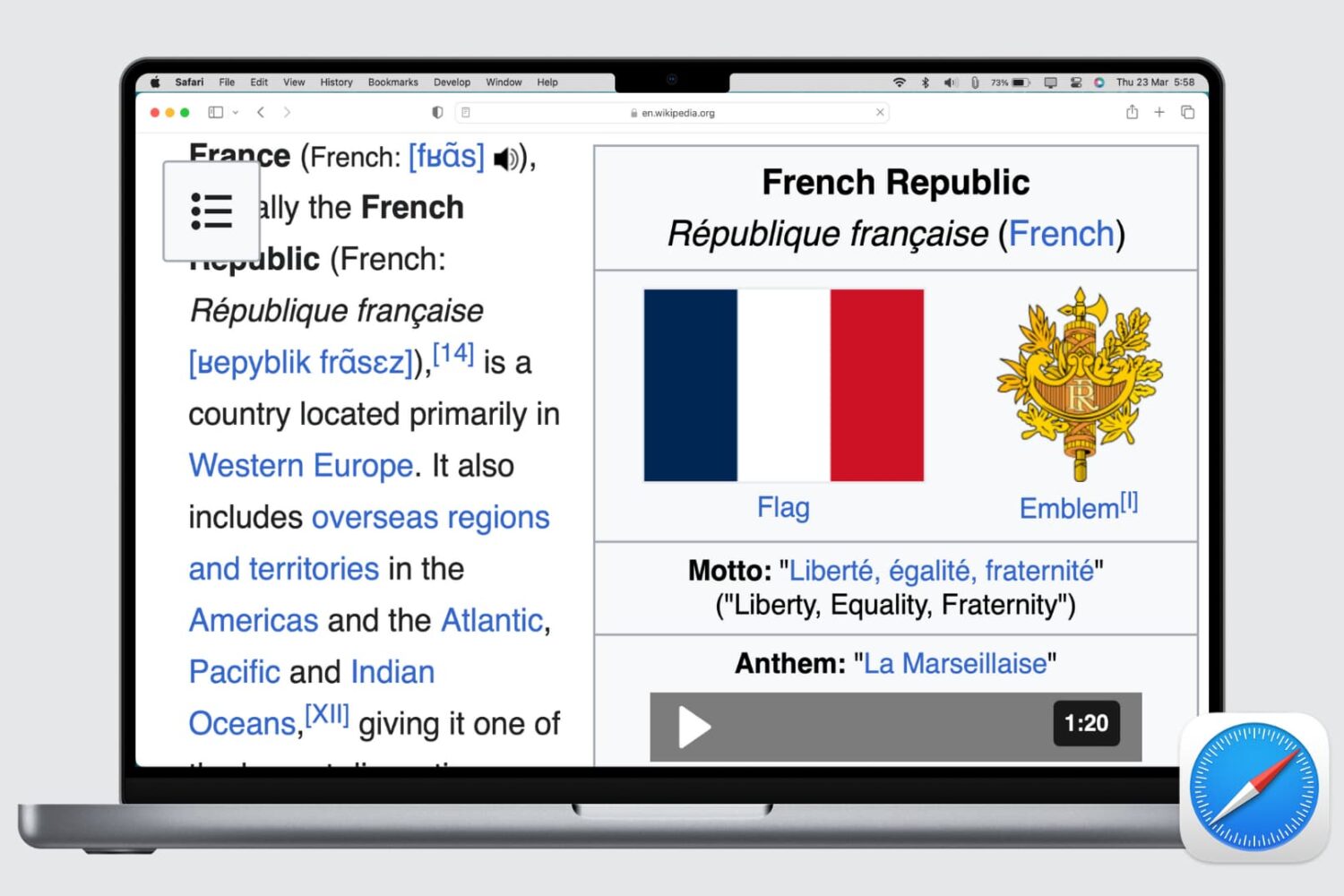
Whether the text of a webpage you’re visiting is too small to read or too big to handle, here’s how to use the Safari zoom feature on Mac to adjust it accordingly.
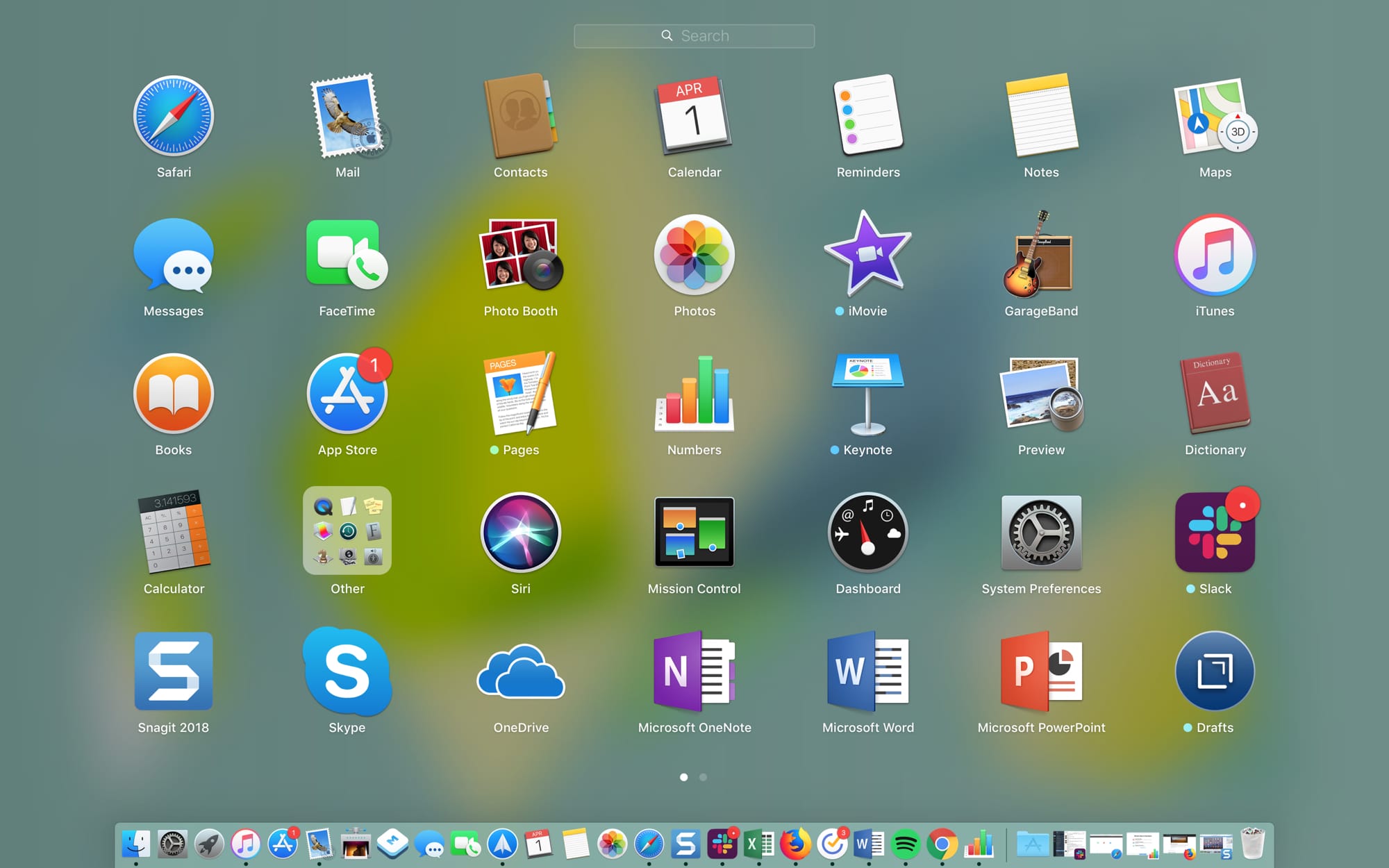
The Launchpad on your Mac might remind you of the Home Screen on your iPhone or iPad. There’s a nice and neat grid of your apps. When you download an app from the App Store, it pops right into the Launchpad, and you can take action on your apps from there.
The thing is, you have to access the Launchpad, so it’s not right on your screen when you use your Mac like the Home Screen is on your mobile device. This might keep you from using it as much as you could. But the Launchpad can be a handy tool.
We’ve put together some tips for making the most of the Launchpad on Mac in case you decide to make more use of it.
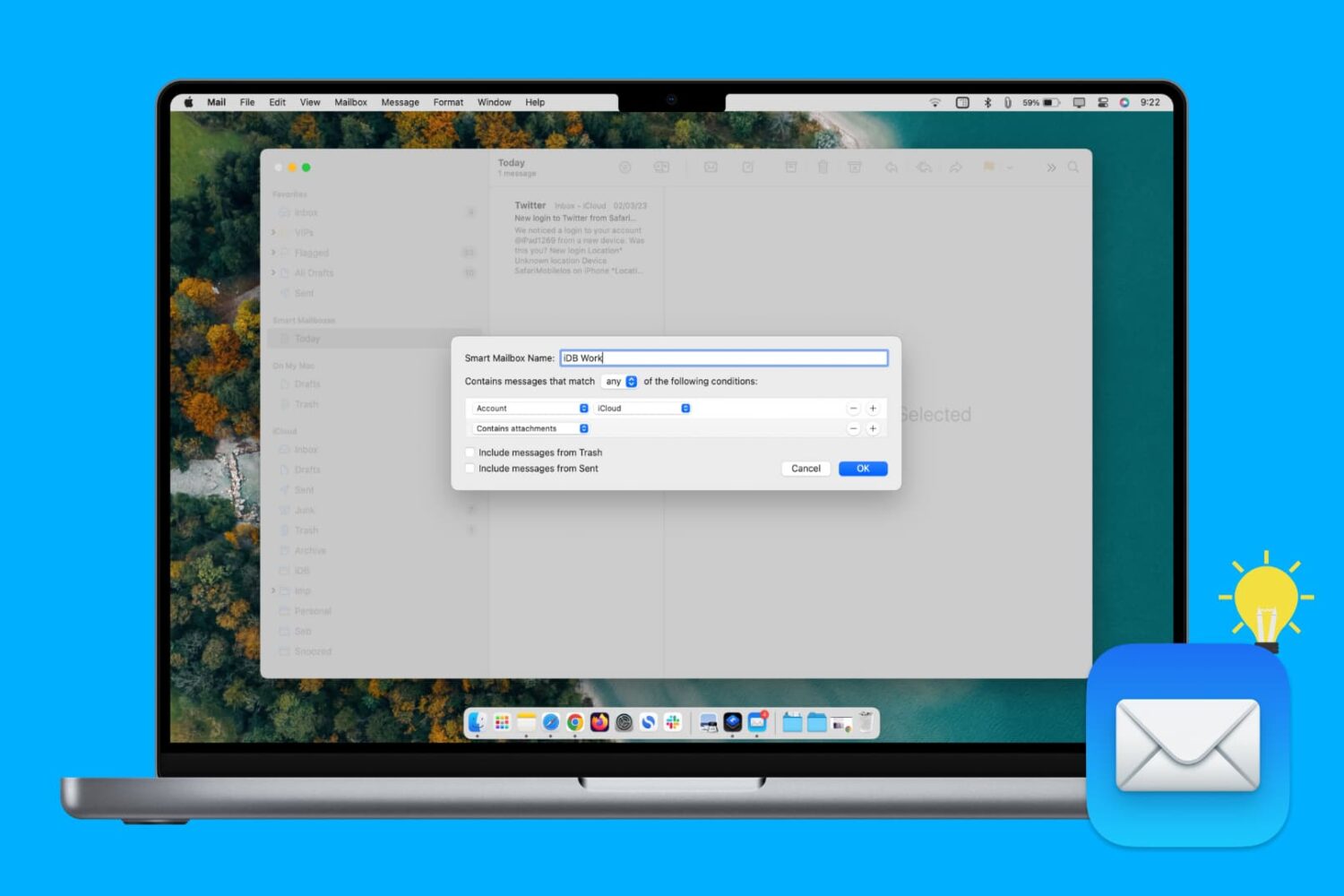
Learn how to create, edit, and delete Smart Mailbox and Smart Mailbox folders in the Apple Mail app on Mac to collect and better organize your emails.
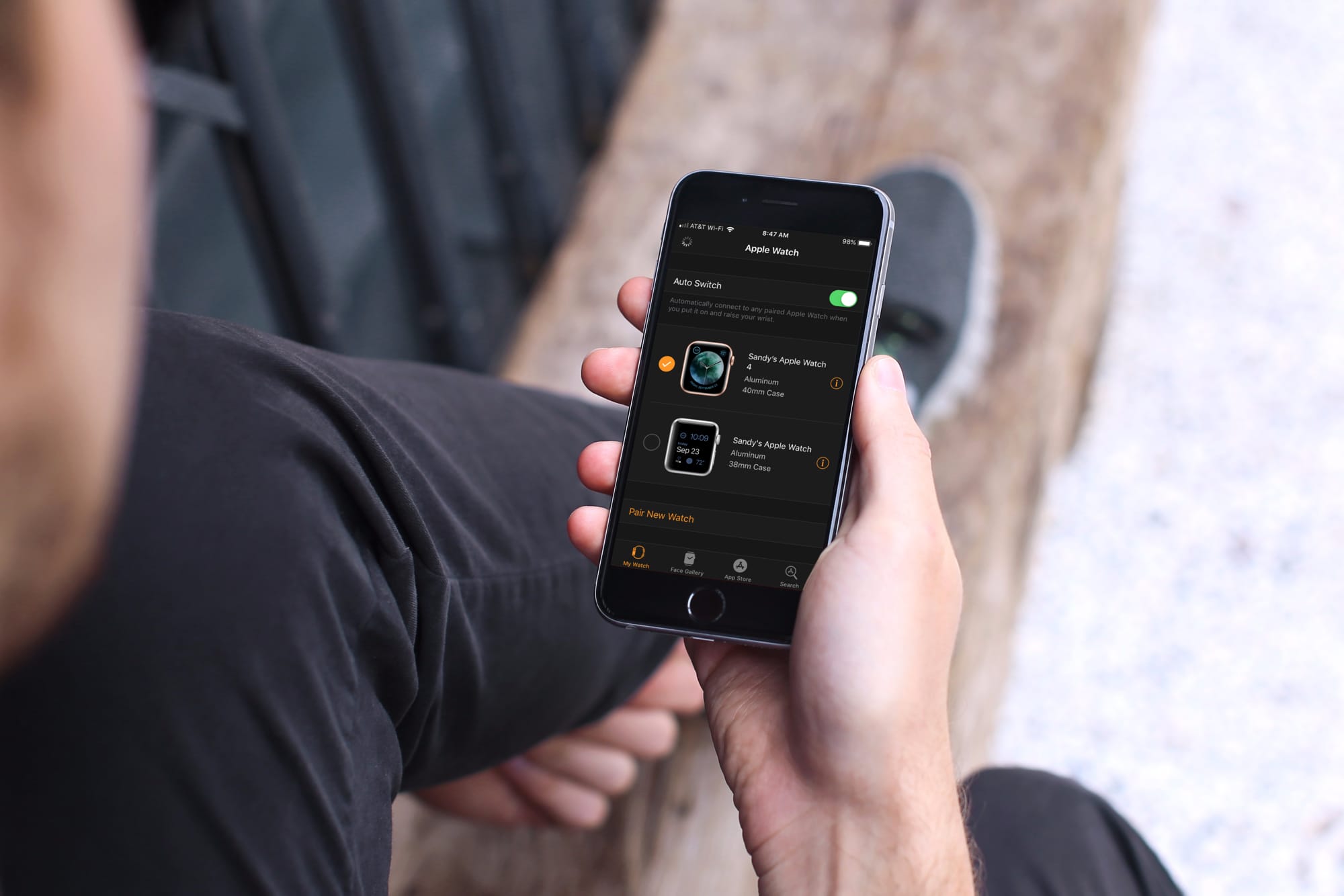
Learn how to automatically switch between your two or more Apple Watches if you wear them at different times for different occasions.