Learn how to get information about a song in your library or the Apple Music catalog, including metadata like title, artist, album, composer, genre, and more.

How many times have you Googled a song you like to learn more about it?
Finding the song title and artist is pretty easy, but what if you’d like to know when an album was released?
Maybe you’d like to dig even deeper and find out who wrote the thing and its exact duration. You might even want to find the lyrics so you can sing along.
The Apple Music app on iPhone, iPad, Mac, and Windows (as well as the old iTunes on Windows and Mac) uses metadata and other sources to provide information about a track.
Get song details
1) Open the Music app and find a song in the Apple Music catalog, Apple Music radio stations, or your music library.
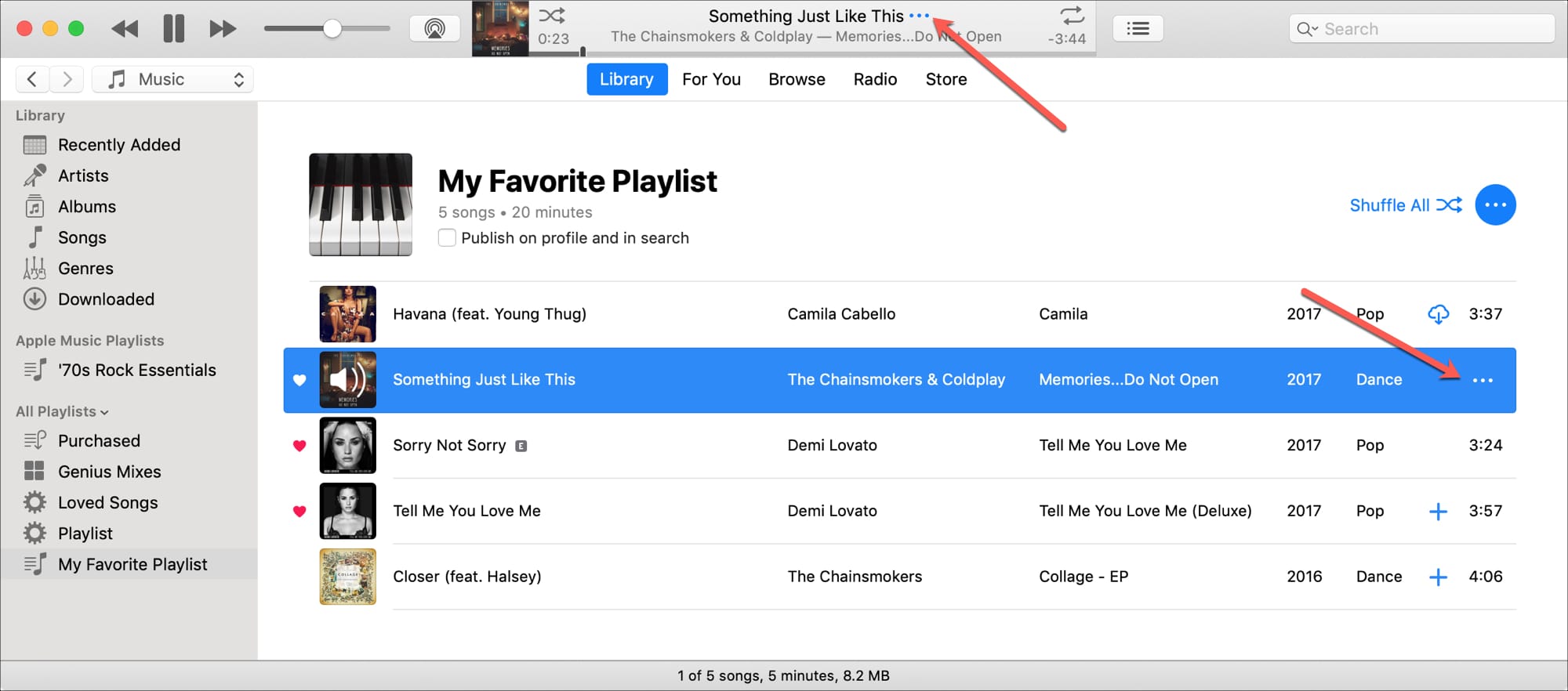
2) Hover over it to make the three-dot icon appear. If the song is currently playing, hover over its title at the top of the Music app.
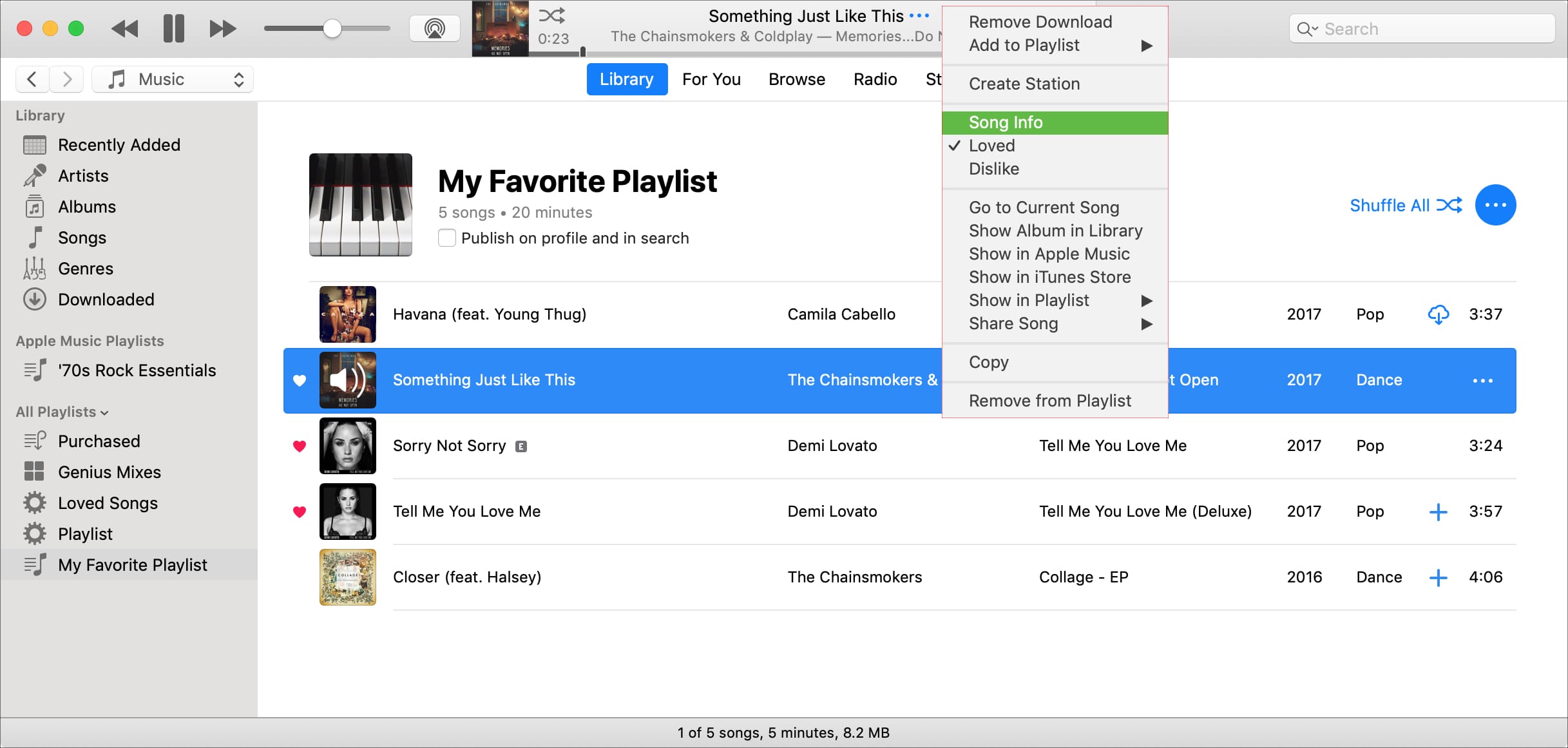
3) Click the three-dotted menu and choose Get Info or Song Info from the menu. Alternatively, press the Command + I keys to reveal track details.
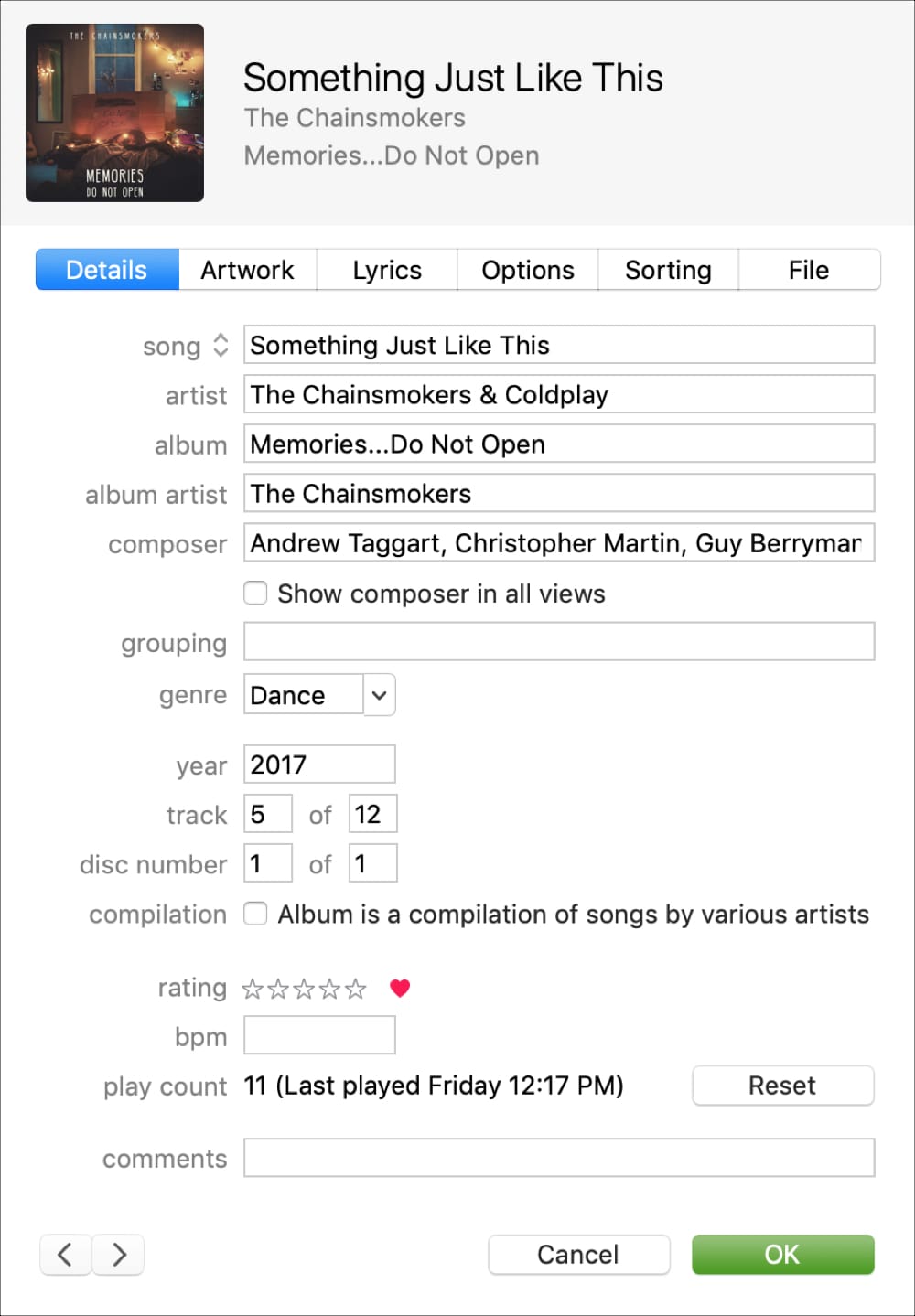
Boom! You now have a small inspector window providing all the details about the selected song. For tracks you’ve imported into your library (excluding Apple Music songs), you can even change these details, update cover artwork, and more.
Song information
The details you get depend on the metadata, as some tunes have more information than others. That’s why some songs may lack information like genre.
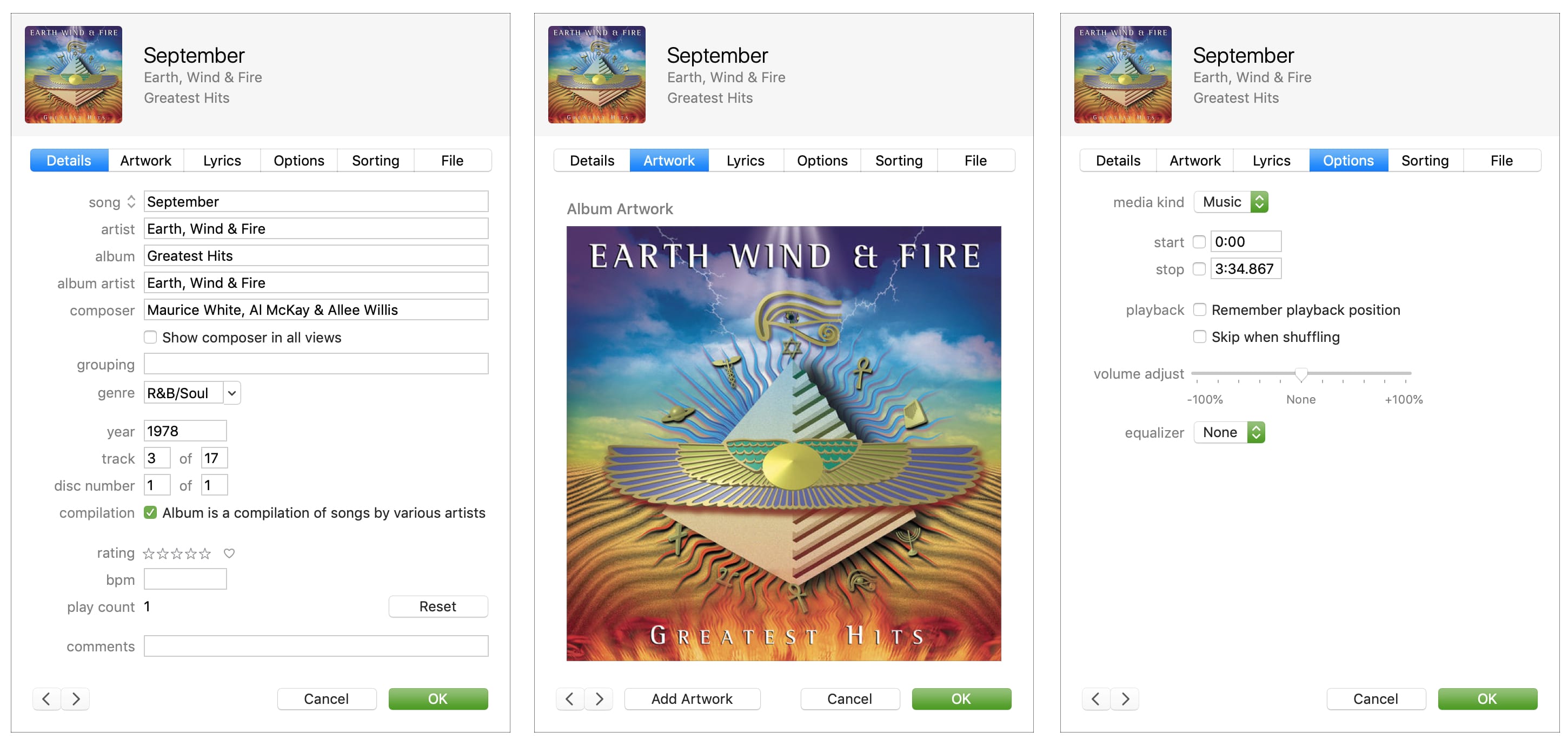
Details: Select the Details tab to view song title, artist, album, album artist, and composer. You may also see information about the genre, year, track, and disc number. Want to know how many times you’ve played that particular song? You’ll find play count here, too.
Artwork: Select this tab if you’d like to see album artwork or add your own by clicking the Add Artwork button at the bottom.
Lyrics: If lyrics are included, you’ll find those here.
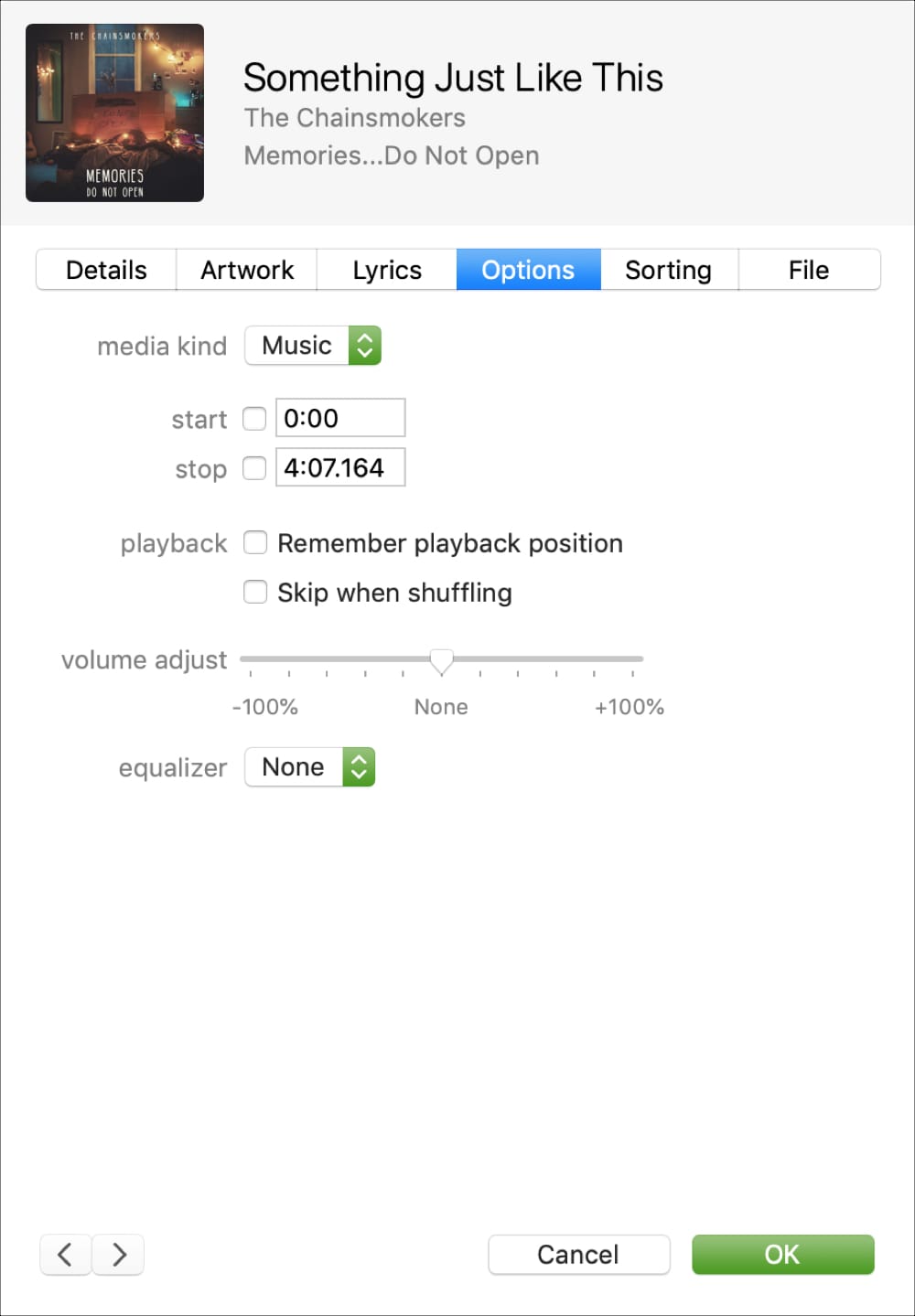
Options: The Options tab is where you’ll find the file type of a song and adjust its playback, volume, and equalizer. You can also adjust the tune to start and end at specific times.
Sorting: Go here to change the way the song is sorted in your view. Your choices include track name, album, album artist, artist, and composer, with a sort as option for each.
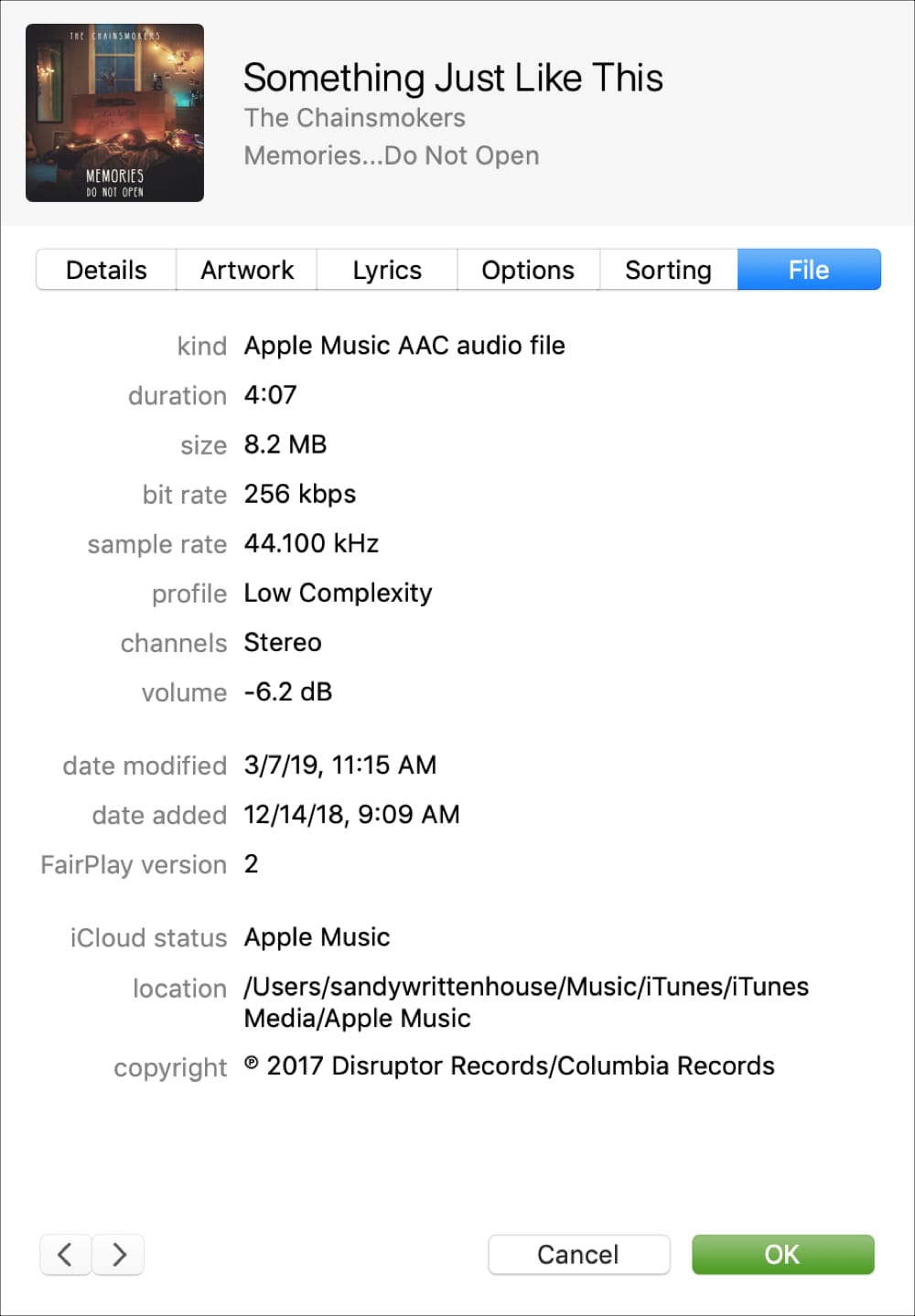
File: The nitty-gritty about the underlying song file, including its type, duration, file size, bit rate, sample rate, and other details.
The Music app can show you detailed song information even though the feature is a little buried, so you’d be forgiven for not realizing it exists.
Now that we’ve spotlighted it, feel free to fire up the Music app whenever you’d like to learn more about the music you like.
Don’t forget that you can also use Shazam on your Apple devices to identify music and view rich details, including real-time lyrics.
Also, check out: