Struggling to view the words to sing along? Learn how to see the song lyrics on the full screen inside the Apple Music app on your iPhone, iPad, Mac, and Android phone.
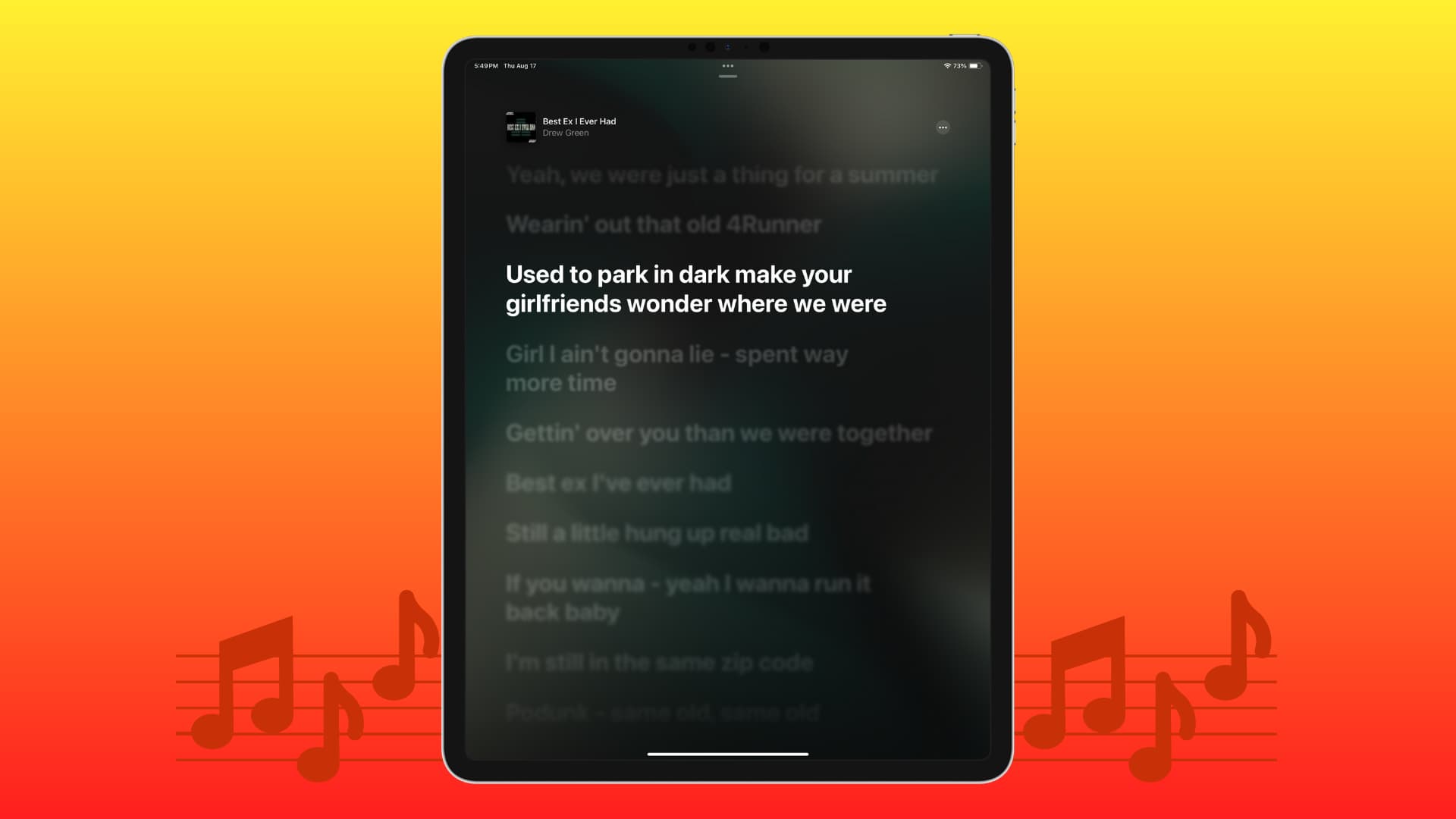
If you enjoy listening to music on your iPad or iPhone, there may be times when you like to sing along. You can view your time-synced lyrics in full-screen mode, as well as the playback options for the song. These improvements make listening to your favorite songs and artists even better.
On iPhone or Android phone
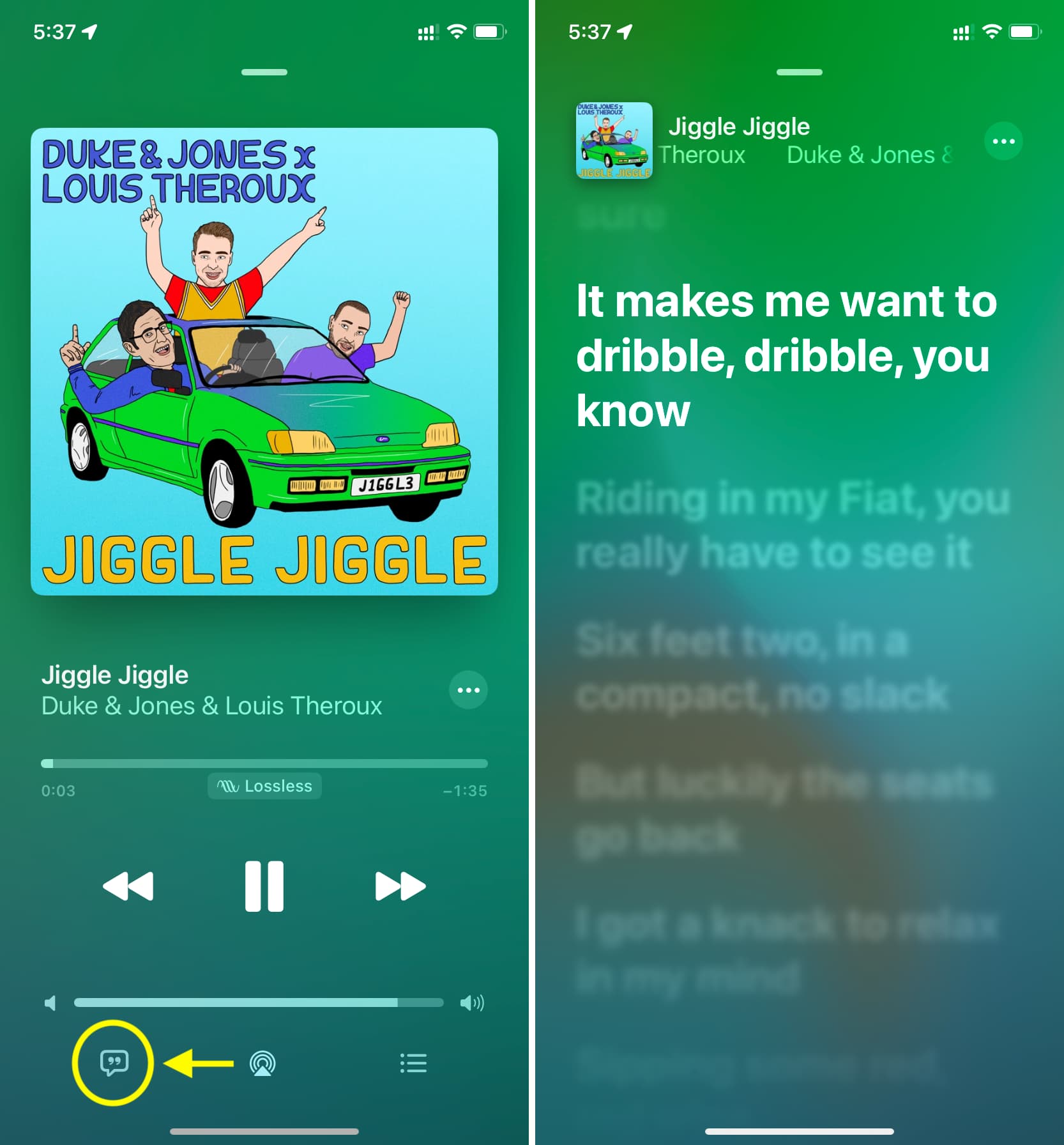
- Play a song in the Apple Music app and go to the Now Playing screen.
- Tap the Lyrics button.
- Initially, you’ll see other controls on the screen. But after five seconds, the lyrics will automatically start showing on the full screen.
On iPad
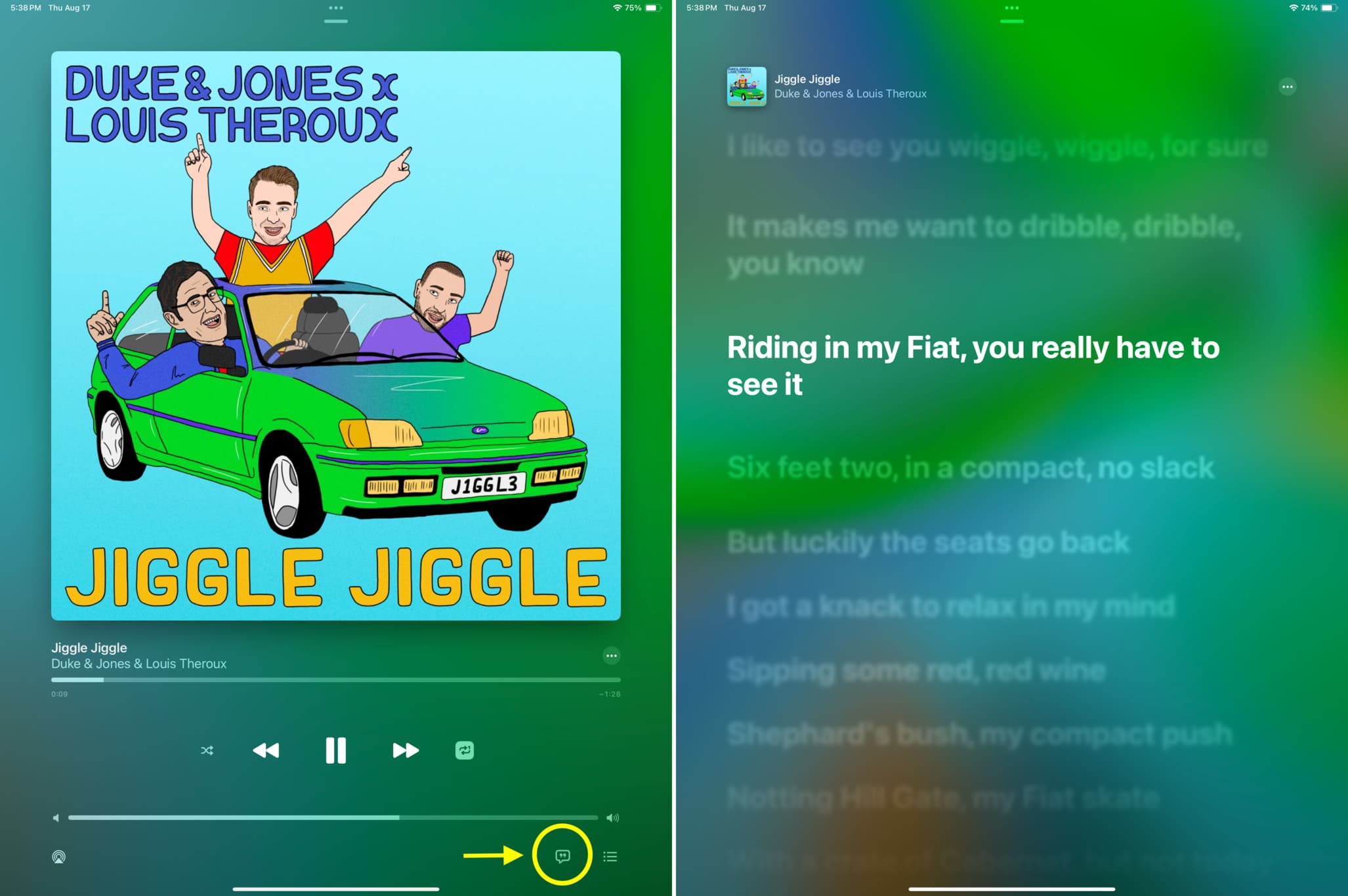
- Play the song on Apple Music and go to the Now Playing screen.
- Tap the Lyrics button.
- If your iPad is in portrait orientation: Lyrics will automatically take up your entire screen in portrait view, making them easier to read and follow along.
- If your iPad is in landscape orientation: Real-time lyrics will be nice and big on the right side, with album art and playback controls on the left.
On Mac
Play a song and click the lyrics button at the bottom of the screen.

But the process is a bit lengthy if your Mac is running an older version of macOS:
1) Play a song inside the Music app.
2) Click the tiny album art from the top or click Window > Mini Player from the menu bar.

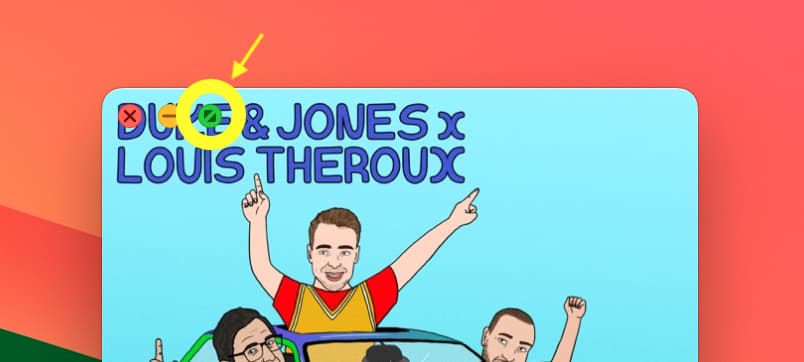
3) Click the green maximize button in the top left corner of the Music app Mini Player.
4) Hit the Lyrics button on the left if you don’t already see the lyrics on the right half of the screen.
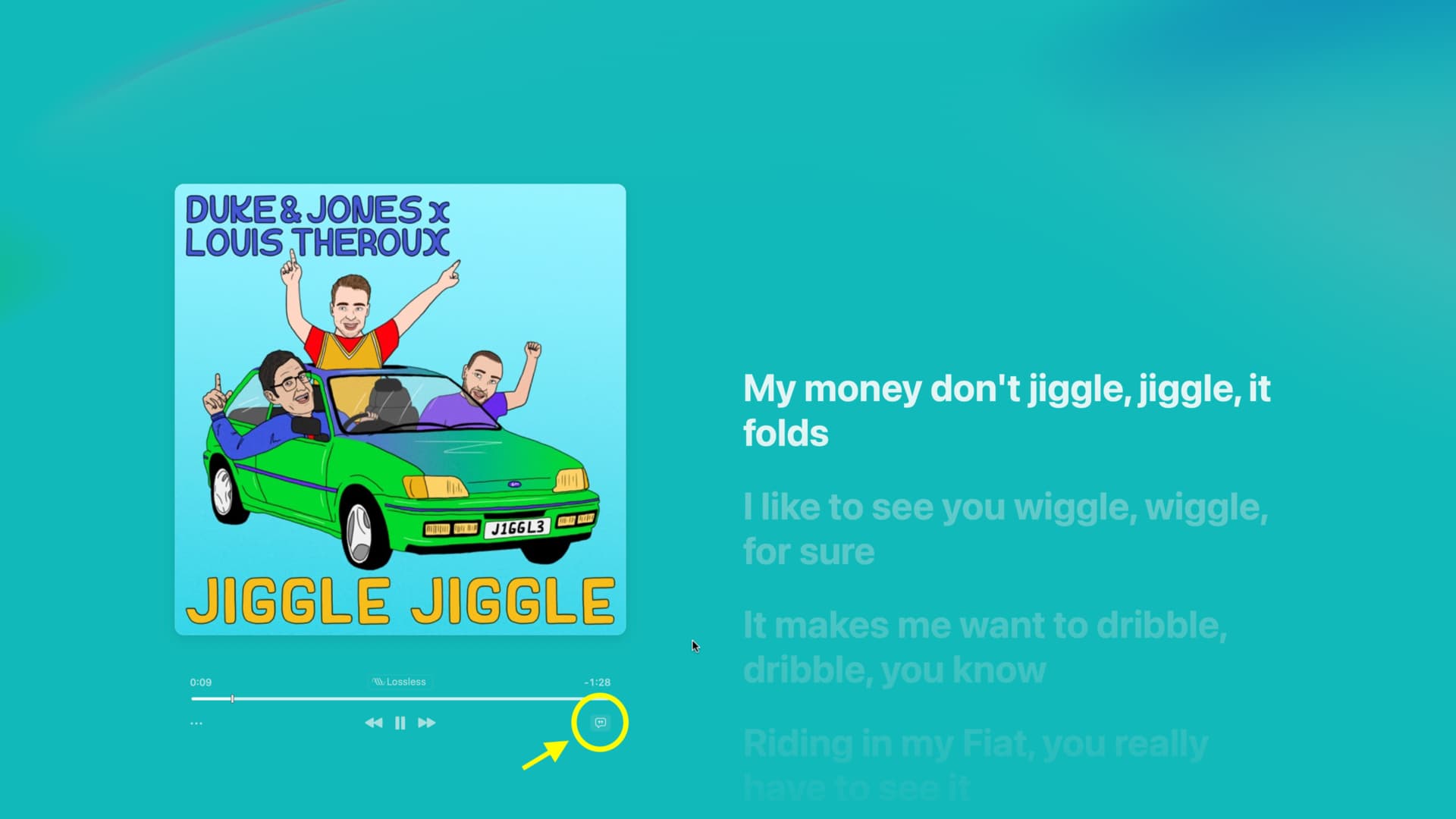
Having real-time lyrics fill up your screen can make singing along to your favorite tunes that much better. And if you have a pal singing with you, you’ll both get the words right with a larger view.
What do you think about this? Are you happy to have the lyrics and playback controls larger on your Apple Music screen? Let us know!
On the same tune: