Tutorial

Learn how to master your Apple devices with our comprehensive tutorials. From iPhone and iPad to Mac, Apple Watch, AirPods, and more, our expert guides will help you unlock the full potential of your Apple products. Discover new features, tips, and tricks each day to enhance your user experience.

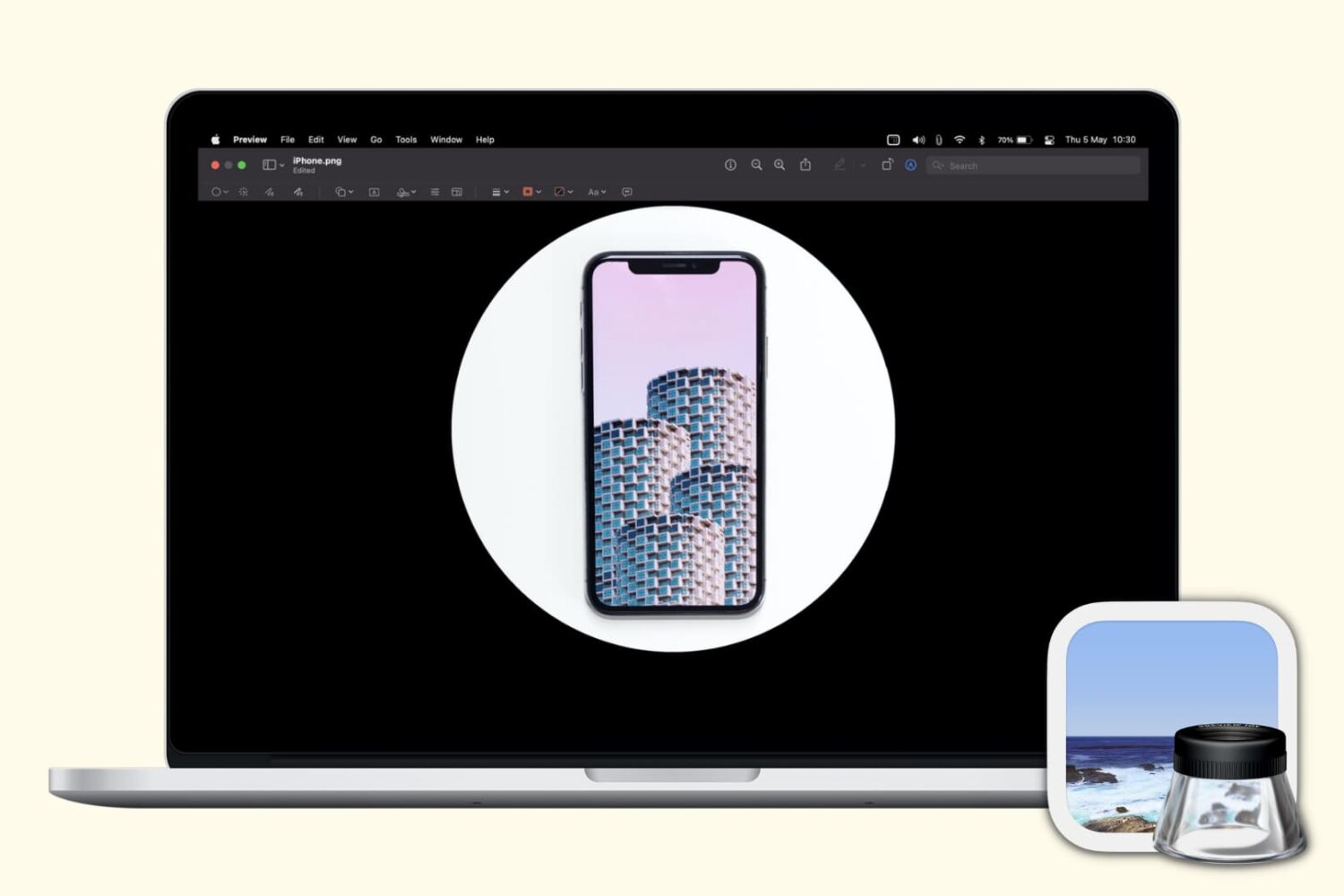
New to Mac? Here’s all the tools in the Mac Utilities folder

macOS Utilities Folder

If you’ve just purchased your first Mac, and especially if you’re coming from Windows, you might be wondering about the Utilities folder. You may see the folder but have yet to open it or you might be looking for a specific tool and don’t realize it’s in that folder.

Whatever the case, we’re here with another in our New to Mac series to help you out! We’ll explain what’s in the Utilities folder and what each tool is for.

How to display your reading progress or the clock on Kindle Paperwhite

Kindle Select Reading Progress And Enable Clock

When you’re reading a book on your Kindle Paperwhite, you may not have a lot of time. Maybe it’s your coffee break from work or spare time before dinner. In these situations, it’s good to know how much time is remaining or the current time.

You can display your reading progress with the time left in the chapter or book, see the current time while you’re reading, or simply show the page or location in a book. Here’s how.

How to redirect emails instead of forwarding in Mail on Mac

Apple Mail app icon

It’s one of those Mail features that’s easy to miss. It’s called Redirect, and it lets you send emails you’ve received to others without actually forwarding them. This is convenient for emails you receive by mistake, or that should be sent to someone else to handle.

When you redirect an email, it has no indication of it like it does when you forward a message. The person you redirect the email to receives it as if it came to them originally.

Video: Quick tips and tricks to get the most out of your brand spanking new iPhone 12 mini

The iPhone 12, Apple's smallest handset in their 2020 lineup, is finally here! The entry-level device cuts corners when it comes to battery life, but makes up for it with extreme pocketability. At just 5.4-inches diagonally and near fullscreen design with Face ID, this is going to be the beloved iPhone for many. Here are a few tips for making the most out of it.

How to view details of current and completed print jobs on Mac

iMac and printer kept on a table

If you have a printer connected to your Mac, you can see the print jobs you currently have in the queue. And if you use a shared printer, this can be handy to confirm that you’ve sent your job to the printer and are still waiting your turn.

At the same time, you might want to see completed jobs. Again, with a shared printer, you may find that items you thought you printed are nowhere to be found. You can check to see if your item did, in fact, print successfully. You can then hunt down the coworker or family member who accidentally grabbed your printed items.

Here, we’ll show you how to view details of print jobs on your Mac, including currently printing jobs and completed jobs.