Save time and boost productivity by configuring your favorite apps to launch automatically when you start your Mac.
How to set Mac apps to launch automatically at startup

Stay up-to-date on the latest Mac news, and tutorials. Get expert tips and tricks to optimize your Mac’s performance and learn about the latest Apple products and software updates. Discover the best Mac apps and accessories to enhance your user experience.
Save time and boost productivity by configuring your favorite apps to launch automatically when you start your Mac.
On Windows, you create shortcuts. On Mac? There's this little thing called aliases. Aliases are shortcuts that make it easier to find a file, folder, disk, or application. You can place aliases on your desktop, in the Dock, or anywhere else that's easy to find. In this tutorial, I'll show you two easy ways to create aliases on your Mac.

Applications on the Mac are really just directory structures containing files, images, assets, executables, and the like. If you've ever right-clicked on an application and selected Show Package Contents, then you know exactly what I mean.
While right-clicking is a reasonable solution for extracting image, font, and other visible assets from an application, the Preview app makes doing so even easier. By simply dragging and dropping an app on the Preview app icon in the dock, you're presented with a easy navigable thumbnail view of all of the app's various assets.

The tabbing experience on Mac might feel a little gimped if you're coming from a Windows machine. That's because, by default, macOS makes it so that the option to move keyboard focus between all controls with the Tab key is disabled. Instead, tabbing is only possible between text boxes and lists using the default setting. In this tutorial, I'll show you two quick and easy ways to change this setting and enable a much-improved tabbing experience on your Mac.

By default, the cursor on your Mac is omitted when you take a screenshot, but there is an easy way to include it when needed.

Learn how to temporarily reveal the hidden Library folder on your Mac or make it visible permanently if you want to access it regularly.

This article goes over the differences between minimizing and hiding apps on Mac. By understanding the unique capabilities of each action, you’ll learn how to optimize your app management and streamline your productivity.

Learn how to close all open Finder windows on your Mac in one fell swoop and save time instead of closing them one by one.

I have to admit that I'm not a huge user of Notification Center, and this applies to both iOS and the Mac. One of the reasons that I'm turned off by Notification Center is the disarray that I see when viewing it.
By default, Notification Center is set to sort manually, which means that you can go into its preferences, and sort each app by hand. That's fine and all, but it makes for a less than ideal experience when trying to find the most relevant notifications based on time of arrival.
For me, this results in a less than ideal experience when opening Notification Center. If you have a lot of apps enabled for Notifications, it can be overwhelming, because there's no real logical order to the way they're sorted. To remedy this issue, try this simple tip, and sort your notifications by time of arrival instead.
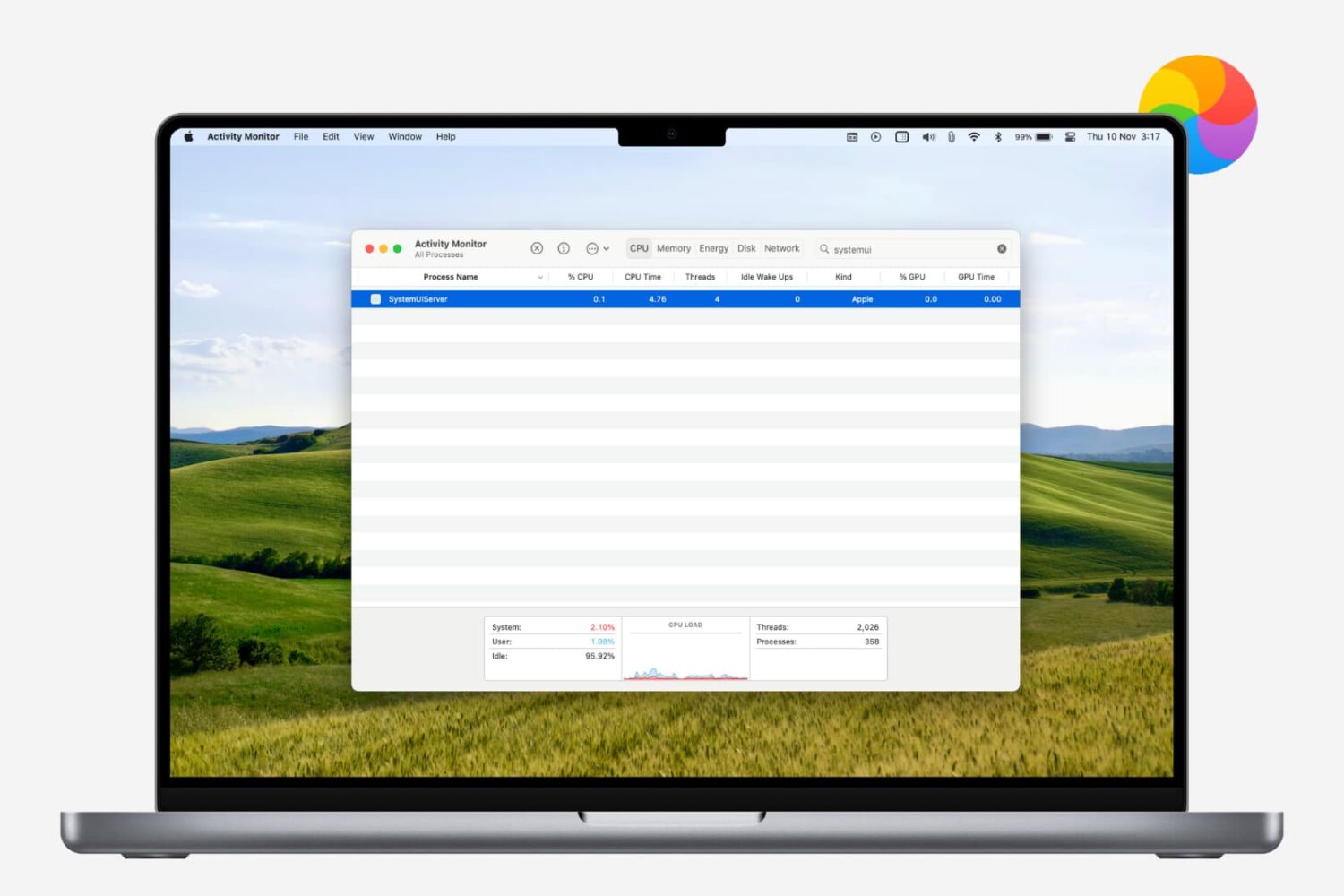
Learn how to restart the menu bar on your Mac if it’s frozen, unresponsive, or malfunctioning, and clicking the icons doesn’t trigger the intended action.

Learn how to change the default Finder folder on your Mac to streamline your workflow and enhance productivity.
Every Mac that Apple ships, sans the Mac mini, comes with an iSight camera embedded in the bezel at the top of the display. If my memory serves me correctly, Apple's computers were one of the first to really popularize the standardization of built-in cameras.
I'm probably not alone when I say that I rarely, if ever, use my MacBook Pro's iSight camera. In fact, it's become more of a worry to me when thinking about the potential hacking and privacy concerns. I'm far from a tin foil hat wearer, but I have to be honest and admit that the thought has crossed my mind before... you know, the one where hackers view my iSight camera unbeknown to me.
With all of that said, wouldn't it be nice if you could disable your Mac camera with a simple software tweak? Inside, I'll show you how to do just that.