iPhone

Stay up-to-date on the latest iPhone news and learn new tips and tricks with our comprehensive tutorials. From software updates to new features, we’ve got you covered.

How to have iCloud sync your calendar subscriptions across Mac, iPhone, and iPad

I recently wrote a post describing how to add the schedule of the Euro 2016 to your iPhone, Mac, or iPad calendar app in order to keep up with the competition. As described in my post, subscribing to this calendar (or any other calendar) directly from your iPhone or iPad, will only add the calendar locally on the device, but it won't sync across all your other devices like an iCloud calendar would.

iDB reader Kyler emailed us earlier today asking how he can subscribe to a calendar while adding it to his iCloud account to make sure the calendar events sync to his iPhone, iPad, and Mac, without having to manually subscribe to the calendar on each device. This is what we're going to do look at in this post.


5 alternatives to a SIM eject tool for easy SIM removal

SIM eject tools are useful for getting SIM cards out of iPhones and iPads, and honestly, I would recommend everyone who owns one of these devices carry at least one of them at all times, whether in your wallet or on a key ring.

Of course, there are always those times when you're out and about and don't have a SIM eject tool with you when you really need one. So what alternatives can you use instead?

In this piece, we'll talk about five alternatives to a SIM eject tool you can use to get the SIM card out of your iPhone, iPad, or Android phone.

What to do when Siri doesn’t pronounce your name right

Siri is an amazing piece of software and Apple has tried so hard to make it capable of pronouncing everyone's names right, but there are just too many names in the world for Siri to be perfect and pronouncing all of them.

On the other hand, if you're sick of Siri not being able to pronounce your name correctly, there is a way to train her so she will pronounce it right going forward.

We'll show you how this is done in this quick tutorial.

Bummed by iOS’s erratic text selection in Safari? Try this simple trick

Sometimes it feels like I'm wrestling with iOS's text-selection feature in Safari instead of it making my life easier. Increasingly, certain webpages either wouldn't let me copy body text at all or would leave me struggling trying to make a precise selection.

More often than not, zooming doesn't prove much of a help. This issue is particularly infuriating when trying to highlight a URL. But don't worry, this is where iDownloadBlog's how-to series comes to the rescue!

Here's a simple trick which helps override this behavior, letting you highlight and copy text on webpages that don't necessarily play nicely with iOS's text-selection feature.

Tip: using emojis in iOS Spotlight Search

iPhone, iPod touch and iPad users can use emoji as search terms in Spotlight Search to some rather interesting effects. It's unclear when this feature was added or activated.

That being said, bringing up iOS's built-in Emoji keyboard to type an emoji in Spotlight's search field will produce matching results related to the character's meaning, as highlighted by Cult of Mac.

Be a virtual tourist: take scripted 3D tours of world’s major metropolises on Apple Maps

You knew about three-dimensional buildings and landmarks on Apple Maps—a feature they're calling Flyover mode. But did you know that Apple's mapping service includes virtual tours of more than a hundred major metropolises worldwide? If not, that's because Apple hasn't exactly gone to great lengths to advertise it front and center in the Maps interface.

These virtual tours are basically auto-playing animations in Flyover mode, complete with three-dimensional buildings, terrain and landmarks. They're quite useful if you're visiting a city for the first time, though virtual tourists who want a quick overview of a major city will also find them fun and entertaining.

Here's how you can explore and enjoy 3D Flyover Tours on Apple Maps for the iPhone, iPod touch, iPad and Mac.

How and why to report spammy iMessages to Apple

Sometimes your contact information ends up where you don't want it, and you end up with annoying spam iMessages from people, companies, or bots that try to scam you or steal personal information.

Fortunately, Apple's iMessage service comes with an abuse report feature that you can use to report senders who are misusing the iMessage platform and making it a less enjoyable thing to use.

In this piece, we'll talk about how and why you should be reporting iMessages that seem spammy.

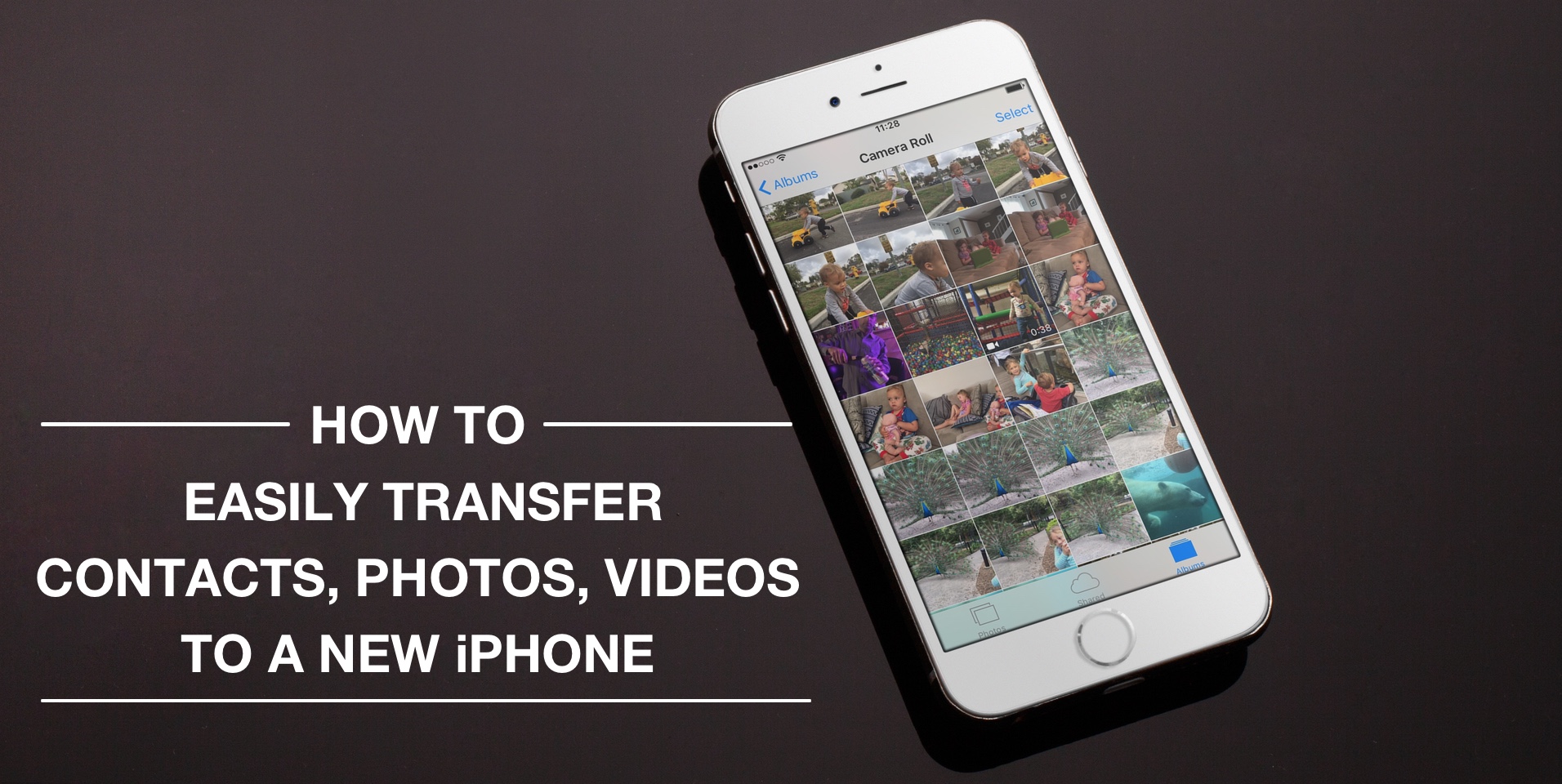
How to easily transfer contacts, photos, and videos from an iPhone to another

Depending on your set up, transferring contacts, photos and videos from your old iPhone to your new one can be pretty simple. You might use iCloud to store all this data, in which case, your contacts and photos/videos will automatically come back once you sign in your new device. Or maybe you back it all up in iTunes, which allows you to sync all that data from your computer to your new iPhone. Maybe you don't do any of that, and if you're looking for a relatively quick and easy way to transfer all this data from one iPhone to another, then read on.