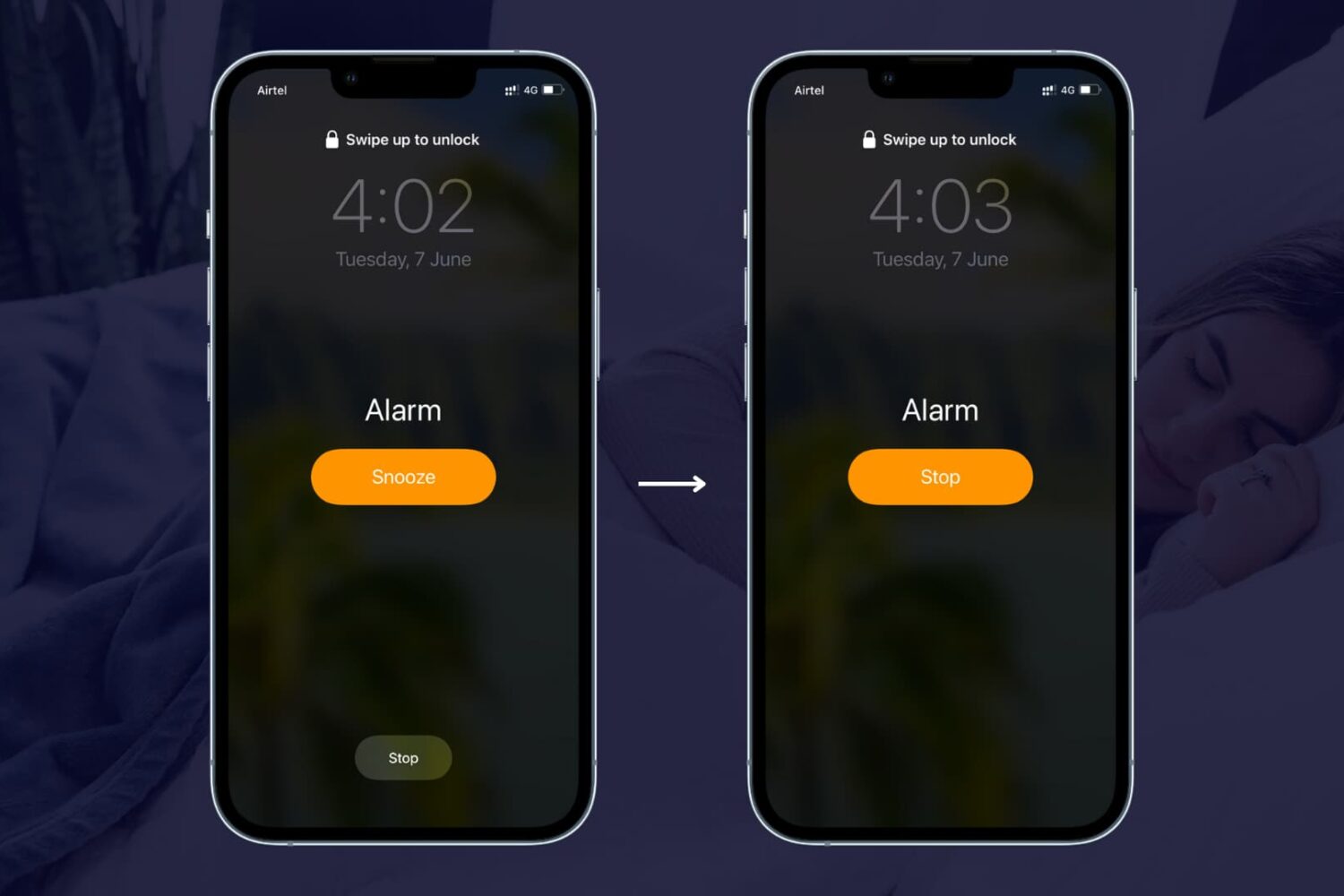
Learn how to remove the snooze option from the alarm on your iPhone or iPad so you're not tempted to delay waking up in the morning by pausing the alarm.
How to disable the Snooze button of your iPhone or iPad alarm
Stay up-to-date on the latest iPhone news and learn new tips and tricks with our comprehensive tutorials. From software updates to new features, we’ve got you covered.
Learn how to remove the snooze option from the alarm on your iPhone or iPad so you're not tempted to delay waking up in the morning by pausing the alarm.

Not everyone is a fan of bing watching. I, for one, rarely watch a dozen episodes of Friends in a row. If you're anything like me, Netflix's autoplay feature is probably something of an annoyance to you.
It's especially worrisome if Netflix uses cellular data: forgetting to stop the playback after you've just finished watching an episode won't stop Netflix from playing the next one automatically, resulting in unwanted data charges.
iDownloadBlog's tutorial series is here to help you with that: in this quick how-to, we'll show you how to turn off the video autoplay feature across all your Netflix devices—they're calling it Post-Play—with just a few clicks.

Yesterday, iDownloadBlog detailed a cool new one-handed zoom gesture during video capture which Snapchat's latest update has implemented.
This incredibly convenient shortcut permits you to zoom in and out as you're shooting video with Snapchat's camera, in real time. As one of our commenters pointed out, Google Maps has long had a similar shortcut on its native iOS app.
With it, iPhone, iPod touch and iPad users can zoom in and pan around in one-handed mode, without needing to use a two-fingered pinch-zoom gesture. Here's how one-handed zoom mode works on Google Maps for iOS.
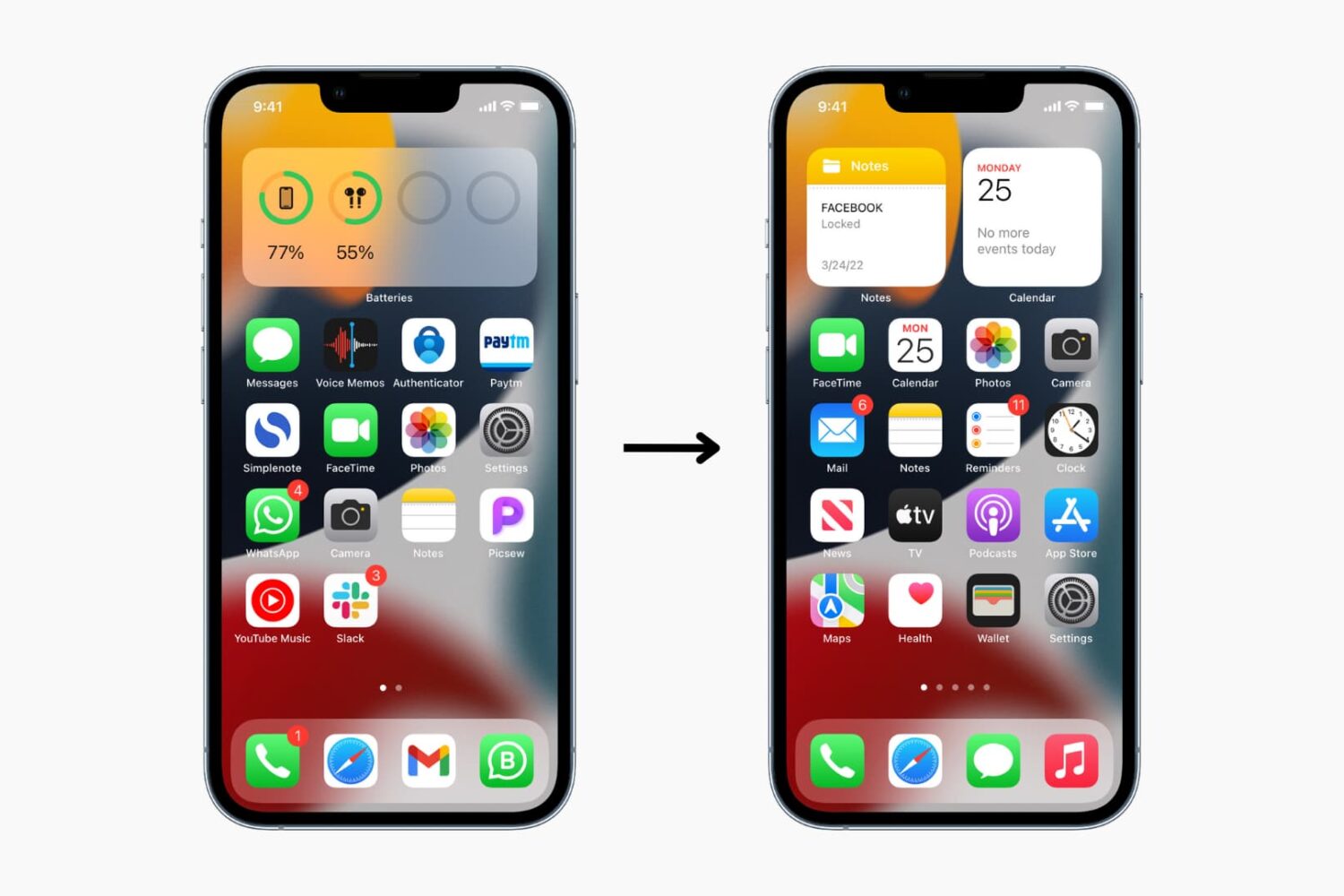
Learn how to reset the layout of the apps and widgets on the Home Screen of your iPhone or iPad to factory defaults in just a few seconds.

Have you ever received one of those annoying messages that basically tells you FaceTime is having problems on your iPhone, iPod touch, or iPad? They can be incredibly annoying, but usually they're easy problems to fix.
In this piece, we'll talk about why you might be getting FaceTime errors on your iOS device and walk you through some ways to correct the problem.

The App Store and iTunes Store storefronts are 3D Touch-enabled on the iPhone 6s and iPhone 6s Plus, with each supporting some pretty smartly chosen Home screen shortcuts that'll save you a few taps once you get the hang of them.
On the other hand, previewing your apps and media via force-pressing isn't as developed as in other stock apps, such as Messages and Maps. But don't you worry—iDownloadBlog comes to the rescue!
This quick tutorial clearly demonstrates where on the App Store and iTunes Store common 3D Touch shortcuts and Peek and Pop gestures do and don't work.
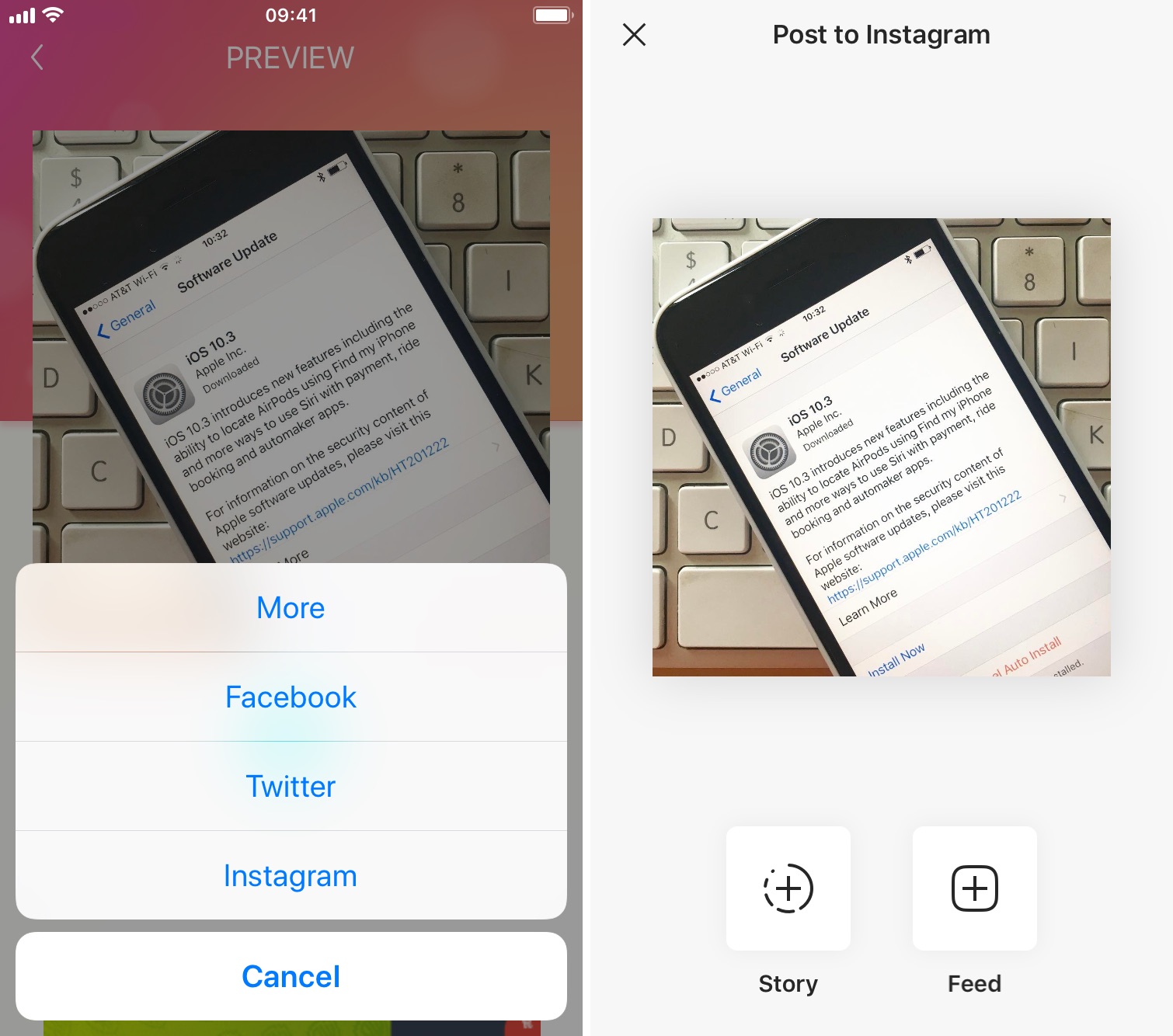
The Instagram app lacks the option to repost Instagram photos, videos, and stories natively, so people usually screenshot photos to post them as their own. This works fine as a workaround but requires extra steps, such as cropping the screenshot. Maybe more importantly, it generates photos of poor quality.
Reposting, also known as regramming, is quite a common practice, even though the Instagram application doesn't provide a way to easily do that. As a result, you must use third-party applications. In this post, we will show you how to repost Instagram photos, videos, and stories from your iPhone using an app we developed ourselves called Reposter for Instagram.

Your iOS devices have some of the best touch screens out there. As a matter of fact your iPhone screen makes for a great mouse, or trackpad.
The idea of using iOS devices as a trackpad for your computer isn't new, but Mobile Mouse Remote is a great app that provides this kind of functionality with ease of use in mind. It even packs some useful bonus features.
If you're interested in this kind of functionality for your iPhone, iPod touch, or iPad, then this is something you're going to want to check out.

On any given day, I browse the web a lot—be it catching up on the news, doing research on future stories or skimming through my favorites to learn what's the latest. And more often than not do I find myself struggling to make my way back to an article I stumbled upon a few hours ago.
Locating a specific item in browsing history can feel like finding a needle in the haystack, especially if you're on the go.
Yes, I could just tap Safari's back button multiple times or swipe to go back a single webpage at a time until I found the webpage I was looking for, but that's a time-consuming process which unnecessarily wastes my iPhone's cellular data.
As you'll discover in this tutorial, Safari provides a very handy, though not immediately obvious shortcut which allows you to quickly jump to any previously visited webpage.

Your Apple ID is used whenever you want to make purchases from one of Apple's online digital content stores. This includes the App Store, Books Store, and iTunes Store.
From time to time, you may switch credit card providers, get a new credit card number, or opt to use a different payment method than the one you're already using.
It's easy to change your Apple ID payment information right from your iPhone, iPod touch, or iPad and in this tutorial, our aim is to teach you how.

With 3D Touch shortcuts and gestures available for iOS's stock Notes application, you can elevate your productivity and accomplish certain tasks faster and with fewer taps than without 3D Touch.
iPhone 6s and iPhone 6s Plus owners can take advantage of their device's pressure-sensitive screen to quickly start a new note from the Home screen, preview a specific note’s content, sketch using pressure-sensitive drawing tools, quickly delete, share and copy notes and more.
Imbued with the information in this tutorial, you'll take full advantage of 3D Touch interactions that are available to you in Notes so that you can be more productive.

What if I told you that you most likely have tons of messages you didn't even know existed, stowed away in a little-known folder on Facebook?
While messages from your Facebook friends and Messenger contacts are delivered straight to your inbox, the system filters out those it deems spam and tucks them away into a hidden vault.
Some of those filtered messages could be from a distant family member trying to re-connect with you. Others might be vitally important. If you suspect Facebook is hiding messages you should've been aware of, this tutorial will teach you how to access a treasure trove of messages that you never knew you had.