Safari

Swearch – A Swanky Startpage for Your iPhone

Swearch.me is a web app created by Steve Streza, a web and mobile developer. The app uses HTML5, CSS, and Javascript to deliver an elegant search engine experience in mobile Safari. Everything is retina display-optimized and lighting fast.

The current engines offered are Google, Twitter, Wikipedia and Flickr. When you visit Swearch.me on your iPhone, you see the Google engine first. Simply swipe your finger from right to left to switch between Twitter, Wikipedia and Flickr’s engines...

Enable Private Browsing on Your iPhone with Covert

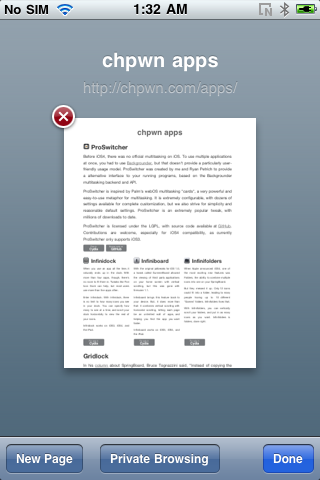
Covert is a new jailbreak application by Chpwn that lets you enable private browsing on Safari. Let's imagine you want to browse those favorite dirty sites of yours but you don't want your girlfriend to snoop in your browser history and realize you've been watching 2 girls and a cup for the 50th time, then Covert is for you.

I certainly hope that's not what you will use Covert for, but at least you get my point. This being said, this is how to use Covert...

New Jailbreak App Lets You Set a Home Page in Safari

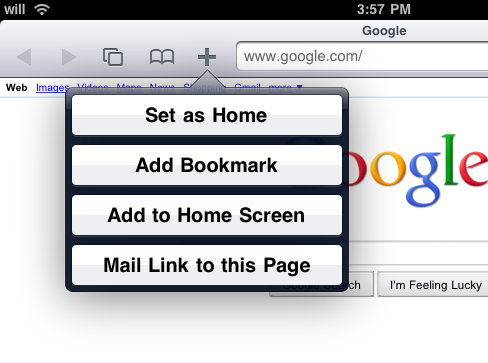
Home Page in Safari is a new jailbreak application that lets you set a home page in Mobile Safari, simply by tapping the " + " button while visiting the website of your choice, then tapping "set as home".

This is a very simple and convenient tweak that seems to be more useful on the iPad than it really is on the iPhone, as Mark from 9 to 5 Mac noted...

Why is Web Browsing Declining on the iPhone?

When the iPhone was introduced back in 2007 Steve Jobs made it known that he thought the phone's best feature was the ability to browse the internet in its entirety. To his credit it was the first device to even come close. As Jobs' idol, Bob Dylan sang, "The times they are a changing".

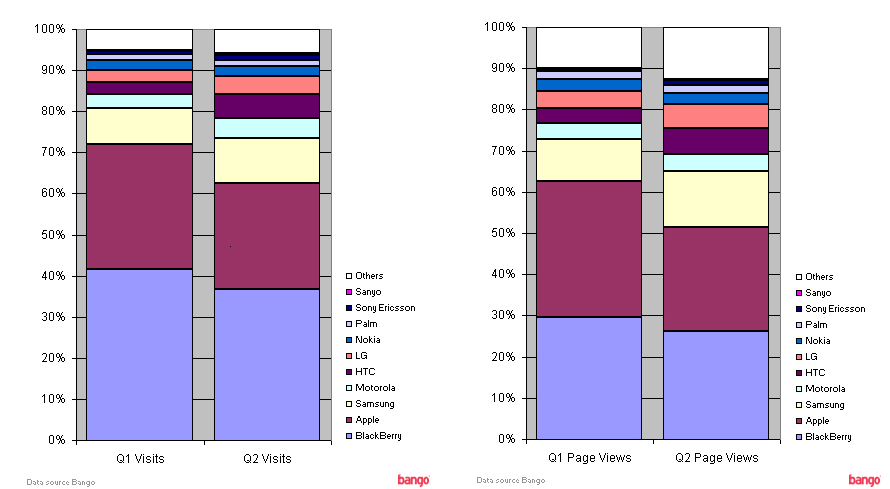
The Bango Blog offers some insight regarding their newest web browsing statistics that show a decline in web traffic as it relates to content viewed from the iPhone. Should the decline be attributed to the influx in platforms that offer the same style of browsing? Some would argue that systems like Android offer a more comprehensive experience strictly due to their support of Flash...

iOS 4 vs iOS 4.1 – Guess Who Wins

It was bad enough that many of the exciting features that accompanied iOS 4 weren't going to be added to the iPhone 3G. It was a whole different debacle when we reported that the device was basically crippled in many instances after making the upgrade.

According to a demo by Life Hacker, iOS 4.1 works much smoother on the 2 year old device than the previous version. The site notes the following regarding their little experiment:

Safari Download Manager Updated for iOS 4

Safari Download Manager, the extension that adds a powerful download manager to the iPhone's web browser, has been updated to work on iOS 4, bringing support for the iPhone 4 and the iPad.

Although a bit pricey, Safari Download Manager is a great application that really unleashes to power of the iPhone, allowing you to download and save on your device virtually any file out there.

You can download Safari Download Manager from Cydia for $5.

How to Set Up A Bookmarks Bar on Safari for iPad

A bookmarks bar allows you to quickly access your favorite sites. Since the iPad has a pretty big screen, it's now possible to show a bookmark bar in Safari.

By default, the bookmark bar in Safari for iPad is hidden but you can easily activate it by going to Settings > Safari > Always show bookmarks bar.

To add bookmarks in the bar, you will have to save new bookmarks in the "bookmarks bar" folder.

That's a simple tip that can come in very handy if like me you like to optimize the amount of clicks (or taps).

RedSn0w Through Safari?

I read an article saying that there is a flaw on desktop Safari:

I have discovered that Apple's Safari browser is vulnerable to an attack that allows a malicious web site to read files on a user's hard drive without user intervention. This can be used to gain access to sensitive information stored on the user's computer, such as emails, passwords, or cookies that could be used to gain access to the user's accounts on some web sites. The vulnerability has been acknowledged by Apple.

Now this got me thinking.... RedSn0w.com = on the fly jailbreak?

Think about it. If their website accesses your iPod and does the things necessary either to jailbreak on the go or to prepare for a jailbreak (Chronic Dev said that the exploit is in some sort of file in 2.1.1); this could be interesting and true.

This is one of the only reasons I can think of for the RedSn0w domain.

I do not know if mobile Safari has the same weaknesses as desktop Safari; but it could . There are some Safari exploits that actually crash your iPod (try this to crash yours if you dare!) ; I had to connect mine to the power to get it to restart. But whatever the Dev Team has up their sleeves should be interesting.
Find Text On Any Web Page With “Find In Page” App

On my daily browsing of new Cydia applications, I came across an app called "Find In Page". Reading the description of the app, I wasn't really sure what was the purpose of it. But then, I saw a screenshot and it totally made sense. Now that I think about it, I'm kinda retarded for not figuring out what this app was about just by reading its name...

As its name suggests, Find In Page is an application that will help you find any text on any web page in Safari. This is a feature I've been expecting for a while so I didn't think twice about installing this application and putting it to the test.

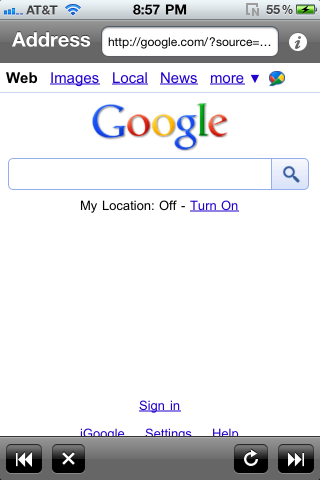
Installing Find In Page will not add any icon to your springboard but instead, it will add a bookmark called "Find In Page" in your Safari bookmarks. Now every time you visit a page in Safari and you're looking for a specific word, simply open your bookmarks and tap "Find In Page". This will bring up a window asking you to type the text you're looking for.

In this example, we're looking for the word "ringtone" in the post that I wrote yesterday about Audiko. Tap OK and it will then tell you how many results were found.

Again, tap OK to acknowledge the amount of matches found and it will then give you a version of the page you're looking at with all the words you're looking for highlighted in yellow.

This is a very powerful feature when you're looking for a specific word on a long web page. No doubt that I will be using this app from time to time.

However, I wish the developer of this app had pushed it a little further and added the ability to go to the "next" match found or "previous" match found, just like your web browser (or any text editing software) can do on your computer.

Have you downloaded this application yet? If so, please tell us what you think in the comments.

iPhone Tips and Tricks: Safari

Share your URL in an Email

If you want to send the URL of a Web page you’re viewing to a friend, tap the Address Bar, then tap Share. A new e-mail message, containing the URL, will open in Mail; just choose a recipient(s), add any comments you want to include, and tap Send.  

Page Down

When not using a zoomed-in display, double-tap towards the bottom of the screen. The page will re-center around your tap. Make sure not to tap a link!

Jump to the top of the Page

Double-tap the very top of the screen, just below the time display to pop back to the top of the page. (Thanks John C)

Zoom onto a Single Picture

Double-tapping images in Safari zooms them to fit your iPhone display. If the picture is linked to a URL, this can prove a little tricky but it works great for non-linked images. Double-tap again to return to the unzoomed display.  Using 2 fingers to double tap, and zoom a section of a web page will avoid the accidental clicking of links.

Zoom a Column

You can zoom text columns as well as pictures. Double-tap on the column to fit it to the display. Double-tap again to return out of the zoom. Not only does Safari zoom block-quoted text independently of regular text but if you move your finger after the first double-tap-to-fit, it interprets the next double-tap as a re-center page command rather than a return-to-previous-zoom. Smart.

Stopping a scroll

After flicking a page to get it to scroll, you can tap the page at any time to stop that movement. Don't forget, you can also manually drag the screen display to reset the part you're viewing.

Manual Zoom

This is probably one of the most-advertised Safari features (along with the flip-the-phone-on-its-side-trick) but it's worth mentioning again. To zoom into a Safari page, put your thumb and forefinger on the screen and move them apart. To zoom out, pinch the fingers together after starting with them apart.

Examining the URL

To peek at a link's destination, touch and hold the link for a few seconds. You can also do this with images to see if they are linked. If a link appears and you don't want to activate it, just slide your finger away until the destination text disappears.

Locking the Scroll to One Direction

The iPhone 'locks' your scroll to either vertical or horizontal only if the initial finger-slide is straight up/down or right/left enough. This can be very useful if you've got a skinny column of text with room on either side to get derailed.  If not your initial scroll, using 2 fingers side by side will force vertical scrolling. Likewise 2 fingers stacked is horizontal.

Save Images

Save images in Safari by tapping and holding on the image and you will see a “Save Image” button. Great feature if you want to use images you find online as your wallpaper.

Press & Hold For Alternate Characters

Hold a letter for a popup of various versions of the character (i.e. to type España with the "ñ" simply hold "n" and simply slide/release to the appropriate character).

Click & Hold URL's

In Safari, hold a link to see the URL and site name.

Enter Special Characters in Safari Address Bar

When you have selected the number keypad (@123) while typing text in the Safari Address bar, pressing the Shift Key, changes the symbols you can select.  In other keyboards (for example the Google search text box, the Shift key is replaced with a second symbol option key (#+=) but this doesn't appear in the address bar. To access these symbols, just press Shift key and pick the character.

Changing Search Engine to Yahoo

By default, Safari uses the Google search engine when you enter search text.   However, you can change it to Yahoo but selecting the Safari Option in the Settings application.  Pick this option and select the Search Engine option to change it to Yahoo.