iOS

AlternateControls 2 brings an Android-style bottom navigation bar to iOS

Available on a wide variety of Android handsets is the bottom navigation bar, and with a jailbreak tweak called AlternateControls 2 by iOS developer Ian Burns, you can bring this functionality to your iPhone as well.

Once installed, the button to the far left will act as a back button, letting you move backwards between interfaces you’ve visited previously, while the center button acts as a virtual Home button and the button to the far right acts as an App Switcher shortcut.

QuietWhilePlaying prevents notifications from interrupting your music playback

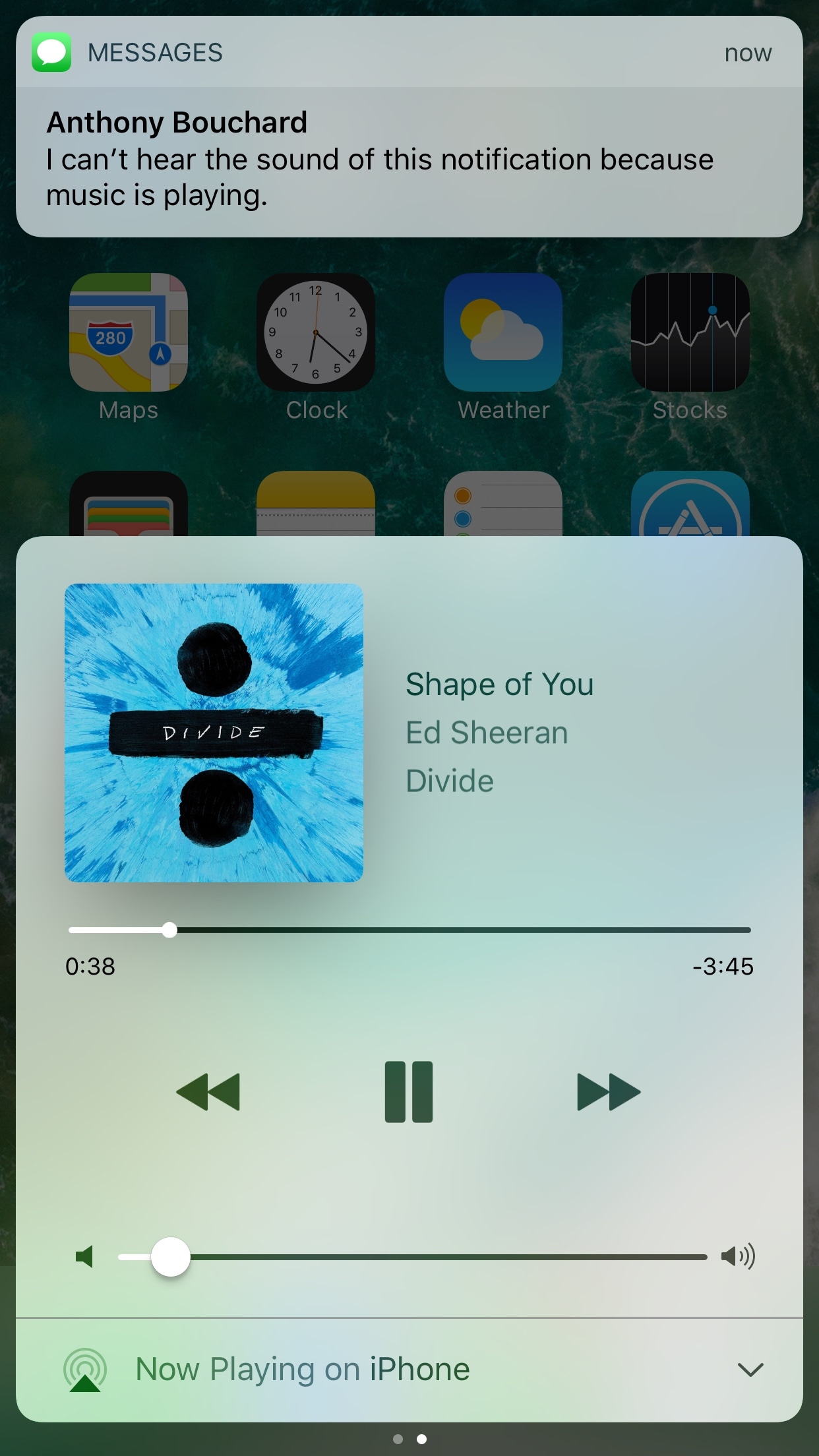
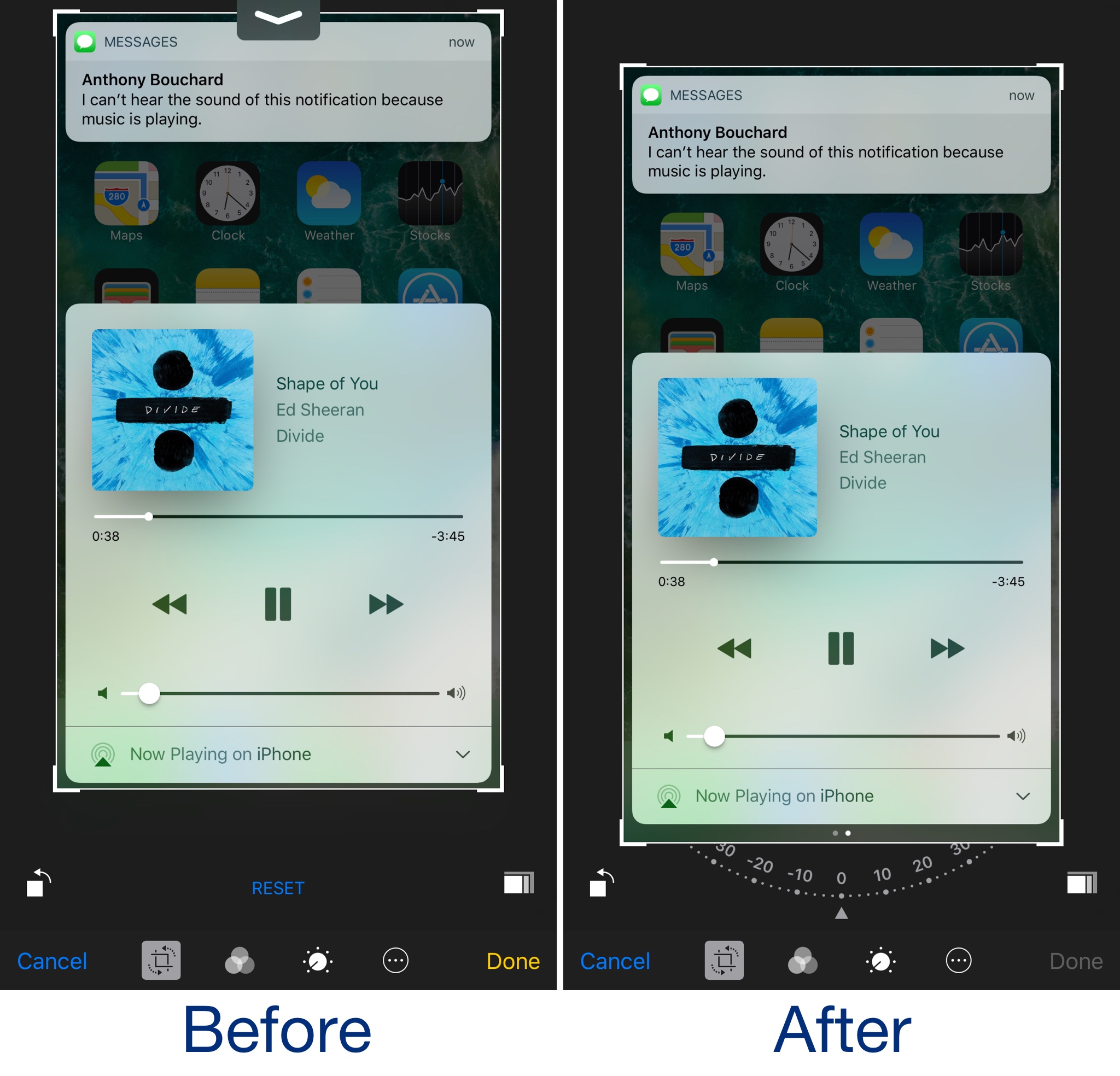
If you have a pet peeve for incoming notifications interrupting your music when you’re trying to sit back and enjoy a song, then installing a new free jailbreak tweak called QuietWhilePlaying (iOS 10) by iOS developer ijapija00 should be next on your to-do list.

This tweak silences the alert sounds and vibrations associated with incoming notifications, no matter which app they're coming from, whenever you’re actively listening to media.

Ambiance lets your Phillips HUE bulbs take full advantage of your jailbroken iPhone

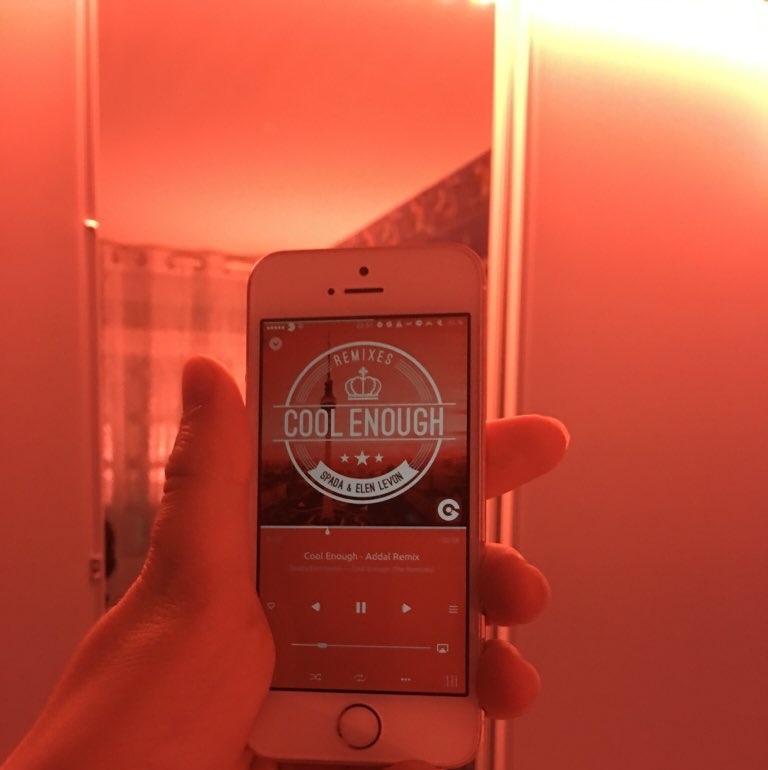
Every so often, a jailbreak tweak emerges that lets you do something out of the ordinary with your iPhone, and a new release called Ambiance by iOS developer Ziph0n is a testament to such tweaks.

Ambience links your jailbroken iPhone and Phillips HUE smart light bulbs together in new and exciting ways, immersing your entire room with color effects based on what you’re doing on your device at a given time.

Apple confirms 3D Touch app switching was intentionally removed from iOS 11

The convenient 3D Touch power-user gesture for quickly opening iOS's app switcher has disappeared from iOS 11 beta. According to Apple Engineering's response to a Radar that developer Bryan Irace recently filed regarding its removal, the gesture was pulled intentionally from iOS 11 beta and might not be coming back in subsequent betas.

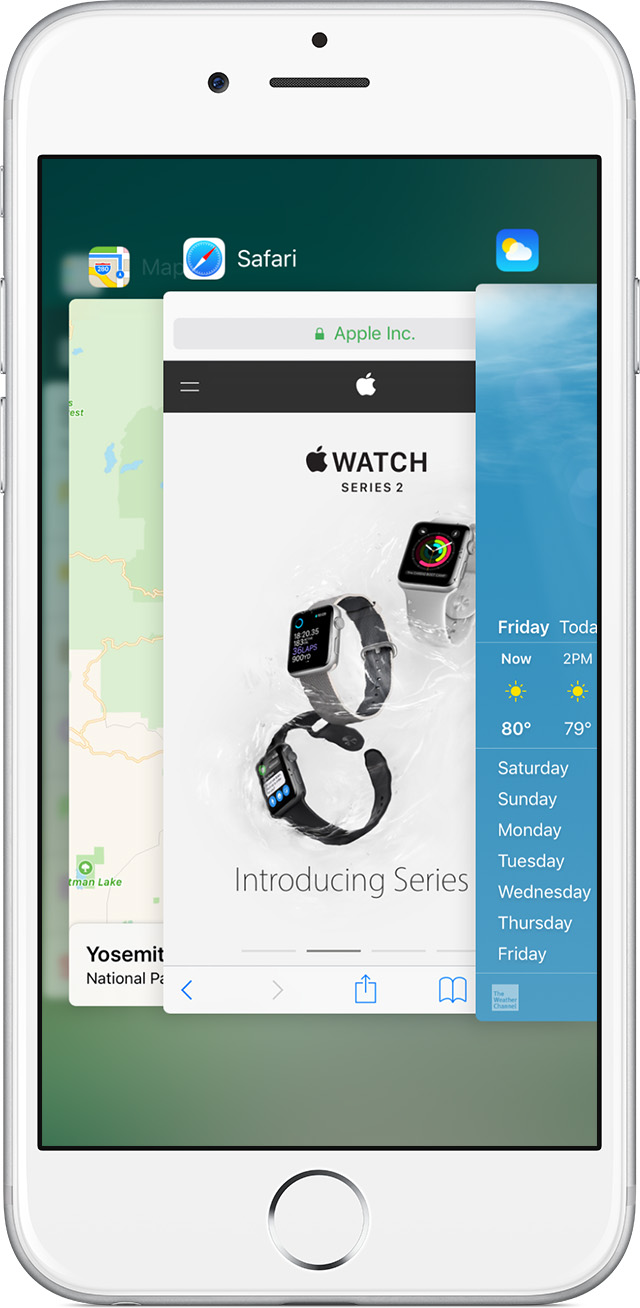
On iOS 10 and older, you can view your recently used apps by pressing the left side of the screen with 3D Touch. You can also use 3D Touch to quickly switch to a previous app by pressing the left edge of the screen hard, then swipe right.

Neither gesture works in iOS 11 beta.

When asked about the removal, Irace received the following reply from Apple Engineering:

Please know that this feature was intentionally removed.

The wording confirms it's not a bug—Apple did remove this power-user gesture on purpose.

Here's the screenshot of Apple's response to Irace's Radar.

I have a problem with the wording of the statement.

For starers, it doesn't make it 100 percent clear whether or not they intentionally removed the gesture from iOS 11 beta only for it to return in subsequent betas. We were, of course, hoping it was merely a bug. But the fact that it isn't listed as a known issue in the release notes accompanying the iOS 11 installer is rather telling.

This could be related to iPhone 8.

With major design changes coming to the next iPhone in the form of a nearly full-screen face with a seamless OLED display, the feature's removal might quite possibly indicate a brand new way of accessing iOS's app switcher on iPhone 8.

I wish Apple made it an optional setting rather than remove it completely. That way, people who still wanted it could keep it. On the other hand, Apple has stats on iOS features people use and perhaps numbers for the app switching 3D Touch thing were dismal, who knows?

The fact is, it doesn't make much sense if you use your Plus iPhone model right-handed. Besides, I know many people who accidentally activate it all the time and get annoyed.

Could it have been deprecated by iPhone 8, because it was too easy to trigger accidentally without a bezel around the display? Will iPhone 8's rumored function area at the bottom doubles as an app switcher of sorts? Last but not least, has Apple decided to remove the gesture because very few people were using it or were unaware it existed in the first place?

Tell us what you think in the comments section!

NFCWriter tweak unlocks your iPhone NFC capabilities

At the beginning of May, iOS developer Limneos started tinkering with the iPhone’s NFC chip to allow it talk to third-party NFC tags and accessories that Apple has never allowed its system to talk to before.

At the time, it was just a work in progress and a proof of concept, but Limneos has officially released a new jailbreak tweak in Cydia dubbed NFCWriter that unlocks the full potential of your NFC chip for everyone. It's the first time that the chip has been hacked to this extent, and it opens a whole new realm of possibilities.

Lysithea X brings iOS 11-esque Lock screen music controls to iOS 10

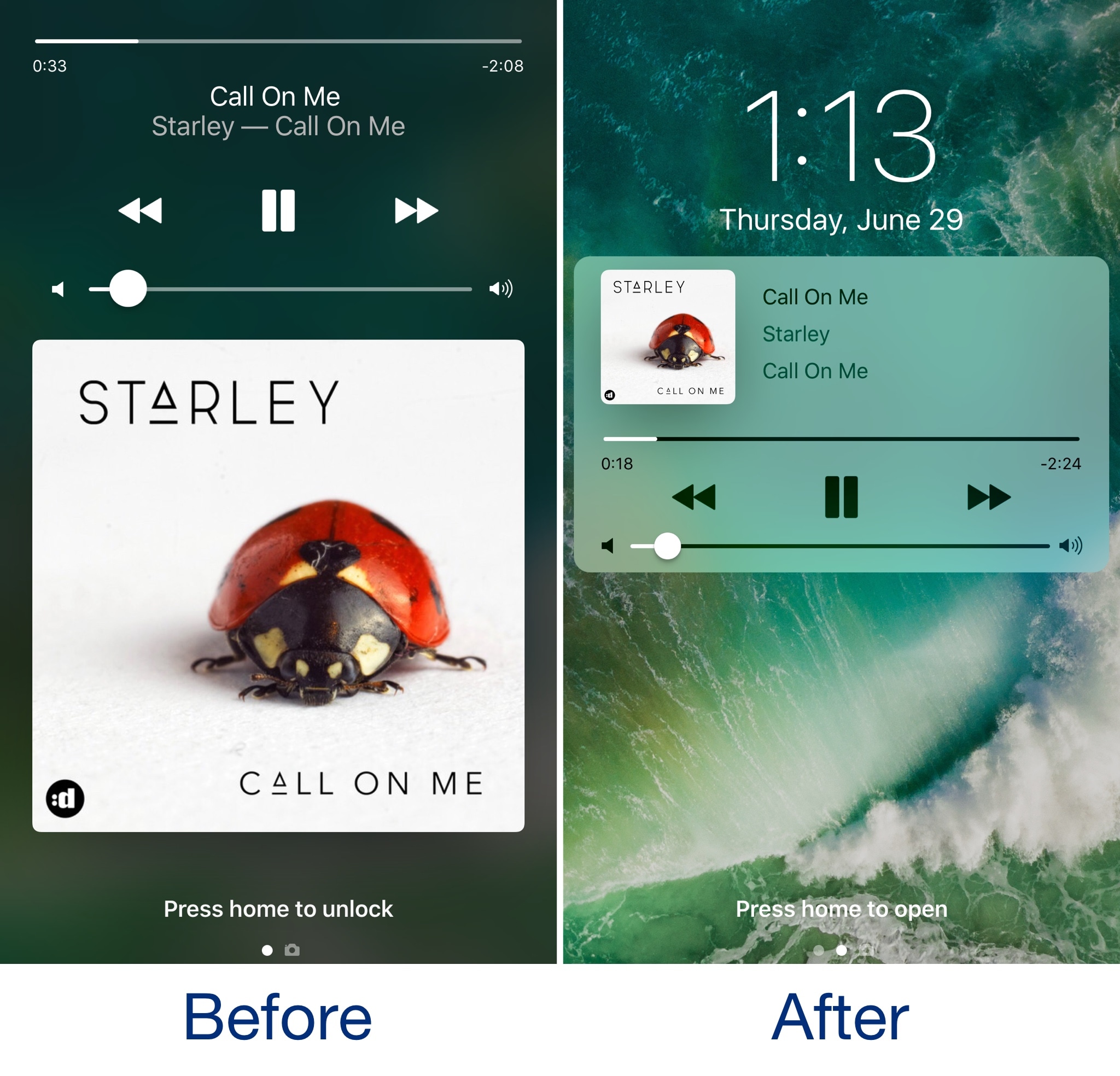
In case you haven’t seen it yet, iOS 11 comes with a redesigned Now Playing Lock screen interface. It’s sleeker and takes up less space so you can manage your music playback and see missed notifications in the same place more easily.

Now, a new jailbreak tweak called Lysithea X by iOS developer ijapija00 brings this iOS 11 Now Playing Lock screen interface to jailbroken iOS 10 devices.

SwitcherControls merges the App Switcher and Control Center interfaces into one

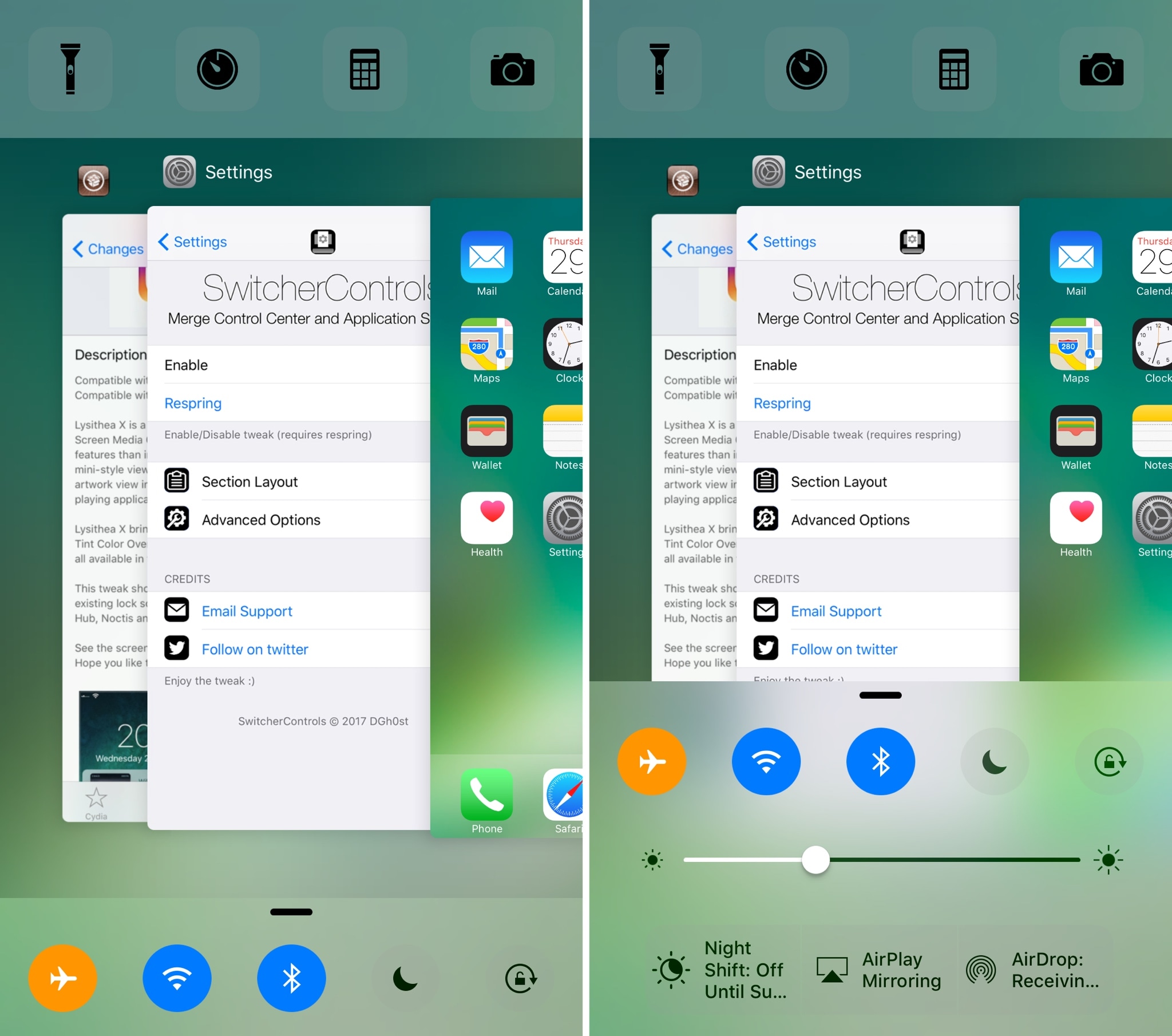
If you want a more powerful App Switcher, then perhaps a good place to start is with a new jailbreak tweak called SwitcherControls by iOS developer DGh0st.

Immediately reminiscent of the multi-center feature from a prior jailbreak tweak release known as Auxo 3, SwitcherControls combines both the App Switcher and Control Center interfaces into one, yielding what you see above.

How to stop iCloud Photo Library from eating into your iPhone’s cellular data plan

iCloud Photo Library is an optional feature on iPhone, iPad, iPod touch and Mac that uploads every photo and video you take or import to iCloud and keeps everything synchronized across all your Apple gear. I've been using it for years and it really “just works”.

On iOS 10 and earlier, Photos syncs with iCloud each time your device connects to Wi-Fi and the battery is charged. On iOS 11 and later, Photos can also use your iPhone's cellular data connection to sync and update the image library.

Do you take many photos on the go? Are you on a metered rather than an unlimited plan? Then you don't need me to tell you that you must ensure you're not wasting huge amounts of cellular data to this feature.

Here's how to stop the Photos app from eating into your iPhone's cellular data plan.

Before we get to it, keep in mind the following:

iOS 10 and earlier—Your Photos library syncs with iCloud each time your device connects to Wi-Fi and the battery is charged. iOS 11 or later—You decide if Photos syncs with iCloud via cellular or Wi-Fi only.

In other words, you should double-check that cellular updates for iCloud Photo Library are turned off only if you're on iOS 11 or later. Folks on older iOS editions needn't do that because Photos syncs with iCloud only when their iPhone is connected to power and Wi-Fi.

How to stop iCloud Photo Library on iPhone from using cellular data

12-megapixel images and 4K videos captured on your iPhone take up quite a bit of storage space. For most people, there's no point allowing iOS to gobble up cellular data just to keep the image library synchronized with iCloud at all times.

Thankfully, you can prevent this from happening, and here's how:

1) Launch the Settings app on your iPhone or cellular iPad.

2) Tap Photos in the list.

3) Tap Cellular Data.

4) Slide the button labeled Cellular Data to the OFF position.

This device will no longer use your carrier's cellular data for updating the Photos library. Any changes to your image library will automatically upload to iCloud as soon as the device connects to power and Wi-Fi.

TIP: If you really need Photos to be in perfect sync with iCloud at all times, even on the go, via cellular and Wi-Fi, be sure to slide the toggle labeled Unlimited Updates to the ON position.

The feature's description says “unlimited updates may cause you to excess your quota“.

Need help? Ask iDB!

If you like this how-to, pass it along to your support folks and leave a comment below.

Got stuck? Not sure how to do certain things on your Apple device? Let us know via help@iDownloadBlog.com and a future tutorial might provide a solution.

Submit your how-to suggestions via tips@iDownloadBlog.com.

Apple (again) reminds developers that iOS 11 won’t run 32-bit apps

Following the iOS 11 public beta release, Apple has reminded developers that iOS 11 will be 64-bit only. The notice posted yesterday on Apple's Dev Center cautions that all 32-bit apps previously installed on users’ devices will not launch after they upgrade to iOS 11.

“As a reminder, new iOS apps and updates submitted to the App Store must support 64-bit,” reads the notice. Apple recommends that developers who haven’t updated their apps to support 64-bit submit an update “so your users can continue to run your apps on iOS 11”.

TUTORIAL: How to identify 32-bit apps installed on your iPhone and iPad

Because iOS 11 is 64-bit only and doesn't support legacy 32-bit apps, users should experience a bit faster performance and fewer crashes. That's because iOS 11 will never need to load 32-bit frameworks, libraries and the kernel alongside their 64-bit counterparts needed to support legacy apps, which effectively strains the RAM and other resources.

https://www.youtube.com/watch?v=-hoPcMPvL88

Subscribe to iDownloadBlog on YouTube.

Apple’s Clips app already requires a 64-bit iOS device and iOS 11's new Files app is optimized for 64-bit computing, too. Starting with iOS 10.3, Apple began naming and shaming legacy apps via a new App Compatibility section in Settings → General → About → Applications.

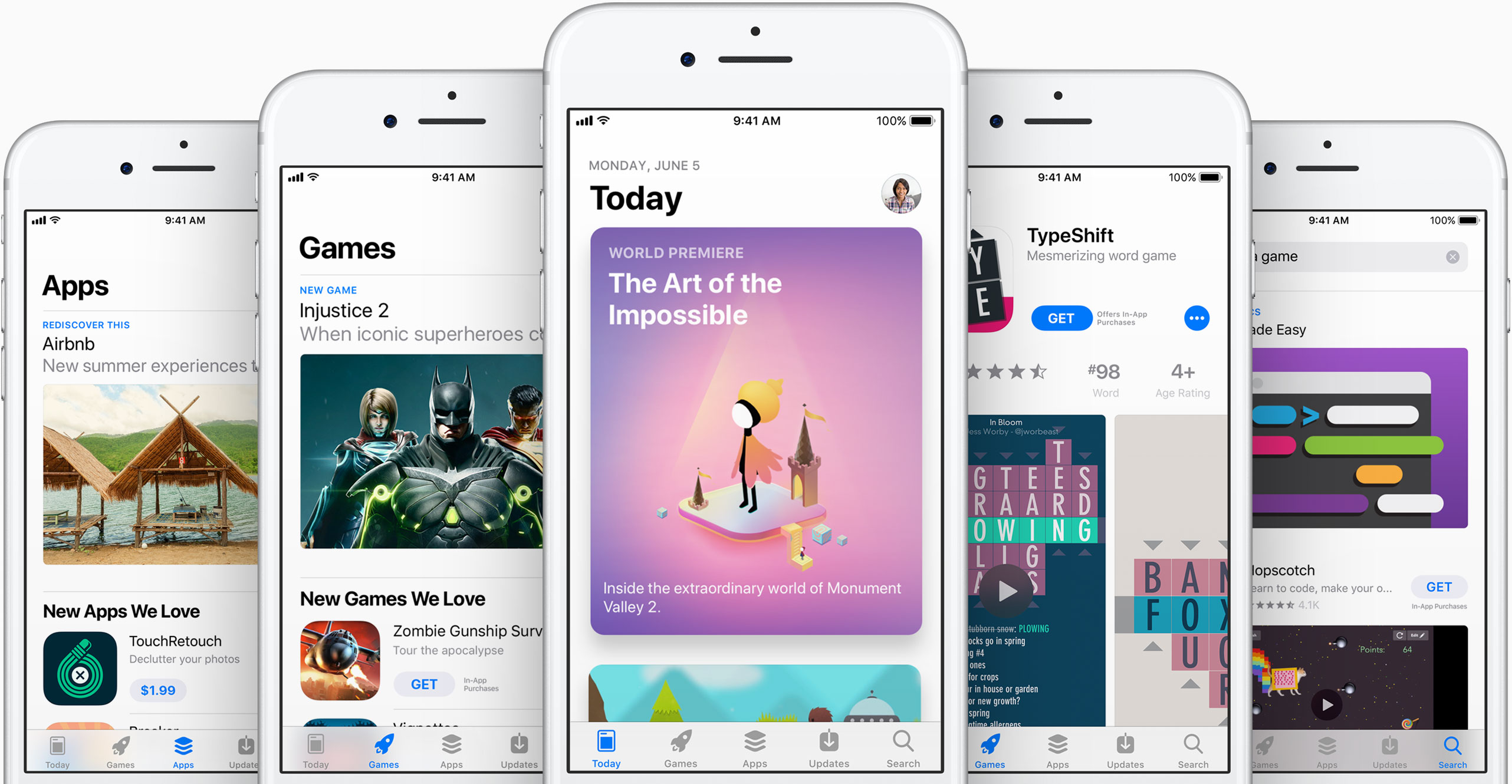
The new advisory regarding 32-bit apps was posted just a day after the company invited developers to update their product pages on App Store for iOS 11's much-improved, thoroughly redesigned App Store.

iOS 11 will be in the hands of “hundreds of millions of customers” this fall.

Frustrated with Reminders? Taskful could be the answer to your woes

Not all tasks are created equal. No doubt you either have taken the trash out or you have not, but there is a vast number of daily challenges that are conquered in increments, tasks that can be taken on for an hour, then sidelined at their half way point and ultimately capped off in the afternoon. Users of Apple’s Reminders app might know the struggle to approximate a progression-based task to the binary reminder framework we are provided: ever tried to make the Reminders app nudge you every day until you have hit the treadmill five times per week, or let's say read ten chapters of your book? For all intends and purposes, it’s cumbersome.

Taskful sets out to remedy the pain of that. It also lets the user select only certain days of the week to remind you of due tasks (e.g. weekdays) and will smartly display the items relevant to you on a specific day and, more crucially, blank out tasks set for a future date. Needless to say this can be priceless for people quickly throwing their hands up when faced with a dauntingly long list of tasks. To bolster the sentiment, the app also automatically breaks up longer tasks into daily chunks.

How intelligent is this thing really?

Naturally, for a smart task manager to really hit its stride, it takes equally smart data input. Such being the case, you’re going to want to learn the nitty-gritty of Taskful before judging the application’s utility. So let’s briefly talk about the mechanics of it:

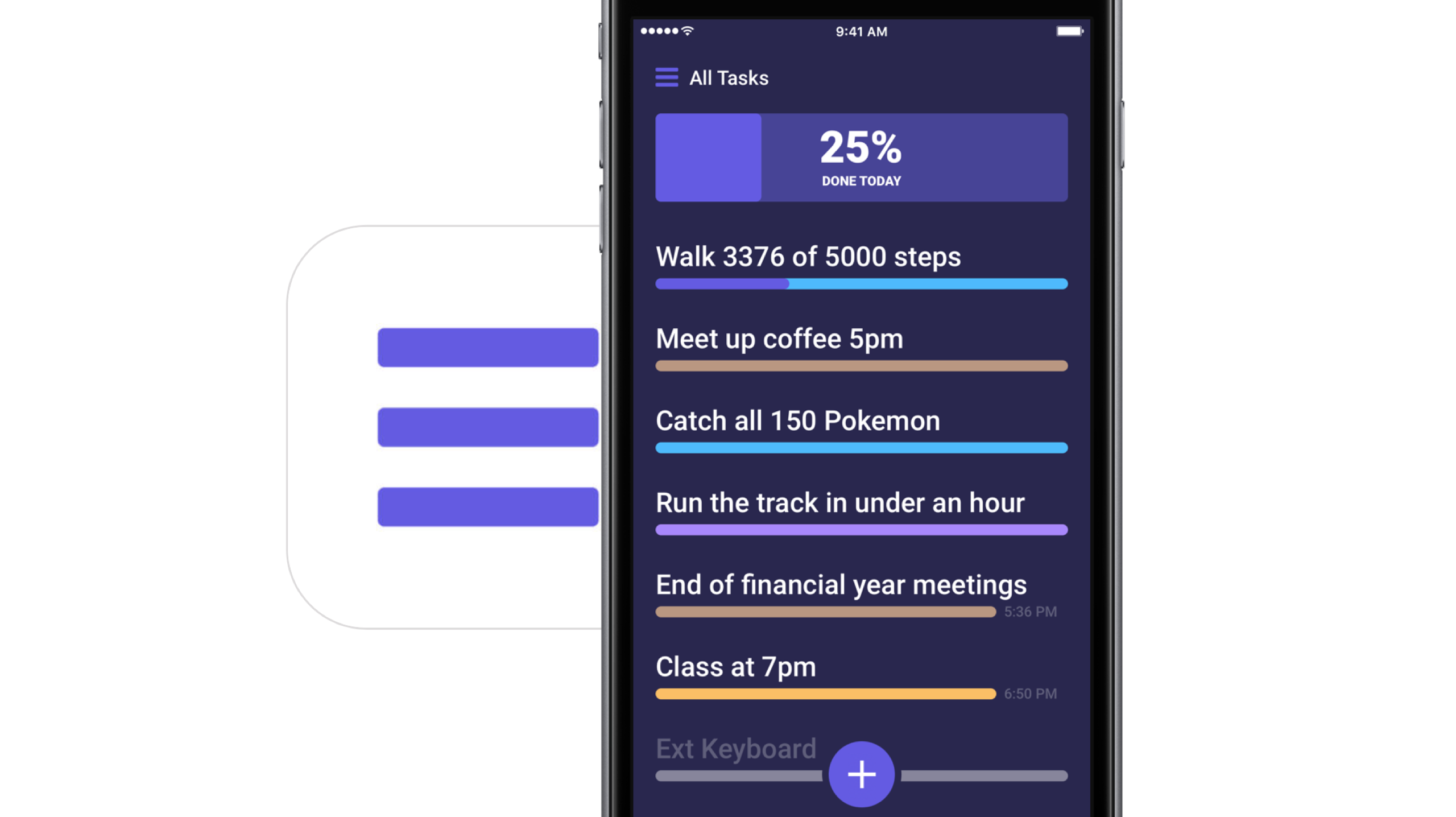
On the face of it, Taskful and Apple’s Reminders app share some structural traits. That is, both offer category based sorting of items, in which each category (Urgent, Finance, Work) is represented by a color of your choosing. That’s about where the similarities come to an end however, because on Taskful, filing away a task properly is swiftly accomplished by swiping left and right to change the background color of your note during creation. At the same time, the app will analyze your task as you scribble it down and immediately glean information such as dates and numbers.

Based on its reading, smart bubbles right below the draft will interpret your input and suggest measuring sticks for your task. You can tap and confirm or manually alter them. To exemplify, use a number like '4' in your task, now mark the little ‘Amount: 4’ bubble magically popping up beneath the text and as a result, the reminder needs to be tapped four times to be considered finished by Taskful. Until then, a big and rewarding progress bar will grow in 25% increments every time you come one stop closer to your goal.

Along the same lines, Taskful is also capable of acting as a quirky step tracker. On launch, the app asks permission to read and write HealthKit data, meaning the app can track your step count and remind you to get off the couch if you haven't ticked the ‘walk 600 steps’ reminder at night.

It goes without saying that these are just two hands-on examples of how to put Taskful to good use, not so much selected at random but rather intentionally to demonstrate the app's versatility. What's more is that it comes with a good deal of UI customizations such as a built-in dark mode. In other words, both in scope and depth Taskful decidedly one-ups Apple’s Reminders. And above all else, it feels good to look at one unifying 'All Tasks' tab, something Reminders’ stacked business cards look sort of makes impossible.

Competing in the world of task managers and to-do lists is a tough gig on the App Store, yet it appears as though Taskful has found the sweet spot to prevail. It is also earning the right accolades along the way, with Apple just recently featuring the app in the ‘Apps We Love’ category in various countries including the US, Australia and New Zealand.

Taskful is available on iPhone and iPad, the latter of which just added split screen support to round the package off nicely. If you want to give the app a whirl, it is currently priced at a reasonable $1.99.

Link to App Store: Taskful ($1.99)
TimeMover Lite lets you customize the position of your Lock screen clock for free

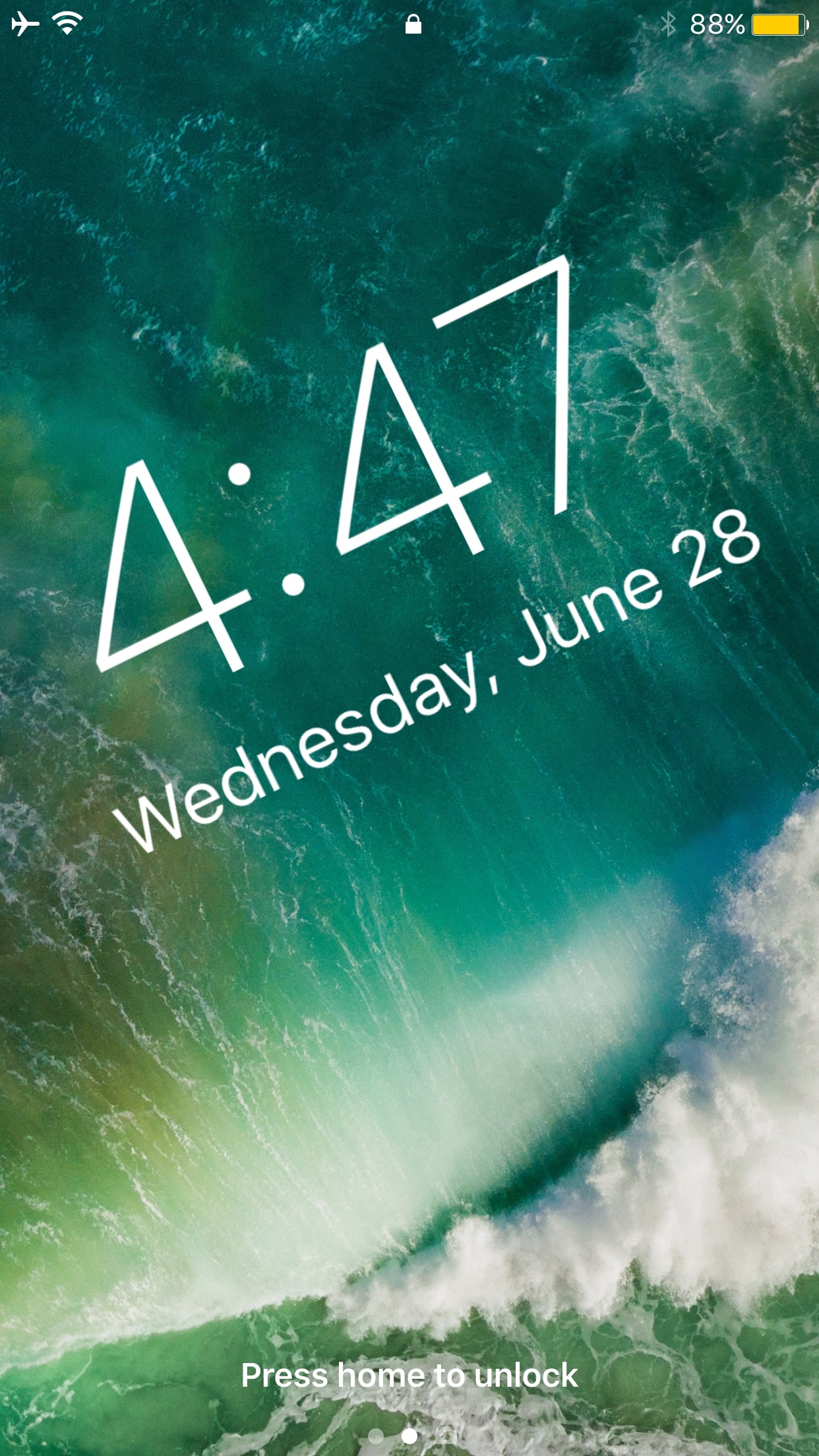
The Lock screen clock appears at the top center of the Lock screen on any stock device out of the box, but with a new free jailbreak tweak called TimeMover Lite by iOS developer NeinZedd9, you can re-position it anywhere you'd like.

If the concept sounds familiar, that’s because this is a free version of the TimeMover tweak that we showed you a couple of weeks ago, but it’s still plenty powerful.

Auto SilentMe silences your iPhone based on calendar events

There are times when you can take notifications, and then there are times when you just can't. While Do Not Disturb is a great tool for this, it’s not the perfect solution to avoiding unwanted notifications because it relies on you to manually enable or schedule it, and sometimes we forget.

That’s a weak link that a new jailbreak tweak called Auto SilentMe by iOS developer IArrays hopes to strengthen, as it brings new notification-suppressing features to your device that will prevent embarrassing notifications from coming in when you don't want them knocking at the door.