Learn how to move several apps between Home Screen pages on your iPhone or iPad at once or add them all to a folder in one fell swoop, saving you time.
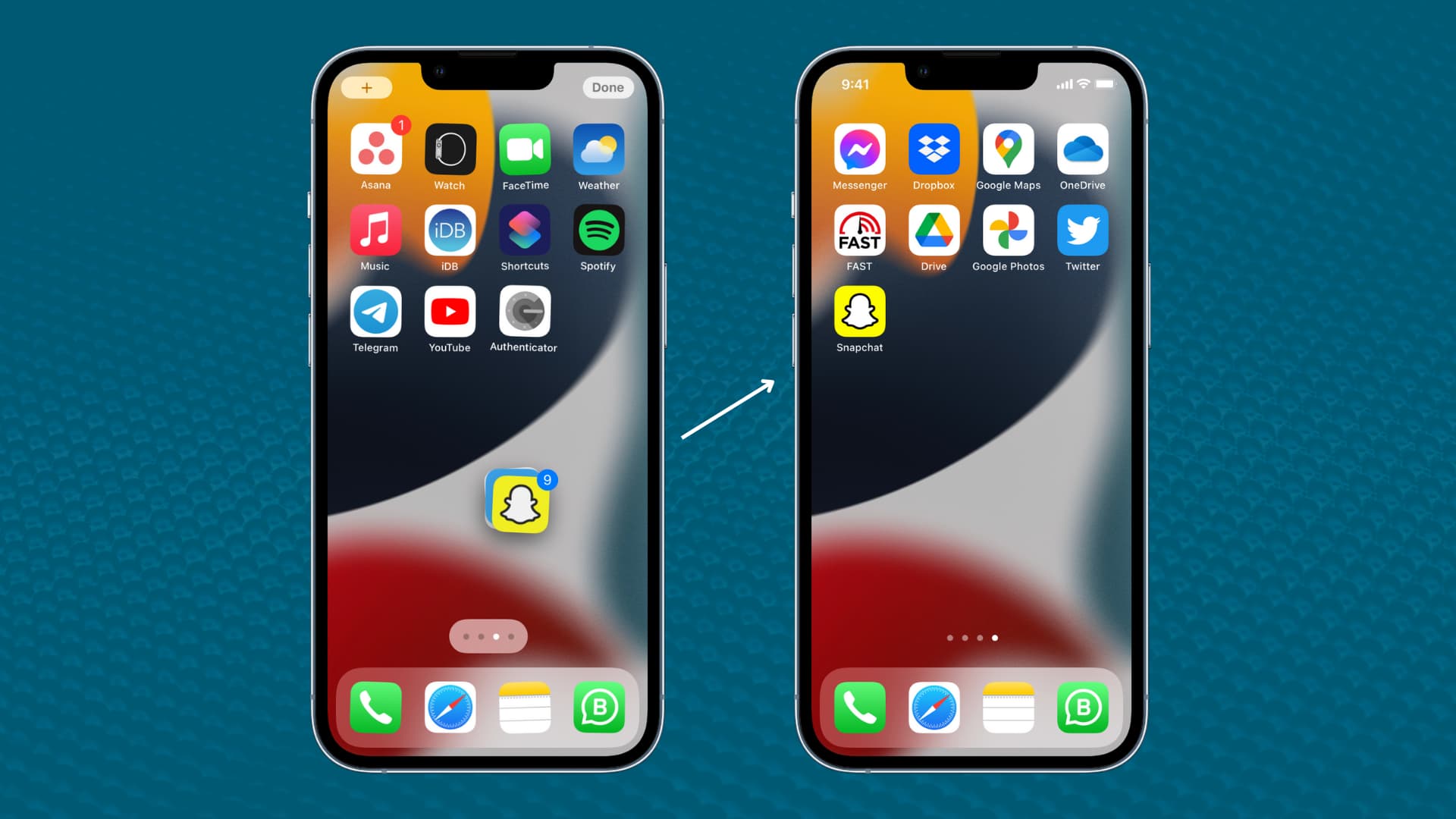
iOS’s famous jiggle mode starts when you hold an app icon on the Home Screen until all the icons start shaking and wriggling like they’re doing a dance.
Drag and drop works in jiggle mode, too, letting you move an app bundle to another Home Screen page, create a folder from multiple apps, etc.
For example, you may want to gather all the games scattered across your Home Screens into a bundle before moving them all at once to a new position instead of moving them individually like an animal.
Move multiple Home Screen app icons at once
1) Touch and hold an app icon on the Home Screen until the icons start shaking. Then move the finger slightly in any direction until the minus sign (-) on the icons vanishes.
2) Without releasing the finger, tap other apps (including those on different Home Screen pages) to bundle them with the selected app. Apps are added instantly when tapped, and the app count on the bundle badge updates live.
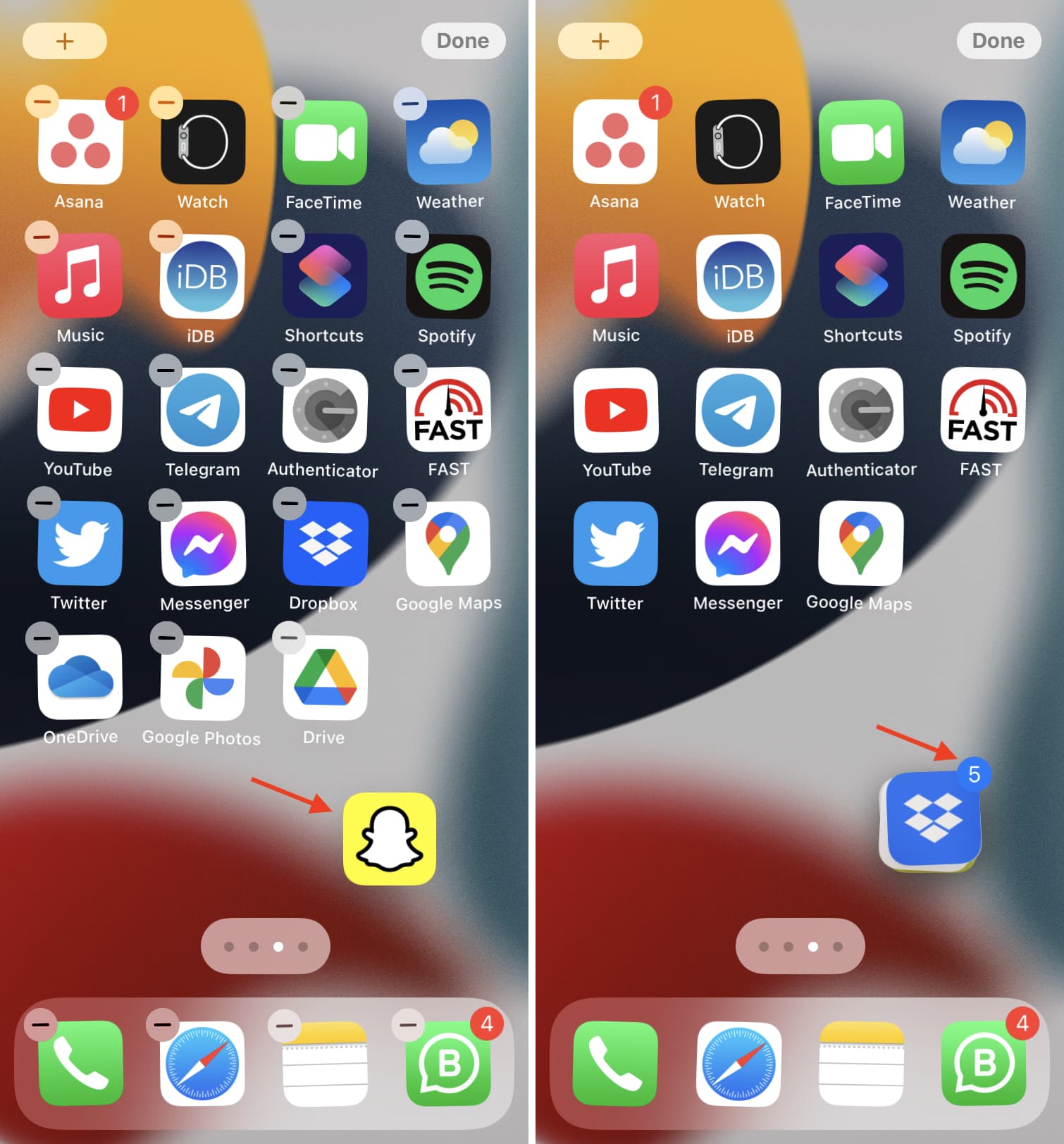
3) Drag your app bundle to a new position or a different Home Screen page and let go. The bundle will expand, and its apps will move to the new position.
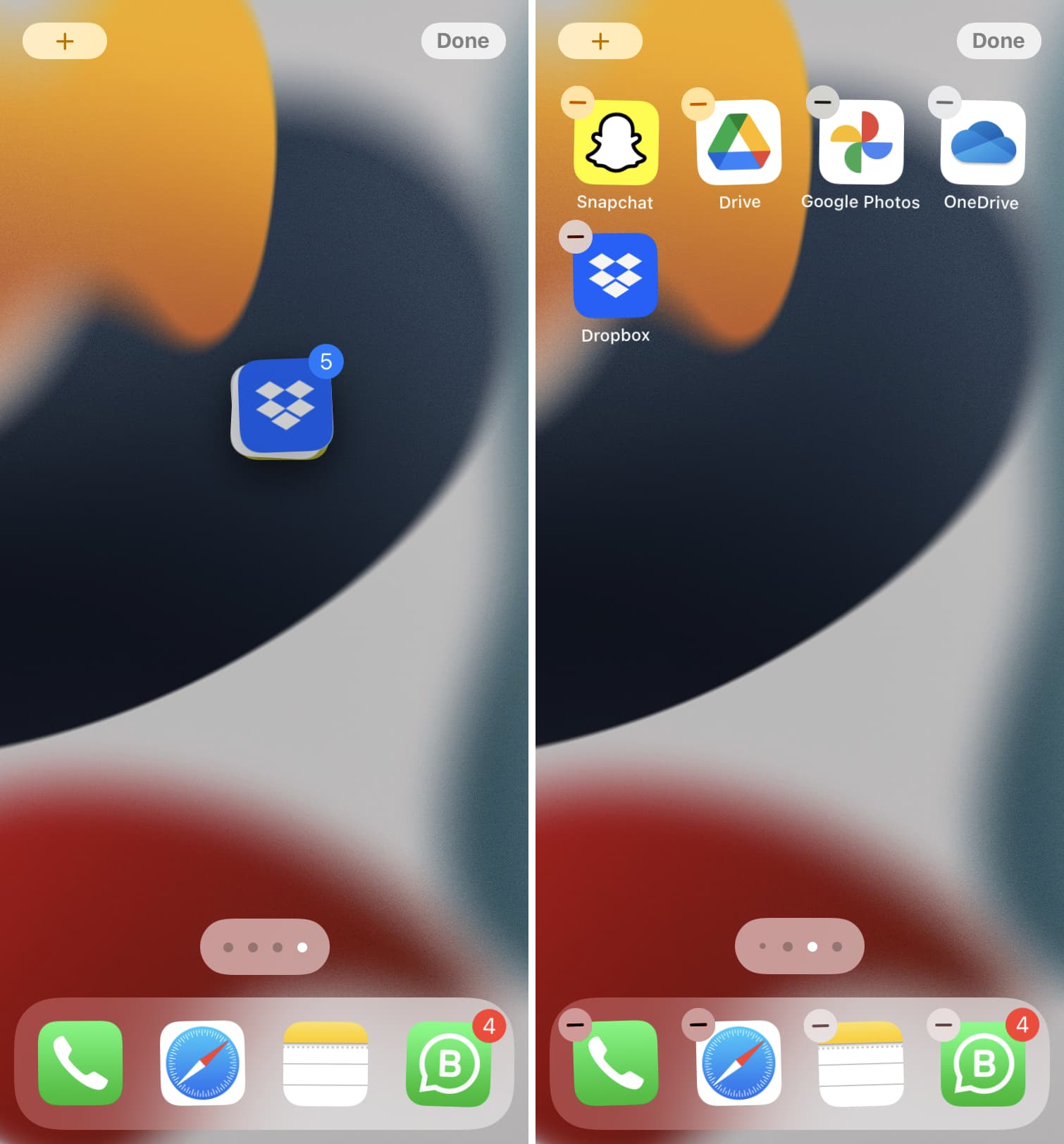
Watch Andrew’s video tutorial embedded below to see this in action.
Create a folder from multiple apps on iPhone and iPad
To create a folder from a bundle of apps:
1) Hold an app icon to enter jiggle mode and move the finger slightly until the minus sign (-) on app icons disappears.
2) Without releasing the finger, add other apps to the bundle, then drag the whole bundle onto another app and let go.
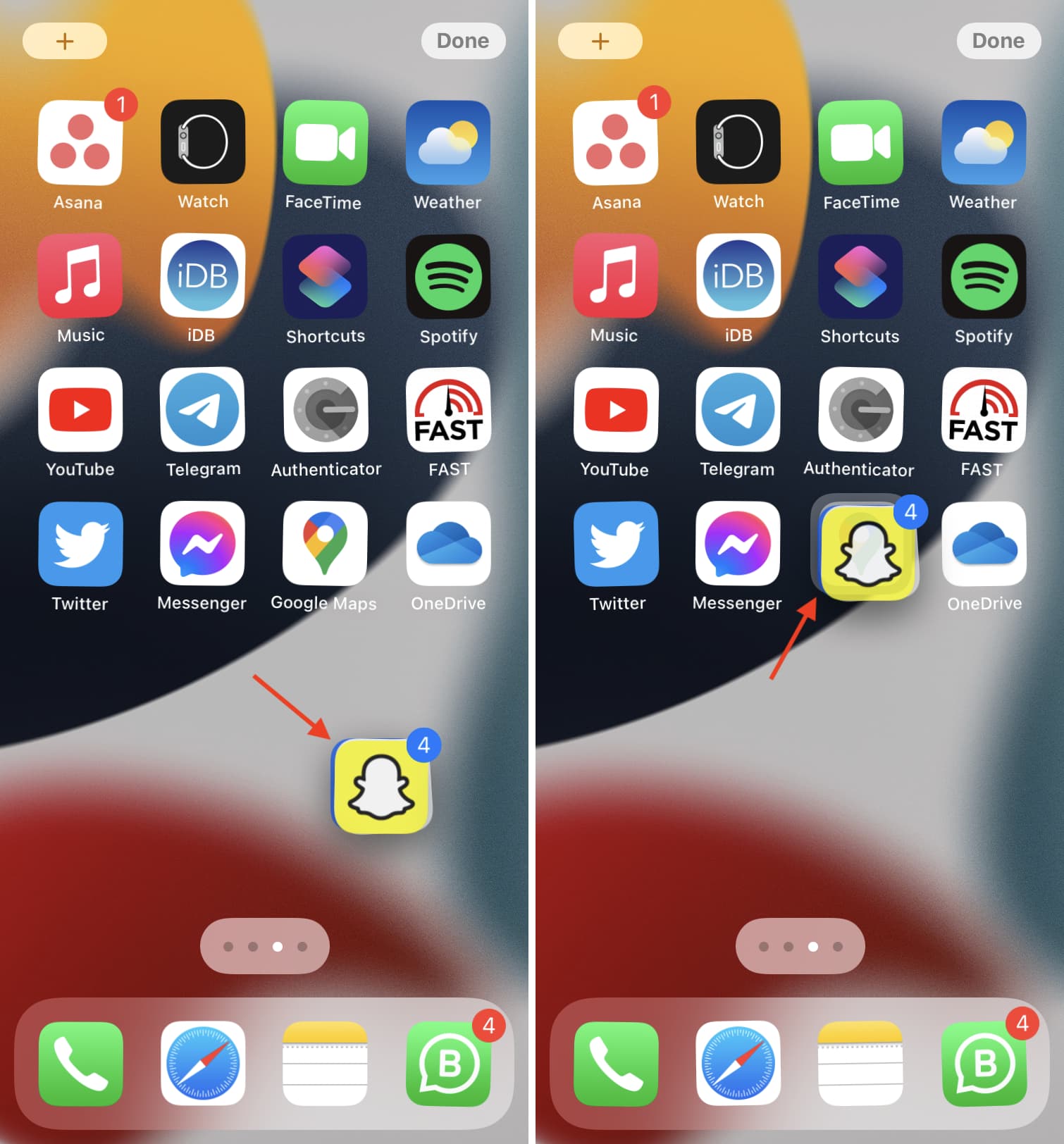
Voilà! Just like that, you’ve created a new folder comprising apps from the bundle.
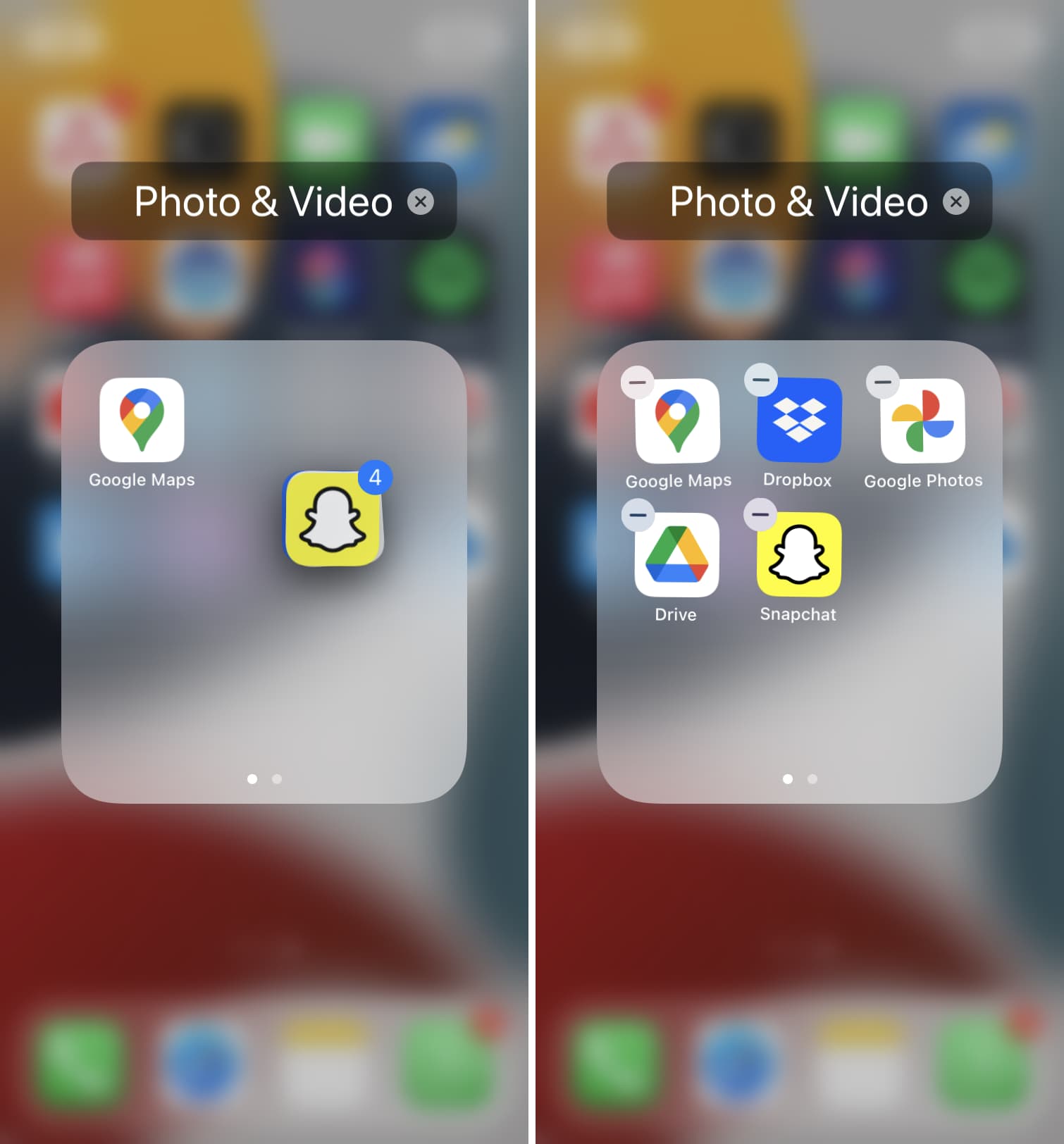
To move your app bundle between Home Screen pages, drag it to either side of the screen. You can also use the bundle technique to move multiple apps out of a folder at once.
Put multiple apps in a folder
1) Touch and hold an app icon to enter jiggle mode and then move the finger slightly until the minus sign disappears.
2) Without releasing the finger, add other apps to the bundle.
3) Now tap a folder to open it and then move your bundle inside the folder overlay and let go. All apps in the bundle will drop into that folder.
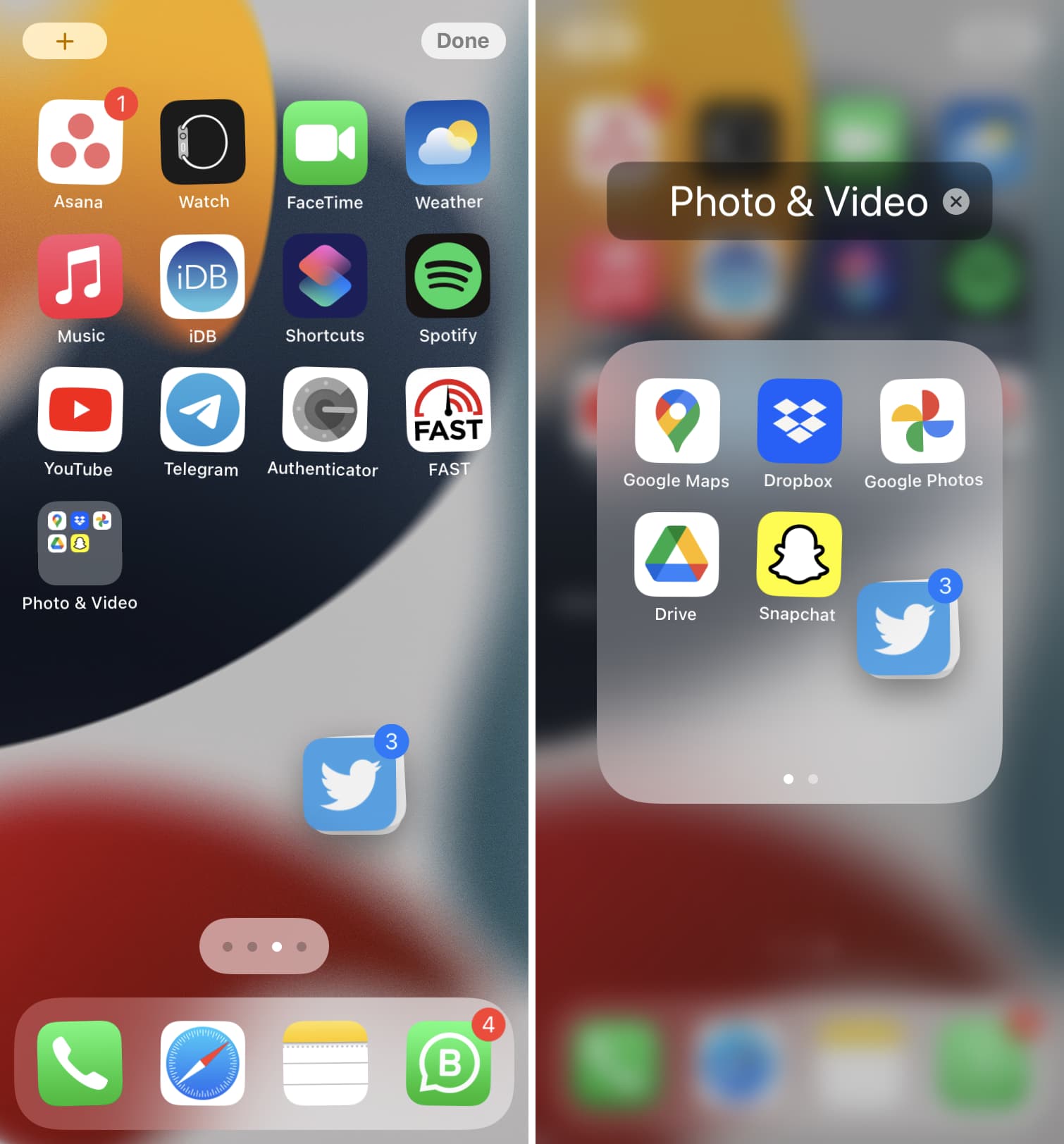
To cancel the action, move the bundle outside the folder overlay and let go of the finger.
Also, check out: