iOS

iOS 11 beta 3 seeded to developers

Apple today seeded a third beta of iOS 11 for iPhone, iPad and iPod touch to its registered developers and members of the Apple Developer Program. To deploy iOS 11 beta 3 (build number 15A5318g), use the Software Update mechanism in the Settings app on your device with an appropriate configuration profile installed, which can be obtained from Dev Center.

iOS 11 was originally released as a developer-only preview at WWDC in June, followed by iOS 11 beta 2 on June 21 and the iOS 11 public beta on June 26. The first public beta of iOS 11 has the same features as developer-only iOS 11 beta 2.

Here's Andrew's hands-on walkthrough of the changes in the previous beta.

https://www.youtube.com/watch?v=TZ5pwZMPRxI

Subscribe to iDownloadBlog on YouTube.

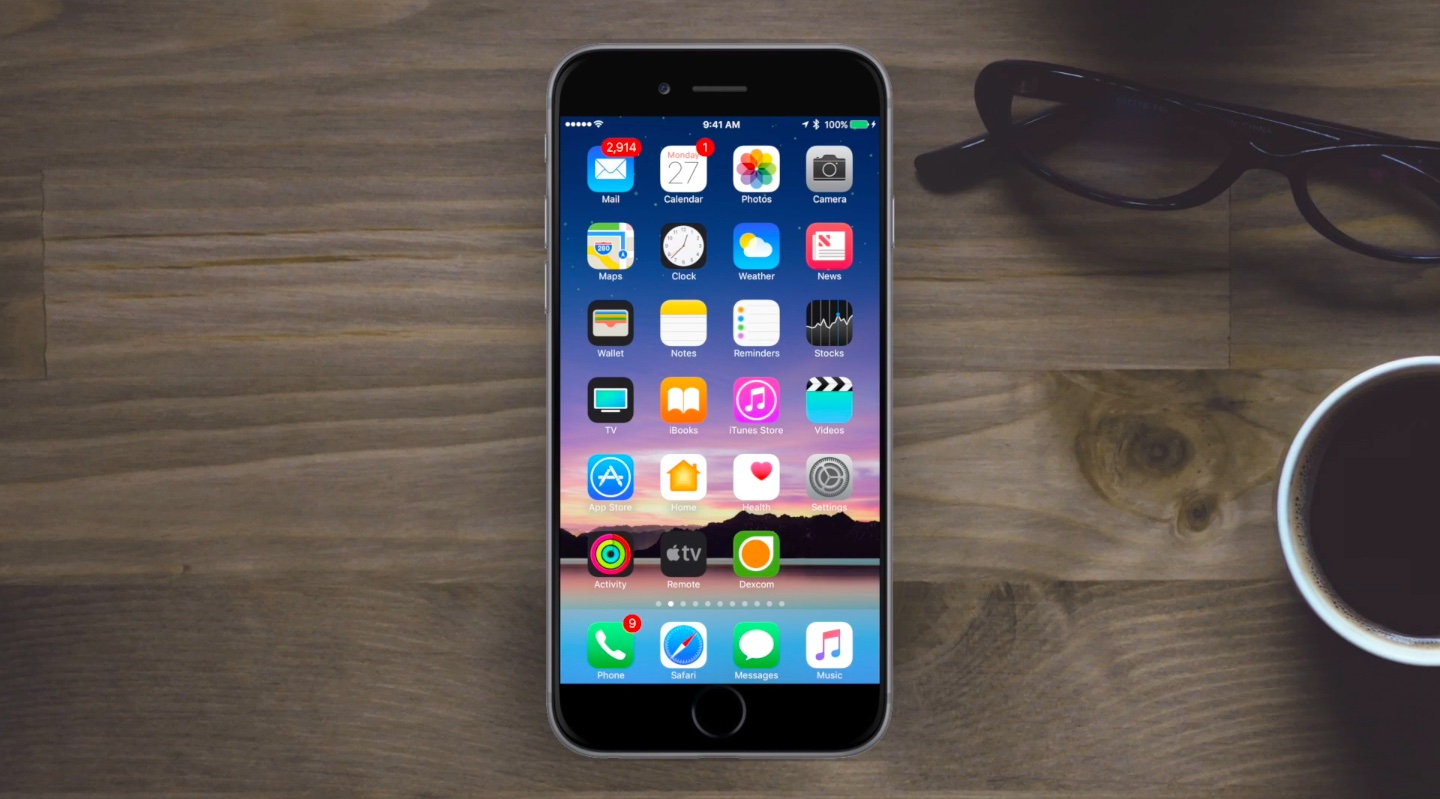
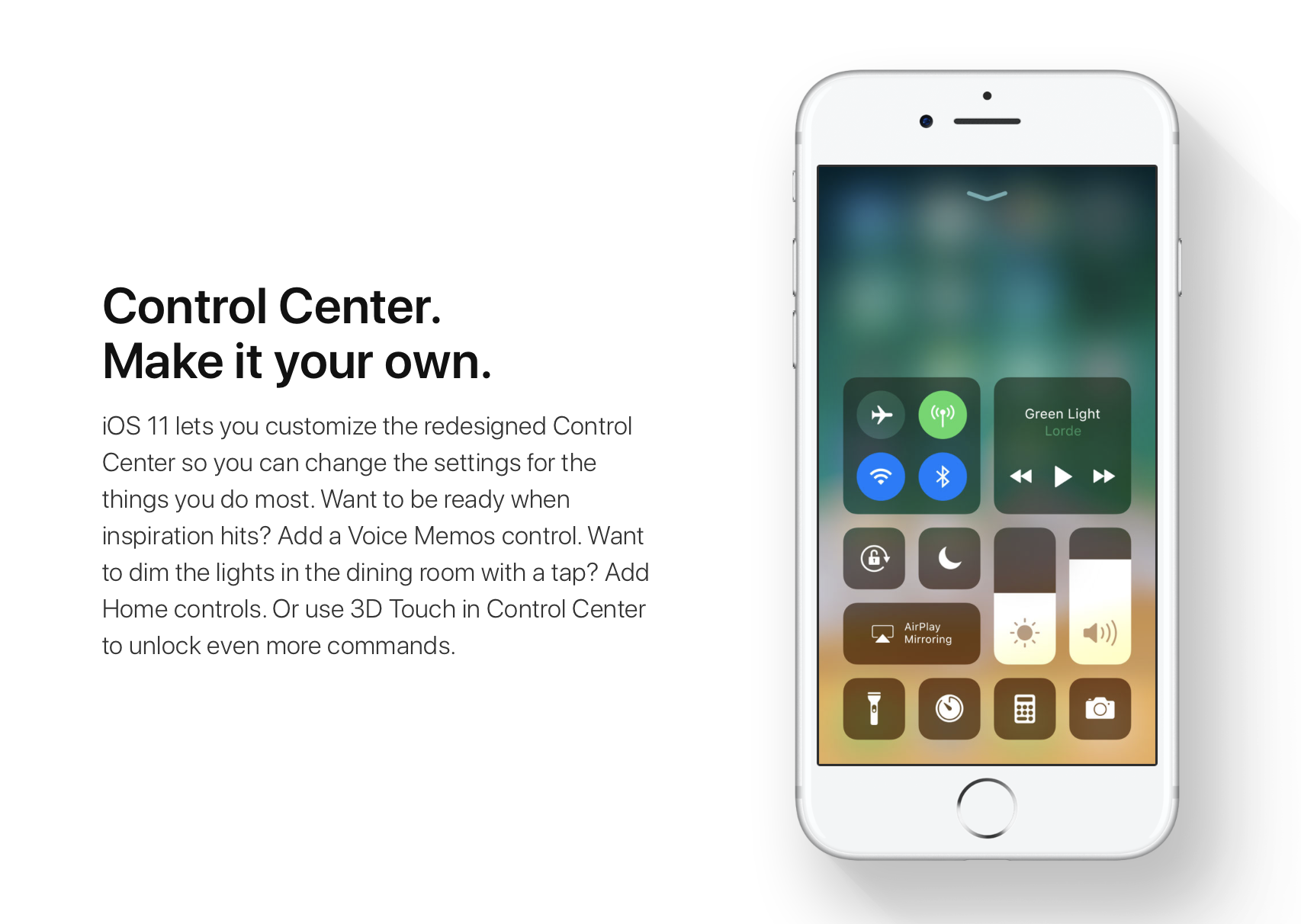
iOS 11 sports a redesigned App Store, new iPad multitasking features with the Dock and drag and drop, a Files app, AirPlay 2 with multi-room audio, new Siri capabilities, visual refinements, a customizable Control Center, a redesigned app drawer in Messages and much, much more.

TUTORIAL: How to switch from iOS 11 beta to official iOS release

iOS 11 will release for public consumption this fall across supported iOS device models.

If you have identified new outward-facing user features in iOS 11 beta 3, ping us on Twitter, shoot us an email at tips@iDownloadBlog.com or post your findings in the comments section and we’ll make sure to update the article with new information as it becomes available.

LockscreenXI brings iOS 11’s Lock screen interface to iOS 10

Some jailbreakers are already drooling over the host of interface changes that come with iOS 11, but we encourage these folks to hold onto their seats. A jailbreak tweak collection dubbed Eleven is nearing full release that will bring many of iOS 11's new interface experiences to jailbroken iOS 10 devices.

The first piece of Eleven, LockscreenXI, brings the Lock screen experience of iOS 11 to jailbroken iOS 10 devices. It was just released in Cydia by its creator LaughingQuoll ahead of all other pieces of Eleven, which are still a work in progress.

‘Modern’ brings a new look to notification banners & Today widgets

If you’re interested in a new and modernized look and feel for your iOS notifications, then a new jailbreak tweak called Modern by iOS developer FromDerik might be worth checking out.

This tweak replaces the horrendously-large stock banner notifications that appear throughout iOS, whether you’re in an app, on the Lock screen, or looking at Notification Center with something better.

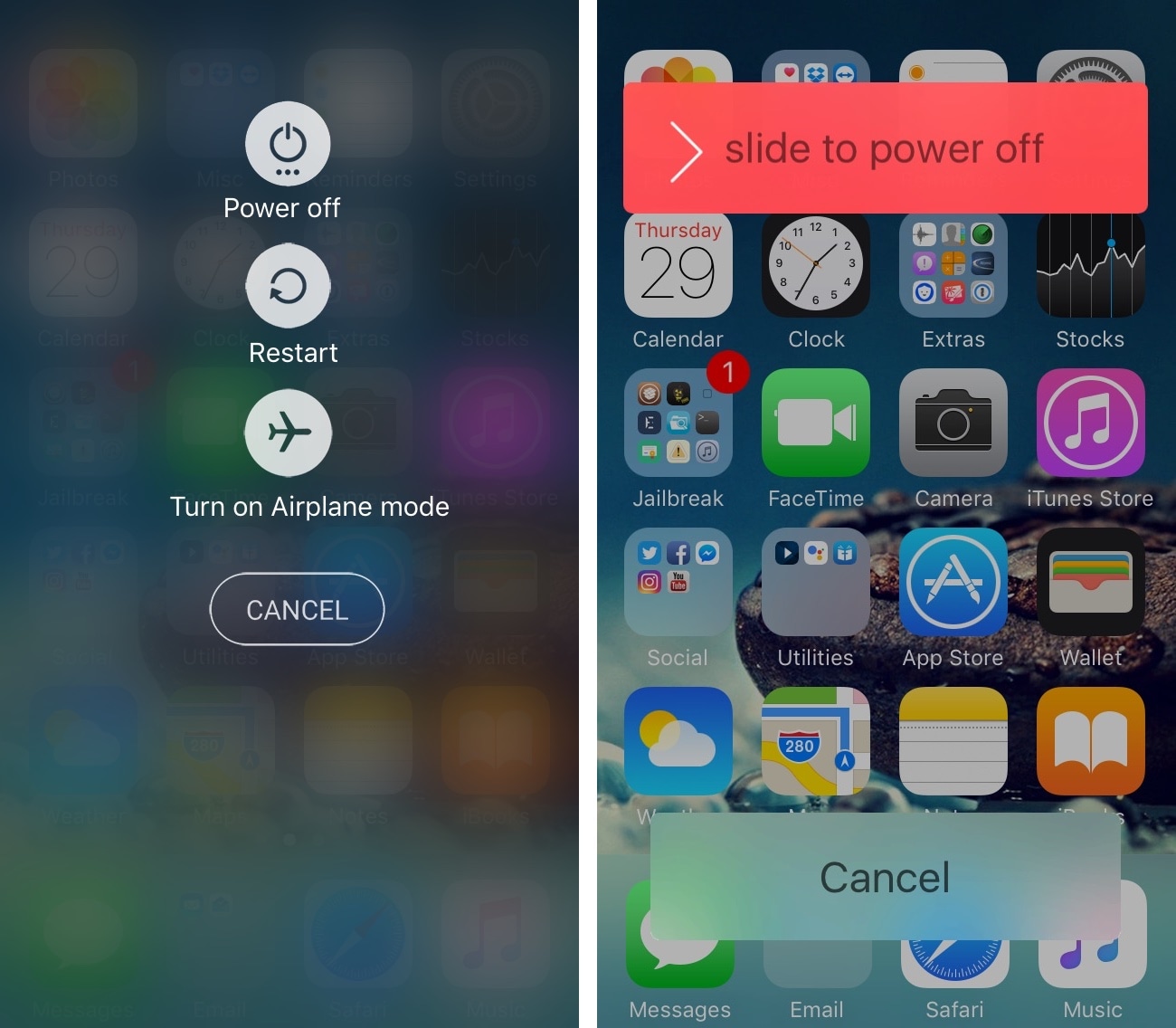
Give your power down menu an iOS 7-inspired makeover with StyloPowerDown

When you press and hold the power button on your iPhone or iPad, you’re presented with a switch for powering down your device.

This switch has undergone a host of cosmetic changes throughout previous iterations of iOS, and if you’re nostalgic of how it used to look in earlier versions, or you're just looking for a totally new look and feel altogether, then you might want to try a new jailbreak tweak dubbed StyloPowerDown by iOS developer iKilledAppl3.

Apple isn’t paying bug hunters nearly enough for iPhone exploits

According to a report from Motherboard, iPhone, iPad and Mac bugs are too valuable to report to Apple, which leads to sky-high prices for iOS and macOS exploits on the grey market.

“For now, security researchers who have been invited by Apple to submit high-value bugs through the program prefer to keep the bugs for themselves,” reads the article. All of the eight bug hunters that the publication interviewed said they have yet to report a bug to Apple.

According to Nikias Bassen, a security researcher for the company Zimperium, and who joined Apple's program last year:

People can get more cash if they sell their bugs to others. If you're just doing it for the money, you're not going to give bugs to Apple directly.

Apple's bug-bounty initiative debuted at the Black Hat conference in August 2016.

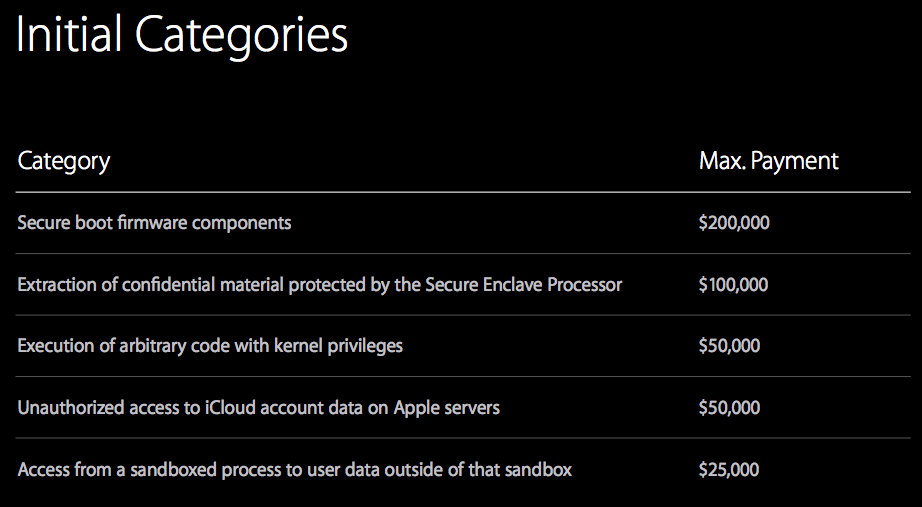
The program offers between $25,000 and $200,000 for an iOS or macOS exploit, depending on where it is and what it does. For now, the initiative is invite-only.

As The Loop's Dave Mark put it, the question here is, are the bugs valuable enough for Apple to raise their bounties to compete with the grey market?

Manually designate your favorite Emojis with Selectmoji

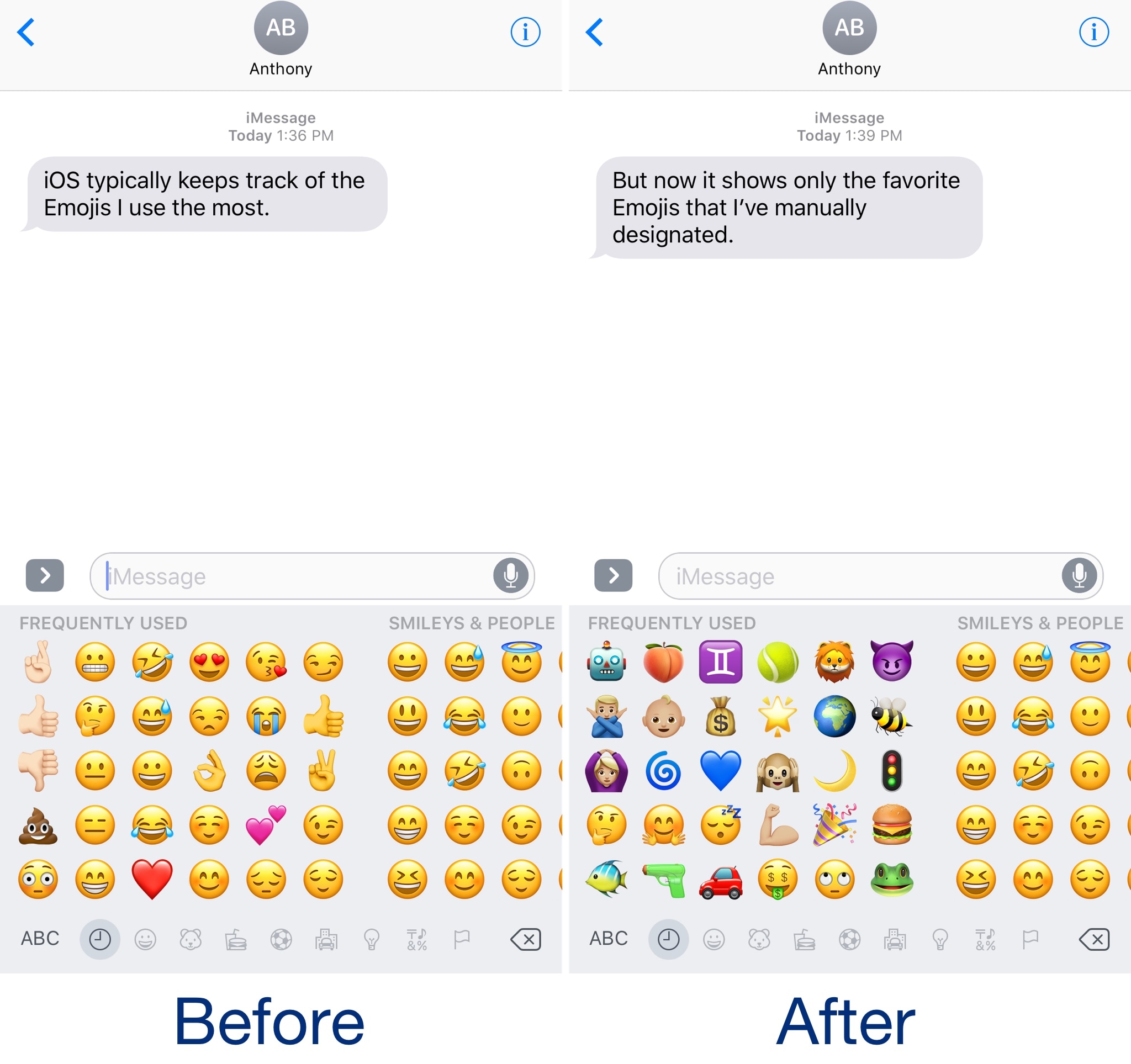
Emojis are one of the joys of texting and instant messaging, and iOS integrates them right into the keyboard for your convenience. A feature embedded within the Emoji selector keeps track of the Emojis you use the most often and puts them in a category called “Frequently Used.”

Since you might prefer to manually designate your favorite Emojis for this section, a jailbreak tweak called FavoriteEmojis was recently released for this purpose, but a new competing tweak called Selectmoji by iOS developer Cole Cabral is now available that is said to address some of the shortcomings of the former tweak.

Ventana gives your iPhone a Windows 10-inspired Lock screen

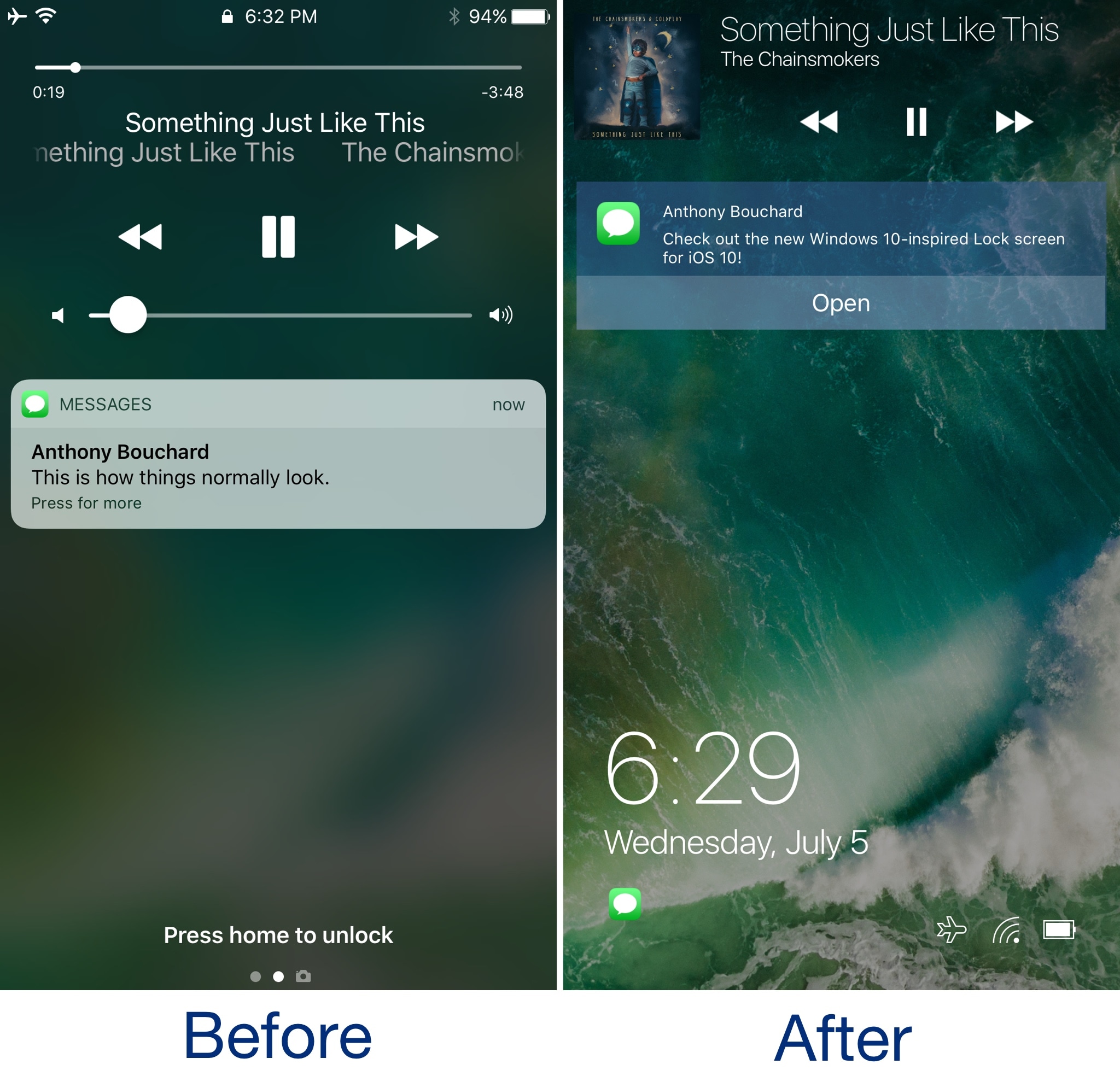
We’ve seen tons of Lock screen replacements for jailbroken devices over the years, but for the first time, a new jailbreak tweak dubbed Ventana by iOS developers CoolStar and Jeremy Goulet brings a highly-polished Windows 10-like Lock screen to iOS 10 devices.

As shown above, this tweak is nothing short of a full redesign for the Lock screen, and includes a refreshed look and feel for the date and time indicator, incoming notifications, and Now Playing music interface.

Get notifications when your iPhone switches Wi-Fi networks with this tweak

As you leave your home to visit over places, you probably bounce from Wi-Fi network to Wi-Fi network to save your cellular data. In some cases, your device automatically connects to known or trusted Wi-Fi networks, whether you want it to or not.

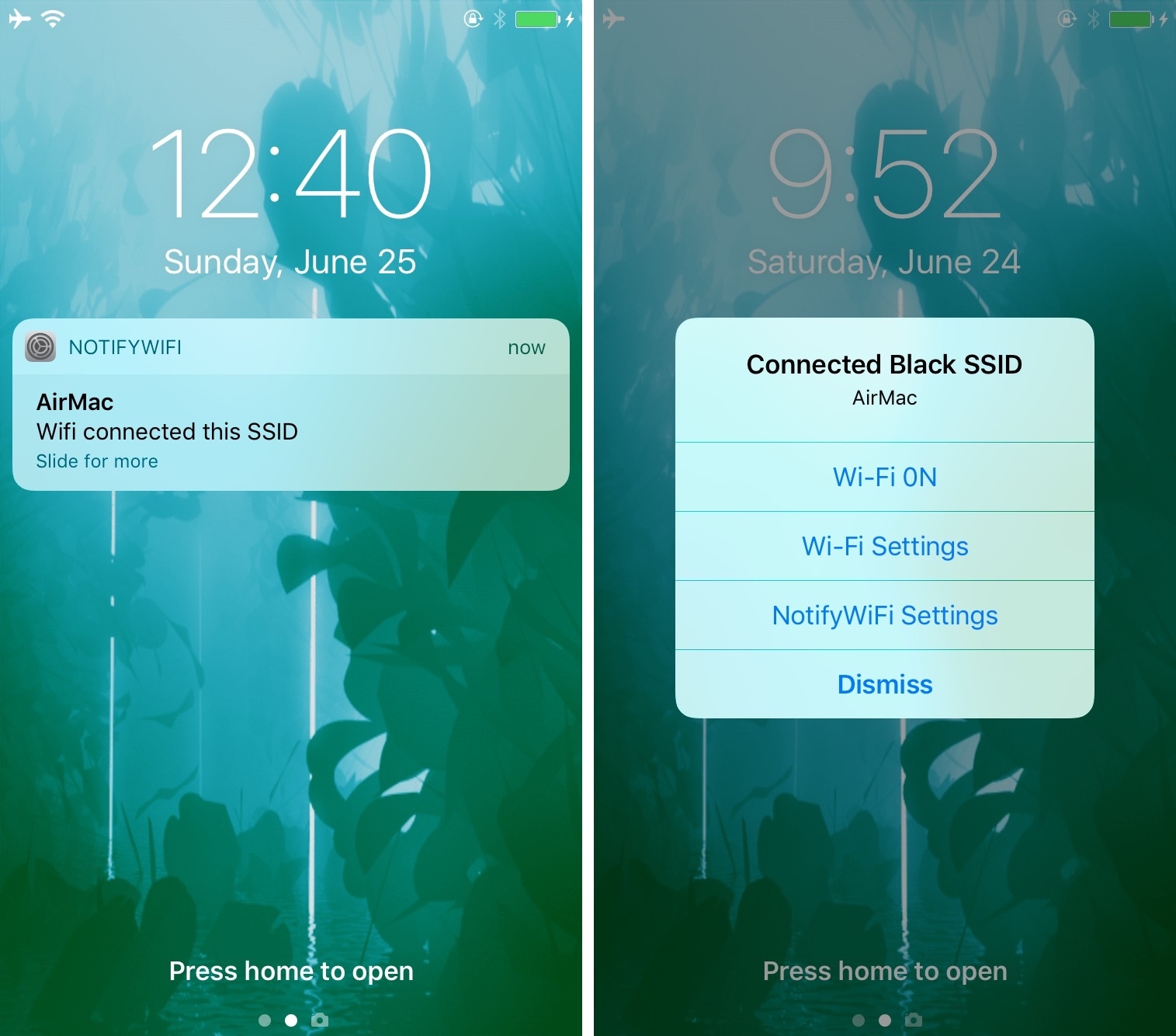
A new jailbreak tweak called NotifyWiFi10 by iOS developer ichitaso is a Wi-Fi notification management platform that alerts you every time your device connects to different Wi-Fi network. It comes with a slew of features for choosing what happens after connecting to certain ones.

Apple issues sixth beta of iOS 10.3.3 to developers

Apple on Wednesday seeded iOS 10.3.3 beta 6 to its registered developers and members of the paid Apple Developer Program. The new update has a build number of 14G57 or 14G58, depending on the device. It can be deployed to any compatible iPhone, iPad or iPod touch via the Software Update mechanism in the Settings app.

Your device must have an appropriate configuration profile installed, which can be downloaded from Dev Center. The latest beta arrives following iOS 10.3.3 beta 5, which was seeded to developers on June 28 (the first beta dropped on May 16).

Some of the fixes in iOS 10.3.3 are mentioned in Andrew’s walkthrough video of the first beta.

https://www.youtube.com/watch?v=Xvh5kOofWW0

Subscribe to iDownloadBlog on YouTube.

As mentioned, iOS 10.3.3 is a bug-fix release which enhances the security and performance of your iPhone, iPad and iPod touch. This is most likely that last point update to iOS 10 as Apple continues to beta-test the major iOS 11 software update ahead of its public release in the fall.

Apple also released macOS Sierra 10.12.6 beta 6 for developer testing today.

How to use Control Center without 3D Touch

iOS 11 offers more customization for Control Center than ever, allowing you to make it your own by disabling toggles you rarely use. If puts frequently used controls all on one page, many of which can be expanded to reveal additional options when pressed with 3D Touch.

For instance, you can press the Home toggle lightly to bring up your HomeKit scenes, press the Now Playing toggle with 3D Touch to expand media controls, press the Apple TV Remote toggle to navigate your Apple TV or type some text into it, and much, much more.

So far, so great. But what if your device lacks 3D Touch?

Unlike prior iOS editions that didn't provide a fallback mechanism for 3D Touch interactions on non-3D Touch devices, iOS 11 allows you to use all of the features the redesigned Control Center has to offer without having to own a 3D Touch device.

Our resident video editor Andrew O'Hara details how iOS 11's Control Center works on devices that don't include 3D Touch features, like iPads and iPhone 6 and older models.

https://www.youtube.com/watch?v=cpSoo5_TqIQ

Subscribe to iDownloadBlog on YouTube.

Continue reading for step-by-step instructions on using Control Center without 3D Touch

How to use Control Center without 3D Touch

1) Access Control Center by swiping up from the bottom of the screen

TIP: Enable Access Within Apps in Settings → Control Center to have your device respond to that gesture when you're using an app.

2) Tap and hold on the control to expand it.

In Andrew's example, he long-taps the Brightness toggle to access controls for turning Night Shift on or off. You can long-tap other Control Center items that are expandable. For example, long-tapping the Volume control enlarges the slider as if you pressed it with 3D Touch.

iPad lacks Taptic Engine so you won't feel haptic feedback when long-tapping.

That's it, boys and girls, now you know how to interact with Control Center on iOS 11 without actuating having to have a 3D Touch device. This tip should be especially useful for iPad owners as Apple's tablets lacks 3D Touch features.

TUTORIAL: How to force-quite iPad apps on iOS 11

Don't forget you can selectively enable or disable nearly two-dozen different toggles and change the order in which they appear in Control Center under Settings → Control Center → Customize Controls, including new system toggles and features like Screen Recording, Voice Memos, Low Power Mode, Apple TV Remote, Accessibility Shortcuts and more.

To lear more about iOS 11's Control Center, watch another walkthrough video below.

https://www.youtube.com/watch?v=UGWjmt6UXJI

Aside from drag and drop, iOS 11 brings five different types of tap gestures, including a longer tap to move multiple apps on the Home screen, a special half-long tap to pull up an extra Dock menu and a long-tap in the notifications overlay to access additional options.

Need help? Ask iDB!

If you like this how-to, pass it along to your support folks and leave a comment below.

Got stuck? Not sure how to do certain things on your Apple device? Let us know via help@iDownloadBlog.com and a future tutorial might provide a solution.

Submit your how-to suggestions via tips@iDownloadBlog.com.

The best jailbreak tweaks for the Volume HUD

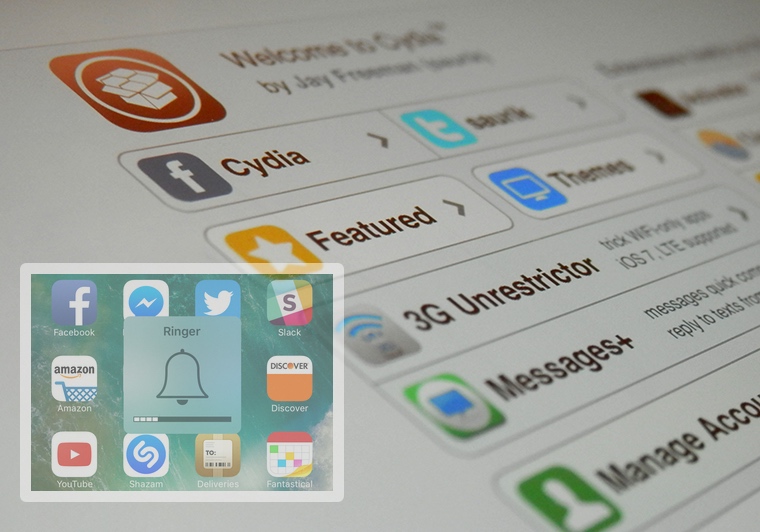
Perhaps one of the worst experiences in iOS out of the box is the volume HUD; it's clunky and appears right in the middle of the screen as you try to get things done.

Since it gets in the way so much, jailbreak developers have been creating alternative solutions for years, and in this roundup, we'll be talking about the best volume HUD-based jailbreak tweaks that work great with the Yalu jailbreak for iOS 10.