iPhone

Stay up-to-date on the latest iPhone news and learn new tips and tricks with our comprehensive tutorials. From software updates to new features, we’ve got you covered.

How to redeem iTunes or Apple Music gift cards

If you don't set up one of the supported payment methods for your Apple ID, you won't be able to upgrade your iCloud storage or buy music, movies and TV shows from iTunes Store, apps from App Store and Mac App Store, books and audiobooks from iBooks Store and more.

That's where an iTunes or Apple Music gift card should come in handy.

Upon redeeming, the amount shown on the card is added to your Apple ID in the form of good-as-cash credit that can be used for each purchase you make in Apple's content stores.

In this tutorial, you'll learn about the types of gift cards Apple supports, how they should be used, as well as how to redeem your iTunes or Apple Music gift card and apply the credit toward an individual Apple Music membership or to top up your Apple ID balance.

About iTunes and Apple Music gift cards

iTunes gift cards and Apple Music gift cards can be purchased from Apple, PayPal, Amazon, eBay, Best Buy and a number of other retailers. iTunes gift cards typically come in $25, $50 and $100 denominations. Apple Music gift cards are currently available in $30 and $100 denominations for three or twelve months of service, respectively.

You can buy them in physical form for delivery via mail or opt for a digital gift card, in which case your redemption code will be delivered straight to your inbox.

The 16-digit redemption code is hidden underneath the label on the card's back.

The redemption code always starts with an “X”.

The redemption code may appear in different places on the back of your card.

Redeeming an iTunes gift card adds store credit to your Apple ID.

Store credit is used for each purchase you make in iTunes Store, App Store or iBooks Store until it's gone. iTunes billing system always uses your store credit first, as long as the value of the item that you're buying is less than or equal to the value of your credit balance.

If you don't have any store credit left, the payment method that you designate when you sign up for an Apple ID is charged for the entire purchase.

You can use your store credit to buy the following items:

Apps from App Store and Mac App Store In-App Purchases Songs, albums, movies, TV shows and more from iTunes Store Books and audiobooks from iBooks Store iCloud storage

Store credit cannot be used to purchase more gift cards or iTunes Gifts.

NOTE: Some purchases might require that you have a credit card on file, even if you're using your credit balance to make the purchase. For instance, you must have a credit card on file in order to use store credit to pay for your iCloud storage upgrades.

You cannot use store credits for:

App gifting—When you gift an app or media item to someone else the payment method on file is always billed for the entire purchase, not the store credit. Family Sharing—You cannot share your store credit with other family members.

Even if a Family Sharing member buys something and the family organizer has store credit on their account, the item cost is still billed to the organizer's payment method on file rather than being deducted from their store credit.

TUTORIAL: How to gift apps

If a Family Sharing member with a credit on their account buys something from Apple's content stores, the amount is billed to their own account unless there's a remainder, in which case it bills to the family organizer's payment method.

You can use the credit from your Apple Music gift card to:

Sign up for a new Apple Music membership Extend your Apple Music membership by the number of months shown on the card Credit the amount to your Apple ID, like an iTunes gift card

Read Apple's support document for more on how iTunes Store purchases are billed.

How to redeem iTunes or Apple Music gift cards on iPhone and iPad

1) Open iTunes Store, App Store or iBooks on your iOS device.

2) In iTunes Store, App Store or iBooks, tap the Featured tab, then scroll to the very bottom of the screen and tap the Redeem option.

3) Sign in with the Apple ID that you use for iTunes Store or Apple Music purchases.

Tip: You can quickly get to the redeem feature by visiting the link below on your Apple device:

To redeem an iTunes gift card, follow this link To redeem an Apple Music gift card, follow this link

TIP: If your device has 3D Touch, you can press the iTunes Store or App Store icon and select the Redeem option from the Quick Actions menu on your Home screen.

4) Choose whether you'd like to type in your code manually or have the card scanned:

Scan the redemption code—If you have a physical gift card with a box around the code, use this option to redeem it via your built-in camera. Tap Use Camera, then hold the back of the card up to your iPhone's camera until it scans the code. Only gift cards with a focus box around the redemption code are redeemable via a camera. This feature is not available in all countries and regions. Type in the redemption code manually—Tap the field labeled ”You can also enter your code manually”, then peel off the label on the back of the card and type in the redemption code or paste the code from your purchase confirmation email.

When you redeem an iTunes gift card, your updated store balance appears onscreen. An error message appears if you try to redeem a gift card that's already been used.

Upon redeeming an Apple Music gift card, you're given the choice between topping up your iTunes store credit or using the code toward an individual Apple Music membership.

This is what happens if you choose to use the code for your Apple Music membership:

Apple Music members—Applying the credit to your ongoing membership extends your date of renewal by the number of months shown on the card. Apple Music non-members—Applying the credit signs you up for a membership.

If you've never been an Apple Music member, you can still get your free three-month trial in addition to the number of months your Apple Music gift card card is worth.

5) In the upper-right corner, tap Done to finish the process.

If you'd like to redeem another iTunes or Apple Music gift card, tap Redeem Another Code.

TIP: If you received your gift card via email, click the Redeem Now link in the email.

To get information about your iTunes Store or Apple Music balance:

iTunes Store balance—You can find your store balance underneath your Apple ID at the bottom of the Featured tab in iTunes Store, App Store or iBooks on your iOS device. Apple Music balance—To view your Apple Music membership, go to Settings → [your name] → iTunes & App Store and tap your Apple ID at the top of the screen. Tap View Apple ID, then Subscriptions. From the list, choose the subscription that you want to see more information about.

Your account balance automatically updates in iTunes Store, App Store and iBooks Store after redeeming the card. If your store credit does not update automatically, sign out and back in on all of your devices for it to refresh properly.

How to redeem Apple Music gift card in iOS Music app

1) Open the Music app on your iOS device.

2) Switch to the For You tab at the bottom of the screen.

3) Tap your profile image in the upper-right corner.

4) Tap the Redeem option.

5) Use your iPhone to scan the redemption code on the back of the card or enter it manually, then tap Redeem to continue.

7) Tap Done when finished redeeming the code.

How to redeem Apple Music gift card on Android

1) Open the Apple Music app on your Android device.

You can download Apple Music for Android free from Google's Play Store.

2) Tap tap the Menu icon in the upper-left corner.

3) Tap your Apple ID.

4) Tap Redeem.

5) Enter the code from the back of the card, then tap Redeem again.

An error message will appear if you try to redeem a card that's already been used.

How to redeem iTunes or Apple Music gifts card on Mac and Windows PCs

1) Open iTunes on your Mac or Windows PC.

2) Choose Music, Movies, TV Shows or Apps from the popup menu near the top-left corner, then click the Store tab near the top of the screen.

3) Click the Redeem link under the Quick Links heading on the right side.

Tip: Alternatively, choose the Redeem option from iTunes' Account menu.

To get to the Redeem feature faster, visit the link below on your computer:

To redeem an iTunes gift card, follow this link To redeem an Apple Music gift card, follow this link

4) Enter the password for the Apple ID you use for iTunes Store purchases or your Apple Music membership, then press the Return or Enter key on your keyboard, or click the Sign In button.

5) Choose how you'd like to redeem the code on the card:

Scan the redemption code—Use this option to redeem a physical card via your Mac's built-in camera. Click the Use Camera button, then hold the back of the card up to the FaceTime camera until it scans and redeems the code. Only gift cards with a focus box around the code are redeemable via a camera. This feature is not available in all countries and regions. Type in the redemption code manually—Click inside the field labeled ”You can also enter your code manually,” then type in the redemption code from the back of the card or paste it from your purchase confirmation email.

6) Click Redeem to continue.

You'll be asked if you'd like to apply the credit toward your individual Apple Music membership.

If not, select the option Use Credit for iTunes or App Store to add the amount shown on the card to your Apple ID store balance like a regular iTunes gift card.

Your updated store balance appears onscreen.

7) Click Done to finish redeeming the card.

To redeem an iTunes gift card in iBooks or App Store on your Mac:

iBooks—Open the iBooks app from your Dock, Launcher, Spotlight or the Applications folder. In the upper-left corner, click the iBooks Store button, then click the Redeem link underneath the Quick Links heading on the right side. App Store—Open the App Store app from your Dock, Launcher, Spotlight or the Applications folder. Click the Featured tab at the top, then click the Redeem link underneath the Quick Links heading on the right side.

An error message appears if you try to redeem a card that's already been used.

Related tutorials

You may find the following how-tos useful:

How to gift iTunes or App Store credit on iPhone and iPad How to redeem iOS app promo codes How to redeem Apple TV app promo codes Redeeming iTunes gift cards with iPhone's camera Redeeming iTunes gift cards with Mac's camera That's all, folks!

If you have a question, post a comment below and we'll do our best to answer it. Please share this tutorial on social media and pass it along to the folks you support.

Submit your ideas regarding future coverage via tips@iDownloadBlog.com.

YouTube TV app gains AirPlay support

Google today updated its official YouTube TV app with support for AirPlay, an Apple technology that lets you play video streamed from your iPhone or iPad on a TV set through your Apple TV.

“Announcing AirPlay! There are a few bug fixes and minor improvements in this thing, too. But mostly AirPlay,” reads the changelog for YouTube TV on App Store.

Prior to today's update, YouTube TV only supported broadcasting content from the app to a television set via Google's Chromecast HDMI dongle.

Google launched its new streaming television service back in April 2017.

In exchange for $35 per month, cord-cutters can enjoy live TV streaming from Fox, ABC, CBS, NBC and other popular cable networks along with content from an additional 39 local broadcast networks and channels, like ESPN.

Some sports channels like Fox Soccer Plus, as well as premium networks such as Showtime, are available for an additional monthly charge. DVR with unlimited storage is included in the subscription at no additional charge.

https://www.youtube.com/watch?v=qediav063xQ

YouTube TV can be used with up to six accounts in a single household without needing to share passwords between family members.

YouTube TV is separate from the YouTube Red service, which costs ten bucks per month.

YouTube TV is currently limited to select cities, like Chicago, Los Angeles, New York City, Philadelphia and the San Francisco Bay Area.

For more information, visit tv.youtube.com/tv/availability.

You can try YouTube TV free for 30 days by signing up at tv.youtube.com.

Apple’s new videos aim to lure Android users into switching to iPhone

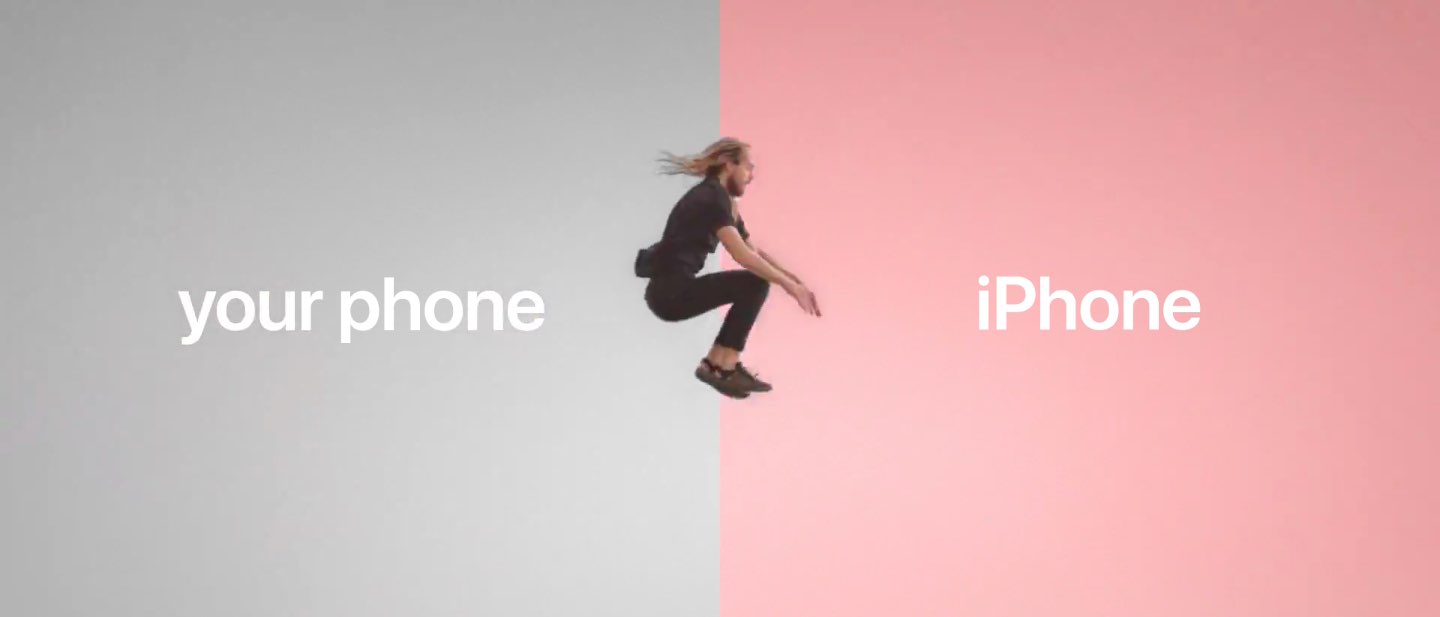
Apple on Monday shared five short switcher videos through its official channel on YouTube. Titled “Photos”, “Jump”, “Fast”, “Privacy” and “Music”, each runs sixteen seconds long.

The latest ad campaign uses the new tagline “Life's easier on iPhone”.

The new clips promote some of the benefits of being an iPhone user, ranging from the official “Move to iOS” Android app (available free on Play Store) to the company's in-house designed chips that make iPhone the fastest smartphone in the world in terms of single-core CPU benchmarks to Apple's commitment to privacy and more.

Here are the videos.

Photos

https://www.youtube.com/watch?v=R-kbqiLxZwM

“Switch to iPhone. The Move to iOS app makes it simple to move your photos, music and more to iPhone,” reads the video's description.

Jump

https://www.youtube.com/watch?v=OmdC2eEeQAI

Music

https://www.youtube.com/watch?v=99w8cdTcliA

Fast

https://www.youtube.com/watch?v=8IKxOIbRVxs

“iPhone is designed to run fast. Life’s easier when you switch to iPhone.”

Privacy

https://www.youtube.com/watch?v=poxjtpArMGc

“We build iPhone with your privacy in mind. Life's easier when you switch to iPhone.”

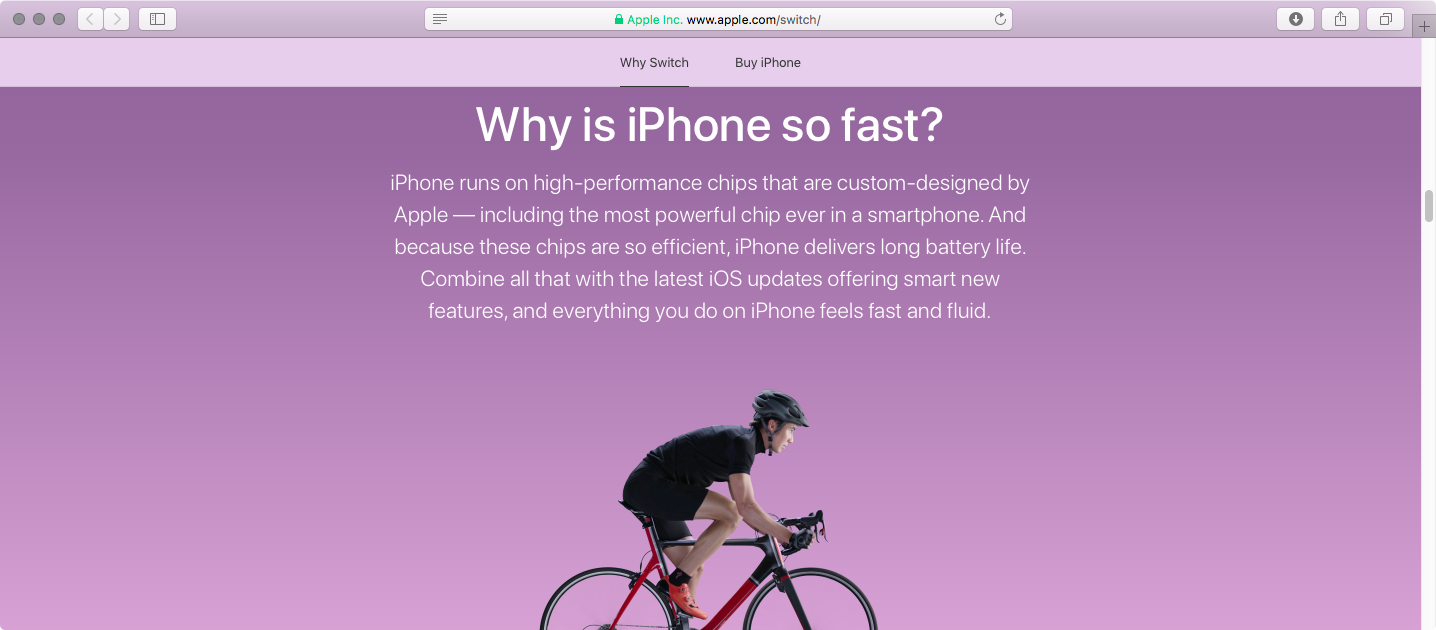
Apple also updated its “Switch to iPhone” webpage with a new design and additional information aimed at encouraging Android customers to consider switching to Apple's phone.

The mini-site offers additional information on switching from Android to an iPhone with FAQ-style answers to questions like “Is the camera as good as they say?”, “Why is iPhone so fast?”, “What makes Messages so great?” and “Will I love my iPhone”, among other topics.

How do you like Apple's new switcher videos?

Apple’s revamped “Switch to iPhone” webpage offers additional information to Android users

Apple's webpage dedicated to Android users who would switch to an iPhone has been refreshed with a modern web design and additional FAQ-style information on key iPhone features like speedy Apple-designed chips, Apple Pay, iMessage and more.

The refreshed webpage is divided into the following sections:

Will it be easy to switch to iPhone?

“Yes, it will,” says Apple. “There’s no need to save your stuff elsewhere before switching from Android.” This section promotes Apple's “Move to iOS” Android app. Available at no charge on Google's Play Store, the app can securely transfer a switcher's content from an Android phone to their brand spanking new Apple smartphone. “And you can trade in your old smartphone, if eligible, for credit toward your new iPhone,” reads the section.

Is the camera as good as they say?

Apple prides itself with the fact that more pictures are taken on iPhone than any other camera in the world, as per Flickr's camera stats. This section mentions some of the most popular iPhone photography features and shooting modes, such as Slo-Mo, Portrait and Time-Lapse.

“iPhone also has cool features like Memories, which automatically compiles your favorite moments into a movie,” says the company. As of recently, Apple is promoting iPhone photography via a series of mini-video tutorials on getting the most from your iPhone 7 camera, hosted on its “How to shoot on iPhone” webpage.

Why is iPhone so fast?

Even the last year's A9 chip that powers iPhone 6s is faster in single-core CPU benchmarks than today's top of the line Android handsets with quad-core chips outfitted with four gigabytes of RAM or even more. As you know, iPhones run on high-performance chips that are custom-designed by Apple for power efficiency. “Combine all that with the latest iOS updates offering smart new features, and everything you do on iPhone feels fast and fluid,” says Apple.

Will iPhone be easy to use?

Apple promotes its legendary ease of use, which it says is at the core of everything it creates. “With a swipe of your finger or a single tap, you can open apps, make a purchase with Apple Pay or customize your iPhone,” reads the webpage. Apple also mentioned the Tips app, preloaded on each iOS device to help users get the most out of their device, but that's hardly something I'd choose to highlight iOS's simplicity and intuitiveness.

How does iPhone help protect my personal information?

This is all about Apple's commitment to privacy and security, two major priorities with them. Since iOS 8, everything on your iPhone is “encrypted from the start” and protected by your passcode. Most flagship Android handsets have encryption disabled by default because full-disk encryption makes them sluggish due to the lack of hardware-assisted encryption.

https://www.youtube.com/watch?v=R17WDY3BIfo&t=5s

Subscribe to iDownloadBlog on YouTube

“Apple will not sell your information to anyone for any reason,” adds the mini-website.

The Cupertino giant notes yet another huge advantage it has over Android: its timely and easy-to-install software updates that don't have to be vetted by carriers and device vendors like major Android firmware updates do.

Can I get help from a real person?

“No matter where you are, we have real human beings ready to help,” says the firm. Apple's support team will help Android users learn about topics ranging from the switching process and software on their new iPhone to troubleshooting any issues they may have with their new phone. Support options listed here include phone, online chat, Apple's Support app and a dedicated Twitter handle @AppleSupport.

What makes Messages so great?

The expressive Messages app on iOS 10 “doesn’t just send messages, it also lets you hail rides, book restaurants, and even shoot lasers.” Apple is referring to new Messages features on iOS 10, like downloadable stickers, fullscreen effects and iMessage apps, as well as strong end-to-end encryption. “And, of course, you can use other messaging apps like WeChat, WhatsApp, or Facebook Messenger, too,” adds the company.

What about the environment?

Apple says:

We think about the environment all the time. Every time you send an iMessage, make a FaceTime call, or ask Siri a question, those tasks are handled by Apple data servers running on 100 percent renewable energy. And when you switch to iPhone, we’ll even recycle your Android phone for you.

Will I love my iPhone?

Of course you will.

Tim Cook likes to highlight Apple's customer satisfaction numbers that are the envy of the industry (customer sat, as he likes to put it), with a 451 Research-estimated 97 percent of people who have an iPhone saying they love it.

“That’s a lot of smiling selfies. A lot of happy emoji. And a lot of people who are glad they chose the world’s most loved smartphone,” reads the webpage.

How do you like Apple's reworked “Switch to iPhone” mini-site?

Be sure to watch short switcher videos Apple uploaded today to its YouTube channel.

Leaked molds offer size comparison between iPhone 8, iPhone 7s and iPhone 7s Plus

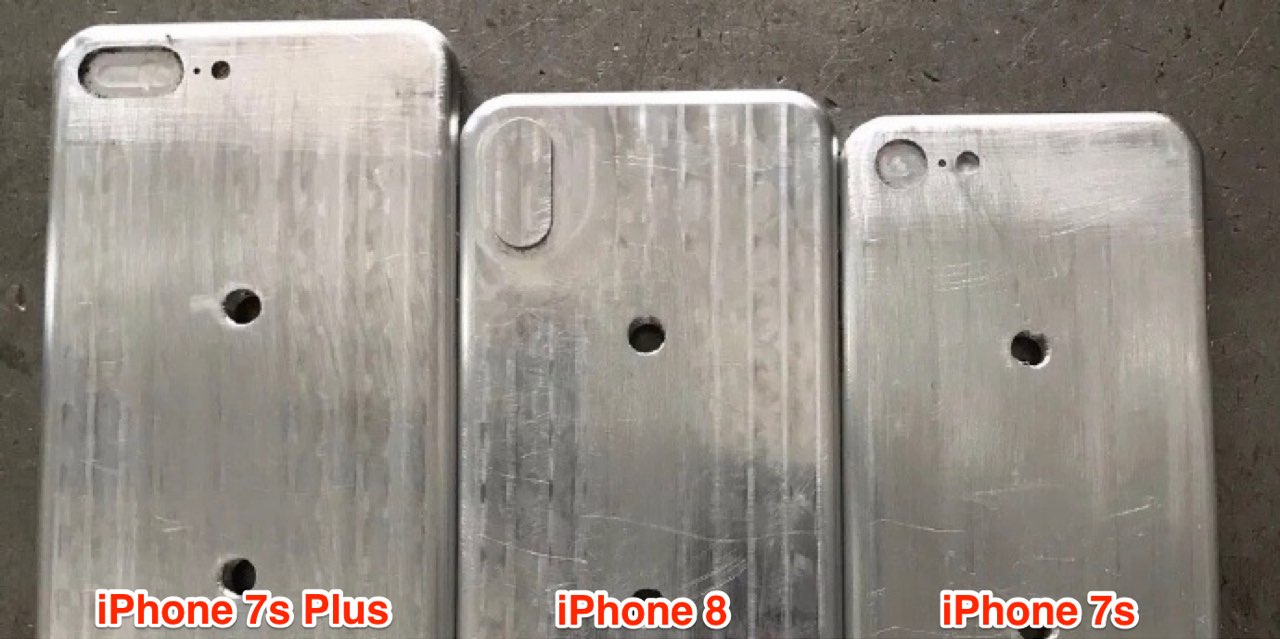
This weekend, leakster Benjamin Geskin published a batch of purported photos showcasing alleged manufacturing molds for Apple's upcoming 2017 iPhone refresh, offering a look at relative sizes of the OLED-based iPhone 8 model and the LCD-based iPhone 7s and iPhone 7s Plus range.

First surfaced on Chinese social network Weibo, the images serve as yet another indication that iPhone 8 will probably be just a bit wider and slightly taller than the 4.7-inch iPhones.

That's because iPhone 8 should squeeze a 5.8-inch OLED screen with a 5.1-inch active display area into a chassis roughly the size of a 4.7-inch iPhone by embedding the selfie camera, the sensors and the Home button directly into the display assembly.

Other iPhone 8 features we can glean from the images include a vertically aligned dual-lens system with an LED flash and a noise-suppressing microphone built directly into the bulge, plus an elongated Power button on the right side that some folks think could double as a fingerprint sensor if Apple is unable to integrate Touch ID into the OLED display.

Touch ID is built into the display itself, according to Geskin.

Don't let the holes near the middle confuse you: they're probably manufacturing artifacts.

While the iPhone 7s family is expected to feature slightly updated design and maybe even a glass backside to help with wireless charging, it won't have a nearly full-screen front face like iPhone 8. In other words, iPhone 7s and iPhone 7s Plus should retain their fairly large “chin” at the top and the bottom because, unlike with iPhone 8, their front camera, Home button and sensors won't be integrated underneath the LCD panel.

Please take this news nugget with some skepticism because iPhone shells are machined, not cast. For all we know, the molds pictured on these photographs could be (and probable are) made by a third-party for use in the production of iPhone cases rather than actual handsets.

Geskin also published photographs of third-party cases for Apple's upcoming 10.5-inch iPad Pro model and a next-generation 12.9-inch iPad Pro, designed based on information obtained from a Foxconn source.

The purported cases suggest two things: 1) the 7.9-inch iPad mini lineup is indeed being discontinued, as previously rumored; and 2) 2017 iPads will relocate the microphones from the sides to the backside of the devices, like with the recently launched $329 9.7-inch iPad model.

Not Hotdog, GiftHead, Stigma, and other apps to check out this weekend

This week's edition of our Apps of the Week roundup includes a not-so-smart food identifying app, a personal shopper that is an expert at helping you pick out gifts, and a journaling app aimed at helping you improve your mood. And as usual, we have two great new games for you to check out this weekend.

Not Hotdog

If you're a fan of HBO's TV series Silicon Valley, you probably already know what this is. In last week's episode, budding entrepreneur Jian-Yang demonstrated an app called Seefood, which was supposed to be able to identify different foods using your phone's camera. Instead, all it was able to do was differentiate between hot dogs and non-hotdog items—thus, Not Hotdog was born. That's literally all the app does, but I got a little kick out of taking pictures of random things and sharing them with friends using the 'Not hotdog' caption. And you could too. Not Hotdog is available for free.

GiftHead

Here's a not-so-new app that you may not have known about. It's called GiftHead and it just received a huge update with a major redesign and support for 500 new stores. The app works like this: tell it who you're shopping for, what the occasion is and your preferred price range. Then pick a gift from the curated list of suggestions, and the app will point you to the right store. Rather shop online? The app can do that too. Other features include sale alerts, wish lists and gift reminders, so you'll never miss a birthday or anniversary again. GiftHead is available for free.

Stigma

Stigma is another not-so-new app that could be useful for folks that don't know about it. It's described as a "mental health" app, with a built-in journal, mood calendar, reminders and a word cloud that allows you to see the types of words you're using most in your journal entries. There's also a support network aspect, with PenPals (supportive peers), Support Groups, and a community you can share your journal entries with. Now the app itself is free, but there is a Pro service that starts at $2.99 per month with premium features like advanced analytics and longer journal entries. Stigma is available for free.

Old Man's Journey

Old Man’s Journey is a soul-searching puzzle adventure game about life’s precious moments, broken dreams, and changed plans. Immerse yourself in a visual narrative as you uncover stories of the old man’s life told through beautiful vignettes of his memories. Interact with the serene, whimsical environment as you solve playful puzzles and shape the landscape around you, growing the hills to create the old man’s path forward. Note that this game has won a ton of awards for its visuals and storytelling, but some of the iTunes reviews complain that the puzzles are too easy and the game is too short. We still think this is worth checking out. Old Man's Journey is available for $4.99.

Timber Tennis

From the makers of the hit Timberman comes Timber Tennis, essentially a unique take on the game Pong with a lumberjack twist. Take part in the annual Timber Tennis World Championship—beat all your old rivals by upgrading your skills, using super-shots and staying clear of other players' specials. Unlock a slew of characters and balls, and compete in local multiplayer against your friends. Note that this is a freemium title, with an in-app purchase to remove ads, and some of the early reviews complain that the ads are super intrusive. Even so, if this game is half as addictive as Timberman, it's worth checking out. Timber Tennis is available for free.

More apps to check out Microsoft refreshes OneNote apps with new design and accessibility features Apple’s free app of the week: Eggggg – The Platform Puker Things 3 is out with overhauled interface and multiple new features Hey Siri, make some room for Google Assistant on my iPhone Gmail for iOS now uses machine learning to provide smart replies Todoist gains 2-way Google Calendar integration, Dynamic Type support & more Instagram rolls out selfie filters, rewind option for videos, hashtag sticker & eraser brush

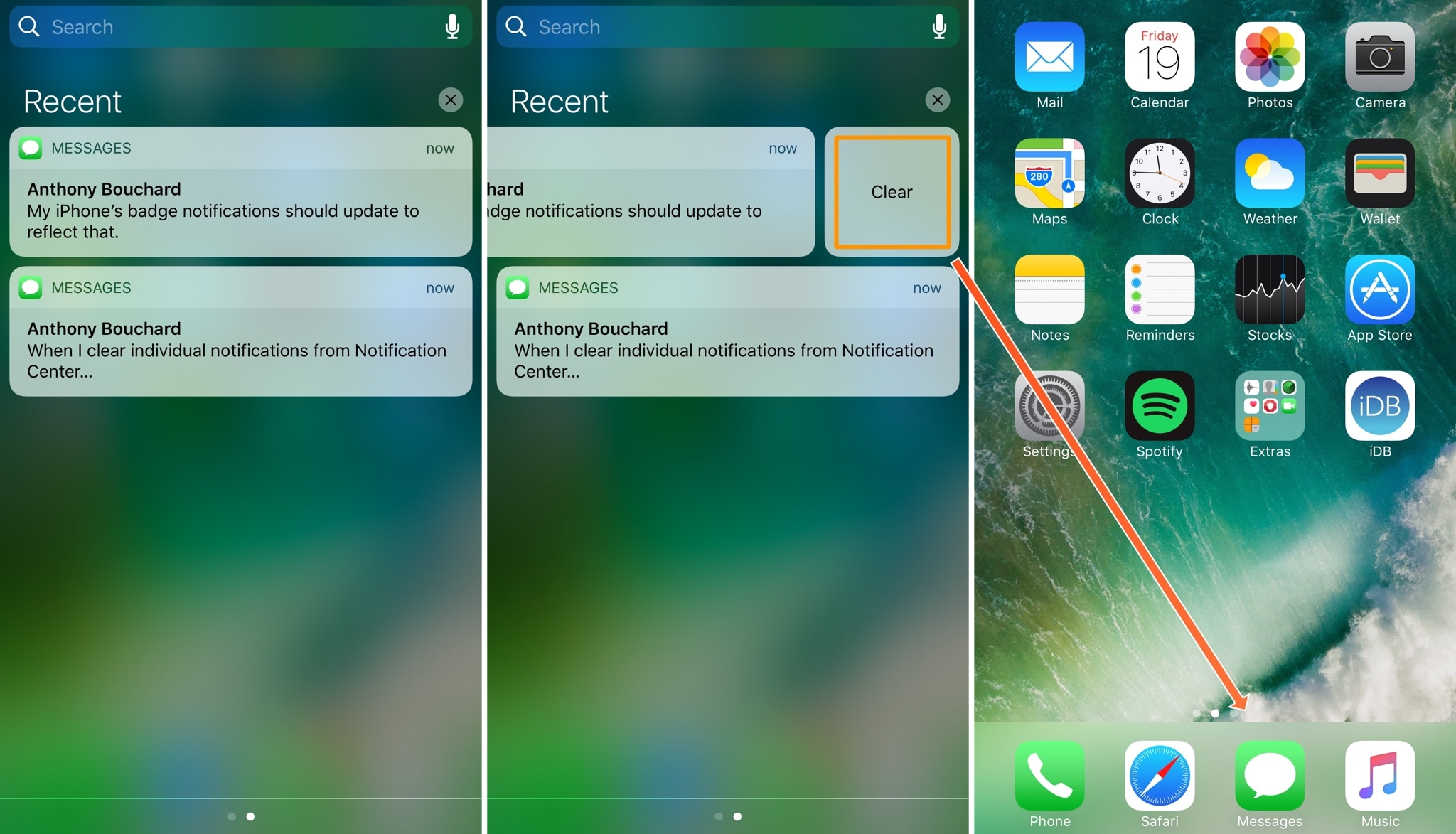
This tweak also clears app icon badges when clearing notifications from Notification Center

One of the pet peeves I’ve always had as an iOS user is that when I clear notifications from Notification Center, the badges remain on the Home screen app icons, requiring me to manually dismiss the badges after I already went through the process to dismiss the notification in Notification Center.

A new free jailbreak tweak dubbed Pigeon by iOS developer ridn eliminates this tedious problem by automatically updating the icon badge number after you cleared notifications via Notification Center.

Tinc adds a splash of color to Control Center and Notification Center

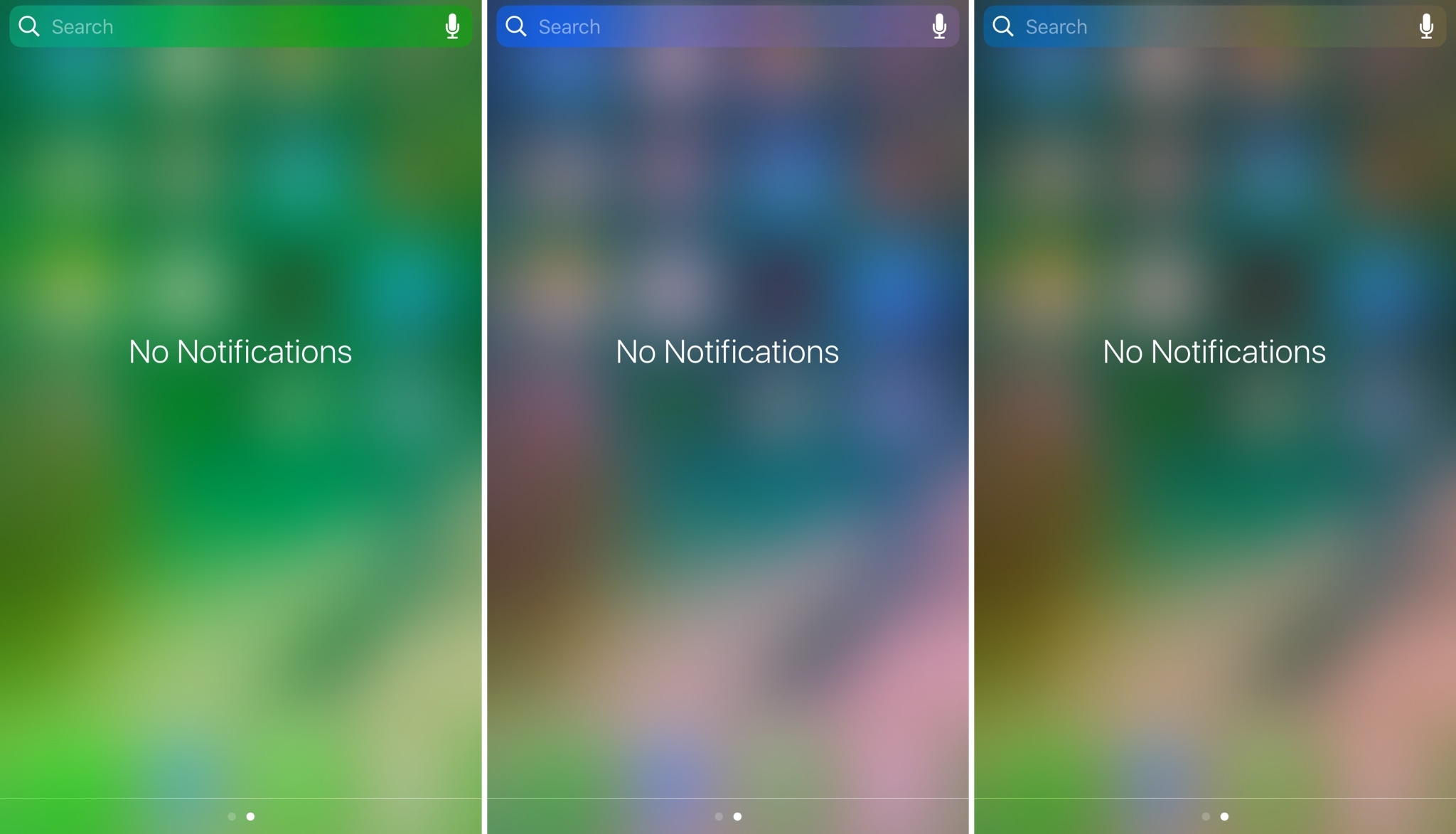
If you like adding personalization on your jailbroken device, then sometimes it’s the simple things that stand out the most. Subtly changing UI colors so they don’t overpower the whole interface or user experience is just one example of this concept.

A new free jailbreak tweak called Tinc by iOS developer ridn lets you tint the interfaces of Notification Center and/or Control Center in iOS any color you like, and is a testament too subtle customization.

Hypeman announces Now Playing changes by voice or banner notifications

If you ever listen to radio apps or random playlists that you didn’t create, then you’re probably familiar with how it feels when you can’t quite figure out what’s playing; a real buzzkill when you like the beat and want to save the song for later.

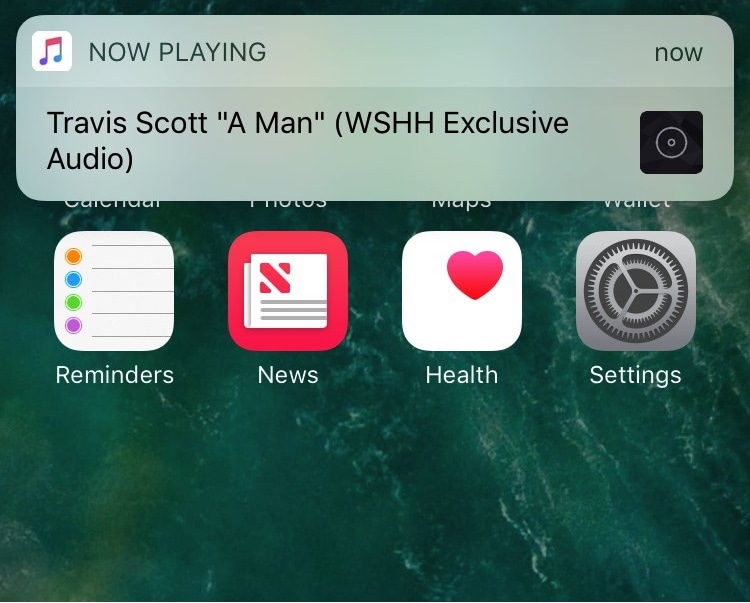
A new free jailbreak tweak dubbed Hypeman by iOS developer ridn can help in this regard, as it keeps you in the loop with song information every time the Now Playing track changes.

Colorize your notification banners with Cheader

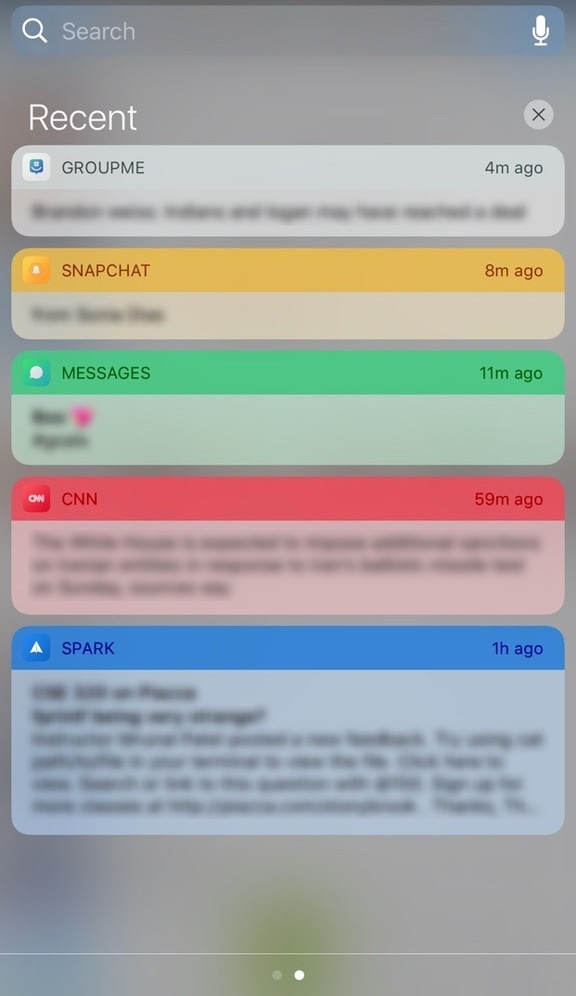
Banner notifications throughout iOS 10 are bland, lacking any visual appeal whatsoever. On the other hand, a new free jailbreak tweak dubbed Cheader by iOS developer ridn aims to fix that.

Once installed, Cheader automatically colorizes your notification banners based on the dominant color found in the icon of the app that delivered the notification.