How to

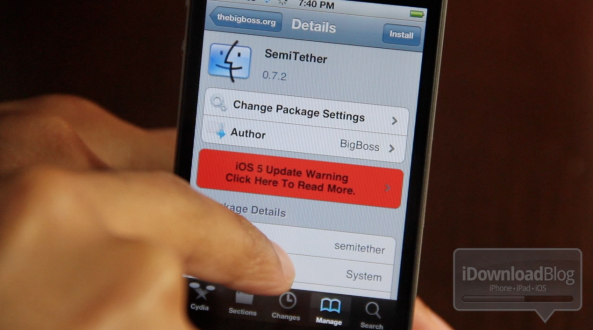
How to Semi Untether Jailbreak iOS 5 [Video Tutorial]

For those of you clamoring for an untethered jailbreak for iOS 5, you've now got a great compromise to hold you over — SemiTether.

As we reported, SemiTether is a new jailbreak tweak that will allow you to get closest to an iOS 5 untethered jailbreak without actually being an untethered jailbreak.

Inside, we'll show you exactly what you need to do to take advantage of this remarkable little tool. If your iOS 5 installation is jailbroken, you don't want to miss this!
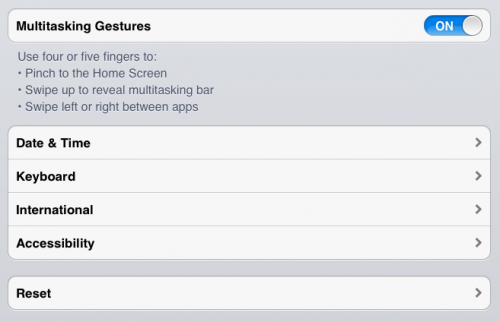

How to Enable Multi-Touch Gestures On Original iPad Running iOS 5

Earlier in the month we warned you that updating to iOS 5 on your original iPad would remove the device's multi-touch gestures. These gestures were never an official iOS feature, but they were baked into previous versions of the mobile software.

The feature allows users to swipe between apps, reveal the multitask bar, and access the home screen — all with on-screen gestures. Needless to say, some folks were upset when this option disappeared. But don't worry, we know how to get it back...

How to Make Sure You Receive iMessages on All Your iDevices

iMessage is one of my favorite new features in iOS 5. It's simple, fast, and most importantly integrated right into the Messages app, which makes it even more compelling, assuming you have friends with iDevices as well.

If you have an iPhone your iMessages are sent to your phone number by default, which acts like your iMessage ID, if you will. If you have an iPad, you can only receive iMessages sent to your registered email address. But what happens if you want to receive all your iMessages on all of your iDevices?

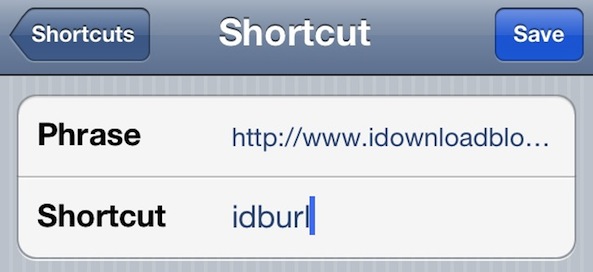
How to Create Text Shortcuts in iOS 5

One of my all-time favorite jailbreak tweaks is Xpandr, a simple tool that lets you create a library of shortcuts for snippets of text that you use frequently, such as addresses, URLs, and standard replies.

There is no jailbreak for iOS 5 yet, which means no Xpandr for me. Fortunately, Apple has implemented this very same feature in iOS 5. This is how it works...

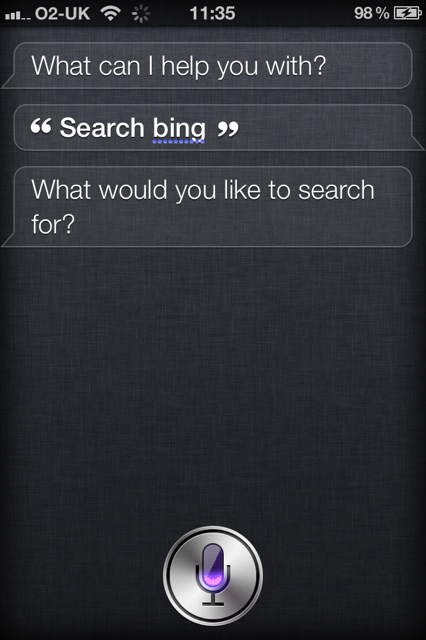
Siri Can Also Search Bing and Yahoo

If you've spent any time with Siri, you may have noticed that you can actually ask it to search the web for pretty much anything. At this point, Siri fires up a Google search and populates the search field with whatever it thinks you asked. The degree of accuracy here very much depends on your accent and whether it's a full moon or not, but on the whole, it does the job fairly well.

But did you know that you can also have Siri work its magic with both the Microsoft Bing and Yahoo search engines? Well, you can...

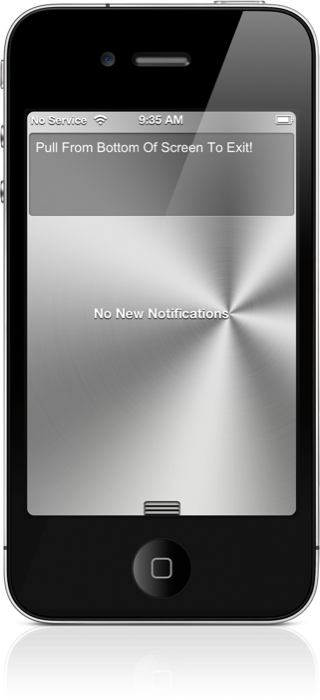
How to Enable WinterBoard Notification Center Themes

So you downloaded that pretty Aluminum Notification Center theme mentioned in our iOS 5 WinterBoard video walkthrough, and it didn't work; now what?

Fortunately there's a workaround for the Notification Center theme issue, as many people made me aware of after our video went live late last night.

Inside, I'll show you how to enable Notification Center themes on your iOS 5 device, using a handy workaround...

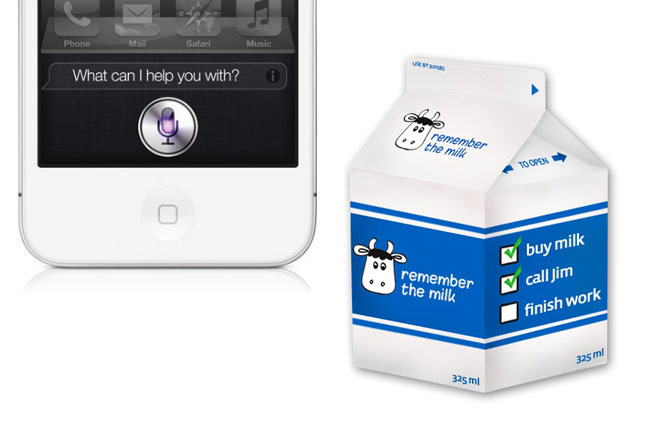
Workaround Adds Siri Support to Remember the Milk

Siri is obviously the breakout feature in Apple's latest handset. Love it or hate it, you can't deny that it's a crowd pleaser (when the servers are up). Even the critics that say that the system is too limited right now, but we all have to agree that Siri has some great potential.

The potential lies with third party developers. Currently Siri can't launch apps or perform tasks inside third party applications, but it's coming. And the folks behind the popular task manager Remember The Milk are leading the way...

How to Use iCloud to Share Your Reminders on iOS 5

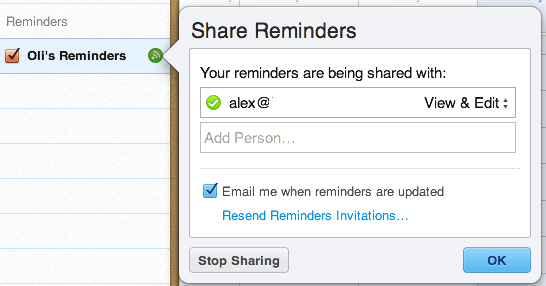
Reminders in iOS 5 is Apple's kick in the teeth for all those To-Do apps that litter the App Store right now. A walk through the App Store will reveal more To-Do apps than you can shake a stick at, but Apple's own Reminders app does pretty much everything you could ever need in iOS 5.

There's one Reminders feature that Apple hasn't made a very good job of promoting. You can use iCloud to share and sync your reminders and tasks with other people...

How to Tweet and Update Facebook Using Siri

Apple's unique selling point for the iPhone 4S is Siri, a digital assistant that knows what you mean and how to answer your questions.

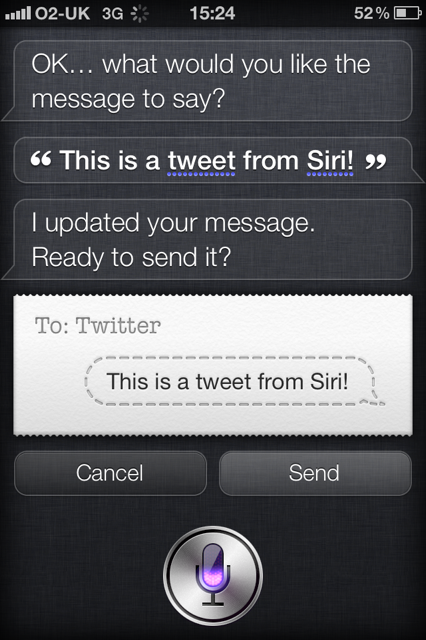
For all Siri's polish and ability to take real language and turn it into emails and text messages, there is one glaring omission from its repertoire, and that's the ability to tweet or update your Facebook status.

With Twitter now very much built into the fabric of iOS, it has been a surprise to many that Apple didn't give Siri any hooks into the world of 140 characters and less. But fear not, for those of us that are addicted to Twitter can now send messages using Siri, and it's super easy to set up...

iFixYouri Video Shows You How to Disassemble Your iPhone 4S

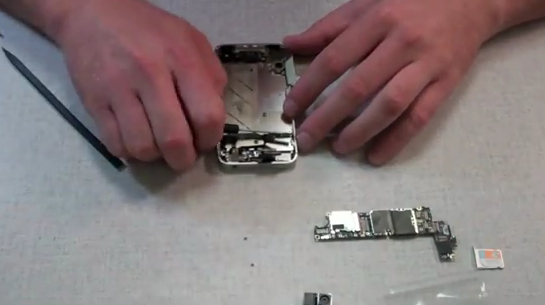
If you're one of the millions of people that pre-ordered an iPhone 4S, or were able to snag one from a retail store, chances are you've been busy today. You've moved your contacts over, synced it with iTunes, and customized its settings to your liking.

Well the folks over at iFixYouri have a different ritual they go through after receiving a new handset. They've pulled out the mini-screwdriver, and have completely disassembled Apple's new smartphone. Find out how easy it is in this surprisingly short video clip...

Pro Tip: How to Delete Photos from Photo Stream

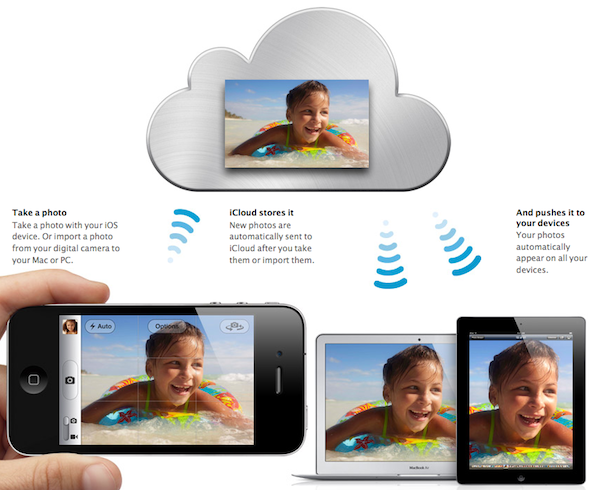
One of my favorite features of iCloud has to be Photo Stream. My previous methods of wirelessly sharing photos between my iDevices and my computer involved emailing or using DropBox. Photo Stream eliminates all the extra work.

Much like the other components of iCloud, the automatic photo syncing service works great. But what do you do if you want to delete the photos from the Photo Stream? Don't worry, iDB has you covered. Hit the jump for our step by step guide...

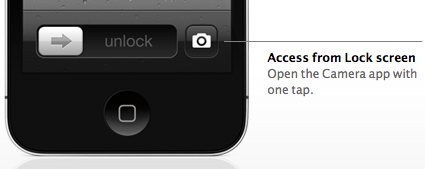
How to Open the Camera App From Your Lock Screen on iOS 5

One of the cool new features of iOS 5 is that it allows you to bring up the Camera app directly from the lock screen. No need to unlock the phone, look for the Camera app and launch it, as you can now do that right from the lock screen now. This simple feature can save time if you want to take a picture right away.

I've been asked a few times today how to activate this feature, and even though most of you out there probably know how to use it, I figured it might be helpful for new iOS users...