How to

How to prepare for the iOS 6.1 untethered jailbreak

It's almost here, ladies and gentlemen. I know we say this before every jailbreak, but this truly is the most highly anticipated jailbreak to ever hit the community.

Just consider it for a minute: There a more devices supported with this jailbreak than ever before, and there are perhaps many people out there that have never had a taste of jailbreaking before who are anticipating their first time.

Couple this with the fact that it's been a very long time since we've had a jailbreak to begin with, and you can kind of see where I'm going with this. We're all very excited, but don't get into so much a frenzy that you forget to cover some essential basics when it comes to preparing for the iOS 6.1 jailbreak. Be prepared, and take these steps.
How to install MAME ROMs on a non-jailbroken device with Gridlee

As we reported on Saturday, Gridlee is a freeware arcade game from 1982 which was re-released on the iTunes App Store by David Loureiro. This would have been unremarkable, if Gridlee was a straight port from the source code and if it wasn't actually powered by an up-to-date and fully featured version of MAME4iOS Reloaded.

This means if you have a program capable of tunneling into the iOS file-system through USB, you can once again have a working version of MAME on a non-jailbroken device, complete with your own ROM images. As I can't think of anyone who would legitimately want to play Gridlee on an iPad, this was likely an intentional attempt to sneak the emulator back into the App Store, so we're guessing Apple won't be hosting the file for too long. Grab it while you can...

How to have iOS screenshots automagically appear in your Mac’s Finder

I've always loved the simplified iOS approach to screenshot taking just by pressing the power and home button simultaneously. This oft-used feature works in absolutely any app and, as an added bonus, iOS stores my screenies in the Camera Roll as crisp, lossless PNG files.

An indispensable part of my daily blogging workflow, I grab app graphics on a daily basis for use in reviews, news articles and guides such as this one. The old-school approach to syncing iOS screenshots (along with your photos) entails connecting your device to a Mac or PC via USB. But if you're anything like me, you've long cut the cord to enjoy the benefits of wireless sync.

Now, iCloud makes photo sync a no-brainer: that is, unless the very thought of firing up iPhoto or Aperture on your Mac just to access your Photo Stream drives you nuts.

There must be a better way to bypass these resource-intensive apps and have the screenshots taken on your iPhone, iPad or iPod touch automagically appear just a mouse click away in your Mac's Finder. Read on for the full breakdown...

How to jailbreak iOS 6.1 beta 5 [Video]

Is it, or is it not the "GM" release that we've all been waiting for? That's still up for debate, but, regardless if it is or not, it's unlikely that we'll see an iOS 6.1 jailbreak released until iOS 6.1 goes public.

In the meantime, if you happen to be a developer, you can enjoy a jailbroken version of iOS 6.1 beta 5 on your pre-A5 device. This jailbreak is a tethered jailbreak only, unless you happen to be rocking an old-bootrom version of the iPhone 3GS.

Take a look inside as I walk you through the step-by-step process of jailbreaking iOS 6.1 beta 5...

How to change an iPhone 5 screen in 3 minutes

http://www.youtube.com/watch?feature=player_embedded&v=qvsLjaW2Qbo

In the DIY category, this one might come in handy to those of you who accidentally dropped their iPhone 5 and broke the screen. In this video, we are showed how to change the iPhone 5 screen in just about 3 minutes.

Note that the iPhone 5 screen is integrated with the digitizer and is replaced with the entire front assembly. Of course, you'll need a few tools to do the job, namely a Pentalobe screwdriver, a plastic pry tool, and a suction cup, all of them available for less than $3 on Amazon. Of course, you'll also need the digitizer frame assembly as well.

Use iFunBox’s ‘Power Saving Mode’ to prevent select apps from running in the background

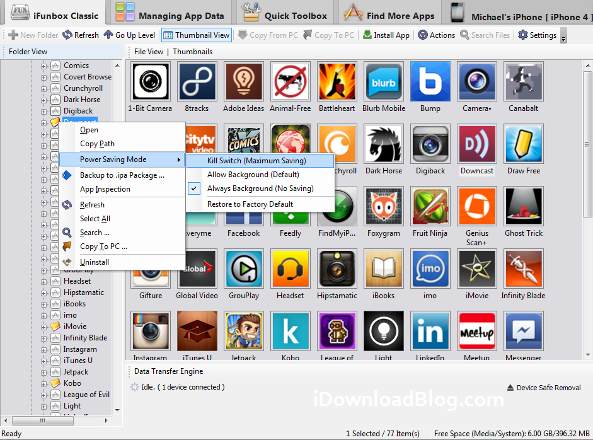
Want to take a load off your iOS device's CPU, battery life, and cellular bandwidth by preventing certain apps from running in the background? Sure, you could install a tweak like WeeCloseApps, but it doesn't set automatic profiles for app behavior, and it doesn't work on non-jailbroken devices.

Luckily, there's a powerful iOS file browser for Mac and PC called iFunBox, which works on both jailbroken and non-jailbroken devices. Among its features, iFunBox allows users to edit 'Power Saving Mode' profiles. Right click on an installed app and you can set one of three multitasking states: allow background, always background, and kill switch. 'Allow background' is the default state of most apps, while 'always background' is normally applied to music and podcasting apps that you'd want active in the background, and 'kill switch' is applied to power-hungry games...

Use iFunBox’s ‘App Inspection’ tool to see which apps can access your data

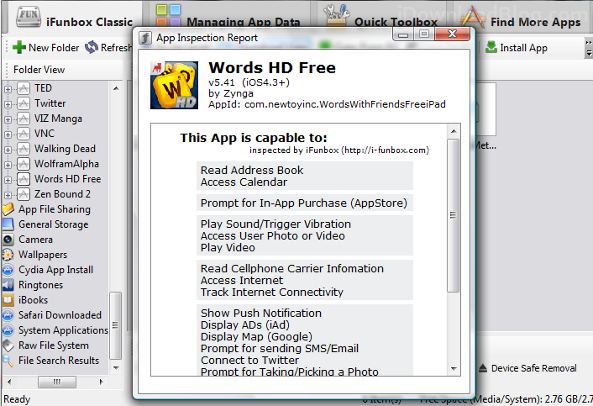
We've seen services like Clueful catalog apps that can access our private information, and many of us are familiar with tweaks like Protect My Privacy and Firewall iP that attempt to keep our data secure. But what are our leaky apps actually doing, and what are the real risks?

Unfortunately we don't have all the answers for you, but you can do some snooping of your own. The most user-friendly tool for inspecting the APIs your actual installed apps can access is built into a popular iOS filebrowser called iFunBox...

How to access iCloud docs on Mac via Plain Cloud

iCloud is great. I use it everyday to keep data synced across all of my devices and, especially, have important docs in perfect sync across my favorite Mac and iOS apps. By design, those files are tied to their creator apps so problems arise when you just wanna access them quickly in your Mac's Finder, without having to go through the tedious export/re-import process. That's where Plain Cloud jumps in. Plain Cloud is a free Mac app that acts as a simple front-end to apps that store documents in iCloud...

How to change button skins in Robert Broglia’s Emulators on iOS

In the comments section of our article on Snes9x EX+'s release, one of our readers asked if there was a way to swap out the overlays for the on-screen buttons. I thought the question was interesting enough to answer in a full tutorial.

While there isn't a built-in option for skinning Snes9x EX+, nor are there any themes for the app currently available on Cydia, with a jailbroken iPhone, iPad, or iPod touch, it's not too difficult to manually edit raster graphics used in any app. All you need to do is navigate to Snex9x EX+'s app directory and edit the overlay bitmap...

Weird bug adds ‘praises the iPad’ at the end of Google queries

The rivalry between Apple and Google is arguably one of the biggest in the tech world, maybe even the world in general. The two companies are constantly fighting each other for smartphone and tablet marketshare, and they both have legions of loyal fans.

That's what makes this next story so amusing. A new bug has been discovered in the Google Now and Translate apps that show Apple a bit more love than you'd expect from a rival. Enter the right queries, and both apps will, oddly enough, "praise the iPad."

How to copy Instagram photos to Flickr

Instagram's exploding popularity is having long-time iPhoneography buffs pay notice and watch in horror as mainstream users cannot get enough of its filters and max 1080 pixel wide resolution. And with Facebook and Android now in the picture, no wonder some early adopters go to the extremes of closing their account while others, like Apple's marketing honcho, stopped using Instagram for it "jumped the shark".

To the most ardent fans, the last straw was Instagram's confusing handling of the recent terms of service changes - even if it was much ado about nothing.

If you've been seriously contemplating importing your Instagram photos over to Flickr but were put off by the tedious manual uploads - worry not, turns out there are a few ways to get that job done without too much fuss. iDB has you covered with this quick guide to bringing in all your Instagram photos to Flickr with just a few clicks.