Learn how to fix the left or right AirPod sounding louder or quieter than the other when listening to music or watching videos.
What to do if one AirPod sounds louder than the other
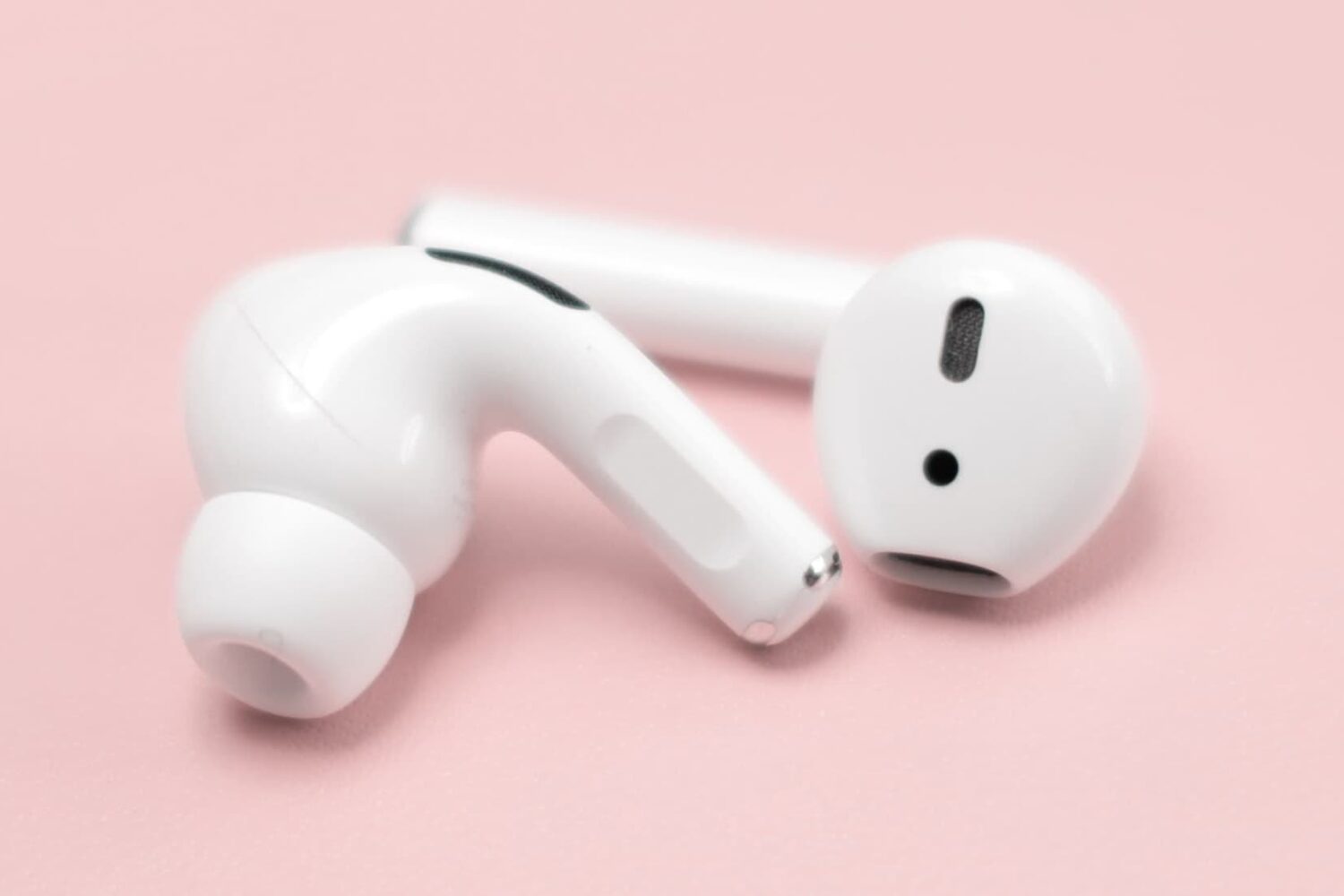
Learn how to fix the left or right AirPod sounding louder or quieter than the other when listening to music or watching videos.
These Apple Music tips and tricks unearth the secret features of the built-in Music app on your iPhone, iPad, Mac and other devices that everyone should be using.
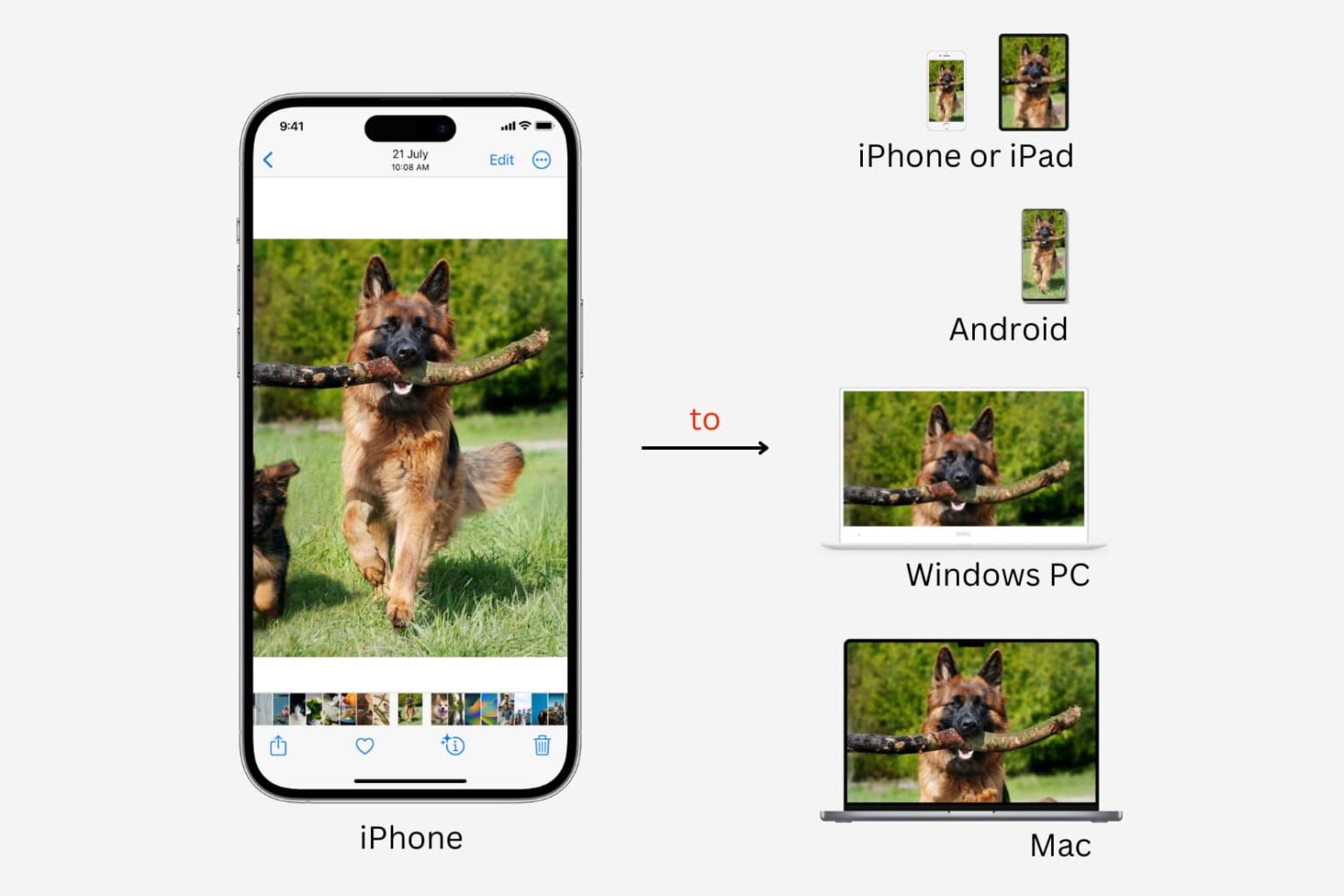
Learn how get photos and videos off your iPhone and transfer them to another iPhone, iPad, Mac, Android phone, or Windows PC.

Learn why and how to reset your AirPods, AirPods Pro, or AirPods Max using an iPhone, iPad, Mac, Android phone, or directly from the device, and what to do afterward.
Learn how to back up photos and videos on your Mac to Apple’s iCloud, Time Machine, Google, external drives, and more for safekeeping.

Several iPhone and iPad games support the use of gaming controllers; using one is an excellent way to snag an advantage over other players who might otherwise rely solely on touch-based controls, especially when it comes to online multiplayer games.
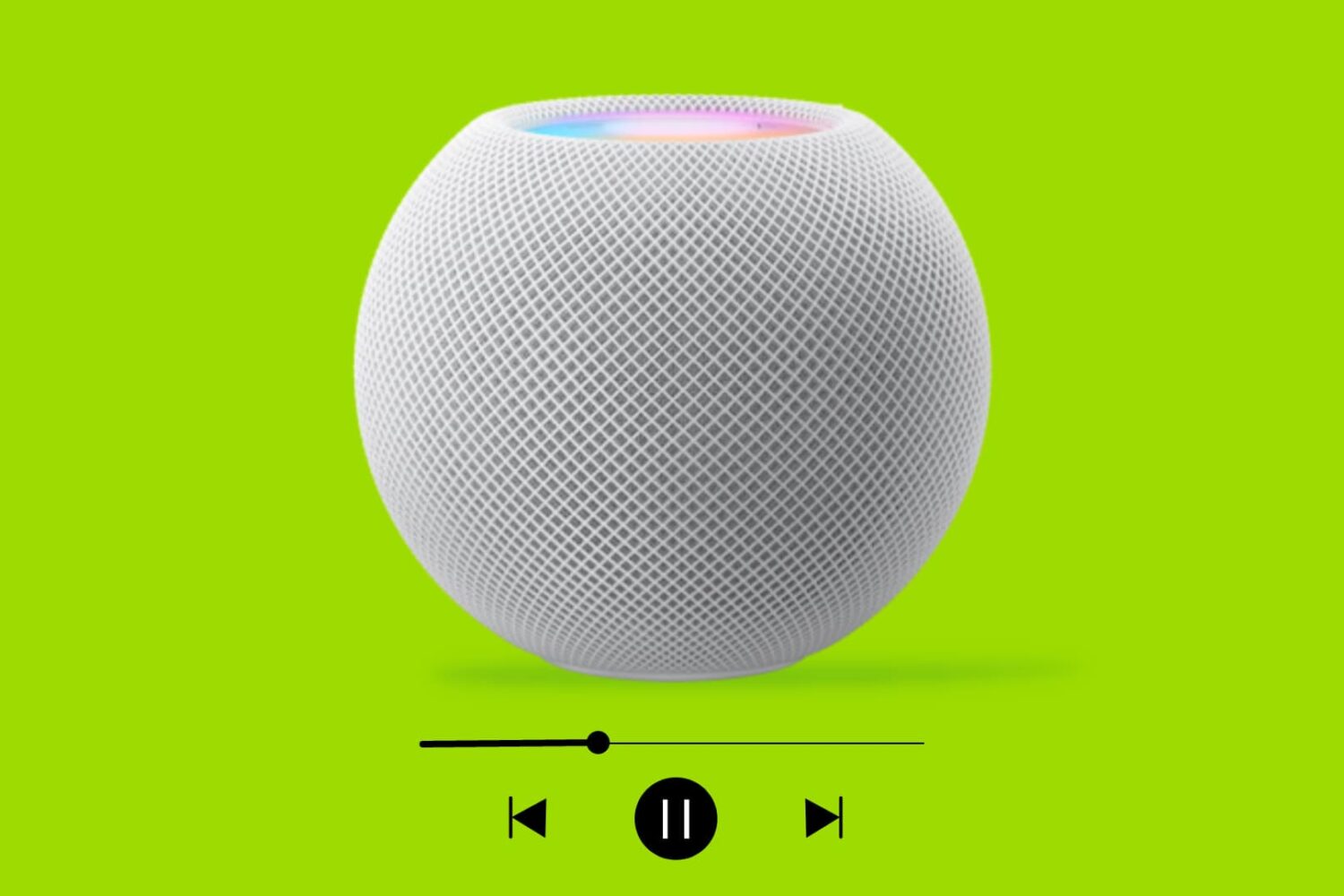
In this tutorial, we'll cover four easy ways to find out which song is currently playing on your HomePod.
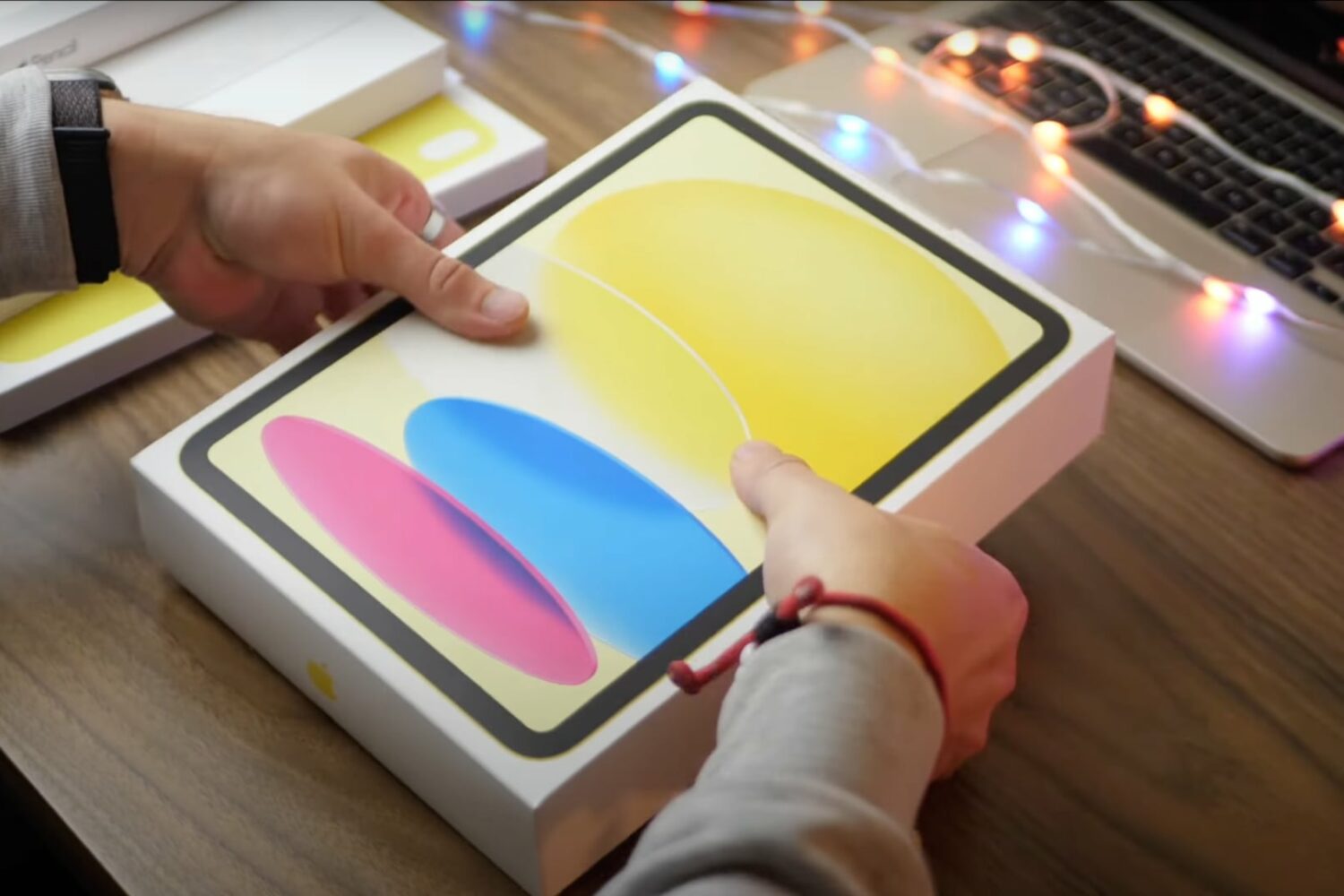
In this video, we cover iPad 10 tips from setting up your Apple tablet and changing settings to using apps, multitasking in iPadOS 16 and much more.
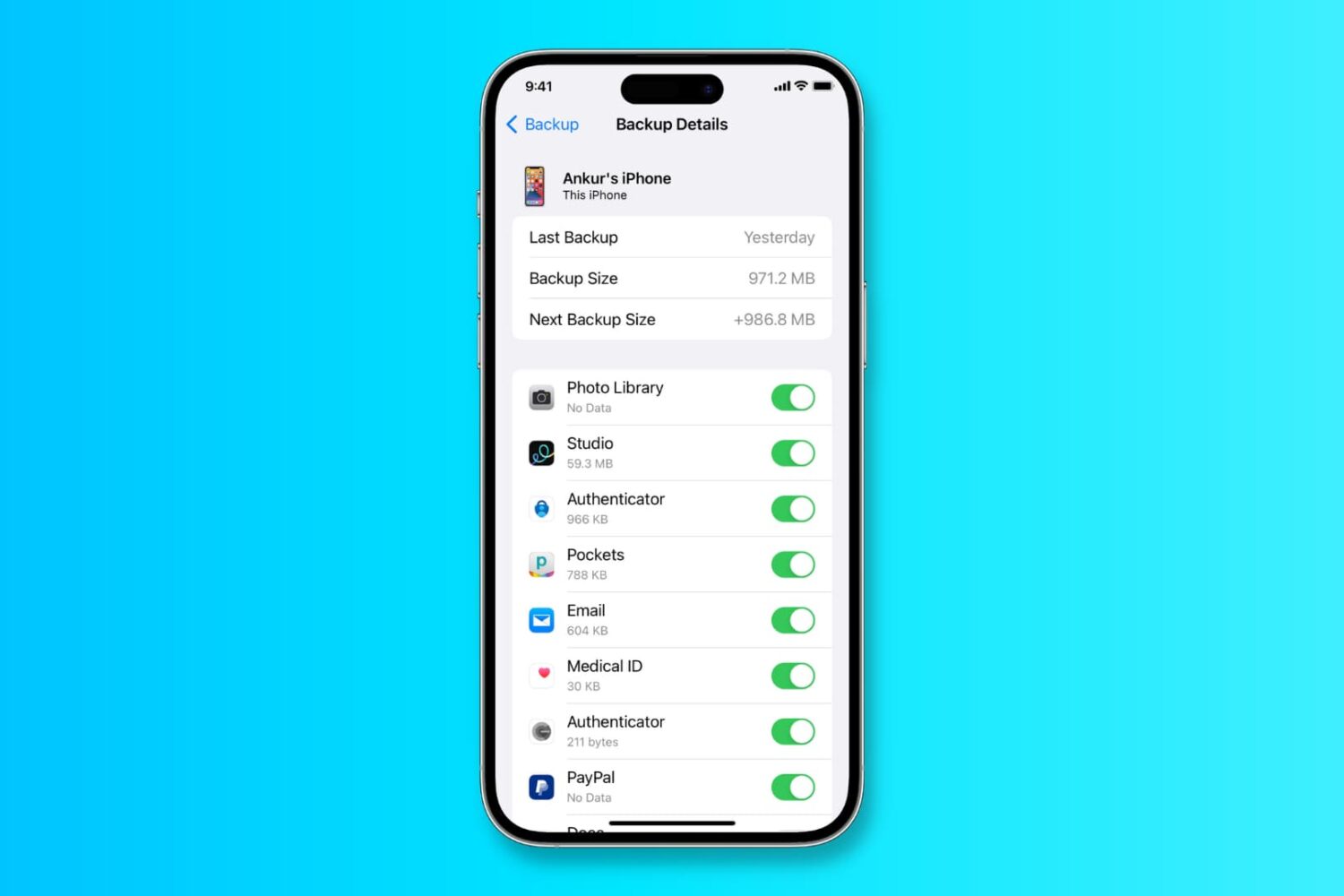
In this tutorial, we’ll show you how to back up your iPhone or iPad to iCloud, a Mac, or a Windows PC.
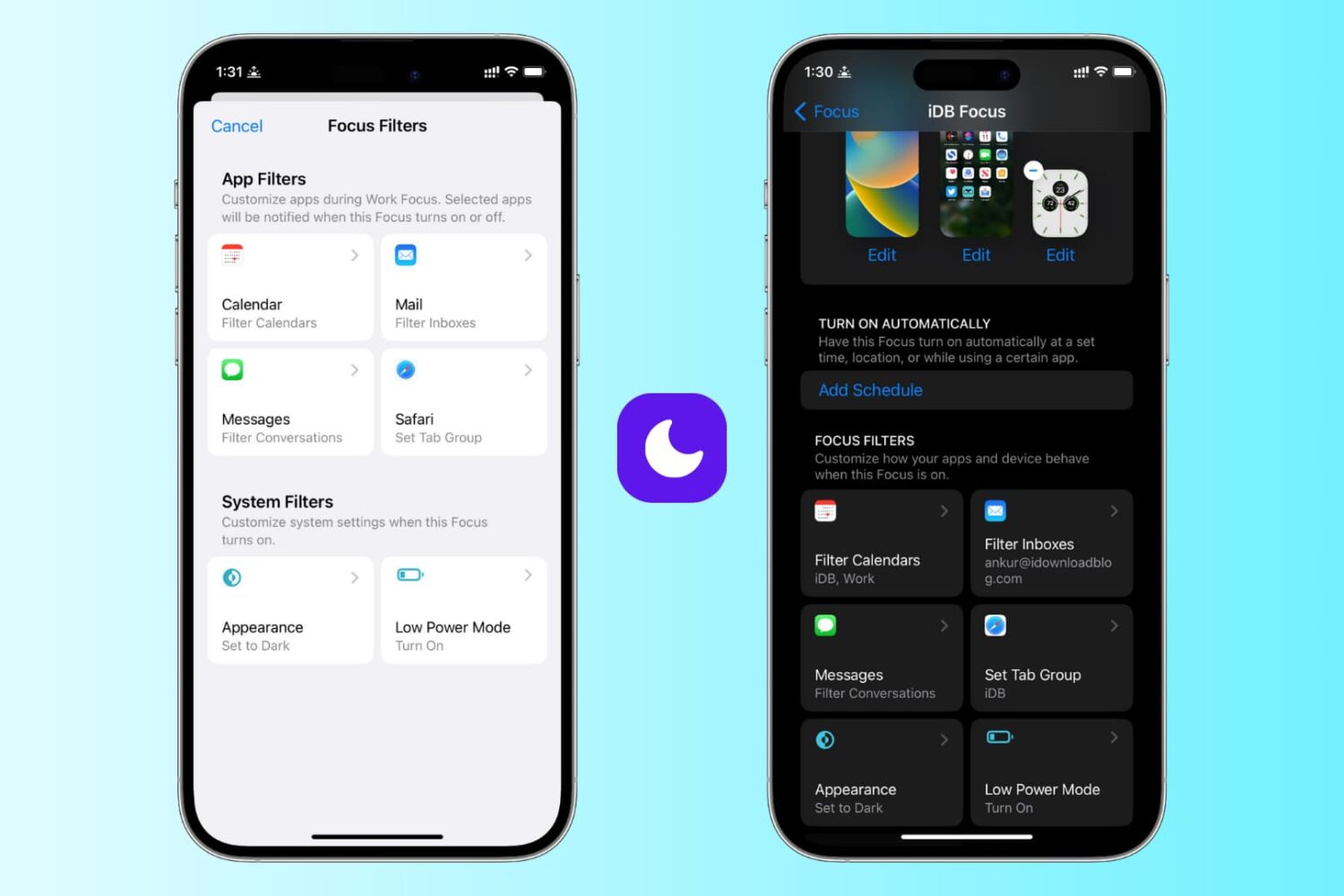
Learn how to use focus filters on iPhone and iPad to increase your productivity and limit outside distractions when a Focus mode is active.
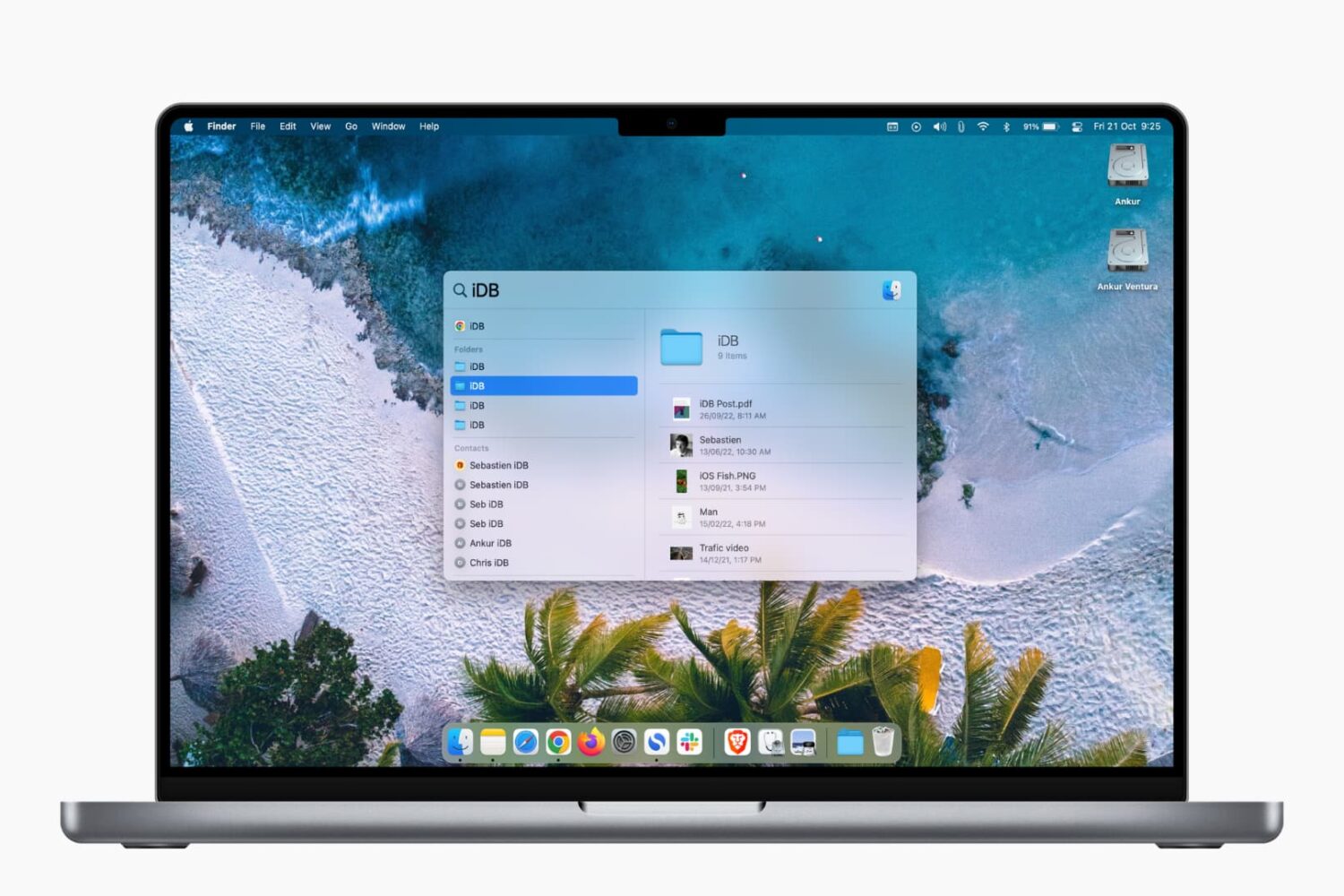
Learn how to prevent specific files, folders, disks, categories, and file types from showing up in Spotlight Search on your Mac to strengthen your privacy.

There are two ways to watch all 2022 FIFA World Cup games. In the US, you will be able to watch the World Cup on your TV through your cable subscription. If you don't have cable, you will also be able to stream games from a few streaming services.
The best way to watch the World Cup on cable will be on either FOX or FS1. The best way to stream the competition on your iPhone, iPad, Apple TV, or any streaming device will be on either the FOX Sports app, or by subscribing to live TV streaming service such as fuboTV.