In this tutorial, you will learn how to turn on a high-contrast cursor on your Apple TV with just a few taps to better see select content and text.
How to enable high-contrast cursor on Apple TV
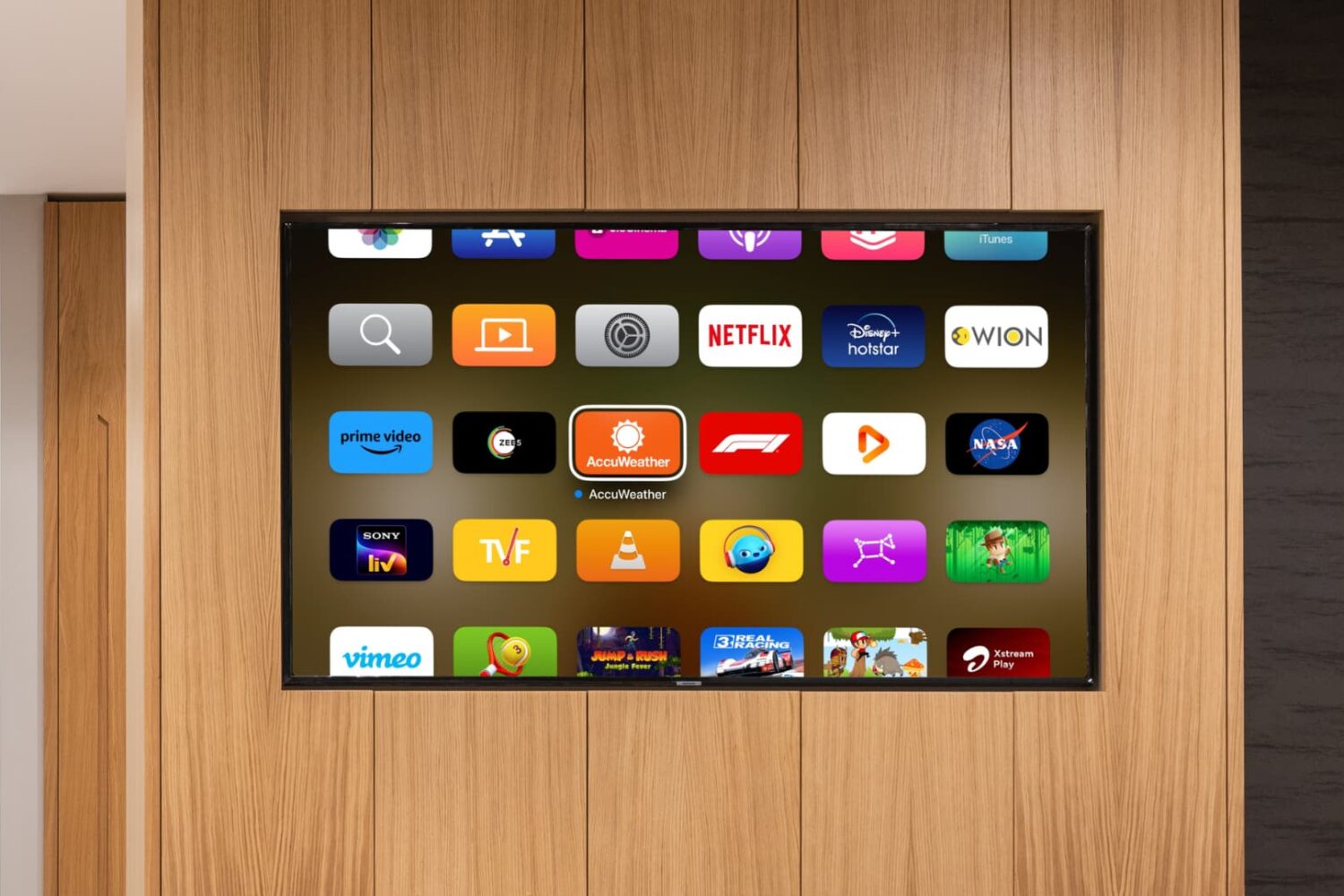
Stay up-to-date on the latest Apple TV news and learn how to get the most out of your device with our comprehensive tutorials and guides. Discover new features, troubleshoot issues, and explore the best apps and games for your Apple TV.
In this tutorial, you will learn how to turn on a high-contrast cursor on your Apple TV with just a few taps to better see select content and text.
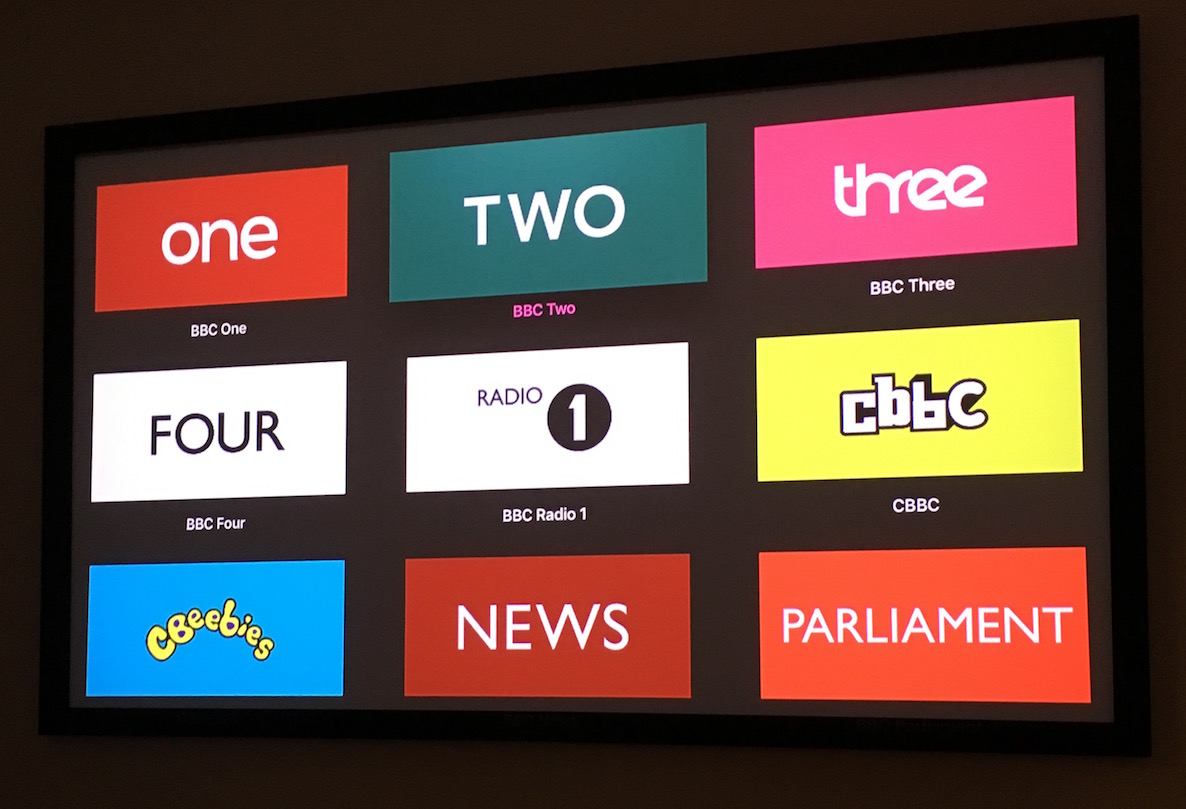
Last month, an open source app called Auntie Player was released to access on demand programs from the BBC. This app can be sideloaded on an Apple TV and used to watch BBC on demand content and even live content.
I tested out Auntie Player today, and it worked as expected. Keep in mind, however, that you're supposed to be in the UK in order to properly access its content. There are ways to access BBC iPlayer outside of the UK, but we cannot endorse those methods.
Still, we understand that many of our UK-based readers would be interested in accessing BBC iPlayer on the Apple TV, so in this post we're going to show you how.
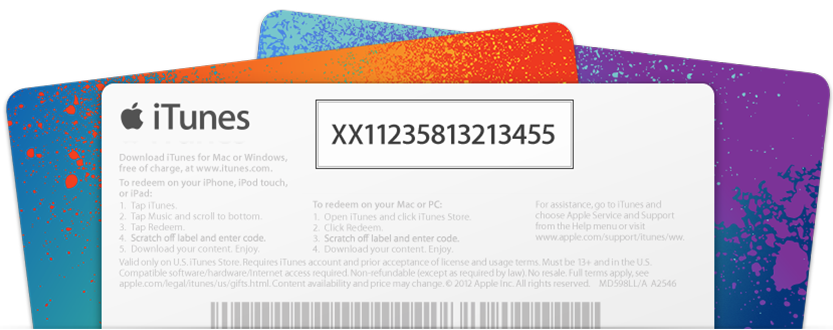
While it's possible to receive promo codes for Apple TV apps, it's not possible to redeem such codes directly from the Apple TV interface itself. Even though the newly released Apple TV is the first iteration of the device capable of running native apps, Apple is keeping the process of promo code redemption limited to iOS or the Mac.
Have you received a promo code for an Apple TV app or game? In this post, we'll show you how to redeem it.

There are lots of reasons why you might invest in a USB Type-C cable for the new Apple TV. One of the most compelling reasons is because a USB Type-C cable allows you to record Apple TV video output. Via QuickTime's video capturing capabilities, first introduced in OS X Yosemite, it's possible to record and save direct-feed footage from the Apple TV to your Mac.

In this tutorial, we will help you figure out how much free space is available on your Apple TV, and discover which apps are taking up the most space.

The new Apple TV features quite a few screensaver options available via tvOS' Settings app. In it, you can setup the cool new aerial view screensavers, or you can choose to use screensavers based on album artwork from music found in your music library.
Along with those screensaver options, you can enable screensavers based on photos in your photo library, including Photo Stream photos and iCloud Photo Library photos. You can even go as far as to extract photos from videos and music accessible via Home Sharing if you happen to have Home Sharing enabled.
Of course, Apple is lending us the typical Animals, Flowers, and Nature photos as screensaver options as well. Needless to say, there's no shortage of potential screensavers for use on the new Apple TV.
But one particular option stood out to me above all of the others, and that's Apple's new "Shot on iPhone 6" screensavers. Yes, Apple is allowing us to take photos from its Shot on iPhone 6 media campaign, and use them as screensavers on our Apple TV. In this post, we'll show you how.
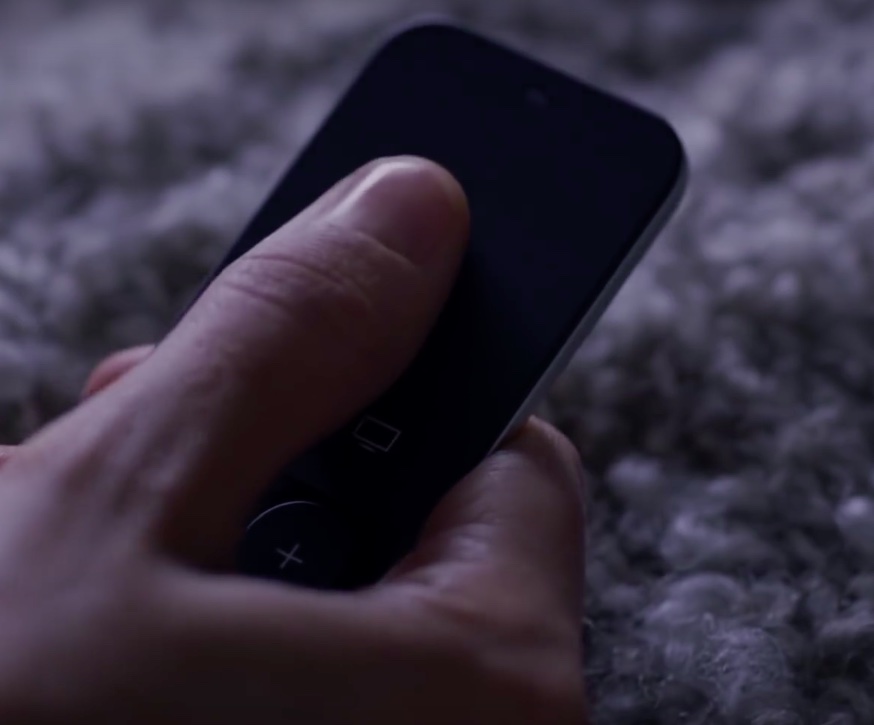
Your universal infrared remote which used to control your old Apple TV should work just fine with the fourth-generation Apple TV right out of the box. In some cases, however, your legacy remote might need configuring in order to learn the signals that the Siri Remote generates.
In this post, we're going to show you how you can program a universal infrared remote that came with your TV, cable box or DVD/Blu-ray player in order to navigate the entirety of tvOS, or use it with a prior Apple TV model.
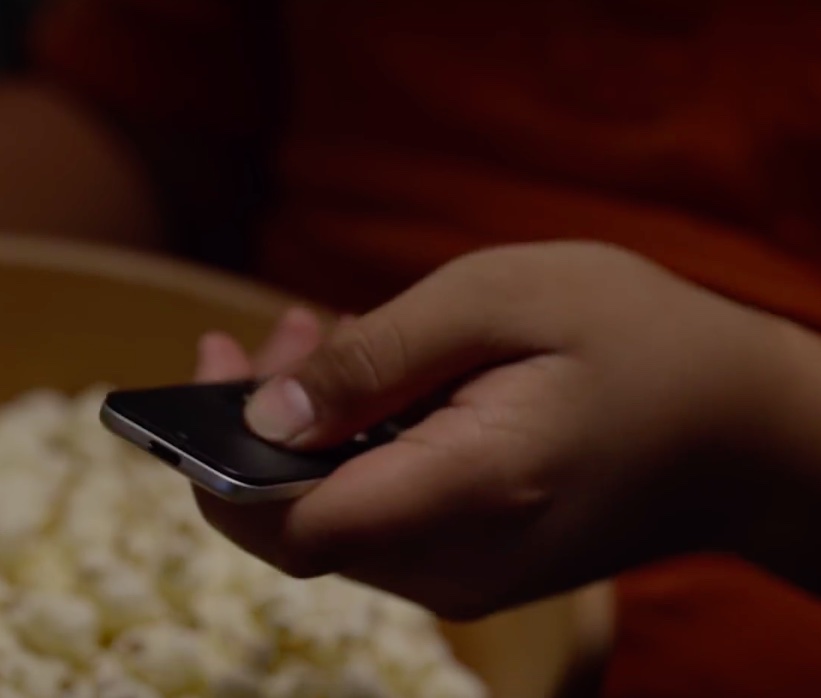
In addition to using your Siri Remote to navigate the tvOS user interface and play games on the fourth-generation Apple TV, you can program it to control power and adjust volume levels of your television set or home theater receiver.
That's because your Apple TV and the Siri Remote that came with it are compatible with HDMI-CEC and outfitted with a built-in infrared receiver and blaster.
This means owners of the new Apple TV can adjust the volume of their TVs and home theater receivers via the HDMI cable or line of sight, using just their Siri Remote.
In this tutorial, you'll learn how to program your Siri Remote and configure it to work with your home entertainment equipment.
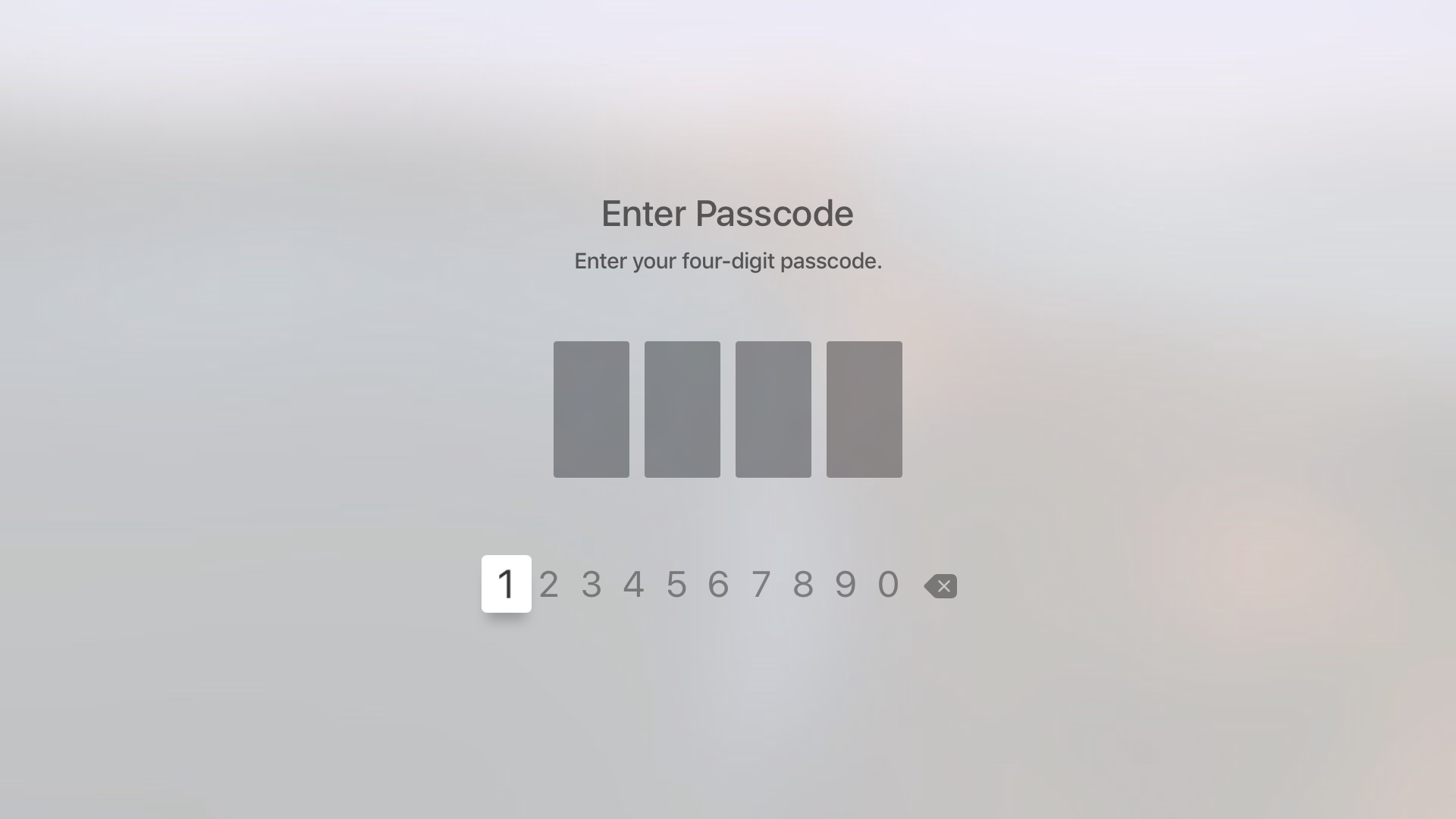
Yesterday, on Let's Talk iOS, we discussed how arduous and tedious it is to enter a password on the Apple TV interface. It's a difficult process, because the Apple TV lacks support for Bluetooth keyboards, and features an A-Z text entry setup that makes the process even more difficult that it was on last generation's Apple TV.
Fortunately, the Apple TV features an option that allows you to never require a password for iTunes & App Store purchases. While using such an option works, it leaves your device open to unauthorized purchases. The good news is that, as we discussed on the podcast, you can easily set up restrictions for App Store and iTunes purchases, which will make it so that purchases only require the entry of a 4-digit passcode.
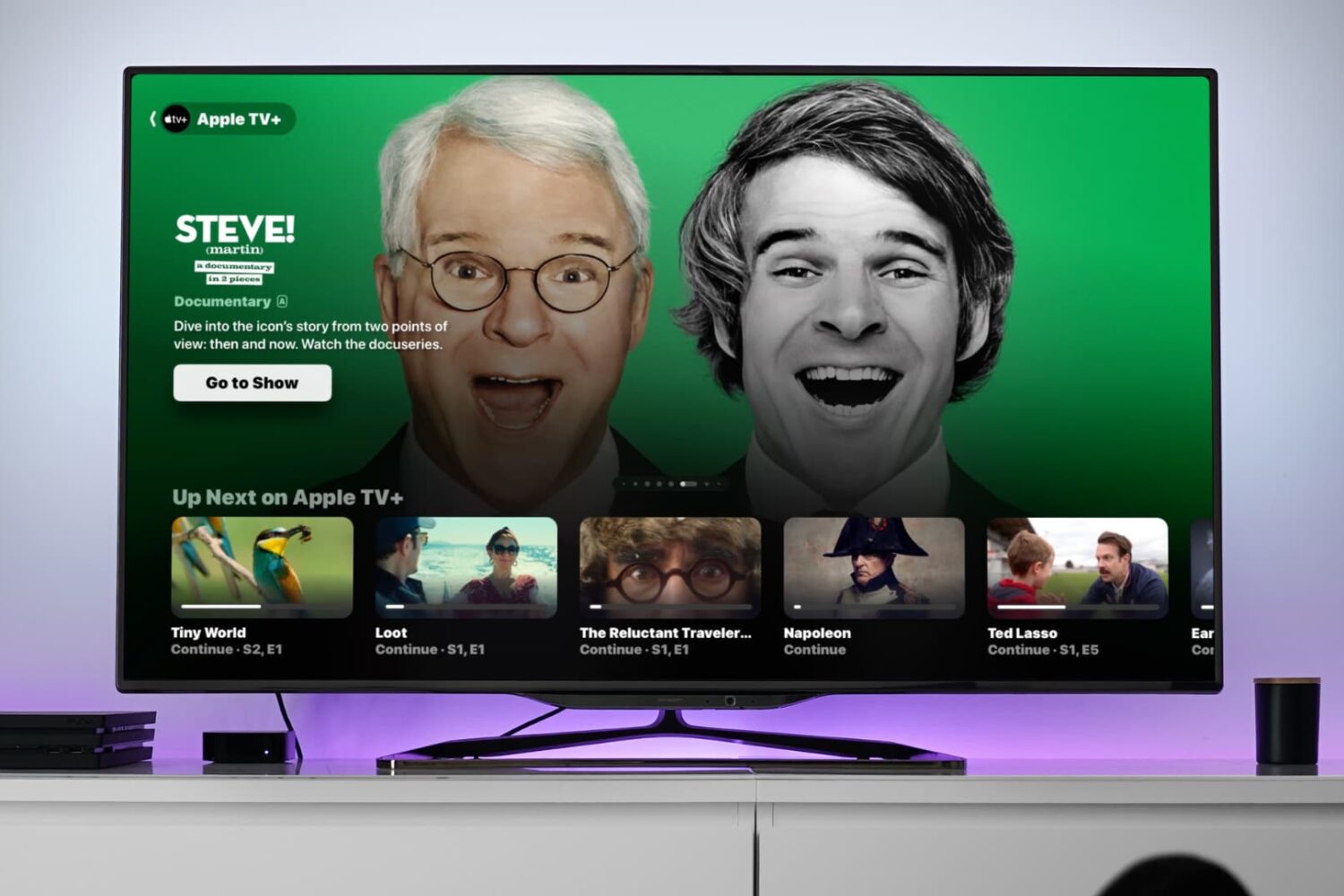
In this tutorial, we will show you how to change the resolution, frame rate, and dynamic range settings for video playback on your Apple TV to achieve the perfect viewing experience.

In this tutorial, we’ll show you how to check the battery percentage of your Apple TV Siri Remote or other Bluetooth devices connected to your Apple TV, such as game controllers or gamepads.
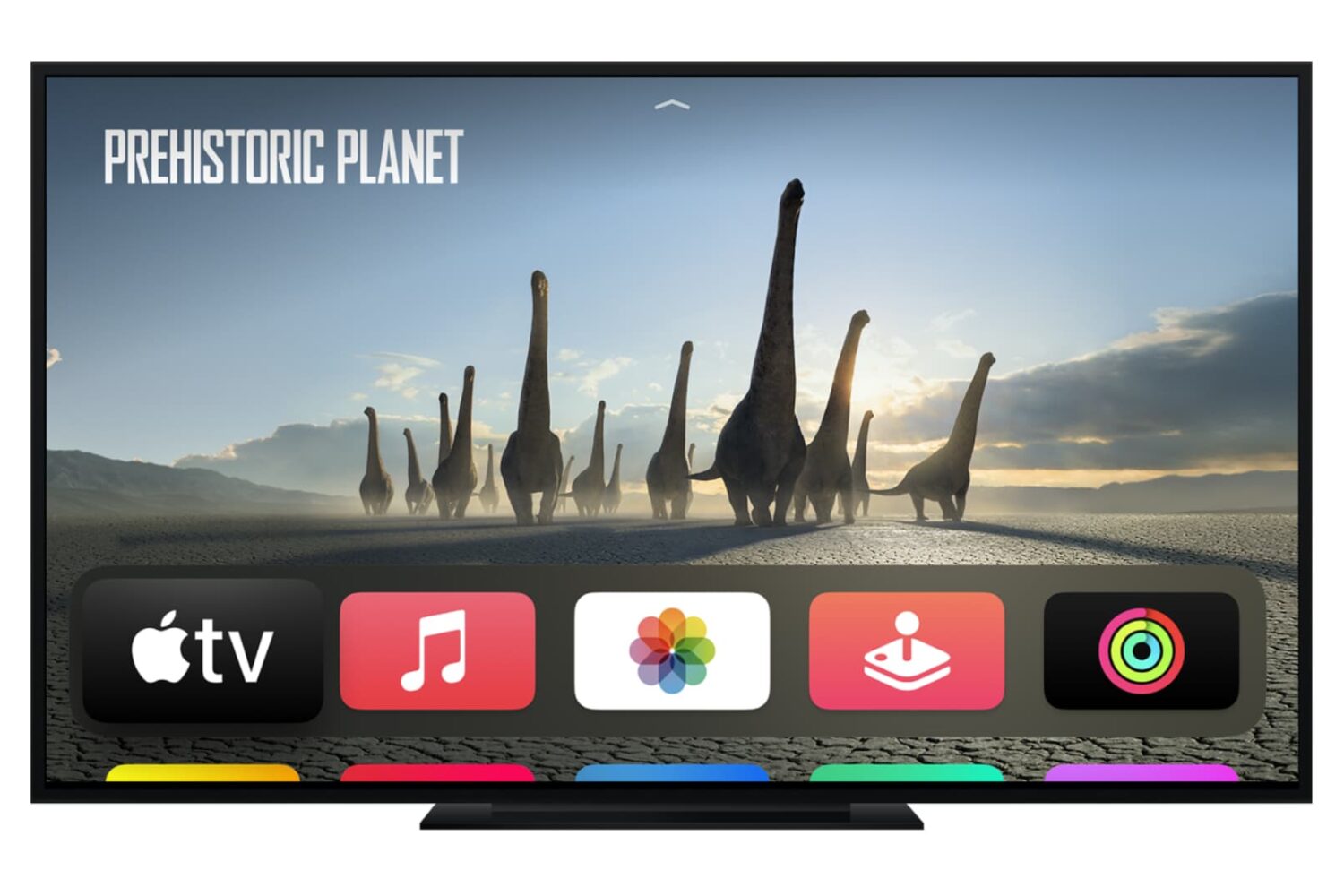
Check out the quick steps to see the Wi-Fi signal strength on your Apple TV if you’re experiencing network issues while watching videos.