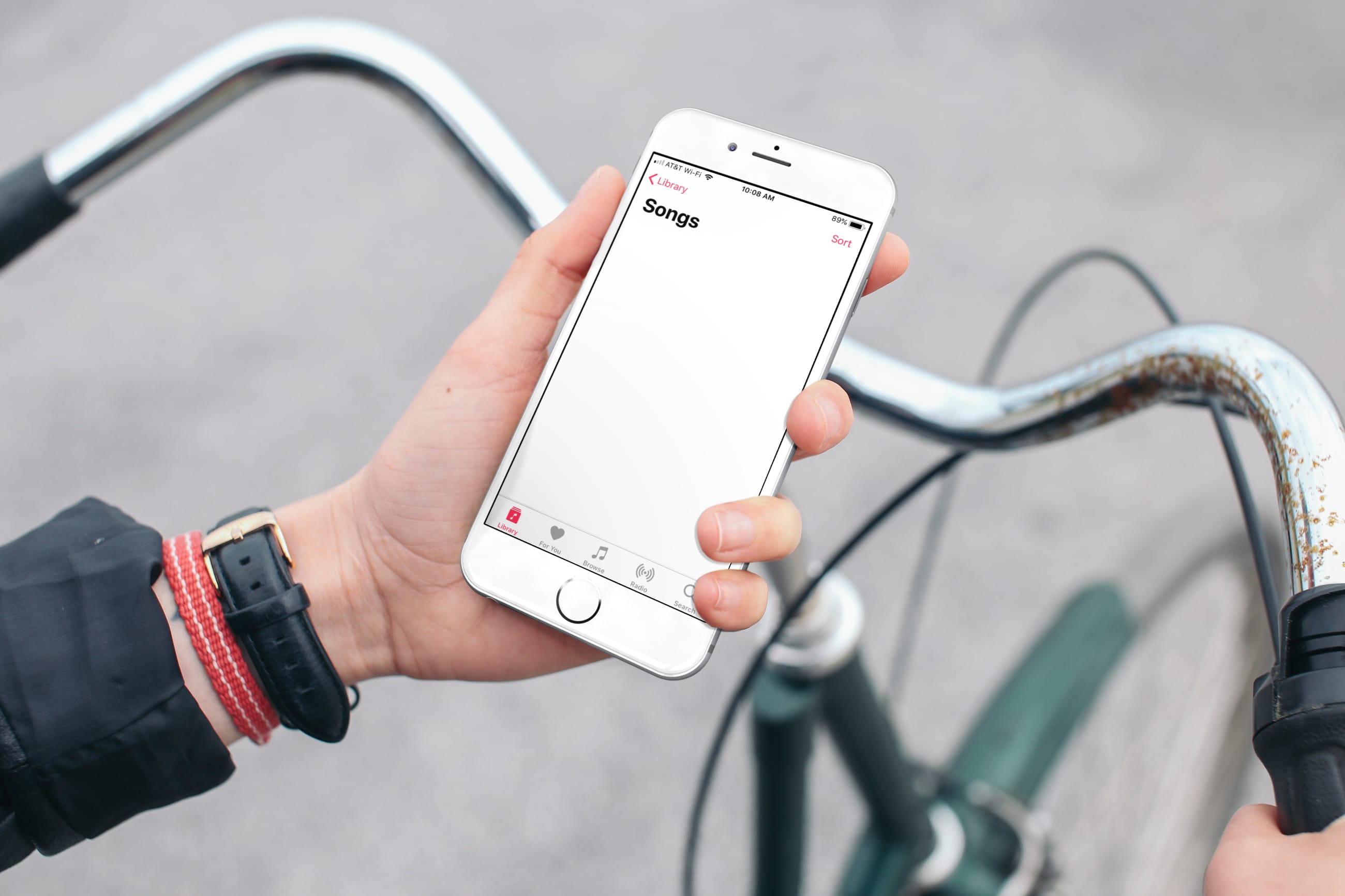
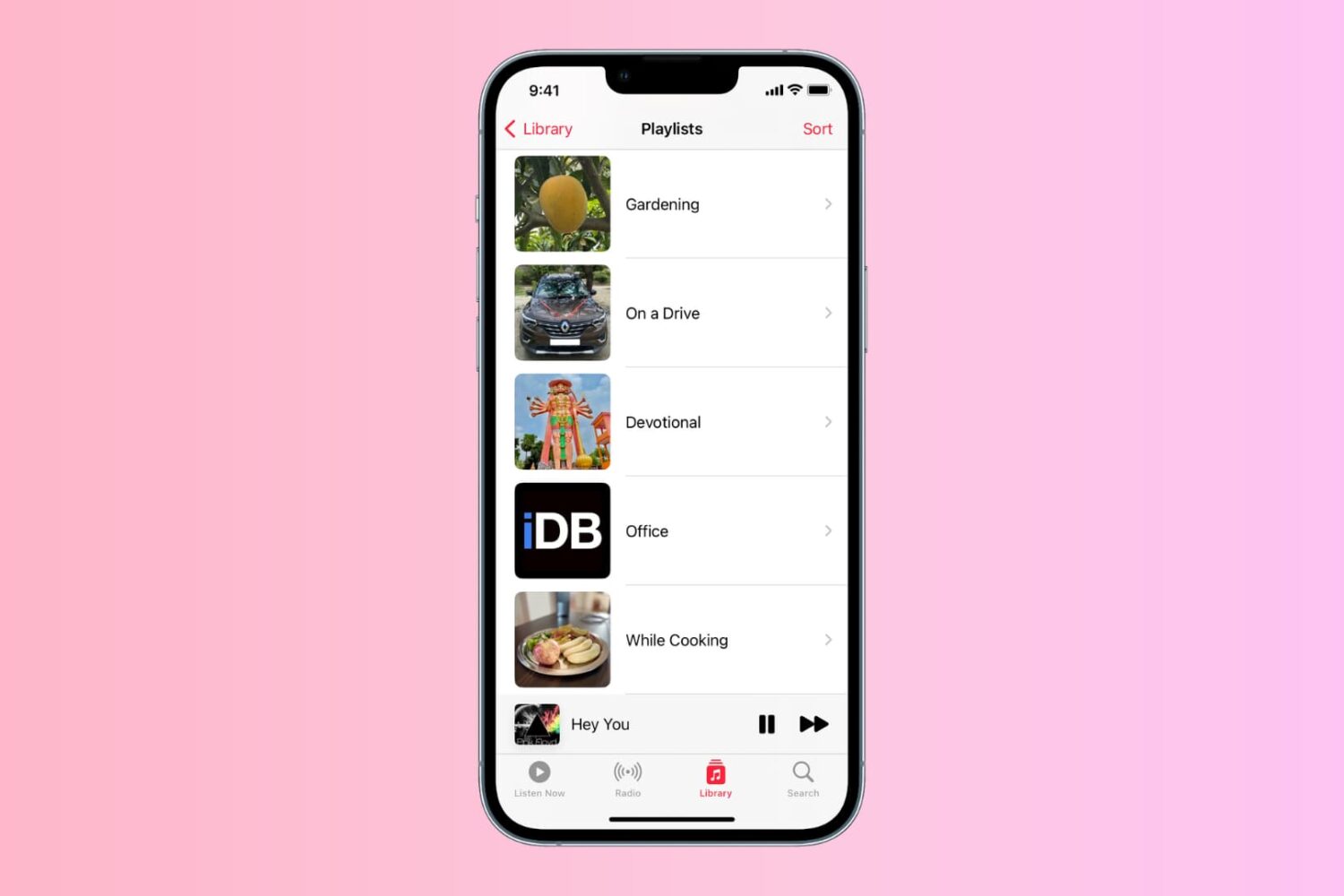
Find out what to do if the Apple Music app on your iPhone or iPad has removed all your songs or if it automatically deletes some downloaded songs from the local storage.
Get back missing songs and playlists on Apple Music in iOS 26
Find out what to do if the Apple Music app on your iPhone or iPad has removed all your songs or if it automatically deletes some downloaded songs from the local storage.
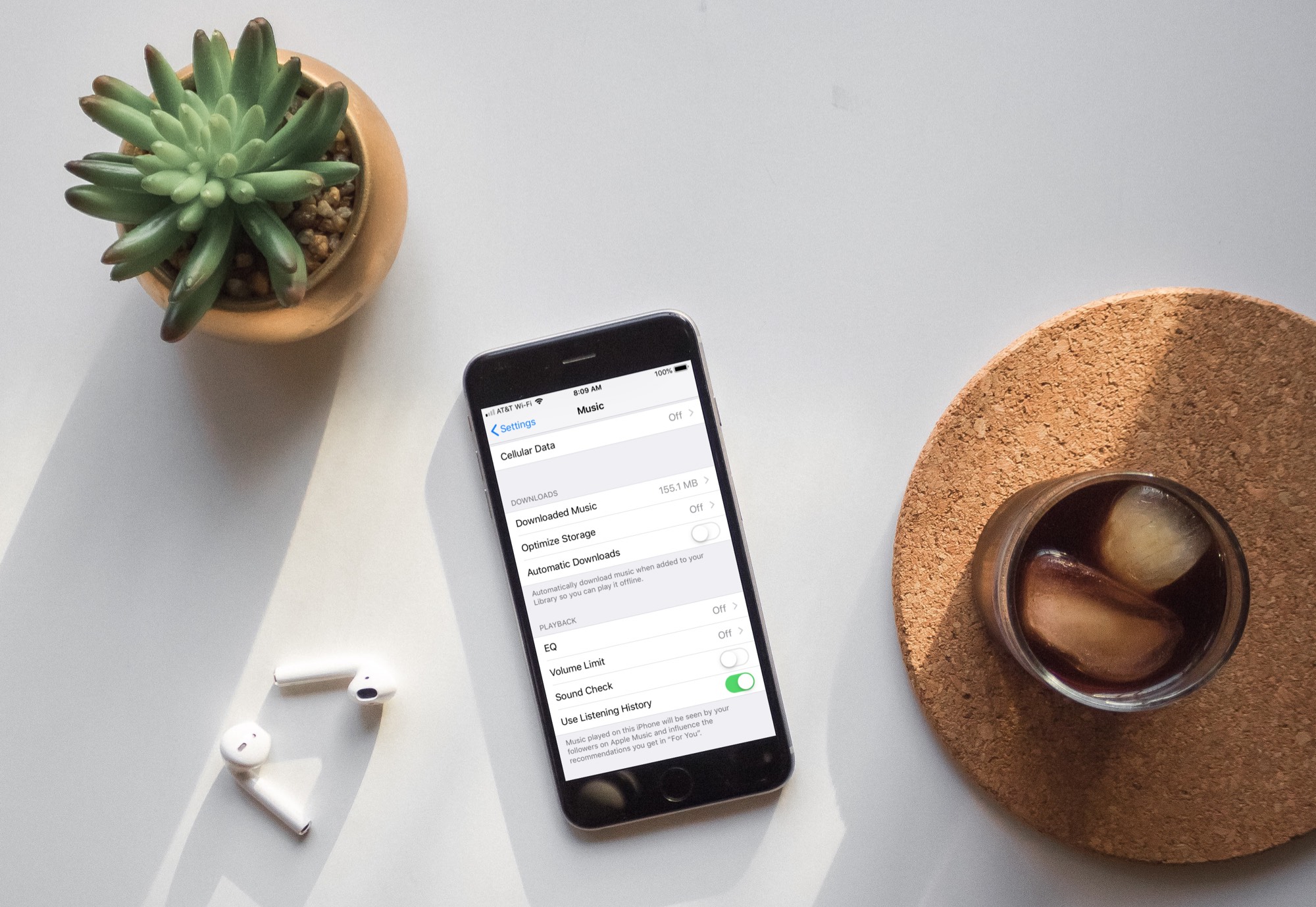
Learn how to turn off automatic downloads for Apple Music on iPhone, iPad, or Mac to stop the Music app from downloading every song, album, or playlist you add to your library.
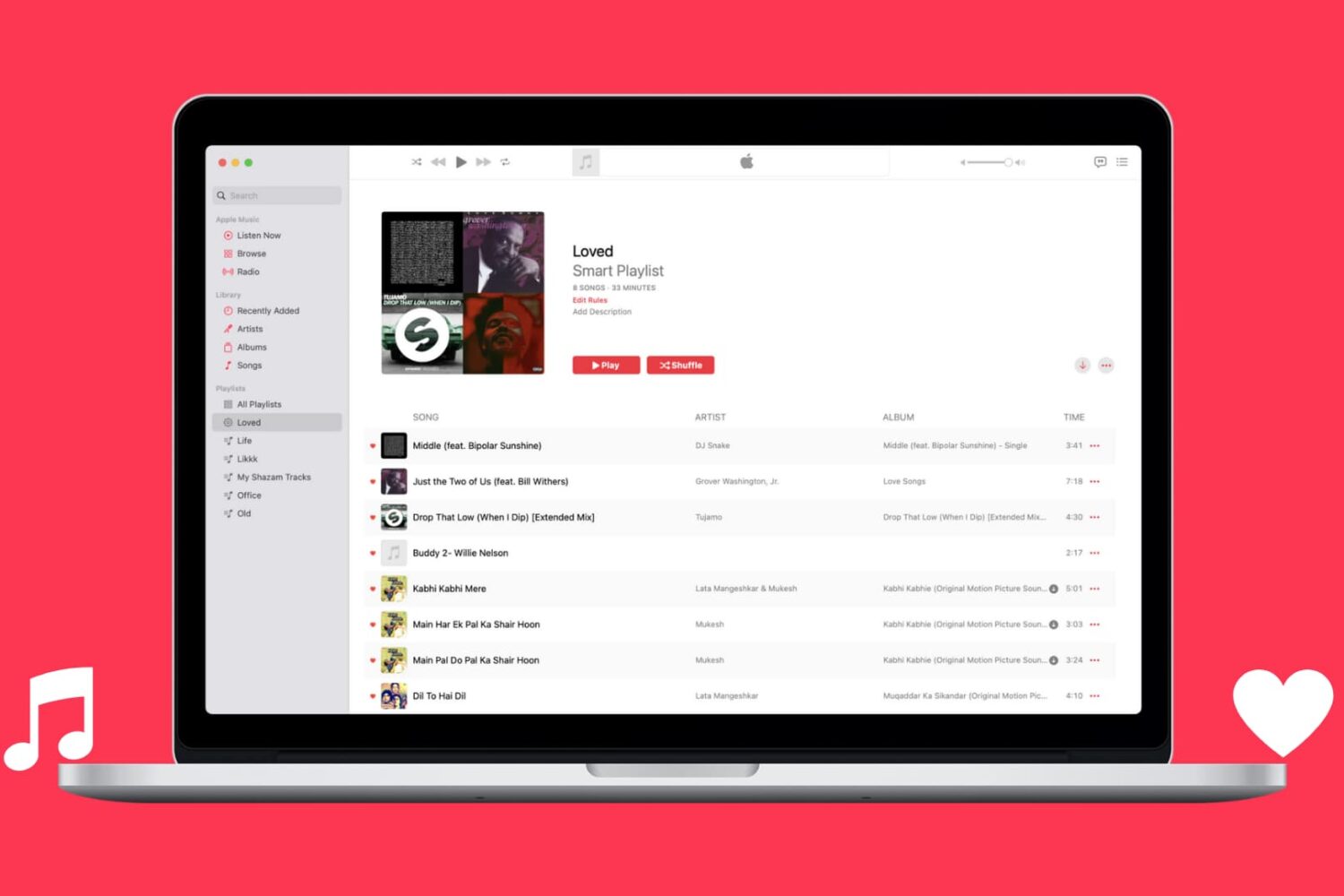
Learn how to automatically capture all Apple Music songs you've loved or favorited in a single spot by creating a special smart playlist.
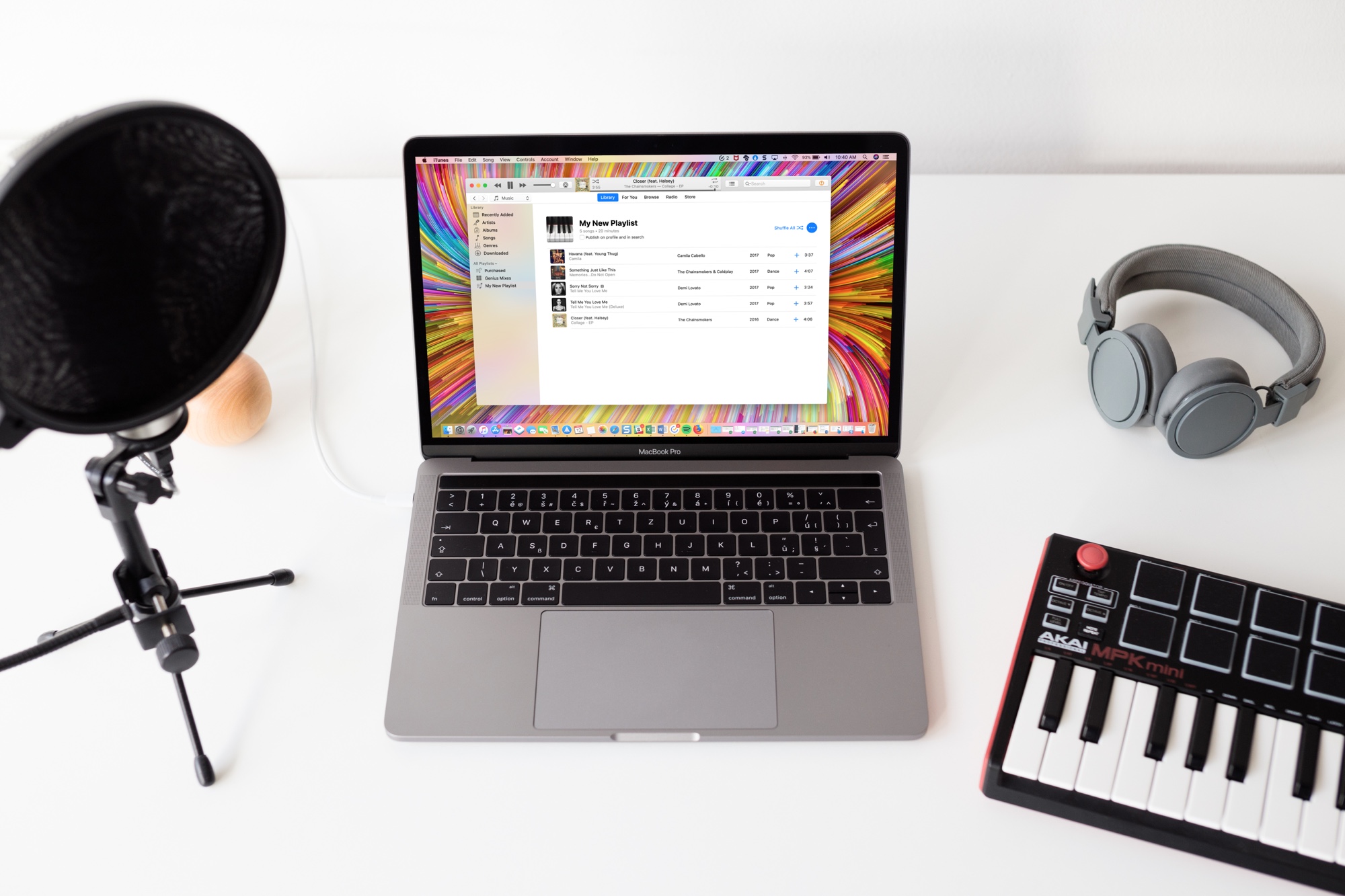
Learn how to stop Apple Music from adding songs to your library when you add them to playlists on your iPhone, iPad, and Mac.
Learn how to personalize the playlist cover image in the Music app on your iPhone, iPad, or Mac to your liking.
Transferring playlists between multiple music services is easy until you attempt to do it manually. Instead of having to painstakingly recreate your personal, carefully curated Apple Music playlists on another music-streaming service like Spotify or YouTube, or vice versa, you can just use an app to get the job done.
In this tutorial, we'll show you how to add your favorite Apple Music playlists, albums, or artists to the your iPhone or iPad Home Screen so you can play them directly from there in just one tap.
These will also work if you are not an Apple Music subscriber but have songs saved locally in the iOS Music app.
The Apple Music app has a built-in lyrics search feature. With it, you can find songs even if you don’t know the track’s name, who the artist is, or other such details.
All you need to do is remember a small part of the song’s lyrics, and the Music app will find tracks on Apple Music or in your library that match the typed lyrics.
Go through these troubleshooting tips if Siri on your HomePod is unable to play specific songs, playlists, or artists on Apple Music when you ask it to.
You set up your new HomePod for the first time by bringing it near an iPhone or iPad, which prompts Apple's handy Automatic Setup feature to transfer settings such as saved Wi-Fi passwords and your Apple Music subscription information from your iOS device to your new HomePod.
If you would like to associate a different Apple Music account with your HomePod than the one you're currently using on your iPhone, iPad, or Mac, you can do that with just a few taps. We'll show you how to change the Apple Music account just for your HomePod.
In this tutorial, we’ll show you how to stop your Apple Music recommendations from getting influenced by what your spouse, kids, or family members listen to on the HomePod linked to your Apple Music account.
If your iPhone, iPad or iPod touch runs iOS 11.2.5 or later, Siri in hands-free mode can read out the news to you. You can even ask your smart digital assistant to read aloud news stories limited to specific domains, such as sports, business or music, here's how.