In this tutorial, we’ll show you how to stop your Apple Music recommendations from getting influenced by what your spouse, kids, or family members listen to on the HomePod linked to your Apple Music account.
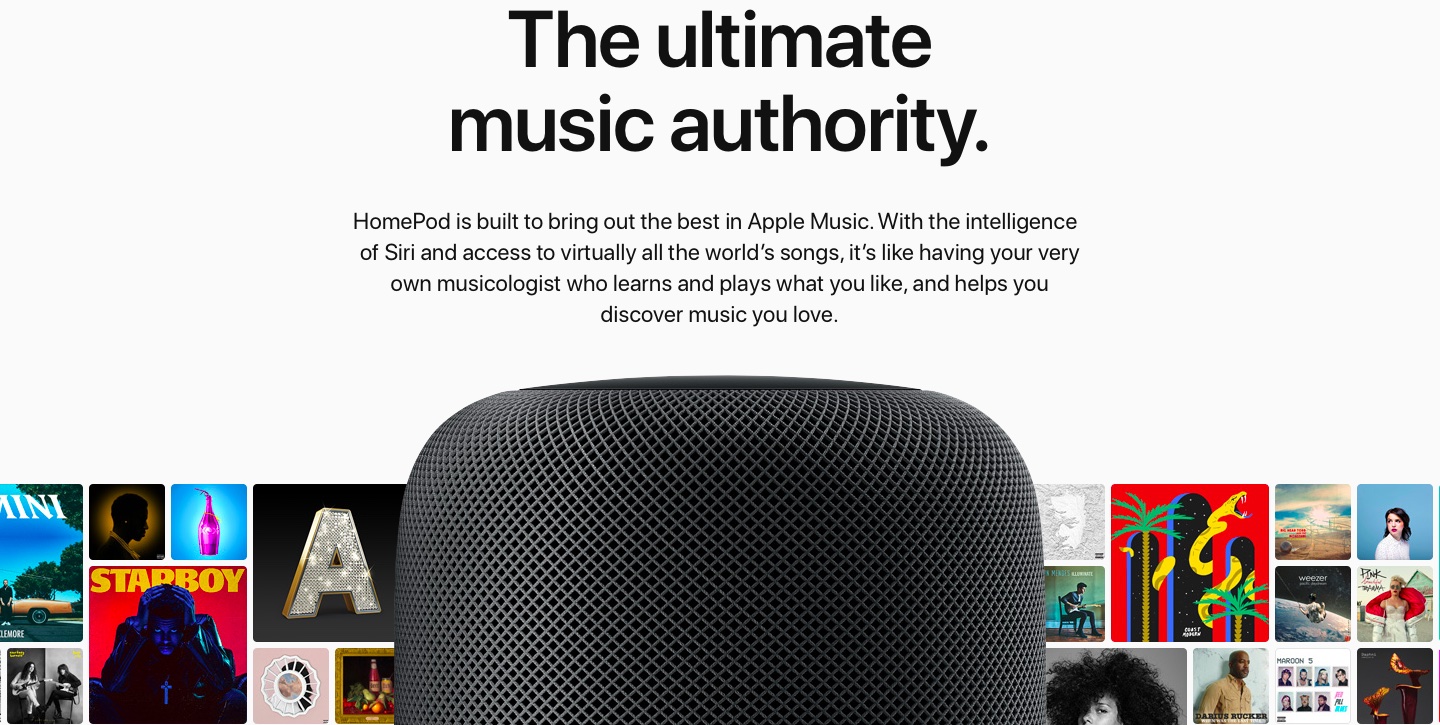
As you know, Apple Music learns your taste and uses it to choose which songs to play for you based on your listening history and interactions (i.e., liking or disliking a song). Additionally, personalized playlists like New Music and Chill Mix that show up in the Music app every week and playlists Siri generates at your request are also influenced by your musical tastes.
The problem is that HomePod is not a personal device per se, and your family members may use it if it’s kept in the living room or kitchen.
Apple allows HomePod owners to disable their listening history. When it’s off, you can still request songs from the Apple Music catalog, like or dislike individual tunes, and so forth, but those interactions won’t affect your recommendations engine.
So, if you’re not the only member in your household who’s using your HomePod, do yourself a favor and prevent your kids and other family members from polluting your future recommendations.
Turn off HomePod listening history
To stop it from affecting your Apple Music recommendations, you can turn off the listening history on a per-HomePod or per-user basis.
For all or selected HomePods
1) Open the Home app on your iPhone or iPad.
2) Tap the three dots menu icon from the top right and choose Home Settings.
3) Tap your name under the People heading.

4) Make sure Recognize My Voice is turned on, and then scroll down to tap Update Listening History.
5) You’ll see all the HomePods here that are tied to your Apple Account. Turn off the switches for HomePods where you don’t want to use listening history. These should be the speakers that other family members use, like the ones in your living room, kitchen, and so on.

For members of your family
If you have added your spouse, kids, or other family members to your Home, you can prevent them from affecting your HomePod music recommendations.
You’ll see your family members listed under the People heading in your Home Settings, but after tapping it, you may notice that the Update Listening History and some other options are grayed out. So, it’s best to follow the above steps on that family member’s iPhone.

Tip: To help Apple Music learn what you like and fine-tune recommendations, say something like “Hey Siri, I like this” when you hear a song you’d like to add to your preferences.
Check out next: 24 tips and tricks every HomePod user should know