Tutorial

Learn how to master your Apple devices with our comprehensive tutorials. From iPhone and iPad to Mac, Apple Watch, AirPods, and more, our expert guides will help you unlock the full potential of your Apple products. Discover new features, tips, and tricks each day to enhance your user experience.

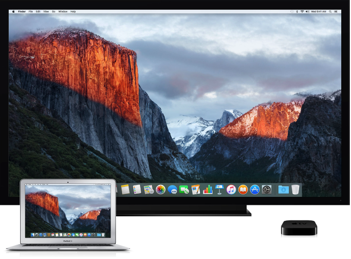
How to send video wirelessly from your Mac to TV

Since OS X 10.9 Mavericks owners of the Apple TV have been able to wirelessly mirror their Mac screen to the big screen TV with an AirPlay feature called AirDisplay. There was just one slight problem: you couldn't stream individual videos without mirroring the whole screen.

Apple has solved this annoyance with OS X 10.11 El Capitan, which introduced richer AirPlay support permitting you to send video from Safari and other apps to the Apple TV.

How to check what apps are draining your iPhone battery

See battery usage on iPhone

Battery usage is always a hot topic among smartphone owners, and although I try not to overthink it, there are times when I'm just curious to find out what apps have been draining my battery the most. iOS and iPadOS make it pretty easy to find out the battery percentage an app uses. Here's how to see details about how individual apps have been impacting your iPhone battery.

How to quickly access Wallet and Apple Pay on the Lock screen

Hand holding an iPhone with Apple Pay screen showing added payment cards

Those who have tried Apple Pay can attest that paying with your iPhone couldn't be simpler. You just hold your device near the contactless reader with your finger on Touch ID or your face authenticated with Face ID to pay for the goods or services you bought.

But wouldn't it be great if you could choose any payment cards, passes, and loyalty cards from your Apple Pay account on the Lock screen, without having to unlock your iPhone?

You can now make your purchases by double-pressing the Side button or Home button to access Wallet without unlocking your iPhone, a feature partially borrowed from the Apple Watch. You then simply choose a card and authenticate your purchase via Touch ID or Face ID.

Here's how you can enable Wallet access right from the iPhone's Lock screen with just a few taps.

How to view Live Photos on older devices

Even though older iPhone models cannot shoot Live Photos, any iOS device running iOS 9 or later can actually see these Live Photos, assuming they were sent in one of the only three ways to share them while preserving the live aspect. In this post, we'll show you how to see these Live Photos on your device.

How to save your iPhone voicemails to the Voice Memos app

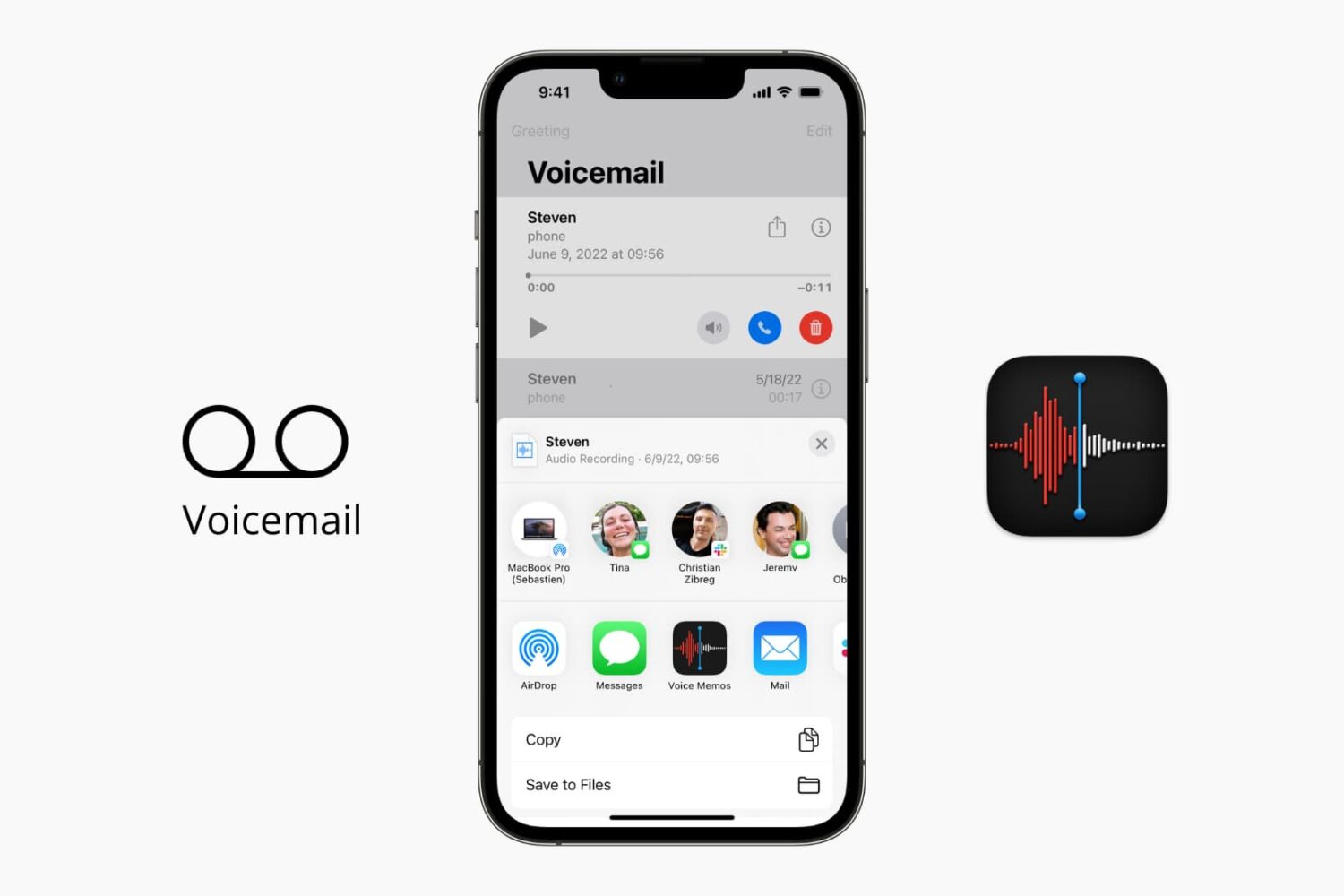
Save your iPhone voicemail to the Voice Memos app

The iOS Phone app makes it easy to save your voicemail to the Voice Memos app. Saving voicemails as voice memos lets you trim the audio before sharing them with others. Plus, the files in the Voice Memos app are automatically uploaded to iCloud and stay safely saved. So, if there is a memorable voicemail, you can keep it forever in iCloud.

In this brief tutorial, we show you how to save your voicemail as an audio note.

How to play Apple Music high quality streams on cellular

Apple Music on iOS includes an option to stream your music at high bitrates over a mobile data network at all times. As you know, Apple Music defaults to high-quality streams on Wi-Fi.

With this toggle, you can control your cellular data usage by enabling or disabling high bitrates when streaming or downloading music over your carrier's cellular data network.

How to share Live Photos

Apple won't describe them as such, but Live Photos are just short video files, and like any files, they can quickly be shared with friends and family. But unlike video files, Live Photos need to be shared in very specific ways in order to preserve the live aspect of the photo.

For instance, if you email a Live Photo to someone, the file will be stripped of the video component and will be attached and sent as a jpeg. So how do you send a Live Photo while making sure the "live" part of the photo remains?

How to disable the mouse pointer shake gesture on Mac

Have you ever woken your Mac up from sleep, and couldn't find the mouse pointer among the mess of windows and desktop icons. We've all been there before.

Starting with El Capitan, macOS is hoping to help out with that, courtesy of a brand new addition to the operating system. It's certainly not a headline feature, but macOS can help you quickly locate your mouse or trackpad pointer by simply shaking your mouse or swiping your finger back and forth on the trackpad in quick succession.

Watch our video inside to see how it works. We'll also show you where to go to disable the feature in System Preferences.

How to turn a Live Photo into a still photo

Live Photos was one of the main features introduced with iOS 9 and iPhone 6s. Some might see it as a gimmicky feature, others like me might see it as a great way to inject a little more life into photos.

The process of taking a Live Photo is pretty simple. It's on by default, and you have nothing to do. Simply shoot a photo like you would normally do, and you're done. Your device will capture an extra 1.5 second of video before and after the photo was taken, stitching it together and turning a frozen moment into a lively one.

But what if you want to turn a Live Photo into a still one? As with most things iOS, it's actually pretty simple.