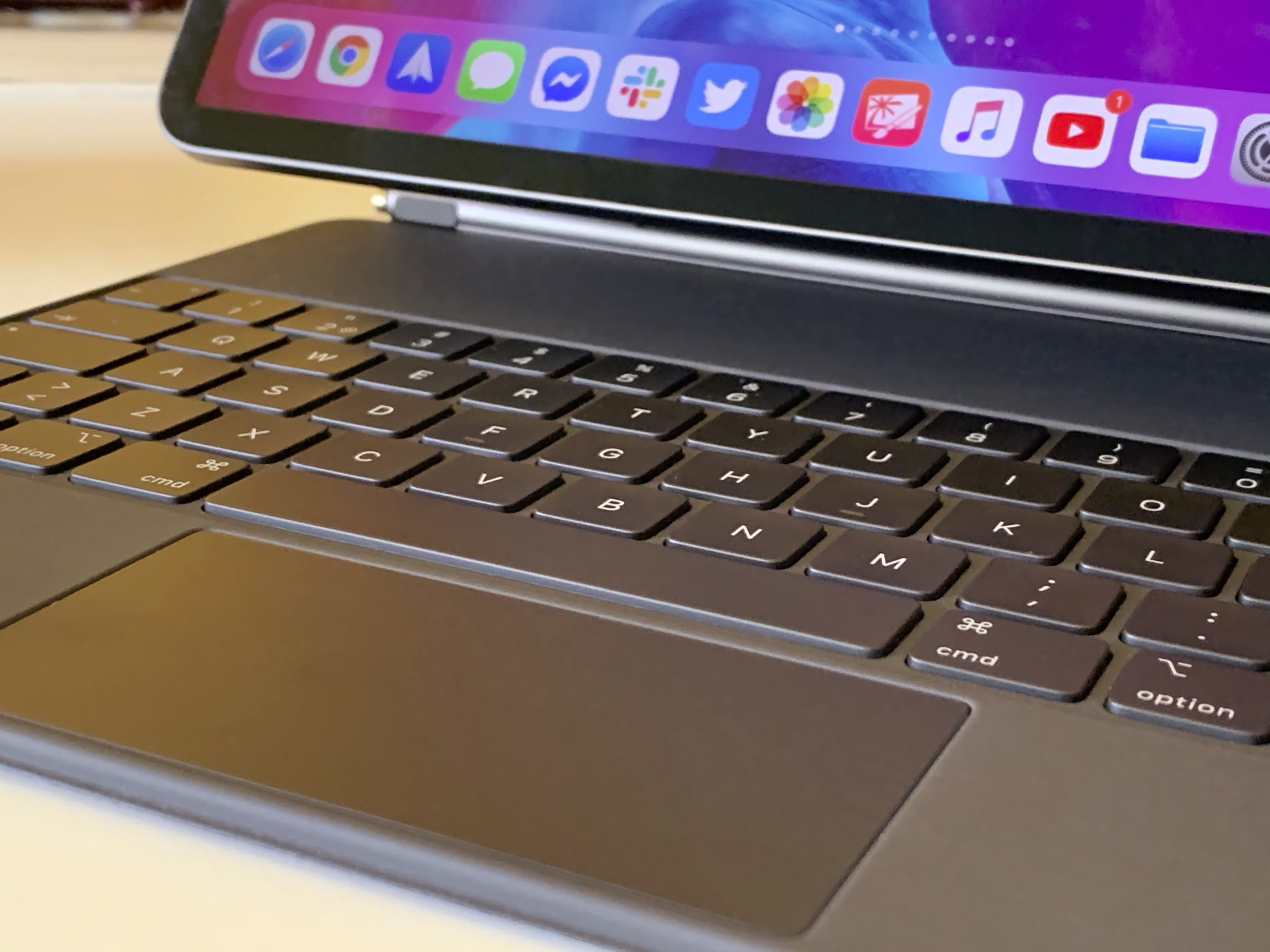
Learn how to switch off iPad trackpad inertia to have the onscreen pointer stop moving immediately after you lift your finger from the trackpad.
How to disable trackpad inertia on iPad so pointer stops moving immediately
Learn how to master your Apple devices with our comprehensive tutorials. From iPhone and iPad to Mac, Apple Watch, AirPods, and more, our expert guides will help you unlock the full potential of your Apple products. Discover new features, tips, and tricks each day to enhance your user experience.
Learn how to switch off iPad trackpad inertia to have the onscreen pointer stop moving immediately after you lift your finger from the trackpad.
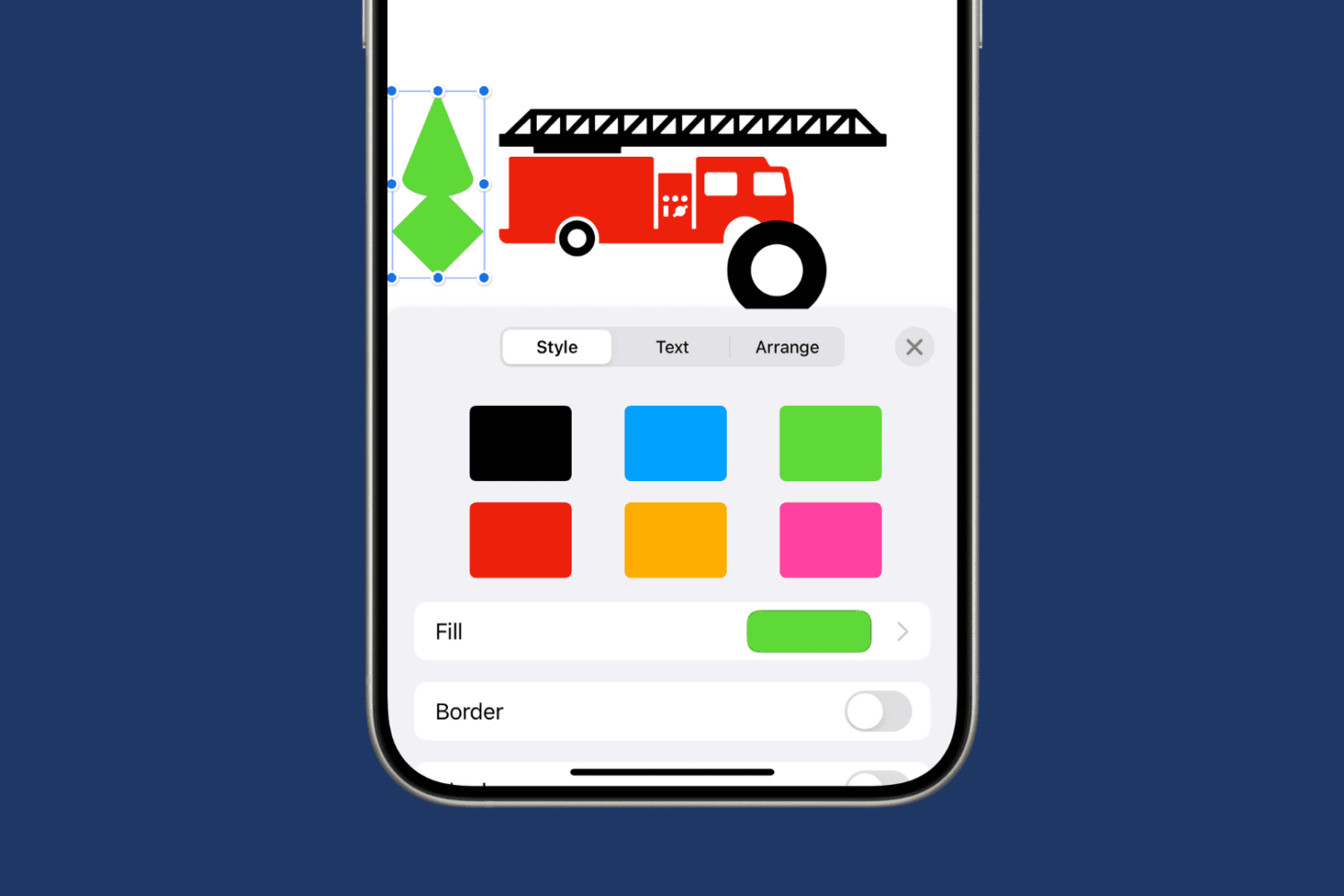
Learn how to merge multiple shapes into one or break up a complex shape into individual parts in Apple Pages, Numbers, and Keynote apps on your Mac, iPad, and iPhone.
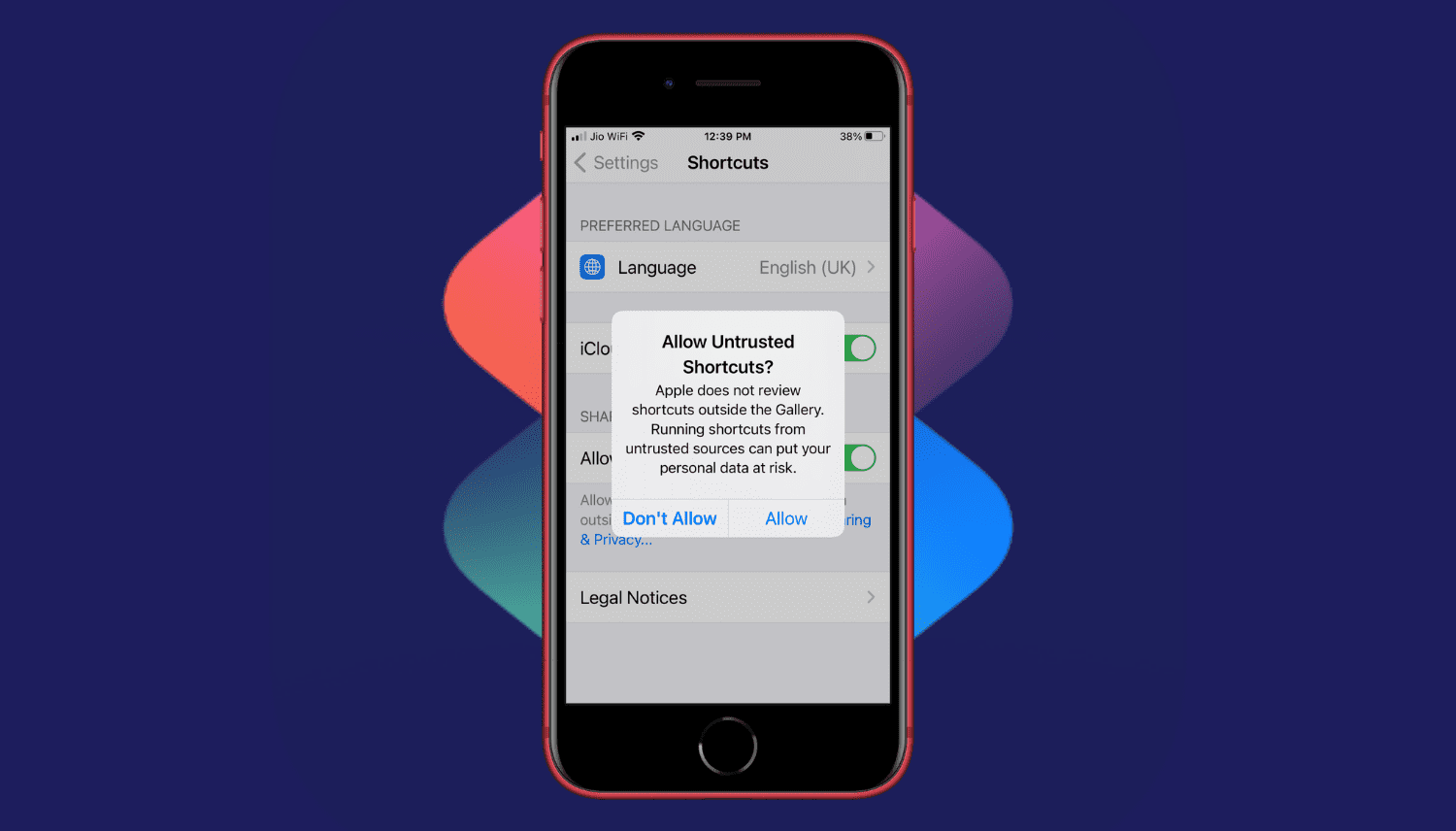
Are you trying to add a shortcut on your iPhone or iPad but can't proceed as your device is blocking unknown shortcuts? Here's how you can easily flip a switch and allow untrusted shortcuts on your iPhone. After this, you can use non-Apple curated shortcuts from elsewhere, like a website, shared via services like iMessage, received from AirDrop, and more.
Find out how to add a word to your Mac’s dictionary so it stops being tagged as misspelled and no longer shows a red dotted line underneath when you type it.
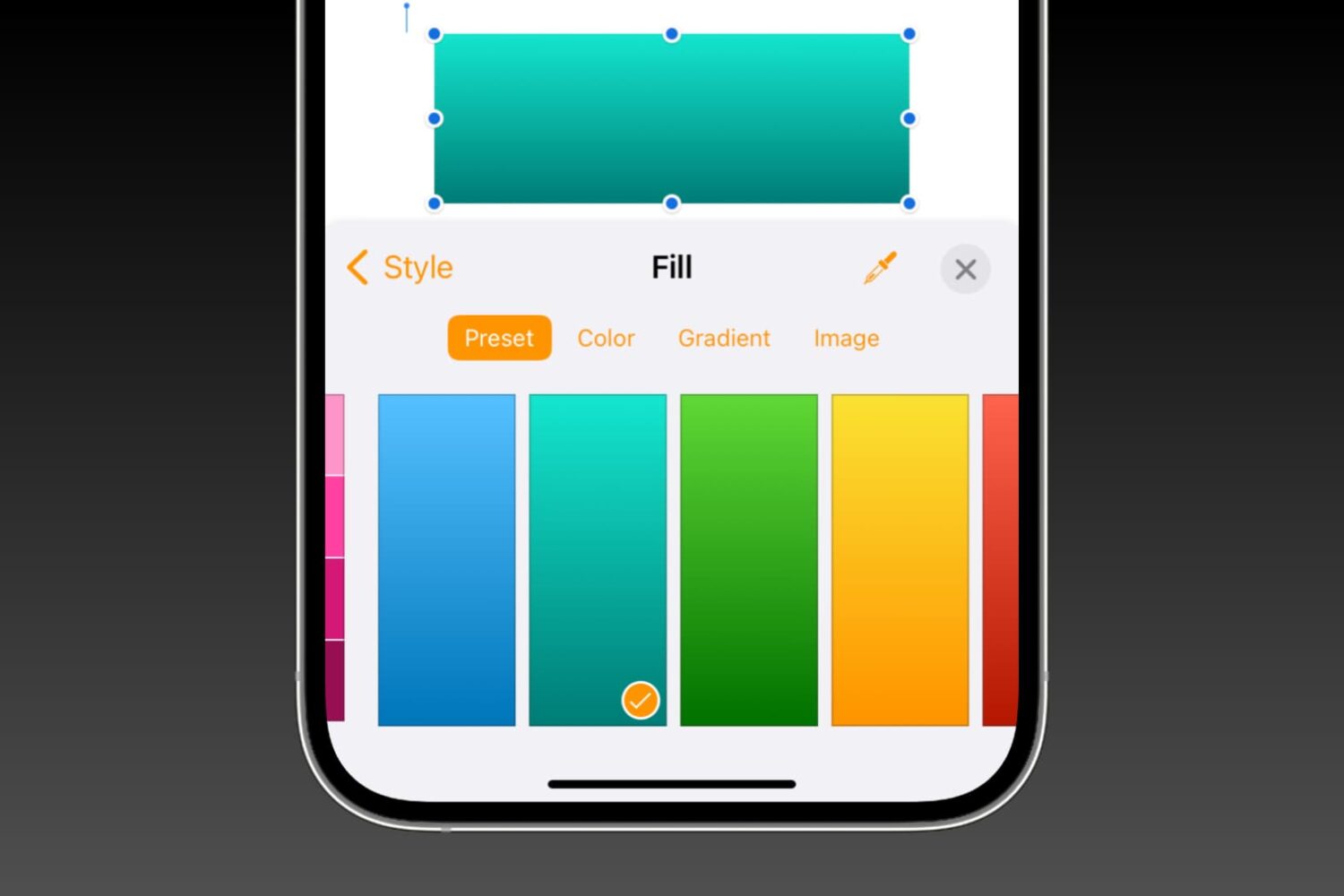
Learn how to fill shapes with specific colors, nifty gradients, or photos in the Pages, Numbers, and Keynote apps on Mac, iPhone, and iPad to make them more meaningful or beautify their appearance.

Need to change your home address in Apple Maps? This tutorial shows you how to do it on iPhone, iPad, and Mac.
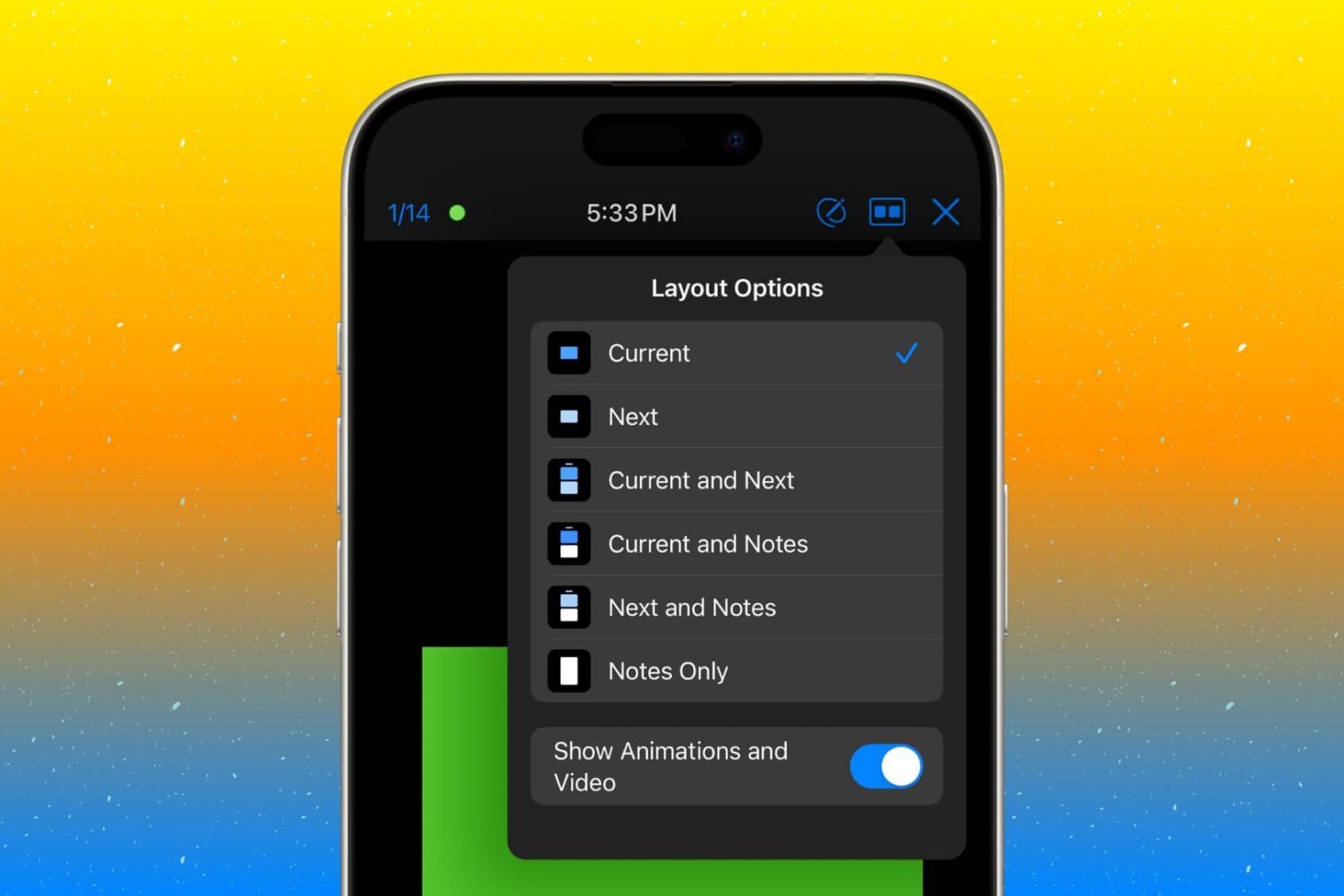
Customize the presenter display feature in the Keynote app on your Mac, iPad, and iPhone so you’re ready for your next presentation.

If your iPhone or iPad is jailbroken, then it can be easy to go overboard with installing jailbreak tweaks. While the primary purpose of most jailbreak tweaks is to make your handset better, it’s always possible for a buggy or poorly coded tweak to go rogue and cause more harm than good; sometimes rendering your entire handset momentarily inoperable.
While some panic at the aforementioned thought, especially when it happens to their own jailbroken device, it’s not always necessary to restore your device and lose your jailbreak. In fact, the unc0ver jailbreak supports a function that lets you boot into a no-tweak state tantamount to the likes of no-substrate mode so that you can safely launch Cydia and uninstall the offending tweak(s). We’ll show you how that’s done in this tutorial.
Jailbreaking can be both a fun pastime and a way of making your iPhones and iPads capable of functionality that Apple doesn’t empower them with out of the box. Unfortunately, not all jailbreak tweaks work as expected, and in some cases, buggy or poorly coded tweaks may render your device temporarily unusable.
But fear not, as you probably won’t need to restore your device and lose your jailbreak data. The checkra1n jailbreak tool incorporates a Safe Mode mechanism that can be used to boot your jailbroken iPhone or iPad into a no-substrate-like mode in which jailbreak tweaks don’t load. You will, however, be able to launch Cydia and uninstall the offending tweak(s). We’ll show you how to do that in this tutorial.
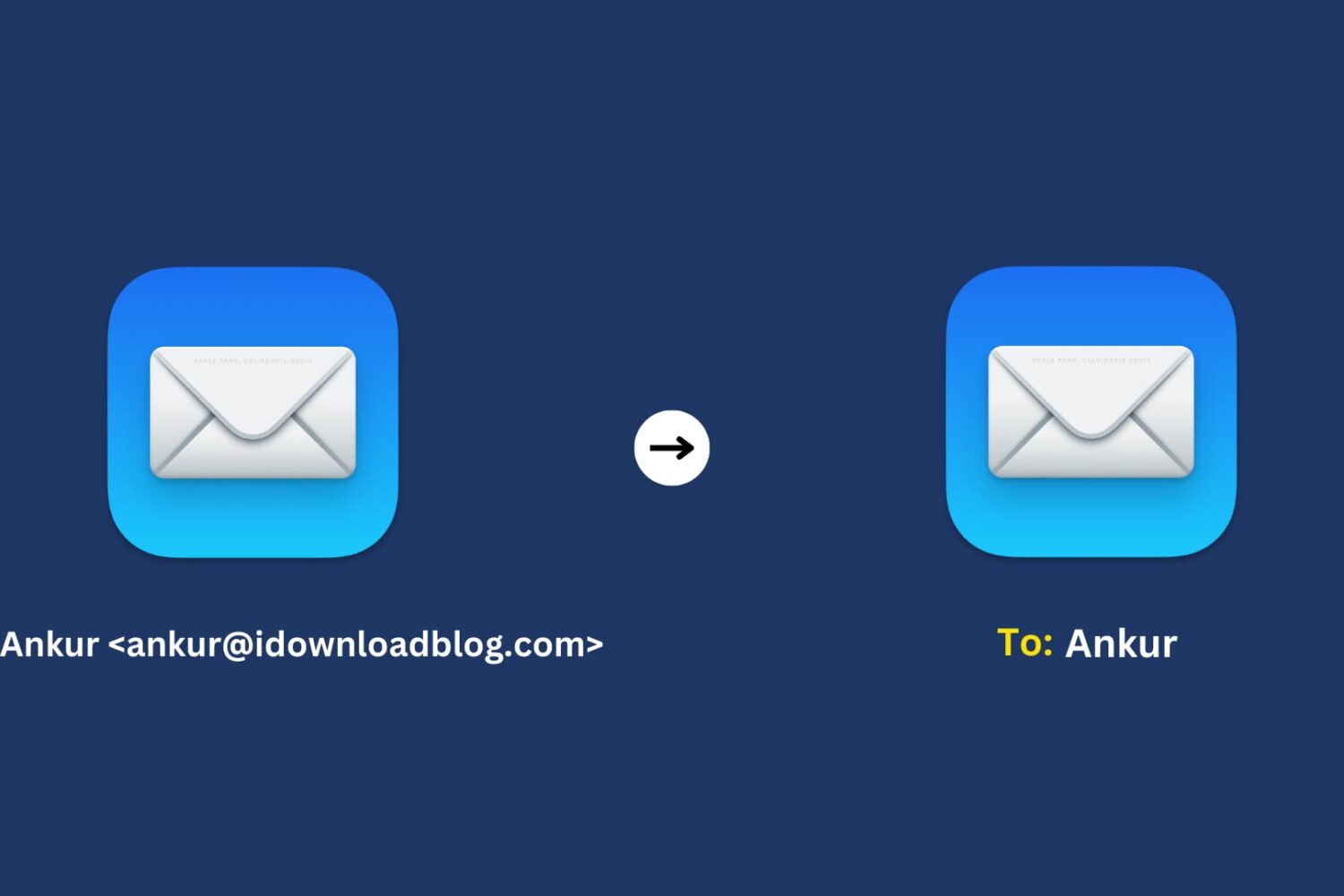
Learn how to use the Smart Address feature in the Mac Mail app to display only the recipient’s name instead of their full name and email address.
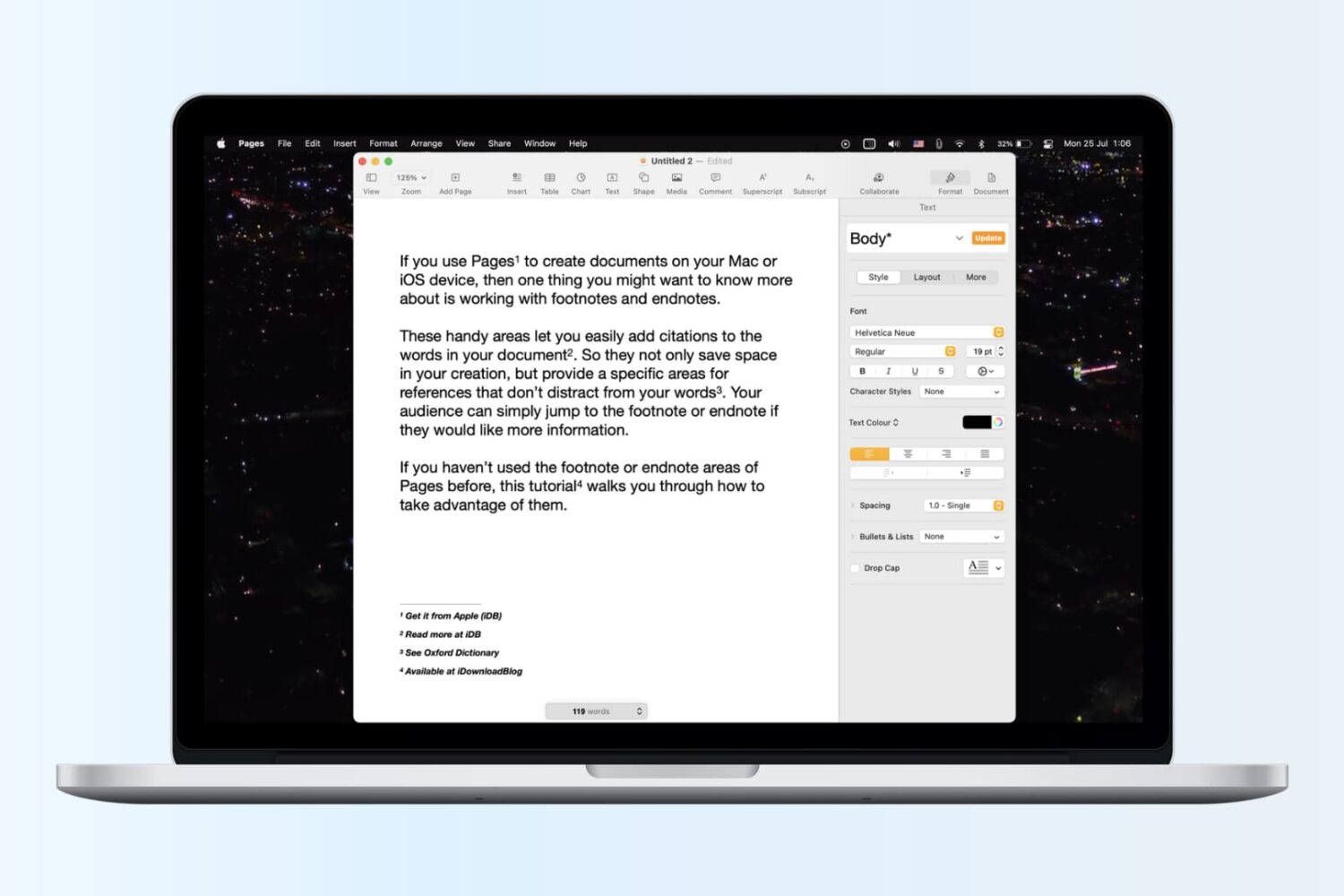
Learn how to insert footnotes and endnotes in Apple Pages documents on your Mac, iPad, or iPhone to reference or cite sources in a professional manner.

Learn how to create and use folders and subfolders in the Apple Mail app on your iPhone, iPad, and Mac to keep your emails better organized.